Embarking on your digital art journey or looking to upgrade your creative toolkit? You’ve likely come across the name XP Pen. As a graphic design professional with over 15 years in the field, I’ve seen brands come and go, but XP Pen has firmly established itself as a major player. An Xp Pen Graphic Pen Tablet is more than just a peripheral; it’s a gateway to unleashing your creativity, offering a powerful and intuitive way to draw, design, and edit. But with a growing lineup of models, choosing the right one can feel daunting. This comprehensive guide will demystify the options, helping you find the perfect digital canvas for your needs.
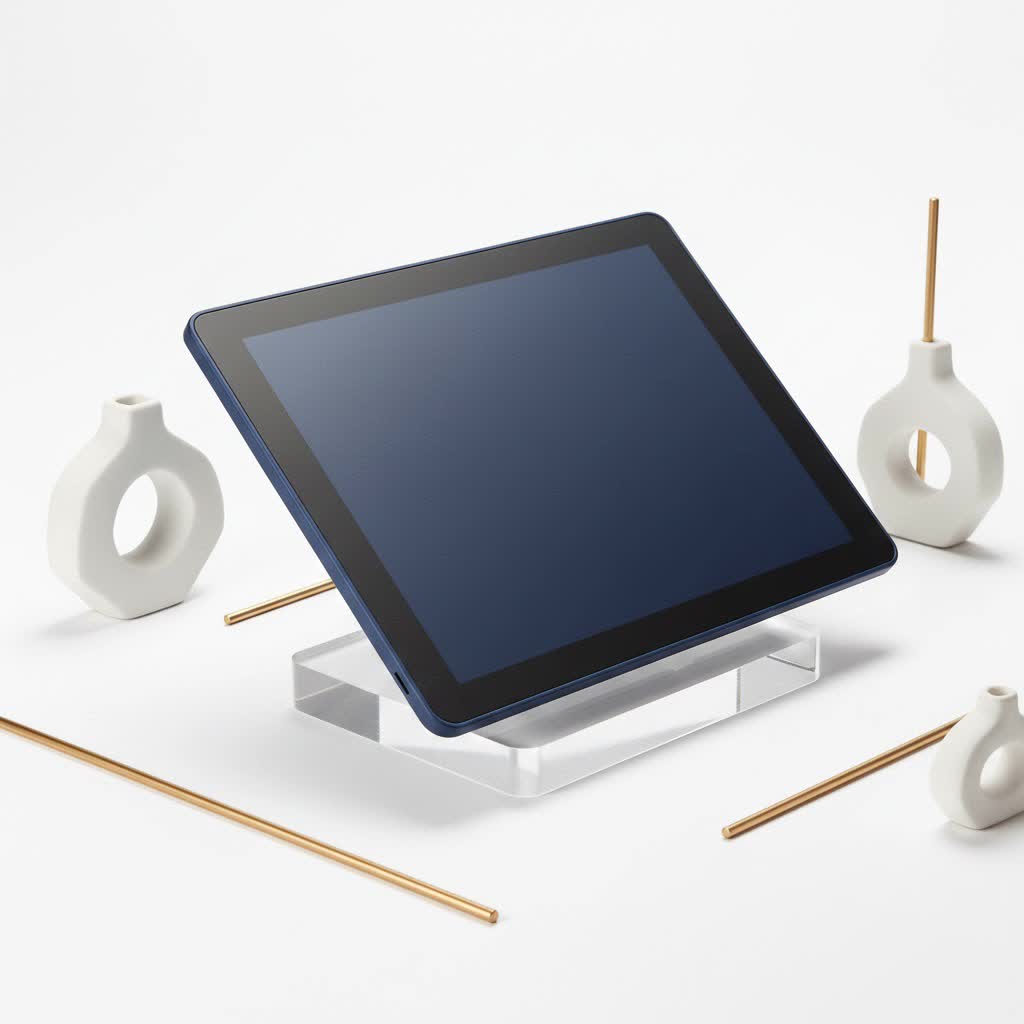
What is an XP Pen Graphic Pen Tablet?
At its core, an XP Pen graphic pen tablet is a device that translates the motion of a stylus (or pen) into digital brushstrokes on your computer screen. Think of it as a digital sheet of paper. It consists of two main parts: a flat, touch-sensitive surface where you draw, and a battery-free stylus that you hold like a traditional pen or pencil. This setup allows for a natural and ergonomic drawing experience that a standard mouse simply cannot replicate, offering precise control over lines, shapes, and colors.
These tablets connect to your Mac or PC (and often Android devices) and work seamlessly with all major creative software like Adobe Photoshop, Illustrator, Clip Studio Paint, Krita, and more. The key technology lies in pressure sensitivity; the harder you press the pen on the tablet’s surface, the thicker or more opaque your line becomes, mimicking the feel of real-world art tools.
Why Choose an XP Pen Tablet?
For years, the graphic tablet market was dominated by a single brand. XP Pen broke through by offering high-quality, feature-rich tablets at a fraction of the cost, making digital art accessible to everyone from hobbyists to seasoned professionals.
- Outstanding Value: This is XP Pen’s biggest strength. They deliver professional-grade features, like 8,192 levels of pressure sensitivity and tilt recognition, in packages that are significantly more affordable than their main competitors.
- Wide Range of Options: Whether you need a simple screen-less tablet for photo editing or a large 4K pen display for professional illustration, XP Pen has a model to fit your workflow and budget.
- Battery-Free Stylus: Say goodbye to charging anxiety. XP Pen’s styluses are passive, meaning they are powered wirelessly by the tablet itself. They are lightweight, comfortable, and always ready to go when inspiration strikes.
- Strong Compatibility: XP Pen tablets are known for their plug-and-play compatibility with Windows, macOS, and even some versions of Linux and Android. Their drivers are regularly updated to support the latest operating systems and creative software.
“In my studio, we’ve integrated several XP Pen Artist Pro displays. The color accuracy and minimal parallax have been game-changers for our workflow, and the cost savings allowed us to invest in other critical hardware. They offer truly professional performance.” – Olivia Martinez, Lead Animator
Finding Your Perfect XP Pen: Key Models Explored
Choosing the right XP Pen graphic pen tablet depends entirely on your needs, experience level, and budget. Let’s break down their most popular series.
For Beginners: The Deco Series
The Deco series is the perfect starting point. These are screen-less tablets, meaning you draw on the tablet while looking at your computer monitor. It takes a little getting used to, but it’s a skill that develops quickly.
- Key Model: XP Pen Deco 01 V2
- Who it’s for: Students, hobbyists, and anyone new to digital art.
- Why it’s great: The Deco 01 V2 offers a large 10×6.25 inch active area, which gives you plenty of room to draw. It boasts 8,192 levels of pressure sensitivity, tilt support, and eight customizable shortcut keys. For its price, the performance is simply unbeatable, making it the go-to recommendation for aspiring artists.
|
Our Picks for the Best Graphic Tablet in 2026
As an Amazon Associate I earn from qualifying purchases.
|
||
| Num | Product | Action |
|---|---|---|
| 1 | HUION KAMVAS Pro 16 Drawing Tablet with Screen, 15.6 inch Pen Display Anti-Glare Glass 6 Shortcut Keys Adjustable Stand, Graphics Tablet for Drawing, Writing, Design, Work with Windows, Mac and Linux |

|
| 2 | Drawing Tablet for Beginner Graphics OSU Tablet with Battery-Free Stylus 8192 Pressure Sensitive for Digital Art, Painting & Design, Compatible with Windows, Mac OS and Android |
|
| 3 | Wacom Intuos Pro Medium Bluetooth Professional Graphic Drawing Tablet with Pro Pen 3, Compatible with Mac, Windows - 2025 Edition |
|
| 4 | HUION Drawing Tablet HS610 Graphic Tablet with Battery-Free Stylus 8192 Pen Pressure Tilt Function, 10x6.25 Inches Digital Art for Animation & Design, Compatible with Windows/Mac/Android |
|
| 5 | GAOMON M10K Drawing Tablet, 10x6 inch Large Graphics Tablet with Touch Ring, 8192 Levels Battery-Free Stylus, 10 Hot Keys, Art Tablet for Design, Writing, Editing, Work with Mac, Windows, Android |
|
| 6 | Graphics Drawing Tablet, UGEE M708 10 x 6 inch Large Drawing Tablet with 8 Hot Keys, Passive Stylus of 16384 Levels Pressure, UGEE M708 Graphics Tablet for Paint, Design, Art Creation Sketch |
|
| 7 | HUION Inspiroy H1060P Graphics Drawing Tablet with 8192 Pressure Sensitivity Battery-Free Stylus and 12 Customized Hot Keys, 10 x 6.25 inches Digital Art Tablet for Mac, Windows PC and Android |
|
| 8 | XOPPOX Graphics Drawing Tablet 10 x 6 Inch Large Active Area with 8192 Levels Battery-Free Pen and 12 Hot Keys, Compatible with PC/Mac/Android OS for Painting, Design & Online Teaching Black |
|
| 9 | HUION Kamvas 13 (Gen 3) Drawing Tablet with Screen,13.3\" Full-Laminated Art Tablet with Anti-Sparkle Canvas Glass 2.0, 99% sRGB, PenTech 4.0, 16384 Pen Pressure, Dual Dial for PC, Mac, Android, Black |
|
| 10 | HUION Inspiroy H640P Drawing Tablet, 6x4 inch Digital Art with Battery-Free Stylus, 8192 Pen Pressure, 6 Hot Keys, Graphics Tablet for Drawing, Writing, Design, Teaching, Work with Mac, PC & Mobile |
|
For Intermediate Users: The Artist Series
The Artist series introduces a screen directly onto the tablet, known as a pen display. This allows you to draw directly on your artwork, creating a more intuitive and immersive experience, much like drawing on paper.
- Key Model: XP Pen Artist 12 (2nd Gen)
- Who it’s for: Artists who are ready to upgrade from a screen-less tablet or serious hobbyists wanting a more direct drawing experience.
- Why it’s great: The Artist 12 (2nd Gen) features a vibrant, laminated 11.9-inch display which significantly reduces parallax (the gap between the pen tip and the cursor). It comes with the advanced X3 Smart Chip stylus for a more stable and sensitive response. It’s compact, powerful, and comes in multiple colors.
For Professionals: The Artist Pro Series
The Artist Pro series is XP Pen’s flagship lineup, designed for professional artists, designers, and studios who demand the best in performance, color accuracy, and build quality.
- Key Model: XP Pen Artist Pro 16
- Who it’s for: Professional illustrators, concept artists, 3D modelers, and graphic designers.
- Why it’s great: This model features a stunning 15.4-inch display with 99% Adobe RGB color gamut coverage, ensuring your colors are rich and accurate. It also uses the X3 Elite Plus stylus and has a sleek, premium metal body. The innovative dual-dial and shortcut key layout makes navigating complex software a breeze, genuinely speeding up your workflow.
How to Set Up Your XP Pen Graphic Pen Tablet
Getting started with your XP Pen tablet is straightforward. Follow these simple steps to ensure a smooth setup.
- Do Not Connect The Tablet Yet: First, go to XP Pen’s official website and navigate to the support/download section.
- Download the Correct Driver: Find your specific tablet model from the list and download the latest driver for your operating system (Windows or macOS).
- Install the Driver: Run the installer and follow the on-screen instructions. It’s crucial to uninstall any other tablet drivers you may have to prevent conflicts.
- Restart Your Computer: After the installation is complete, restart your computer. This is a vital step for the driver to initialize correctly.
- Connect Your Tablet: Now, connect the tablet to your computer using the provided cables. Your computer should recognize the device.
- Configure Your Settings: Open the PenTablet settings application. Here you can customize everything from pen pressure curves and button assignments to the functions of the tablet’s express keys. Tailor it to your specific workflow for maximum efficiency.
Frequently Asked Questions (FAQ)
What software is compatible with an XP Pen tablet?
An XP Pen tablet works with virtually all major creative software. This includes Adobe Photoshop, Illustrator, Lightroom, Corel Painter, Clip Studio Paint, Krita, ZBrush, Blender, and many more on both Windows and macOS.
Do I really need a tablet with a screen?
Not necessarily. A screen-less tablet like the Deco 01 V2 is a fantastic and affordable way to learn digital art. Pen displays (like the Artist series) offer a more intuitive experience but come at a higher cost. Many professionals still prefer screen-less tablets for their ergonomic benefits and for keeping their focus on their primary, color-calibrated monitor.
How long does the XP Pen stylus last?
Since XP Pen styluses are battery-free, they don’t have a limited lifespan due to battery degradation. The only part that wears out over time is the plastic nib (the tip). Every tablet comes with multiple replacement nibs, and a single nib can last for months or even years depending on your usage.
Is an XP Pen graphic pen tablet good for professional work?
Absolutely. The Artist Pro series, in particular, is built for professional use, offering high-resolution displays, exceptional color accuracy, and reliable performance that can handle the demands of a commercial studio environment.
Can I use my XP Pen tablet for things other than drawing?
Yes! It’s an excellent tool for photo editing and retouching, offering precision that a mouse can’t match. It’s also great for online teaching or whiteboarding during presentations, signing digital documents, and even as an ergonomic replacement for your standard mouse.
Your Creative Journey Starts Here
Choosing the right XP Pen graphic pen tablet is a significant first step into the vibrant world of digital creation or a cost-effective upgrade for your professional toolkit. By balancing affordability with powerful features and a wide variety of models, XP Pen has proven that you don’t need to break the bank to get professional-quality tools. Whether you choose the accessible Deco, the immersive Artist, or the powerhouse Artist Pro, you’re investing in a device that will grow with you. So, assess your needs, pick your model, and get ready to bring your imagination to life.
