The X-Pen graphic tablet offers exceptional value and performance for digital artists, providing advanced features like 16,384 levels of pressure sensitivity and battery-free styluses at a fraction of the cost of premium competitors. This brand has established itself as a powerful contender in the digital art world, catering to both beginners and seasoned professionals with its diverse product lines, including the screen-less Deco series and the direct-draw Artist series.
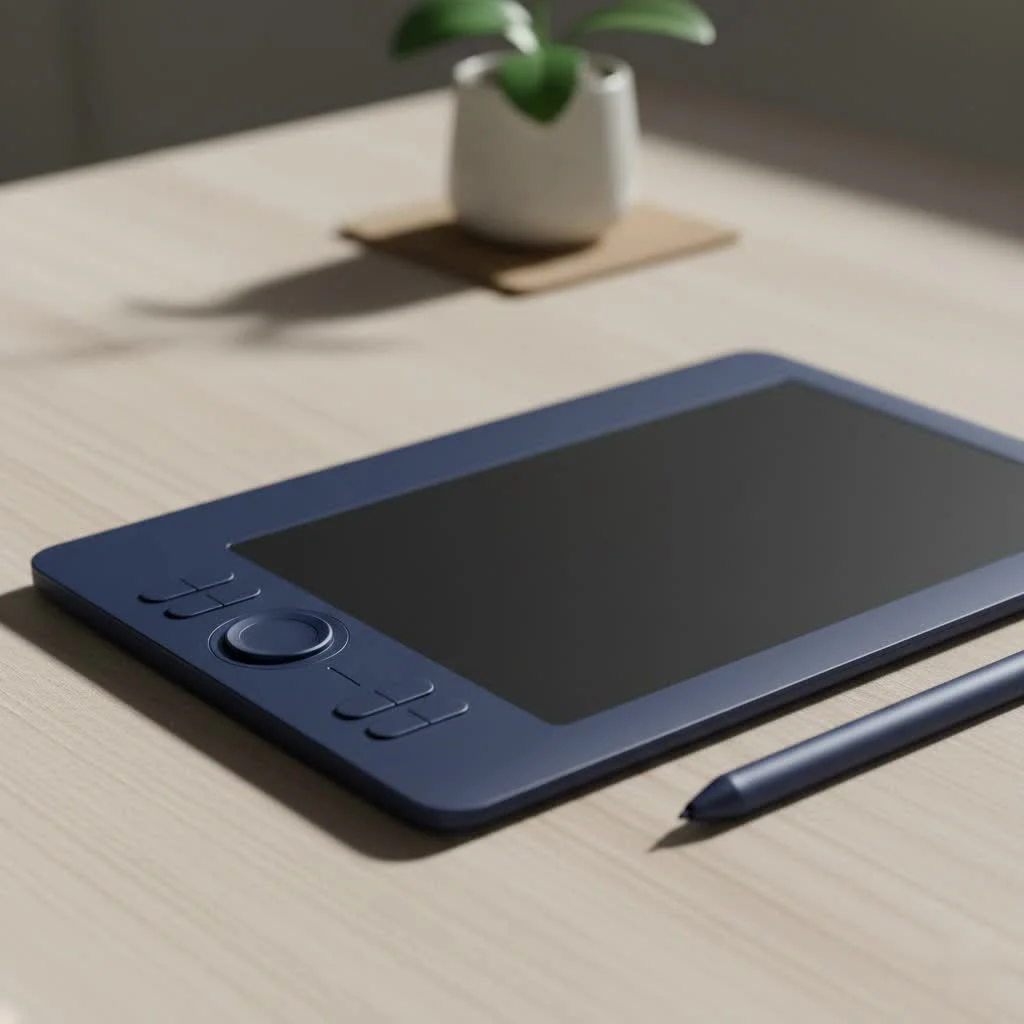
As someone who has spent over a decade working with various digital art tools, I’ve seen brands come and go. X-Pen, however, has consistently impressed me with its commitment to closing the gap between high-end features and affordability. They’ve successfully challenged the notion that you need to spend a fortune to get a professional-grade experience. For explore our reviews reviews on this site.
Why Choose an X-Pen Graphic Tablet?
When artists and designers consider a new tablet, they often weigh performance against cost. This is where X-Pen truly shines. The brand has built a stellar reputation by focusing on a few key areas that resonate with the creative community.
Unbeatable Value for Money
The most significant advantage of choosing an X-Pen graphic tablet is the exceptional value. They offer features that were once exclusive to premium-priced competitors, such as high levels of pressure sensitivity, tilt recognition, and battery-free styluses, all at a fraction of the cost. This makes digital art more accessible to students, hobbyists, and professionals on a budget.
A Wide Range of Options for All Skill Levels
X-Pen doesn’t believe in a one-size-fits-all approach. Their product lines are thoughtfully segmented to cater to different needs:
- Deco Series: These are screen-less pen tablets, perfect for beginners or artists who prefer the disconnected hand-eye coordination of traditional graphic tablets. They are affordable, durable, and incredibly responsive.
- Artist Series: This lineup features pen displays, where you draw directly on the screen. It provides a more intuitive experience, akin to drawing on paper. The Artist series offers various sizes and resolutions, making it a favorite among intermediate and professional artists.
- Innovator Series: Aimed at professionals, this series boasts sleek designs, superior color accuracy, and premium build quality for those who demand the best from their equipment.
Impressive Pen Technology and Performance
At the heart of any graphic tablet is its stylus. X-Pen’s latest pens, featuring their advanced X3 smart chip technology, are a major upgrade. They offer an incredibly low initial activation force, meaning the pen registers the lightest touch. This, combined with up to 16,384 levels of pressure sensitivity and 60 degrees of tilt support, provides a fluid, natural, and lag-free drawing experience that feels remarkably like using a traditional pencil or brush.
Navigating the X-Pen Lineup: Deco vs. Artist
Choosing between X-Pen’s main product lines can be tough, but it boils down to your workflow and budget.
The Deco Series: Your Perfect Starting Point
|
Our Picks for the Best Graphic Tablet in 2026
As an Amazon Associate I earn from qualifying purchases.
|
||
| Num | Product | Action |
|---|---|---|
| 1 | XOPPOX Graphics Drawing Tablet 10 x 6 Inch Large Active Area with 8192 Levels Battery-Free Pen and 12 Hot Keys, Compatible with PC/Mac/Android OS for Painting, Design & Online Teaching Black |

|
| 2 | Graphics Drawing Tablet, UGEE M708 10 x 6 inch Large Drawing Tablet with 8 Hot Keys, Passive Stylus of 16384 Levels Pressure, UGEE M708 Graphics Tablet for Paint, Design, Art Creation Sketch |
|
| 3 | HUION KAMVAS Pro 16 Drawing Tablet with Screen, 15.6 inch Pen Display Anti-Glare Glass 6 Shortcut Keys Adjustable Stand, Graphics Tablet for Drawing, Writing, Design, Work with Windows, Mac and Linux |
|
| 4 | HUION Drawing Tablet HS610 Graphic Tablet with Battery-Free Stylus 8192 Pen Pressure Tilt Function, 10x6.25 Inches Digital Art for Animation & Design, Compatible with Windows/Mac/Android |
|
| 5 | GAOMON M10K Drawing Tablet, 10x6 inch Large Graphics Tablet with Touch Ring, 8192 Levels Battery-Free Stylus, 10 Hot Keys, Art Tablet for Design, Writing, Editing, Work with Mac, Windows, Android |
|
| 6 | Wacom Intuos Pro Medium Bluetooth Professional Graphic Drawing Tablet with Pro Pen 3, Compatible with Mac, Windows - 2025 Edition |
|
| 7 | HUION Kamvas 13 (Gen 3) Drawing Tablet with Screen,13.3\" Full-Laminated Art Tablet with Anti-Sparkle Canvas Glass 2.0, 99% sRGB, PenTech 4.0, 16384 Pen Pressure, Dual Dial for PC, Mac, Android, Black |
|
| 8 | Drawing Tablet for Beginner Graphics OSU Tablet with Battery-Free Stylus 8192 Pressure Sensitive for Digital Art, Painting & Design, Compatible with Windows, Mac OS and Android |
|
| 9 | HUION Inspiroy H1060P Graphics Drawing Tablet with 8192 Pressure Sensitivity Battery-Free Stylus and 12 Customized Hot Keys, 10 x 6.25 inches Digital Art Tablet for Mac, Windows PC and Android |
|
| 10 | HUION Inspiroy H640P Drawing Tablet, 6x4 inch Digital Art with Battery-Free Stylus, 8192 Pen Pressure, 6 Hot Keys, Graphics Tablet for Drawing, Writing, Design, Teaching, Work with Mac, PC & Mobile |
|
The X-Pen Deco series, like the popular Deco 01 V2, is the workhorse for many artists. These tablets are screen-less, meaning you draw on the tablet’s surface while looking at your computer monitor. While this takes some getting used to, it’s a powerful and ergonomic way to work.
“I often recommend the Deco series to my students,” says professional illustrator Alex Chen. “It’s a low-risk investment that provides all the core functionality they need to learn the fundamentals of digital art. The build quality is solid, and the performance is reliable for everything from sketching to detailed illustration.”
Deco tablets are celebrated for their large active areas, customizable shortcut keys, and wireless Bluetooth options, like in the Deco MW model, offering a clean, cable-free workspace.
The Artist Series: Drawing Directly on Your Canvas
For those who crave a more direct connection to their work, the X-Pen Artist series is the answer. Models like the Artist 15.6 Pro and the newer Artist Pro 16 (Gen 2) feature vibrant, full-laminated IPS displays. Full lamination reduces parallax—the gap between the pen tip and the cursor—to virtually zero, ensuring pinpoint accuracy.
With high-resolution screens (often QHD or higher) and wide color gamuts covering over 90% of Adobe RGB, these displays show your work in stunning, accurate color. Drawing on an Artist tablet feels intuitive and immersive, making it the preferred choice for many digital painters, animators, and designers.
How to Choose the Right X-Pen Graphic Tablet
With so many excellent choices, picking the right one depends on your personal needs. Ask yourself these questions:
- What is my primary use case? Are you doing professional graphic design, photo editing, 3D sculpting, or just digital sketching? For intensive color work, a pen display from the Artist series is ideal. For sketching or line art, a Deco tablet might be all you need.
- What is my budget? X-Pen offers a fantastic range of prices. A Deco tablet can be acquired for under $100, while a professional-grade Artist Pro display can range from a few hundred to over a thousand dollars. Set a budget and find the best model within it.
- Do I need portability? If you work on the go, consider a smaller Deco model or the standalone X-Pen Magic Drawing Pad. The Magic Drawing Pad is an Android tablet specifically designed for artists, offering a complete, portable studio experience without needing to be connected to a computer.
Getting Started with Your Tablet
Setting up an X-Pen graphic tablet is straightforward. The process generally involves:
- Connecting the hardware: Plug the tablet into your computer using the supplied cables (USB-C is standard on newer models). Pen displays may require an additional HDMI connection and a power source.
- Installing the driver: Download the latest driver from the official X-Pen website. This is a crucial step, as the driver allows you to customize pressure sensitivity, configure shortcut keys, and map the drawing area.
- Configuring your software: Open your favorite art software, like Photoshop, Clip Studio Paint, or Krita. In the brush settings, ensure that pressure sensitivity is enabled to take full advantage of your new tablet.
Frequently Asked Questions (FAQ)
Q: Are X-Pen tablets compatible with Mac and Windows?
A: Yes, all X-Pen graphic tablets are fully compatible with the latest versions of both Windows and macOS. Many also offer support for Linux, Chrome OS, and even Android devices.
Q: Do I need a screen protector for my X-Pen display tablet?
A: Most X-Pen Artist series tablets come with a pre-applied, anti-glare matte screen protector. This film not only reduces reflections but also provides a satisfying, paper-like texture to draw on. It’s replaceable if it wears out over time.
Q: How does X-Pen compare to Wacom?
A: Wacom has long been the industry standard, but X-Pen offers highly competitive products at a much more accessible price point. In recent years, the performance gap has narrowed significantly, with many professional artists now using X-Pen as their primary tool. The choice often comes down to budget and brand preference.
Q: What is a battery-free stylus?
A: X-Pen uses EMR (Electro-Magnetic Resonance) technology for its pens. The tablet itself powers the pen through a magnetic field, so it requires no batteries and never needs to be charged, ensuring it’s always ready when inspiration strikes.
Q: Can I use an X-Pen tablet for things other than drawing?
A: Absolutely! A graphic tablet is an excellent ergonomic alternative to a mouse for all computer tasks. It can be used for navigating your desktop, photo editing, online whiteboarding, playing rhythm games like OSU!, and even for taking digital notes.
Your Creative Journey Awaits
The X-Pen graphic tablet has democratized the world of digital creation, proving that you don’t need to break the bank to access professional-level tools. With their focus on performance, variety, and value, X-Pen has created a lineup that empowers artists of all levels to bring their visions to life. Whether you choose the simplicity of a Deco tablet or the immersive experience of an Artist display, you are investing in a quality tool that will serve you well for years to come.
Frequently Asked Questions
Are X-Pen tablets compatible with Mac and Windows operating systems?
Yes, all X-Pen graphic tablets are fully compatible with the latest versions of both Windows and macOS. Many models also extend support to Linux, Chrome OS, and Android devices, offering broad compatibility for various users.
Do X-Pen display tablets require a separate screen protector?
Most X-Pen Artist series tablets come with a pre-applied, anti-glare matte screen protector. This film not only reduces reflections for better viewing but also provides a paper-like texture for a more natural drawing experience. It can be replaced if it wears out over time.
How do X-Pen tablets compare to Wacom tablets in terms of performance and price?
Wacom has traditionally been the industry standard, but X-Pen offers highly competitive products at a significantly more accessible price point. The performance gap has narrowed considerably in recent years, with many professional artists now choosing X-Pen as their primary tool due to its value and advanced features like 16,384 levels of pressure sensitivity.
What is a battery-free stylus and how does X-Pen utilize this technology?
A battery-free stylus, used by X-Pen, operates on EMR (Electro-Magnetic Resonance) technology. The tablet itself powers the pen through a magnetic field, eliminating the need for batteries or charging. This ensures the pen is always ready for use, providing uninterrupted creative flow.
Can an X-Pen tablet be used for tasks other than digital drawing?
Absolutely, an X-Pen graphic tablet serves as an excellent ergonomic alternative to a traditional mouse for various computer tasks. It can be used for navigating your desktop, precise photo editing, online whiteboarding, playing rhythm games like OSU!, and even for taking digital notes efficiently.
How to Choose the Right X-Pen Graphic Tablet
Selecting the ideal X-Pen graphic tablet depends on your specific artistic needs, budget, and portability requirements. Consider your primary use case, how much you're willing to spend, and if you need to work on the go.
Identify what you will primarily use the tablet for. For professional graphic design or intensive color work, an Artist series pen display is ideal. For sketching or line art, a more affordable Deco tablet might suffice.
Establish a budget before you start looking. X-Pen offers a wide price range; a Deco tablet can be under $100, while a professional Artist Pro display can cost over a thousand dollars. Find the best model that fits within your financial limits.
Consider if you need to work on the go. If portability is crucial, a smaller Deco model or the standalone X-Pen Magic Drawing Pad, an Android tablet designed for artists, offers a complete portable studio experience without needing a computer connection.
Get our weekly buyer guide
Practical specs, not advice. Unsubscribe anytime.

I picked up an X-Pen Deco series tablet after reading about its value, and I’m pretty happy with it. The battery-free stylus is a major plus, no more scrambling for batteries mid-project! My only minor gripe is that getting used to the screen-less drawing took a little longer than I expected, but now I’m flying.
I’ve been using the X-Pen Artist series for a few months now, and it’s truly a game-changer. The direct-draw experience is incredibly fluid, and the 16,384 levels of pressure sensitivity make a huge difference in my line work. It really does offer professional-grade features without the hefty price tag, which is perfect for my freelance budget.
The X-Pen tablet I got is decent for the price, especially considering the advanced features mentioned. I appreciate that it’s a powerful contender in the digital art world for beginners. However, I’ve noticed a slight lag when working on really large canvases in certain software, which can be a bit frustrating for detailed work. It’s not a deal-breaker, but something to be aware of.
As a seasoned professional, I was skeptical that an X-Pen could truly compete with more premium competitors, but I was wrong. The commitment to closing the gap between high-end features and affordability is evident. My new X-Pen has seamlessly integrated into my workflow, proving you don’t need to spend a fortune for quality.