Choosing the right tablet for graphic drawing involves evaluating key features like pressure sensitivity, resolution, and active drawing area, alongside considering the three main types: pen tablets (non-screen), pen displays (with screen), and standalone drawing tablets. For instance, professional artists often prioritize pen displays with 8,192 levels of pressure sensitivity and 5,080 LPI resolution, while beginners might opt for more affordable pen tablets. This guide, informed by over 15 years of graphic design experience, aims to simplify the selection process for both novices and seasoned professionals.
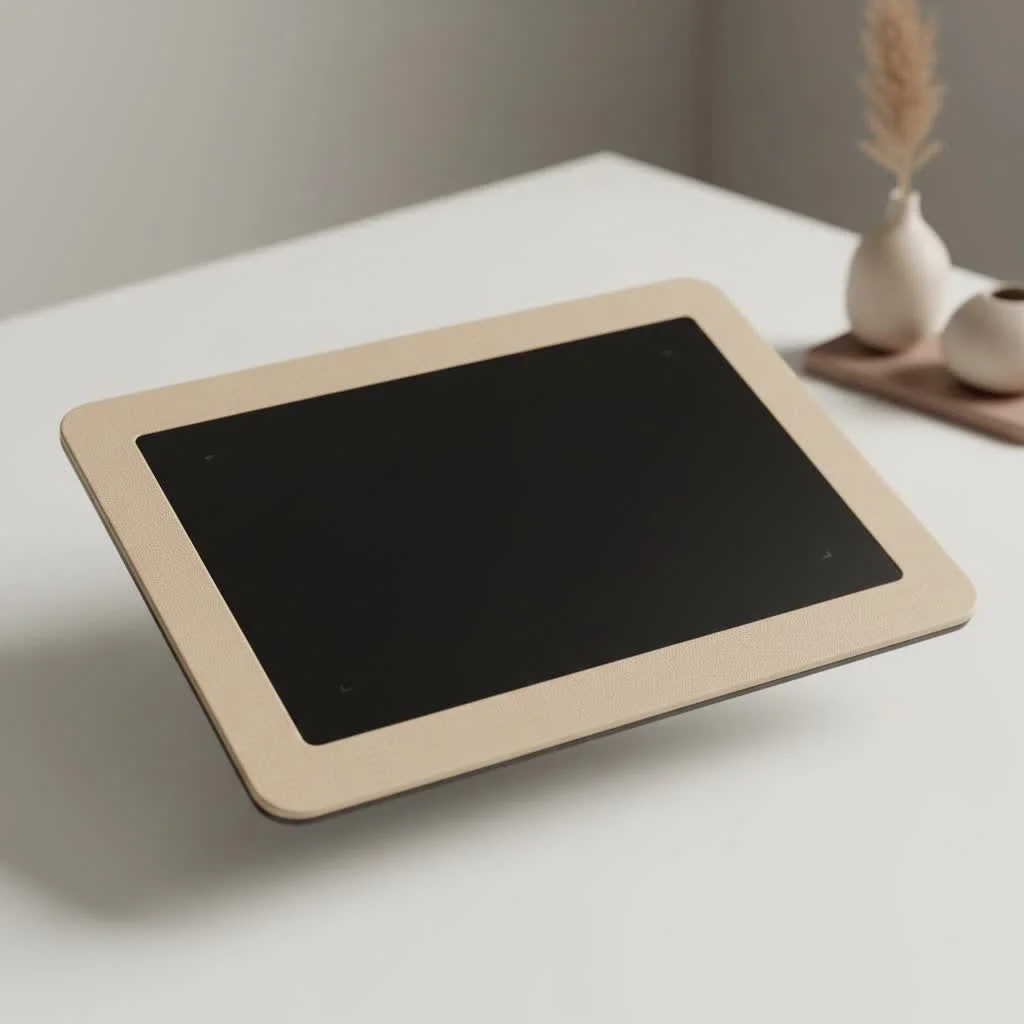
This comprehensive guide will break down the essential features to look for, compare the different types of tablets available, and help you make an informed decision that aligns with your artistic goals and budget. Let’s plug in and get started. For browse all reviews articles on this site.
What Exactly is a Tablet for Graphic Drawing?
A tablet for graphic drawing is a specialized input device that allows you to draw directly onto a computer or its own screen with a stylus, mimicking the natural feel of pen on paper. Unlike a mouse, which offers limited control, a drawing tablet captures the nuance of your hand movements, including pressure and tilt, giving you fluid, precise control over your brush strokes. This makes it an indispensable tool for illustrators, photographers, 3D modelers, and graphic designers.
The Main Types of Drawing Tablets
Your first major decision is choosing the type of tablet. Each has its own unique workflow and price point, catering to different needs.
1. Pen Tablets (Non-Screen)
These are the most common and affordable entry point. A pen tablet is a simple slate-like surface that you draw on while looking at your computer monitor. The tablet maps its surface area to your screen. There’s a slight hand-eye coordination learning curve, but once you master it, they are incredibly powerful and efficient.
- Best for: Beginners, budget-conscious artists, and those who need a portable, durable setup.
- Pros: Affordable, durable, excellent portability.
- Cons: Requires getting used to the disconnected drawing experience.
2. Pen Displays (With Screen)
Pen displays, as the name suggests, have a built-in screen that you draw directly on. This eliminates the hand-eye coordination challenge of pen tablets, offering a more intuitive and direct drawing experience that closely resembles traditional art. They are a significant step up in price but are often considered the standard for professional work.
- Best for: Intermediate to professional artists who want a seamless, natural drawing process.
- Pros: Intuitive workflow, direct visual feedback.
- Cons: More expensive, less portable, and often require connection to a powerful computer.
3. Standalone Drawing Tablets
|
Our Picks for the Best Graphic Tablet in 2026
As an Amazon Associate I earn from qualifying purchases.
|
||
| Num | Product | Action |
|---|---|---|
| 1 | HUION Inspiroy H640P Drawing Tablet, 6x4 inch Digital Art with Battery-Free Stylus, 8192 Pen Pressure, 6 Hot Keys, Graphics Tablet for Drawing, Writing, Design, Teaching, Work with Mac, PC & Mobile |

|
| 2 | XOPPOX Graphics Drawing Tablet 10 x 6 Inch Large Active Area with 8192 Levels Battery-Free Pen and 12 Hot Keys, Compatible with PC/Mac/Android OS for Painting, Design & Online Teaching Black |
|
| 3 | Drawing Tablet for Beginner Graphics OSU Tablet with Battery-Free Stylus 8192 Pressure Sensitive for Digital Art, Painting & Design, Compatible with Windows, Mac OS and Android |
|
| 4 | Graphics Drawing Tablet, UGEE M708 10 x 6 inch Large Drawing Tablet with 8 Hot Keys, Passive Stylus of 16384 Levels Pressure, UGEE M708 Graphics Tablet for Paint, Design, Art Creation Sketch |
|
| 5 | HUION Kamvas 13 (Gen 3) Drawing Tablet with Screen,13.3\" Full-Laminated Art Tablet with Anti-Sparkle Canvas Glass 2.0, 99% sRGB, PenTech 4.0, 16384 Pen Pressure, Dual Dial for PC, Mac, Android, Black |
|
| 6 | Wacom Intuos Pro Medium Bluetooth Professional Graphic Drawing Tablet with Pro Pen 3, Compatible with Mac, Windows - 2025 Edition |
|
| 7 | HUION KAMVAS Pro 16 Drawing Tablet with Screen, 15.6 inch Pen Display Anti-Glare Glass 6 Shortcut Keys Adjustable Stand, Graphics Tablet for Drawing, Writing, Design, Work with Windows, Mac and Linux |
|
| 8 | GAOMON M10K Drawing Tablet, 10x6 inch Large Graphics Tablet with Touch Ring, 8192 Levels Battery-Free Stylus, 10 Hot Keys, Art Tablet for Design, Writing, Editing, Work with Mac, Windows, Android |
|
| 9 | HUION Inspiroy H1060P Graphics Drawing Tablet with 8192 Pressure Sensitivity Battery-Free Stylus and 12 Customized Hot Keys, 10 x 6.25 inches Digital Art Tablet for Mac, Windows PC and Android |
|
| 10 | HUION Drawing Tablet HS610 Graphic Tablet with Battery-Free Stylus 8192 Pen Pressure Tilt Function, 10x6.25 Inches Digital Art for Animation & Design, Compatible with Windows/Mac/Android |
|
These are all-in-one solutions that combine a powerful computer and a high-quality pen display into a single, portable device. Think of the iPad Pro with an Apple Pencil or the Microsoft Surface Pro. They offer the ultimate freedom, allowing you to create anywhere without being tethered to a desk. However, this convenience comes at the highest price point.
- Best for: Artists who prioritize mobility and need a complete, self-contained creative studio.
- Pros: Ultimate portability, all-in-one convenience.
- Cons: The most expensive option, may have software limitations compared to a full desktop setup.
How to Choose the Right Tablet for Graphic Drawing
Now that you know the types, let’s dive into the technical specifications. These details are what separate a good tablet from a great one.
Pressure Sensitivity
This is perhaps the most critical feature. Pressure sensitivity determines how the tablet interprets the force you apply with the stylus. Higher levels allow you to create varying line weights and opacities with greater nuance—press lightly for a thin, faint line and harder for a thick, bold one.
- Entry-level: 2,048 levels
- Professional Standard: 8,192 levels
For most artists, anything above 4,096 levels provides excellent control, but 8,192 has become the industry benchmark for professional-grade devices.
Resolution (LPI)
Tablet resolution is measured in Lines Per Inch (LPI). It refers to how many digital lines can fit into one inch of the tablet’s active area. A higher LPI means the tablet can recognize more detail from your stylus, resulting in smoother, more precise lines and curves. Look for a tablet with at least 2,540 LPI, with 5,080 LPI being the standard for high-end models.
Active Drawing Area
The active area is the part of the tablet’s surface that actually detects the stylus. The size you need depends on your workflow and monitor size.
- Small (6×4 inches): Great for portability and beginners. Works best with a single laptop or small monitor.
- Medium (8×5 to 10×6 inches): The most popular size. It offers a perfect balance of comfort, workspace, and portability, suitable for most monitor setups.
- Large (12×8 inches or more): Ideal for artists who use large, sweeping arm movements or work with multiple large monitors.
“A medium-sized tablet is the sweet spot for most artists,” notes digital art instructor Alex Chen. “It gives you enough room to work comfortably without taking over your entire desk, and it scales well with the most common monitor sizes used today.”
Screen vs. No-Screen: The Big Question
Choosing a tablet for graphic drawing with a screen (a pen display) or without one (a pen tablet) is a major consideration tied to both workflow and budget.
- Go with a Pen Tablet if: You are on a budget, you are a beginner looking to test the waters, or you prioritize portability and durability.
- Go with a Pen Display if: You prefer a direct, intuitive drawing experience, and your budget allows for a higher investment.
Color Gamut and Accuracy
If you opt for a pen display, color gamut is crucial. This refers to the range of colors the screen can display. For serious digital art, look for a display that covers a high percentage of the sRGB color space (over 90% is good). For professional print work, a high percentage of the Adobe RGB gamut is preferred, as it’s a wider spectrum.
Top Brands in the Drawing Tablet Market
While many companies produce drawing tablets, three brands consistently dominate the conversation:
- Wacom: Long considered the industry leader, Wacom is known for its premium build quality, reliability, and modern technology. Their Cintiq (pen displays) and Intuos (pen tablets) lines are industry standards, though they often come with a premium price tag.
- Huion: Huion has emerged as a formidable competitor, offering high-quality tablets with features comparable to Wacom but at a significantly more affordable price. Their Kamvas and Inspiroy lines are incredibly popular with both hobbyists and professionals.
- XP-Pen: Similar to Huion, XP-Pen provides budget-friendly alternatives that don’t skimp on performance. Their Artist and Deco series are excellent options for those looking for maximum value.
Frequently Asked Questions (FAQ)
What is the best tablet for a beginner in graphic drawing?
For beginners, a medium-sized pen tablet like the XP-Pen Deco or Huion Inspiroy is an excellent starting point. They are affordable, reliable, and provide all the core features you need to learn digital art without a huge initial investment.
Do I need a screen on my drawing tablet?
You don’t need a screen, but many artists find it more intuitive. A no-screen tablet is perfectly capable for professional work and can even lead to better posture, as you’ll be looking straight ahead at your monitor. It really comes down to personal preference and budget.
Can I use an iPad as a tablet for graphic drawing?
Absolutely. The iPad Pro, combined with the Apple Pencil 2 and apps like Procreate, has become a professional-grade standalone drawing tablet. It’s a fantastic choice for artists who value mobility and a versatile device.
How many pressure levels do I really need?
While 8,192 levels is the current professional standard, most artists will not notice a significant difference between 4,096 and 8,192. Any tablet with 4,096 levels or more will provide excellent, nuanced control for professional work.
What software is compatible with these tablets?
Nearly all modern drawing tablets are compatible with major creative software on both Windows and macOS, including Adobe Photoshop, Illustrator, Clip Studio Paint, Krita, Blender, and ZBrush. Most tablets come with drivers that allow you to customize the stylus and tablet buttons for each application.
Your Next Step in Digital Creation
Choosing the right tablet for graphic drawing is a personal decision that hinges on your budget, workflow, and artistic ambitions. A simple pen tablet can be a gateway to a new hobby, while a professional pen display can be the workhorse for a thriving creative career.
Focus on the core features that matter most: pressure sensitivity, resolution, and the right active area for your setup. Don’t be afraid to start with a more budget-friendly option; the skills you build are transferable to any device you may upgrade to in the future. Now, go out there and find the tablet that will bring your creative visions to life.
Frequently Asked Questions
What is the best tablet for a beginner in graphic drawing?
For beginners, a medium-sized pen tablet like the XP-Pen Deco or Huion Inspiroy is an excellent starting point. These tablets are affordable, reliable, and provide all the core features needed to learn digital art without a huge initial investment. They typically offer at least 4,096 levels of pressure sensitivity.
Do I need a screen on my drawing tablet for professional work?
You do not strictly need a screen on your drawing tablet for professional work, as many artists successfully use no-screen pen tablets. While pen displays offer a more intuitive, direct drawing experience, pen tablets are perfectly capable and can even promote better posture by keeping your gaze on your main monitor. The choice often depends on personal preference and budget.
Can an iPad Pro be used as a professional graphic drawing tablet?
Yes, an iPad Pro, especially when combined with the Apple Pencil 2 and powerful apps like Procreate, functions as a professional-grade standalone drawing tablet. It is a highly versatile choice for artists who prioritize mobility and a self-contained creative studio. The iPad Pro offers excellent pressure sensitivity and a high-resolution display.
How many pressure levels are truly necessary for a drawing tablet?
While 8,192 pressure levels is the current professional standard for drawing tablets, most artists will find that 4,096 levels or more provide excellent, nuanced control. The difference between 4,096 and 8,192 levels is often subtle and not significantly noticeable for many users. Entry-level tablets typically start at 2,048 levels.
What are the top brands for graphic drawing tablets?
The top brands dominating the graphic drawing tablet market are Wacom, Huion, and XP-Pen. Wacom is known as the industry leader for premium quality, while Huion and XP-Pen offer high-quality alternatives with comparable features at more affordable price points. Wacom's Cintiq and Intuos lines are industry standards.
What software is compatible with most modern drawing tablets?
Nearly all modern drawing tablets are compatible with major creative software across both Windows and macOS. This includes popular applications such as Adobe Photoshop, Illustrator, Clip Studio Paint, Krita, Blender, and ZBrush. Most tablets come with drivers that allow for customization of the stylus and tablet buttons for specific applications.
Get our weekly buyer guide
Practical specs, not advice. Unsubscribe anytime.
I’m a hobbyist, and I appreciated the breakdown of different tablet types. I went with a mid-range pen display, and it’s been great for my illustrations. The screen quality is excellent, and the pen feels natural. My only minor gripe is that the included stand isn’t as adjustable as I’d like, but that’s easily fixed with an aftermarket one.
I was looking for a good entry-level tablet and decided on a pen tablet based on the guide’s advice for beginners. It’s decent for the price, and the active drawing area is good, but I’m finding the disconnect between drawing on the tablet and looking at my monitor a bit tricky to get used to. I wish I’d maybe saved up a bit more for a basic pen display instead.
I’ve been using a Wacom Intuos for years, but after reading about the benefits of pen displays, I finally took the plunge and got a Huion Kamvas. The difference is incredible! Being able to draw directly on the screen with that 8,192 levels of pressure sensitivity has really elevated my digital art. It felt like a big investment, but it’s totally worth it for the workflow improvement.
This guide really helped me understand the difference between resolution and pressure sensitivity. I ended up getting a standalone drawing tablet, and the 5,080 LPI resolution is fantastic for the detailed work I do. It’s so convenient to just pick it up and start drawing without needing to connect to a computer. Definitely recommend this type for artists on the go.