Have you ever looked at your powerful Mac and versatile iPad and wondered if they could work together more seamlessly for your creative projects? If you’re a digital artist, designer, or even a hobbyist, the answer is a resounding yes. Unlocking the ability to use your iPad as a graphic tablet for Mac can completely transform your workflow, giving you a high-resolution pen display experience without needing to buy a separate, dedicated device. It’s an elegant solution that leverages the Apple ecosystem you already own.
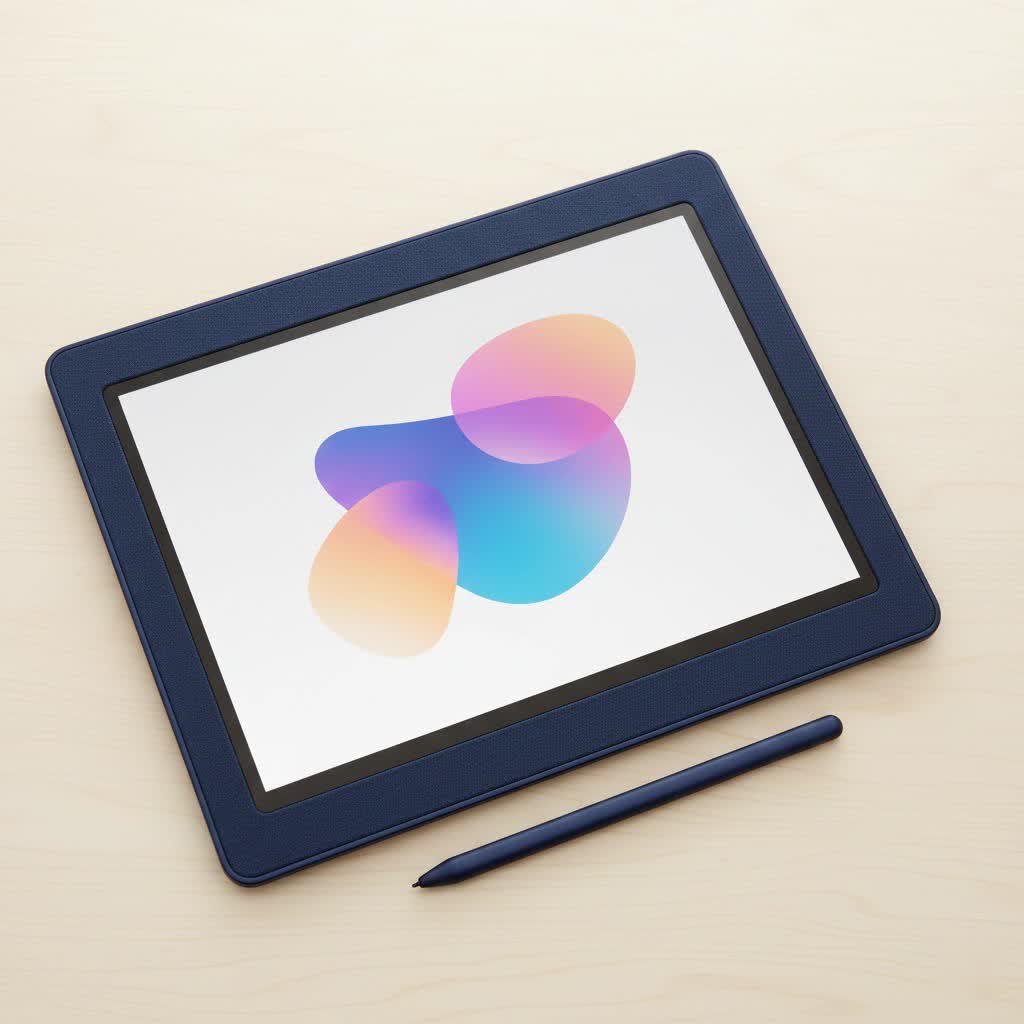
As someone who has spent over a decade working with digital art tools, I’ve seen technology evolve from clunky first-generation tablets to the streamlined powerhouses we have today. The combination of an iPad with an Apple Pencil, connected to a Mac, is one of the most significant game-changers for creators at every level. This guide will walk you through everything you need to know to get started.
Why Use an iPad as Your Mac’s Graphic Tablet?
Before diving into the “how,” let’s explore the “why.” Using an iPad as a drawing interface for your Mac isn’t just a neat trick; it offers tangible benefits that can enhance both your creativity and productivity.
- Stunning Display Quality: iPads, especially those with Liquid Retina or Liquid Retina XDR displays, offer incredible color accuracy, brightness, and pixel density. This means you’re drawing directly on a screen that shows your work in beautiful detail.
- Intuitive Apple Pencil Experience: The Apple Pencil is renowned for its low latency, pressure sensitivity, and tilt support. It feels incredibly natural, mimicking the experience of drawing on paper far better than a traditional mouse.
- Cost-Effective Solution: If you already own an iPad and a Mac, this setup is practically free. You get the functionality of a premium pen display, which could cost hundreds or even thousands of dollars, by simply using the hardware you have.
- Portability and Versatility: Your setup is as mobile as your MacBook and iPad. You can have a professional-grade drawing station at a coffee shop, on a plane, or in your client’s office. When you’re not drawing, your iPad returns to being a multifunctional device for everything else.
How to Connect Your iPad as a Graphic Tablet for Mac
There are two primary methods for connecting your iPad to your Mac: Apple’s native Sidecar feature and third-party applications.
Method 1: Apple Sidecar (The Free, Built-in Solution)
Sidecar is Apple’s magical, built-in feature that seamlessly extends or mirrors your Mac display to your iPad. It’s the easiest and most integrated way to get started.
System Requirements:
To use Sidecar, you’ll need compatible hardware and software.
- Mac: A model from 2016 or later running macOS Catalina or newer.
- iPad: An iPad Pro (any model), iPad (6th generation or newer), iPad mini (5th generation or newer), or iPad Air (3rd generation or newer) running iPadOS 13 or newer.
- Apple ID: Both devices must be signed in to the same Apple ID with two-factor authentication enabled.
|
Our Picks for the Best Graphic Tablet in 2026
As an Amazon Associate I earn from qualifying purchases.
|
||
| Num | Product | Action |
|---|---|---|
| 1 | XOPPOX Graphics Drawing Tablet 10 x 6 Inch Large Active Area with 8192 Levels Battery-Free Pen and 12 Hot Keys, Compatible with PC/Mac/Android OS for Painting, Design & Online Teaching Black |

|
| 2 | Drawing Tablet for Beginner Graphics OSU Tablet with Battery-Free Stylus 8192 Pressure Sensitive for Digital Art, Painting & Design, Compatible with Windows, Mac OS and Android |
|
| 3 | GAOMON M10K Drawing Tablet, 10x6 inch Large Graphics Tablet with Touch Ring, 8192 Levels Battery-Free Stylus, 10 Hot Keys, Art Tablet for Design, Writing, Editing, Work with Mac, Windows, Android |
|
| 4 | HUION Inspiroy H640P Drawing Tablet, 6x4 inch Digital Art with Battery-Free Stylus, 8192 Pen Pressure, 6 Hot Keys, Graphics Tablet for Drawing, Writing, Design, Teaching, Work with Mac, PC & Mobile |
|
| 5 | HUION Drawing Tablet HS610 Graphic Tablet with Battery-Free Stylus 8192 Pen Pressure Tilt Function, 10x6.25 Inches Digital Art for Animation & Design, Compatible with Windows/Mac/Android |
|
| 6 | HUION KAMVAS Pro 16 Drawing Tablet with Screen, 15.6 inch Pen Display Anti-Glare Glass 6 Shortcut Keys Adjustable Stand, Graphics Tablet for Drawing, Writing, Design, Work with Windows, Mac and Linux |
|
| 7 | Graphics Drawing Tablet, UGEE M708 10 x 6 inch Large Drawing Tablet with 8 Hot Keys, Passive Stylus of 16384 Levels Pressure, UGEE M708 Graphics Tablet for Paint, Design, Art Creation Sketch |
|
| 8 | HUION Kamvas 13 (Gen 3) Drawing Tablet with Screen,13.3\" Full-Laminated Art Tablet with Anti-Sparkle Canvas Glass 2.0, 99% sRGB, PenTech 4.0, 16384 Pen Pressure, Dual Dial for PC, Mac, Android, Black |
|
| 9 | HUION Inspiroy H1060P Graphics Drawing Tablet with 8192 Pressure Sensitivity Battery-Free Stylus and 12 Customized Hot Keys, 10 x 6.25 inches Digital Art Tablet for Mac, Windows PC and Android |
|
| 10 | Wacom Intuos Pro Medium Bluetooth Professional Graphic Drawing Tablet with Pro Pen 3, Compatible with Mac, Windows - 2025 Edition |
|
Step-by-Step Setup Guide:
- Enable Connectivity: Ensure Wi-Fi and Bluetooth are turned on for both your Mac and iPad. For the most stable, low-latency connection, I recommend connecting the iPad to your Mac with a USB-C or Lightning cable, which also keeps it charged.
- Open Control Center on Mac: Click the Control Center icon (two toggles) in the top-right corner of your Mac’s menu bar.
- Select Display: Click on the “Display” or “Screen Mirroring” option.
- Connect to Your iPad: You should see your iPad listed as an available device. Click on it to connect.
Your iPad screen will now function as a second display for your Mac. By default, it will be in “extended desktop” mode. To use it as a direct drawing surface for your main Mac application, you’ll want to enable mirroring. You can find this option in the same Display menu in the Control Center.
Method 2: Third-Party Apps for More Power
While Sidecar is fantastic for most users, power users or those with older hardware might need a more feature-rich solution. Apps like Astropad Studio or Duet Display are excellent alternatives.
- Astropad Studio: Built specifically for creative professionals, Astropad offers deeper customization, including programmable shortcuts, better color management, and a robust engine designed for minimal latency over both Wi-Fi and USB. It’s a subscription-based service but is often considered the gold standard for serious artists.
- Duet Display: Initially known for turning an iPad into a second monitor for both Mac and PC, Duet Display also offers robust drawing tablet capabilities. It provides a highly responsive experience, especially over a wired connection.
These apps typically require you to install a companion app on your Mac and the main app on your iPad, but the setup is straightforward.
iPad and Apple Pencil vs. a Dedicated Wacom Tablet
As a long-time Wacom user, I’m often asked how the iPad experience compares. Here’s a breakdown:
| Feature | iPad with Apple Pencil | Dedicated Wacom Tablet (Cintiq) |
|---|---|---|
| Screen | High-resolution, vibrant Liquid Retina display. | High-quality, often matte-finish screen designed for drawing. |
| Feel | Glass surface. A matte screen protector can add a paper-like texture. | Etched glass surface provides a distinct, tactile drawing feel. |
| Portability | Extremely portable and multi-functional. | Less portable, dedicated to being a drawing peripheral. |
| Pressure Sensitivity | Excellent, though specific levels are not published by Apple. | Industry-leading, with 8,192 levels of pressure sensitivity. |
| Cost | Uses existing hardware; potentially “free.” | A significant investment, often starting at $600+ for screen models. |
| Integration | Seamless within the Apple ecosystem via Sidecar. | Requires drivers and can sometimes have compatibility hiccups. |
As professional designer Alex Chen notes, “The iPad and Mac combination has democratized the pen display. For 90% of creative work, from storyboarding to final illustration, the responsiveness of the Apple Pencil with Sidecar is more than sufficient. Wacom still has an edge for highly specialized work where minute pressure differences are critical, but the gap is closing fast.”
Is an iPad a Good Replacement for a Professional Graphic Tablet?
For many professionals, the answer is yes. If you’re a graphic designer, illustrator, or photo editor who values portability and works within the Apple ecosystem, using your iPad as a graphic tablet for Mac is a powerful and efficient setup. It’s perfect for artists on the go, students, and professionals who need a flexible workspace.
However, if your entire career is centered around digital sculpting, high-end animation, or textile design where the specific tactile feedback and extensive customization of a Wacom Pro Pen are essential, a dedicated tablet might still be your primary tool. The best approach is to consider your specific needs and workflow.
Frequently Asked Questions (FAQ)
What is the best iPad to use as a graphic tablet?
Any iPad that supports the Apple Pencil 2 will provide the best experience due to the pencil’s magnetic charging and double-tap feature. This includes the iPad Pro, iPad Air, and iPad mini models from recent years. The larger screen of an 11-inch or 12.9-inch iPad Pro is ideal for drawing.
Is there any lag when using an iPad with Sidecar?
When connected wirelessly, the performance depends on your Wi-Fi network’s strength. For a virtually lag-free experience, always connect your iPad to your Mac with a USB cable. This ensures the most stable and responsive connection.
Do I need an Apple Pencil to use my iPad as a tablet?
While you can use your finger for basic navigation, the entire benefit of a graphic tablet comes from the precision and pressure sensitivity of a stylus. Therefore, an Apple Pencil (1st or 2nd generation, depending on your iPad model) is essential for drawing and design work.
Can I use my Mac’s keyboard shortcuts on the iPad?
Yes. When using Sidecar, your Mac’s keyboard remains your primary input for shortcuts. Additionally, Sidecar displays a handy sidebar on your iPad with modifier keys like Command, Shift, and Option, along with a Touch Bar for context-sensitive controls, even if your Mac doesn’t have one.
Conclusion
Transforming your iPad as a graphic tablet for Mac is no longer a complicated workaround; it’s a deeply integrated and powerful feature of the Apple ecosystem. Whether you’re a beginner sketching your first ideas in Adobe Photoshop or a seasoned pro retouching photos in Affinity Photo, this dynamic duo offers a fluid, intuitive, and portable creative studio. By leveraging Sidecar or powerful third-party apps, you unlock new potential from the devices you already love. So go ahead, connect your devices, and bring your creative vision to life with a new level of control and precision.
