Using an iPad as a graphic tablet for Mac is a highly effective and cost-efficient solution for digital artists and designers, leveraging Apple’s native Sidecar feature or third-party applications like Astropad Studio. This setup transforms an iPad into a high-resolution pen display, offering a natural drawing experience with the Apple Pencil and seamless integration within the Apple ecosystem, often without requiring additional hardware purchases.
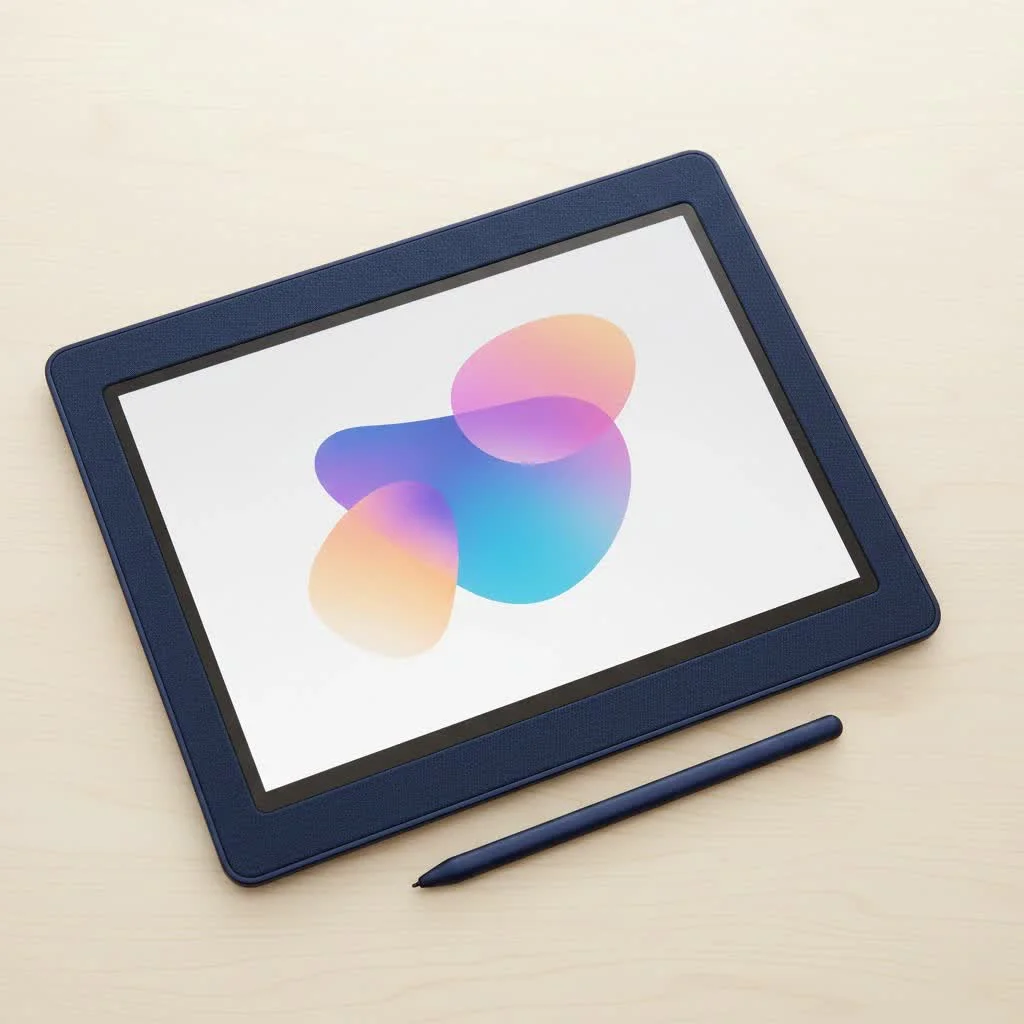
With over a decade of experience in digital art tools, the combination of an iPad with an Apple Pencil, connected to a Mac, stands out as a significant major upgrade for creators. This guide details everything needed to get started.
Why Use an iPad as Your Mac’s Graphic Tablet?
Using an iPad as a drawing interface for your Mac offers tangible benefits that enhance both creativity and productivity.
- Stunning Display Quality: iPads, especially those with Liquid Retina or Liquid Retina XDR displays, provide exceptional color accuracy, brightness, and pixel density, allowing artists to draw directly on a screen that shows work in beautiful detail.
- Intuitive Apple Pencil Experience: The Apple Pencil is known for its low latency, pressure sensitivity, and tilt support, mimicking the natural feel of drawing on paper more effectively than a traditional mouse.
- Cost-Effective Solution: For users who already own an iPad and a Mac, this setup is virtually free, providing the functionality of a premium pen display that could otherwise cost hundreds or thousands of dollars.
- Portability and Versatility: The setup is as mobile as your MacBook and iPad, enabling a professional-grade drawing station in various locations. When not drawing, the iPad functions as a versatile device for other tasks.
How to Connect Your iPad as a Graphic Tablet for Mac
There are two primary methods for connecting your iPad to your Mac: Apple’s native Sidecar feature and third-party applications.
Method 1: Apple Sidecar (The Free, Built-in Solution)
Sidecar is Apple’s built-in feature that seamlessly extends or mirrors your Mac display to your iPad, offering the easiest and most integrated way to begin.
System Requirements: To use Sidecar, compatible hardware and software are necessary.
- Mac: A model from 2016 or later running macOS Catalina or newer.
- iPad: An iPad Pro (any model), iPad (6th generation or newer), iPad mini (5th generation or newer), or iPad Air (3rd generation or newer) running iPadOS 13 or newer.
- Apple ID: Both devices must be signed in to the same Apple ID with two-factor authentication enabled.
Step-by-Step Setup Guide:
- Enable Connectivity: Ensure Wi-Fi and Bluetooth are active on both your Mac and iPad. For optimal stability and low latency, connect the iPad to your Mac with a USB-C or Lightning cable, which also charges the device.
- Open Control Center on Mac: Click the Control Center icon (two toggles) in the top-right corner of your Mac’s menu bar.
- Select Display: Click on the “Display” or “Screen Mirroring” option.
- Connect to Your iPad: Your iPad should appear as an available device. Click on it to establish the connection.
Your iPad screen will now function as a second display for your Mac, typically in “extended desktop” mode. To use it as a direct drawing surface for your main Mac application, enable mirroring, an option found in the same Display menu within the Control Center.
Method 2: Third-Party Apps for More Power
|
Our Picks for the Best Graphic Tablet in 2026
As an Amazon Associate I earn from qualifying purchases.
|
||
| Num | Product | Action |
|---|---|---|
| 1 | HUION KAMVAS Pro 16 Drawing Tablet with Screen, 15.6 inch Pen Display Anti-Glare Glass 6 Shortcut Keys Adjustable Stand, Graphics Tablet for Drawing, Writing, Design, Work with Windows, Mac and Linux |

|
| 2 | HUION Inspiroy H1060P Graphics Drawing Tablet with 8192 Pressure Sensitivity Battery-Free Stylus and 12 Customized Hot Keys, 10 x 6.25 inches Digital Art Tablet for Mac, Windows PC and Android |
|
| 3 | GAOMON M10K Drawing Tablet, 10x6 inch Large Graphics Tablet with Touch Ring, 8192 Levels Battery-Free Stylus, 10 Hot Keys, Art Tablet for Design, Writing, Editing, Work with Mac, Windows, Android |
|
| 4 | HUION Kamvas 13 (Gen 3) Drawing Tablet with Screen,13.3\" Full-Laminated Art Tablet with Anti-Sparkle Canvas Glass 2.0, 99% sRGB, PenTech 4.0, 16384 Pen Pressure, Dual Dial for PC, Mac, Android, Black |
|
| 5 | HUION Drawing Tablet HS610 Graphic Tablet with Battery-Free Stylus 8192 Pen Pressure Tilt Function, 10x6.25 Inches Digital Art for Animation & Design, Compatible with Windows/Mac/Android |
|
| 6 | HUION Inspiroy H640P Drawing Tablet, 6x4 inch Digital Art with Battery-Free Stylus, 8192 Pen Pressure, 6 Hot Keys, Graphics Tablet for Drawing, Writing, Design, Teaching, Work with Mac, PC & Mobile |
|
| 7 | Wacom Intuos Pro Medium Bluetooth Professional Graphic Drawing Tablet with Pro Pen 3, Compatible with Mac, Windows - 2025 Edition |
|
| 8 | XOPPOX Graphics Drawing Tablet 10 x 6 Inch Large Active Area with 8192 Levels Battery-Free Pen and 12 Hot Keys, Compatible with PC/Mac/Android OS for Painting, Design & Online Teaching Black |
|
| 9 | Graphics Drawing Tablet, UGEE M708 10 x 6 inch Large Drawing Tablet with 8 Hot Keys, Passive Stylus of 16384 Levels Pressure, UGEE M708 Graphics Tablet for Paint, Design, Art Creation Sketch |
|
| 10 | Drawing Tablet for Beginner Graphics OSU Tablet with Battery-Free Stylus 8192 Pressure Sensitive for Digital Art, Painting & Design, Compatible with Windows, Mac OS and Android |
|
While Sidecar is excellent for most users, power users or those with older hardware may benefit from more feature-rich solutions like Astropad Studio or Duet Display.
- Astropad Studio: Designed for creative professionals, Astropad provides extensive customization, including programmable shortcuts, enhanced color management, and a robust engine for minimal latency over both Wi-Fi and USB. It is a subscription-based service, often considered a top choice for serious artists.
- Duet Display: Known for transforming an iPad into a second monitor for both Mac and PC, Duet Display also offers strong drawing tablet capabilities. It delivers a highly responsive experience, particularly with a wired connection.
These applications typically require installing a companion app on your Mac and the main app on your iPad, with a straightforward setup process.
iPad and Apple Pencil vs. a Dedicated Wacom Tablet
For long-time Wacom users, the iPad experience offers a compelling comparison:
| Feature | iPad with Apple Pencil | Dedicated Wacom Tablet (Cintiq) |
|---|---|---|
| Screen | High-resolution, vibrant Liquid Retina display. | High-quality, often matte-finish screen designed for drawing. |
| Feel | Glass surface. A matte screen protector can add a paper-like texture. | Etched glass surface provides a distinct, tactile drawing feel. |
| Portability | Extremely portable and multi-functional. | Less portable, dedicated to being a drawing peripheral. |
| Pressure Sensitivity | Excellent, though specific levels are not published by Apple. | Industry-leading, with 8,192 levels of pressure sensitivity. |
| Cost | Uses existing hardware; potentially “free.” | A significant investment, often starting at $600+ for screen models. |
| Integration | Seamless within the Apple ecosystem via Sidecar. | Requires drivers and can sometimes have compatibility hiccups. |
As professional designer Alex Chen notes, “The iPad and Mac combination has democratized the pen display. For 90% of creative work, from storyboarding to final illustration, the responsiveness of the Apple Pencil with Sidecar is more than sufficient. Wacom still has an edge for highly specialized work where minute pressure differences are critical, but the gap is closing fast.”
Is an iPad a Good Replacement for a Professional Graphic Tablet?
For many professionals, an iPad serves as an excellent replacement. If you are a graphic designer, illustrator, or photo editor who values portability and works within the Apple ecosystem, using your iPad as a graphic tablet for Mac provides a powerful and efficient setup. It is ideal for artists on the go, students, and professionals requiring a flexible workspace.
However, for careers centered on digital sculpting, high-end animation, or textile design where specific tactile feedback and extensive customization of a Wacom Pro Pen are crucial, a dedicated tablet might remain the primary tool. The best approach involves considering individual needs and workflow.
Frequently Asked Questions (FAQ)
What is the best iPad to use as a graphic tablet?
Any iPad that supports the Apple Pencil 2 provides the best experience due to its magnetic charging and double-tap feature. This includes iPad Pro, iPad Air, and iPad mini models from recent years. The larger screen of an 11-inch or 12.9-inch iPad Pro is particularly ideal for drawing.
Is there any lag when using an iPad with Sidecar?
When connected wirelessly, performance depends on your Wi-Fi network’s strength. For a virtually lag-free experience, always connect your iPad to your Mac with a USB cable, ensuring the most stable and responsive connection.
Do I need an Apple Pencil to use my iPad as a tablet?
While basic navigation is possible with a finger, the primary benefit of a graphic tablet comes from the precision and pressure sensitivity of a stylus. Therefore, an Apple Pencil (1st or 2nd generation, depending on your iPad model) is essential for effective drawing and design work.
Can I use my Mac’s keyboard shortcuts on the iPad?
Yes, when using Sidecar, your Mac’s keyboard functions as the primary input for shortcuts. Sidecar displays a convenient sidebar on your iPad with modifier keys like Command, Shift, and Option, plus a Touch Bar for context-sensitive controls, even if your Mac lacks one.
Conclusion
Transforming your iPad as a graphic tablet for Mac is a deeply integrated and powerful feature within the Apple ecosystem. Whether you are a beginner sketching in Adobe Photoshop or a seasoned professional retouching photos in Affinity Photo, this dynamic duo offers a fluid, intuitive, and portable creative studio. By leveraging Sidecar or powerful third-party apps, you unlock new potential from your existing devices. Connect your devices and bring your creative vision to life with enhanced control and precision.
Frequently Asked Questions
What is the best iPad model to use as a graphic tablet for Mac?
Any iPad that supports the Apple Pencil 2 provides the best experience due to its magnetic charging and double-tap feature. This includes iPad Pro, iPad Air, and iPad mini models from recent years. The larger screen of an 11-inch or 12.9-inch iPad Pro is particularly ideal for drawing and design work.
Does using an iPad with Sidecar introduce noticeable lag?
When connected wirelessly, performance depends on your Wi-Fi network's strength. For a virtually lag-free experience, always connect your iPad to your Mac with a USB cable. This ensures the most stable and responsive connection, crucial for precise creative tasks.
Is an Apple Pencil required to use an iPad as a graphic tablet?
Yes, an Apple Pencil (1st or 2nd generation, depending on your iPad model) is essential for effective drawing and design work. While basic navigation is possible with a finger, the primary benefit of a graphic tablet comes from the precision and pressure sensitivity that only a stylus provides.
Can Mac keyboard shortcuts be used when the iPad is functioning as a tablet?
Yes, when using Sidecar, your Mac's keyboard functions as the primary input for shortcuts. Additionally, Sidecar displays a convenient sidebar on your iPad with modifier keys like Command, Shift, and Option, plus a Touch Bar for context-sensitive controls, even if your Mac lacks one.
What are the system requirements for using Apple Sidecar?
To use Sidecar, your Mac needs to be a model from 2016 or later running macOS Catalina or newer. Your iPad must be an iPad Pro (any model), iPad (6th generation or newer), iPad mini (5th generation or newer), or iPad Air (3rd generation or newer) running iPadOS 13 or newer. Both devices must be signed in to the same Apple ID with two-factor authentication enabled.
Get our weekly buyer guide
Practical specs, not advice. Unsubscribe anytime.
I’ve been using my iPad Pro with Sidecar for a few months now, and it’s been a total game-changer for my illustration work. The display quality is just stunning, and the Apple Pencil feels incredibly natural. I used to think I needed a dedicated Wacom, but this setup is so much more versatile and cost-effective. Highly recommend for any Mac user looking for a portable drawing solution.
I tried using my older iPad Air with Sidecar, and while it works, I found there was a noticeable lag, especially with larger canvases in Illustrator. It’s definitely a good option if you’re on a budget and already have an iPad, but for professional work, I think a newer model iPad is probably essential to get that truly smooth experience. Still, it’s a decent starting point.
Astropad Studio has really elevated my workflow. I was a bit skeptical about using a third-party app, but the responsiveness is fantastic, and it integrates seamlessly with my Mac. It’s great for detailed retouching in Photoshop. My only minor gripe is that sometimes the initial connection can be a little finicky, but once it’s up, it’s solid.
The seamless integration within the Apple ecosystem is what sold me on this setup. I love being able to switch between my Mac and iPad so effortlessly. It’s perfect for sketching ideas on the go and then bringing them into my desktop applications for refinement. The Apple Pencil’s precision is unmatched, making it a joy to use for all my design projects.