A graphic display tablet, also known as a pen display, is a digital art tool that allows artists to draw directly on a screen, providing an intuitive and immersive experience unmatched by standard mice or non-screen tablets. This device is a major upgrade for illustrators, designers, and photo editors, offering direct, one-to-one feedback for every stroke. It bridges the gap between traditional drawing and digital creation, making it an essential tool for many creative professionals.
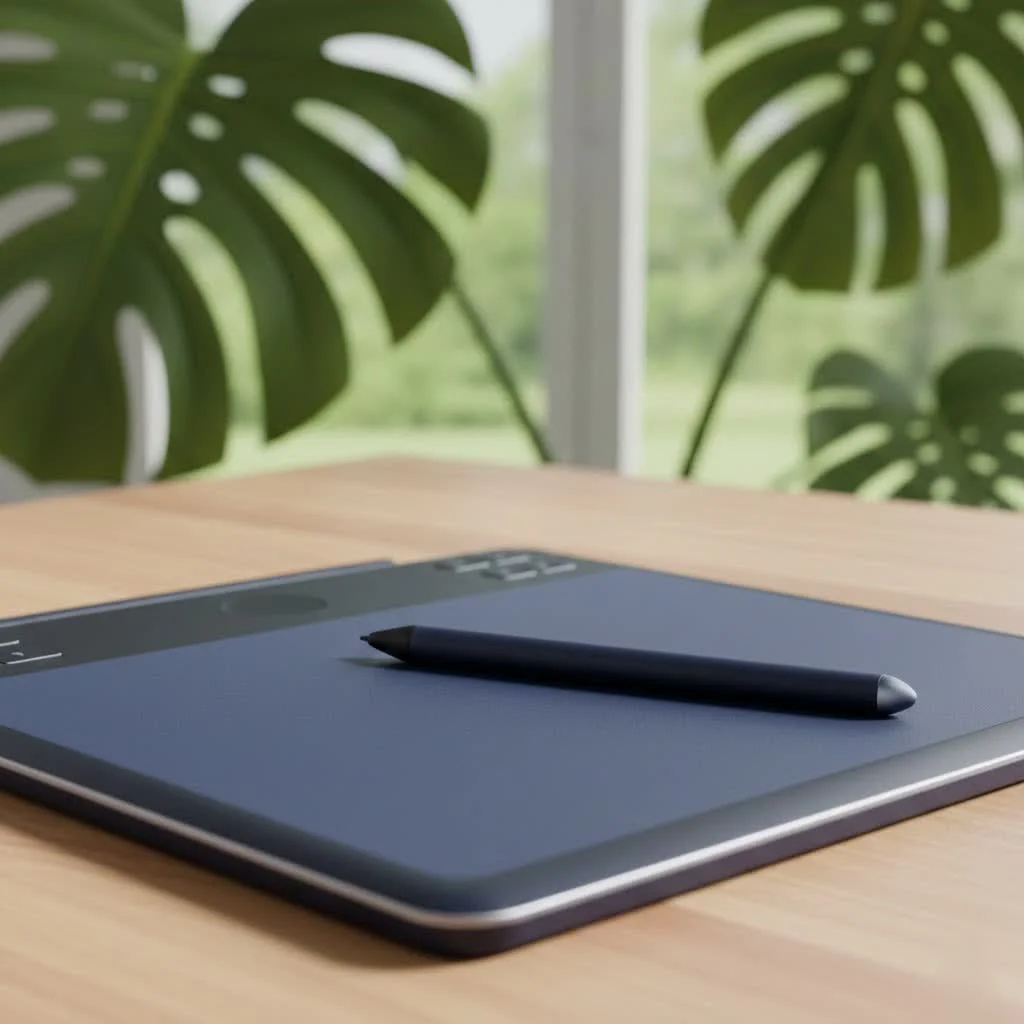
What’s the Difference: Display vs. Non-Display Tablet?
The distinction between display and non-display tablets is crucial for artists. A standard graphics tablet is an opaque plastic slate where you draw while looking at a separate computer monitor, requiring a learning curve for hand-eye coordination. In contrast, a graphic display tablet is a monitor you can draw on directly. For compare top reviews on this site.
- Direct Drawing: You see lines appear directly under your pen tip, similar to drawing on paper, which is incredibly intuitive and significantly reduces the learning curve.
- Workflow Efficiency: Direct interaction means what you see is what you get, making detailed line art, painting, and sculpting feel more natural and efficient.
- Cost and Complexity: This advanced functionality comes at a higher price, and these devices are typically larger, requiring more desk space and cabling than non-screen counterparts.
Key Features to Consider When Buying a Graphic Display Tablet
Navigating technical specifications can be daunting. Here’s what truly matters for your artistic workflow:
Screen Size and Resolution
Screen size determines your active drawing area. While bigger isn’t always better, it often helps with workflow.
- 13-16 inches: This size offers portability and affordability, suitable for students, hobbyists, and professionals needing a secondary or travel device.
- 19-24 inches: This is the professional standard, providing a larger canvas for sweeping strokes and reducing the need for constant zooming and panning.
- 27 inches and above: These flagship models offer a truly immersive experience, ideal for studio environments where artists work on large, complex pieces for extended periods.
Resolution is equally important. A higher resolution (like QHD or 4K) on a larger screen ensures sharp, clear images, allowing you to see fine details without pixelation. For screens under 16 inches, Full HD (1920×1080) is generally sufficient.
Color Accuracy and Gamut
For serious artists, color is paramount. A display’s color gamut indicates the percentage of a specific color space it can reproduce.
- sRGB: This is the standard for web content. A tablet covering over 90% sRGB is adequate for hobbyists and beginners.
- Adobe RGB & DCI-P3: These wider color spaces are essential for professionals in print and video production. Look for displays that cover 90% or more of Adobe RGB if your work is destined for print.
“Your digital canvas should be as trustworthy as your own eyes. A display with poor color accuracy is like painting with a blindfold on. You can’t be confident in your work if you can’t trust the colors you’re seeing on screen.” – David Chen, Veteran Concept Artist
Pressure and Tilt Sensitivity
|
Our Picks for the Best Graphic Tablet in 2026
As an Amazon Associate I earn from qualifying purchases.
|
||
| Num | Product | Action |
|---|---|---|
| 1 | Drawing Tablet for Beginner Graphics OSU Tablet with Battery-Free Stylus 8192 Pressure Sensitive for Digital Art, Painting & Design, Compatible with Windows, Mac OS and Android |

|
| 2 | HUION Drawing Tablet HS610 Graphic Tablet with Battery-Free Stylus 8192 Pen Pressure Tilt Function, 10x6.25 Inches Digital Art for Animation & Design, Compatible with Windows/Mac/Android |
|
| 3 | GAOMON M10K Drawing Tablet, 10x6 inch Large Graphics Tablet with Touch Ring, 8192 Levels Battery-Free Stylus, 10 Hot Keys, Art Tablet for Design, Writing, Editing, Work with Mac, Windows, Android |
|
| 4 | HUION Kamvas 13 (Gen 3) Drawing Tablet with Screen,13.3\" Full-Laminated Art Tablet with Anti-Sparkle Canvas Glass 2.0, 99% sRGB, PenTech 4.0, 16384 Pen Pressure, Dual Dial for PC, Mac, Android, Black |
|
| 5 | HUION KAMVAS Pro 16 Drawing Tablet with Screen, 15.6 inch Pen Display Anti-Glare Glass 6 Shortcut Keys Adjustable Stand, Graphics Tablet for Drawing, Writing, Design, Work with Windows, Mac and Linux |
|
| 6 | Graphics Drawing Tablet, UGEE M708 10 x 6 inch Large Drawing Tablet with 8 Hot Keys, Passive Stylus of 16384 Levels Pressure, UGEE M708 Graphics Tablet for Paint, Design, Art Creation Sketch |
|
| 7 | HUION Inspiroy H1060P Graphics Drawing Tablet with 8192 Pressure Sensitivity Battery-Free Stylus and 12 Customized Hot Keys, 10 x 6.25 inches Digital Art Tablet for Mac, Windows PC and Android |
|
| 8 | Wacom Intuos Pro Medium Bluetooth Professional Graphic Drawing Tablet with Pro Pen 3, Compatible with Mac, Windows - 2025 Edition |
|
| 9 | HUION Inspiroy H640P Drawing Tablet, 6x4 inch Digital Art with Battery-Free Stylus, 8192 Pen Pressure, 6 Hot Keys, Graphics Tablet for Drawing, Writing, Design, Teaching, Work with Mac, PC & Mobile |
|
| 10 | XOPPOX Graphics Drawing Tablet 10 x 6 Inch Large Active Area with 8192 Levels Battery-Free Pen and 12 Hot Keys, Compatible with PC/Mac/Android OS for Painting, Design & Online Teaching Black |
|
The pen, or stylus, is your digital brush, and its sensitivity dictates how well the tablet translates physical actions into digital strokes.
- Pressure Sensitivity: Measured in levels (e.g., 4096 or 8192), this feature controls line thickness or opacity based on pressure. More levels offer smoother, more nuanced transitions. Anything above 4096 levels is excellent, with differences becoming hard to perceive beyond that.
- Tilt Recognition: This feature allows software to change the brush tip shape as you tilt the pen, mimicking the effect of using the side of a pencil lead for shading. It is a must-have for digital painters and calligraphers.
Parallax and Lamination
Parallax is the small gap between the pen tip and the cursor on the screen, caused by glass thickness. Excessive parallax can be disorienting and feel disconnected.
To combat this, manufacturers use laminated screens. In a laminated display, the glass surface and the LCD panel are fused, virtually eliminating the gap. This reduces parallax, minimizes reflections, and makes drawing feel much more direct. Always opt for a fully laminated display if your budget allows.
Do You Need a Computer for a Graphic Display Tablet?
Most graphic display tablets are not standalone devices; they function as a second monitor for your PC or Mac. You must connect them to a computer that runs your creative software (e.g., Photoshop, Clip Studio Paint, ZBrush). The tablet provides the display and drawing input, while your computer handles the processing.
Exceptions, often called “pen computers” (like the Wacom MobileStudio Pro or the Surface Pro), are all-in-one devices with a built-in computer. However, these are significantly more expensive and fall into a different product category.
Setting Up Your First Graphic Display Tablet
Getting started with a graphic display tablet is usually straightforward. Follow this simple checklist for setup:
- Install the Driver: Before plugging anything in, download the latest driver for your specific model from the manufacturer’s website (e.g., Wacom, Huion, XPPen). This is the most crucial step.
- Connect the Cables: Most display tablets use a 3-in-1 cable or USB-C, typically connecting HDMI for video, USB for data (pen input), and a power adapter.
- Configure Your Display: In your computer’s display settings, set the tablet to “Extend” your desktop, treating it as a separate monitor. Ensure it runs at its native resolution.
- Calibrate Your Pen: Open the tablet’s driver software and use the calibration utility to align the cursor with your pen tip for accuracy.
- Customize Your Buttons: Program the express keys on the tablet and the buttons on your stylus to your favorite shortcuts, such as Undo, Zoom, or Brush Size, to enhance your workflow.
Frequently Asked Questions (FAQ)
Q: Is a graphic display tablet worth the extra cost over a non-display tablet?A: For serious hobbyists or professionals, a graphic display tablet is generally worth the investment. The intuitive nature of drawing directly on the screen significantly improves speed, accuracy, and overall enjoyment. For absolute beginners on a tight budget, a non-display tablet remains a fantastic starting point.
Q: Can I use a graphic display tablet as a regular monitor?A: Yes, absolutely. When you are not actively drawing or using creative software, a graphic display tablet functions perfectly as a second or third monitor for your computer, which can be beneficial for general productivity tasks.
Q: Do I need to buy special software to use a graphic display tablet?A: No, the tablet itself works with any software that supports pen input. You will need to have your own creative software installed on your computer, such as Adobe Photoshop, Clip Studio Paint, Krita (a free option), or any other program you prefer for your artistic work.
Q: How do I deal with screen glare?A: Most modern display tablets come equipped with an anti-glare matte screen protector or an etched glass surface. This feature not only effectively reduces reflections from ambient light but also provides a pleasant, paper-like texture that enhances the drawing experience.
Q: Wacom, Huion, or XPPen—which brand is best?A: Wacom has historically been the industry standard, known for premium build quality and reliable drivers, though at a higher price point. Huion and XPPen have emerged as strong competitors, offering excellent value with features and performance that often rival or exceed Wacom’s at a significantly lower cost, making them popular choices for many artists.
Your Canvas Awaits
Choosing a graphic display tablet is a significant investment in your creative journey. By focusing on essential features like a laminated screen, excellent color accuracy, and a comfortable pen, you can find a tool that will not only enhance your skills but also make the process of creating art more joyful and intuitive. This technology removes the barrier between your ideas and the screen, enabling you to create as naturally as you would with a pencil and paper. Now, go find your perfect digital canvas and bring your imagination to life.
Frequently Asked Questions
Is a graphic display tablet worth the extra cost over a non-display tablet?
For serious hobbyists or professionals, a graphic display tablet is generally worth the investment. The intuitive nature of drawing directly on the screen significantly improves speed, accuracy, and overall enjoyment. For absolute beginners on a tight budget, a non-display tablet remains a fantastic starting point.
Can I use a graphic display tablet as a regular computer monitor?
Yes, absolutely. When you are not actively drawing or using creative software, a graphic display tablet functions perfectly as a second or third monitor for your computer, which can be beneficial for general productivity tasks.
Do I need to buy special software to use a graphic display tablet?
No, the tablet itself works with any software that supports pen input. You will need to have your own creative software installed on your computer, such as Adobe Photoshop, Clip Studio Paint, Krita (a free option), or any other program you prefer for your artistic work.
How do modern graphic display tablets deal with screen glare?
Most modern display tablets come equipped with an anti-glare matte screen protector or an etched glass surface. This feature not only effectively reduces reflections from ambient light but also provides a pleasant, paper-like texture that enhances the drawing experience.
Which brand is best among Wacom, Huion, and XPPen for graphic display tablets?
Wacom has historically been the industry standard, known for premium build quality and reliable drivers, though at a higher price point. Huion and XPPen have emerged as strong competitors, offering excellent value with features and performance that often rival or exceed Wacom's at a significantly lower cost, making them popular choices for many artists.
Get our weekly buyer guide
Practical specs, not advice. Unsubscribe anytime.
As a professional designer, I can confirm that a graphic display tablet is an essential tool. The one-to-one feedback for every stroke is invaluable, especially when working on intricate designs. It’s truly an immersive experience that has significantly improved both the speed and quality of my digital creations. Highly recommend for any serious artist.
I’ve been using my new pen display for photo editing, and it’s made a huge difference in my workflow. The precision I get when retouching is fantastic, and seeing my adjustments directly on the screen is incredibly helpful. My only minor complaint is that the initial setup took a bit longer than I expected, but once it was running, it’s been great.
I finally upgraded to a graphic display tablet after years of using a non-display one, and it’s been a total game-changer for my illustration work. The direct drawing experience is so much more natural and intuitive. I can’t believe I waited this long to make the switch; it really does bridge the gap between traditional and digital art seamlessly.
I bought a graphic display tablet hoping it would revolutionize my design projects, and while the direct feedback is nice, I’m still struggling a bit with the parallax on the edges of the screen. It’s not a deal-breaker, but it does make some detailed work a little frustrating. I’m hoping I’ll get used to it with more practice, but it’s definitely something to consider.