A graphic design tablet is an essential tool for digital artists, offering superior precision and control compared to a standard mouse. These devices translate stylus movements, pressure, and angle into digital brushstrokes, making the creative process more intuitive and efficient. For over 15 years, graphic design tablets have evolved into three main types: pen tablets (non-screen), pen displays (with screen), and tablet computers, each catering to different skill levels, workflows, and budgets.
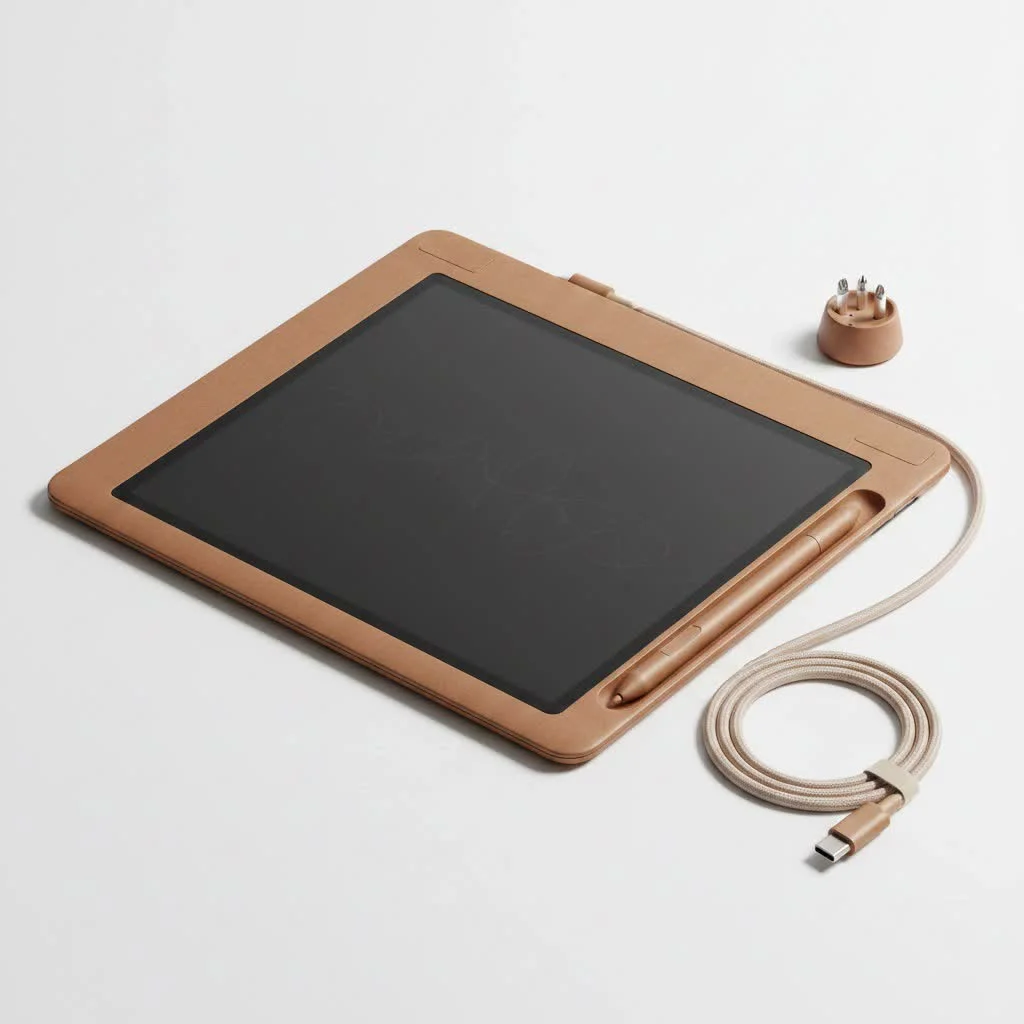
This guide, based on years of hands-on experience, aims to simplify the technology and help you select the ideal digital canvas for your artistic journey. We will explore the different types of tablets, key features, and how to choose one that aligns with your specific needs and financial plan. For see our reviews recommendations on this site.
What Exactly is a Graphic Design Tablet?
A graphic design tablet, also known as a drawing tablet, is an input device that enables users to draw or write on a computer using a stylus, emulating the natural sensation of a pen on paper. It converts the pressure, angle, and movement of your stylus into digital brushstrokes on the screen, providing fluid and precise control over artwork in software such as Adobe Photoshop, Illustrator, or Corel Painter.
As digital artist and industry veteran, Maria Flores, states, “Switching to a tablet is a major upgrade. It’s not just about drawing; it’s about connecting directly with your digital work in a way that feels organic and deeply personal.”
The Main Types of Graphic Design Tablets
The tablet market has significantly advanced, now offering three primary categories designed to meet diverse needs and budgets. Understanding these distinctions is crucial for making an informed decision.
1. Pen Tablets (Non-Screen)
Pen tablets are the traditional and most budget-friendly option. They feature a solid, opaque surface where you draw with a stylus, and the artwork appears on your computer monitor. This setup requires some hand-eye coordination to master, as you observe one screen while drawing on a separate surface.
- Best for: Beginners, artists on a budget, and those requiring a portable and durable solution.
- Pros: Highly affordable, durable, and available in various sizes.
- Cons: Involves a learning curve due to the disconnected drawing experience.
2. Pen Displays (With Screen)
Pen displays represent a significant upgrade. These devices incorporate a built-in screen, allowing you to draw directly onto your image. This provides a much more intuitive and natural drawing experience, closely resembling traditional art. You see lines appear directly under the stylus tip, eliminating the hand-eye coordination challenge found with pen tablets.
- Best for: Intermediate to professional artists, illustrators, and designers seeking a seamless workflow.
- Pros: Intuitive and natural drawing experience, enhances accuracy and speed.
- Cons: Considerably more expensive, less portable, and often requires connection to a computer.
3. Tablet Computers
|
Our Picks for the Best Graphic Tablet in 2026
As an Amazon Associate I earn from qualifying purchases.
|
||
| Num | Product | Action |
|---|---|---|
| 1 | GAOMON M10K Drawing Tablet, 10x6 inch Large Graphics Tablet with Touch Ring, 8192 Levels Battery-Free Stylus, 10 Hot Keys, Art Tablet for Design, Writing, Editing, Work with Mac, Windows, Android |

|
| 2 | Wacom Intuos Pro Medium Bluetooth Professional Graphic Drawing Tablet with Pro Pen 3, Compatible with Mac, Windows - 2025 Edition |
|
| 3 | XOPPOX Graphics Drawing Tablet 10 x 6 Inch Large Active Area with 8192 Levels Battery-Free Pen and 12 Hot Keys, Compatible with PC/Mac/Android OS for Painting, Design & Online Teaching Black |
|
| 4 | HUION Inspiroy H1060P Graphics Drawing Tablet with 8192 Pressure Sensitivity Battery-Free Stylus and 12 Customized Hot Keys, 10 x 6.25 inches Digital Art Tablet for Mac, Windows PC and Android |
|
| 5 | HUION Kamvas 13 (Gen 3) Drawing Tablet with Screen,13.3\" Full-Laminated Art Tablet with Anti-Sparkle Canvas Glass 2.0, 99% sRGB, PenTech 4.0, 16384 Pen Pressure, Dual Dial for PC, Mac, Android, Black |
|
| 6 | Graphics Drawing Tablet, UGEE M708 10 x 6 inch Large Drawing Tablet with 8 Hot Keys, Passive Stylus of 16384 Levels Pressure, UGEE M708 Graphics Tablet for Paint, Design, Art Creation Sketch |
|
| 7 | HUION Inspiroy H640P Drawing Tablet, 6x4 inch Digital Art with Battery-Free Stylus, 8192 Pen Pressure, 6 Hot Keys, Graphics Tablet for Drawing, Writing, Design, Teaching, Work with Mac, PC & Mobile |
|
| 8 | HUION KAMVAS Pro 16 Drawing Tablet with Screen, 15.6 inch Pen Display Anti-Glare Glass 6 Shortcut Keys Adjustable Stand, Graphics Tablet for Drawing, Writing, Design, Work with Windows, Mac and Linux |
|
| 9 | HUION Drawing Tablet HS610 Graphic Tablet with Battery-Free Stylus 8192 Pen Pressure Tilt Function, 10x6.25 Inches Digital Art for Animation & Design, Compatible with Windows/Mac/Android |
|
| 10 | Drawing Tablet for Beginner Graphics OSU Tablet with Battery-Free Stylus 8192 Pressure Sensitive for Digital Art, Painting & Design, Compatible with Windows, Mac OS and Android |
|
These are all-in-one solutions, such as the iPad Pro or Microsoft Surface Pro. They are powerful, standalone computers that support a pressure-sensitive stylus. You can draw, paint, and design directly on the screen without needing to connect to another computer. Their versatility allows them to run full desktop applications or robust mobile apps, effectively serving as a complete mobile studio.
- Best for: Artists who prioritize maximum portability and versatility, and those who desire a single device for both creative work and general computing.
- Pros: Fully portable and self-contained, high-quality screens, versatile for many tasks.
- Cons: The most expensive option, and stylus/app ecosystems can be more restrictive compared to dedicated desktop software.
Key Features to Consider When Buying a Tablet
Navigating technical specifications can be complex. Let’s focus on the features that most significantly impact your drawing experience.
Pressure Sensitivity
This is arguably the most crucial feature, determining how the tablet responds to the pressure applied with the stylus. Higher pressure sensitivity enables variations in line weight, opacity, and color, similar to using a real pen or brush. Most modern tablets offer at least 2,048 levels, while professional models feature 8,192 levels for exceptionally nuanced control.
Resolution (LPI)
Resolution, measured in Lines Per Inch (LPI), indicates how many digital lines can fit into one inch of the tablet’s active area. A higher LPI means the tablet can detect more detail, resulting in smoother, more precise lines. For most users, anything above 2,540 LPI is considered excellent.
Active Area
The active area is the portion of the tablet’s surface available for drawing. The ideal size depends on your monitor size and working style.
- Small (6×4 inches): Excellent for portability and users with smaller screens. May feel restrictive for broad, sweeping arm movements.
- Medium (8×5 to 10×6 inches): The optimal size for most users, offering a good balance of drawing space and desk footprint, suitable for most monitor sizes.
- Large (12×8 inches and up): Best for professionals working with large monitors who need to execute broad, gestural strokes.
Stylus Features
The stylus acts as your digital paintbrush, so its design is important. Look for a battery-free stylus, often utilizing EMR (Electro-Magnetic Resonance) technology, to eliminate the need for charging. Also, consider the number of customizable buttons on the side and the inclusion of a digital “eraser” on the back.
How to Choose the Right Graphic Design Tablet for You
Your ideal tablet choice depends on your skill level, the type of work you perform, and your budget.
For the Absolute Beginner
If you are just starting, a non-screen pen tablet is the perfect entry point. It represents a low-risk investment that allows you to master the fundamentals of digital art. A small or medium-sized tablet from a reputable brand like Wacom, Huion, or XP-Pen will serve you well.
- Recommendation: Wacom Intuos S or Huion Inspiroy H640P.
For the Advancing Hobbyist or Student
If you are serious about your art and ready to upgrade, a pen display is an excellent choice. The direct drawing experience can significantly accelerate your workflow and enhance the enjoyment of creating. Consider a mid-range display around 13 to 16 inches.
- Recommendation: XP-Pen Artist 15.6 Pro or Wacom One.
For the Professional Designer
For professionals, investing in a high-quality pen display or a powerful tablet computer is crucial. Seek large, color-accurate screens, minimal parallax (the gap between the glass and the display), and robust build quality.
- Recommendation: Wacom Cintiq Pro series, Huion Kamvas Pro series, or an iPad Pro with Apple Pencil.
Frequently Asked Questions (FAQ)
What is the best brand for a graphic design tablet?
Wacom has historically been the industry standard, recognized for its premium quality and reliability. However, brands like Huion and XP-Pen have emerged as strong competitors, providing high-quality tablets with comparable features at more competitive prices.
Do I need a screen on my drawing tablet?
While not strictly necessary, a screen on a drawing tablet makes the creative process significantly more intuitive. Beginners can effectively start with a non-screen tablet to learn digital art basics, whereas professionals often prefer a screen for increased efficiency and a more natural drawing sensation.
Can I use a graphic design tablet with any software?
Yes, most modern graphic design tablets are compatible with nearly all creative software on Windows and macOS, including popular applications like Adobe Photoshop, Illustrator, Clip Studio Paint, Krita, and Blender. Always verify the manufacturer’s website for specific driver and software compatibility details.
How big of a tablet do I need?
A medium-sized tablet, typically around 10×6 inches for non-screen models, is generally recommended for most users. This size offers a good balance of comfort and precision without occupying excessive desk space. For users with very large monitors (24 inches or more), a larger tablet might provide a more comfortable experience.
Is an iPad a good graphic design tablet?
An iPad, especially the Pro models paired with an Apple Pencil, is an excellent and powerful tool for graphic design. Its primary advantages include exceptional portability and access to fantastic apps like Procreate. The main limitation is its mobile operating system, which may not fully support the comprehensive desktop software some professionals require.
Your Creative Journey Starts Here
Selecting the right graphic design tablet is a fundamental step in your digital art journey. It represents an investment in your creativity and efficiency. Avoid getting overwhelmed by technical specifications; instead, focus on what best suits your specific workflow and current skill level. Whether you begin with a simple pen tablet or a professional pen display, the most important action is to start creating.
Take your time, conduct thorough research, and choose the tool that feels most appropriate for you. Your new digital canvas awaits, ready to improve your ideas into reality with unprecedented precision and freedom.
Frequently Asked Questions
What is the best brand for a graphic design tablet?
Wacom has long been considered the industry standard for graphic design tablets, known for its premium quality and reliability. However, brands like Huion and XP-Pen have emerged as strong competitors, offering high-quality tablets with similar features at more competitive prices, often providing excellent value for artists.
Do I need a screen on my drawing tablet for digital art?
You do not strictly need a screen on your drawing tablet, but it significantly enhances the intuitiveness of the drawing process. Beginners can effectively start with non-screen tablets to learn digital art basics, while many professionals prefer screen-equipped models for increased efficiency and a more natural, direct drawing experience.
Can a graphic design tablet be used with any creative software?
Yes, most modern graphic design tablets are compatible with nearly all creative software on Windows and macOS. This includes popular applications such as Adobe Photoshop, Illustrator, Clip Studio Paint, Krita, and Blender. It is always advisable to check the manufacturer's website for specific driver and software compatibility details for your chosen tablet.
What is the recommended size for a graphic design tablet?
A medium-sized tablet, typically around 10x6 inches for non-screen models, is generally recommended for most users. This size provides a good balance of comfort and precision without occupying excessive desk space. For users working with very large monitors (24 inches or more), a larger tablet may offer a more comfortable and expansive drawing experience.
Is an iPad a suitable device for professional graphic design work?
An iPad, particularly the Pro models paired with an Apple Pencil, is an excellent and powerful tool for graphic design, offering exceptional portability and access to robust apps like Procreate. Its main limitation is its mobile operating system, which may not fully support the comprehensive desktop software that some professionals rely on for specific workflows.
Choose the Right Graphic Design Tablet
This guide outlines how to select the best graphic design tablet based on your skill level, work type, and budget, covering pen tablets, pen displays, and tablet computers.
If you are just starting your digital art journey, opt for a non-screen pen tablet. This is a low-risk investment that allows you to master fundamental digital art skills. Consider small or medium-sized tablets from reputable brands like Wacom Intuos S or Huion Inspiroy H640P.
If you are serious about your art and ready to upgrade, a pen display is an excellent choice. The direct drawing experience can significantly speed up your workflow and make creating more enjoyable. Look for mid-range displays around 13 to 16 inches, such as the XP-Pen Artist 15.6 Pro or Wacom One.
Professionals should invest in a high-quality pen display or a powerful tablet computer. Prioritize large, color-accurate screens, minimal parallax, and robust build quality for demanding work. Recommended options include the Wacom Cintiq Pro series, Huion Kamvas Pro series, or an iPad Pro with Apple Pencil.
Get our weekly buyer guide
Practical specs, not advice. Unsubscribe anytime.
I picked up a budget tablet computer hoping to get the best of both worlds, but I’ve found the battery life to be a bit disappointing for longer design sessions. While the portability is great, I often have to plug it in mid-project, which interrupts my flow. It’s decent for quick sketches, but for serious work, I might need to look into a dedicated pen display next.
I recently upgraded to a pen display, and it’s been a game-changer for my illustration work. Being able to draw directly on the screen feels so natural, almost like traditional art. I was a bit worried about the price point, but the guide’s breakdown of how different types cater to various budgets helped me justify the investment. It’s definitely worth it for the improved efficiency.
As someone who’s been doing digital art for over 15 years, I can attest to how much these tablets have evolved. The guide’s mention of the different types, especially the tablet computers, really shows how far the technology has come. I love the flexibility of my current setup, allowing me to switch between detailed work and on-the-go sketching seamlessly.
I’ve been using a Wacom Intuos for years, and it’s been an absolute workhorse. The guide really hit the nail on the head about pen tablets being great for beginners or those on a tighter budget. The precision is fantastic once you get used to not looking at your hand, and it’s definitely made my digital art workflow so much smoother than just using a mouse.