Choosing the best graphic tablet for a laptop involves considering factors like connection type, active area size, pressure sensitivity, and software compatibility. For most laptop users, a small to medium-sized pen tablet (around 6×4 to 10×6 inches) with at least 4,096 levels of pressure sensitivity and 2540 LPI resolution offers an excellent balance of usability, portability, and affordability, typically ranging from $50 to $400 depending on features.
What is a Graphic Tablet?
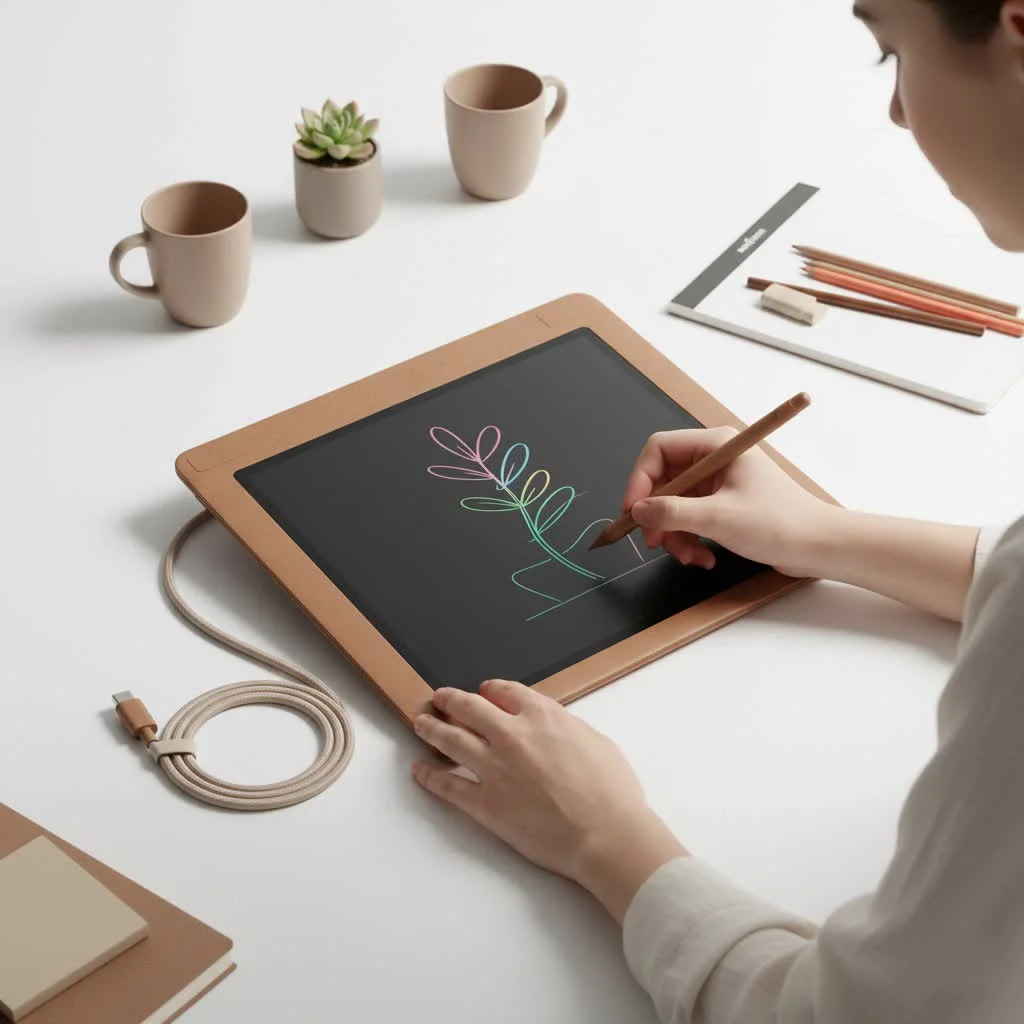
A graphic tablet is an input device that allows users to draw on its surface with a special pen, or stylus, with the strokes appearing on a computer screen. Unlike a mouse, a graphic tablet translates the pressure, angle, and movement of the stylus into digital brush strokes, creating a more natural and intuitive drawing experience that mimics real-life tools.
Why Your Laptop Needs a Graphic Tablet
Connecting a graphic tablet to your laptop fundamentally enhances your entire creative process, offering significant advantages over a traditional mouse.
Unmatched Precision and Control
The primary advantage of a graphic tablet is its precision. A stylus tip is far more accurate than a mouse cursor, enabling detailed line work, subtle shading, and intricate edits. The pressure sensitivity feature, which varies the thickness or opacity of lines based on how hard you press, is a crucial element that a mouse cannot replicate.
Better Ergonomics for Long Sessions
Using a graphic tablet promotes a more natural drawing posture, similar to holding a pen, which reduces wrist strain and discomfort often associated with prolonged mouse use. This improved ergonomics helps reduce fatigue and the risk of repetitive strain injury (RSI), allowing you to work comfortably for longer periods.
A Faster, More Efficient Workflow
Many tablets include customizable shortcut keys, known as ExpressKeys, which can be programmed to perform frequently used commands like undo, zoom, or tool switching. As lead instructor David Chen notes, “Once you map your favorite shortcuts to your tablet, you’ll wonder how you ever worked without them. It cuts editing time down significantly, keeping you in the creative zone.” This feature helps maintain focus on the creative task rather than navigating menus.
Key Factors When Buying a Graphic Tablet for a Laptop
Choosing the right device can be challenging due to the variety of options. Here are the most important features to consider for a seamless laptop experience.
1. Types of Graphic Tablets
There are three main categories, each suited for different needs and budgets:
- Pen Tablets: These are the most common and affordable type, featuring a screen-less surface for drawing while viewing your laptop monitor. They are excellent for both beginners and professionals due to their durability and portability.
- Pen Displays: These tablets have a built-in screen, allowing you to draw directly onto the image for a highly intuitive experience with excellent hand-eye coordination. They are more expensive and often require additional ports (like HDMI and USB) and a power source, making them less portable.
- Tablet Computers: These are all-in-one devices, such as an iPad Pro or Microsoft Surface Pro, that function as standalone computers but can also be used as powerful drawing tablets. This is the most expensive option, offering ultimate portability and power.
2. Connection: Wired vs. Wireless
|
Our Picks for the Best Graphic Tablet in 2026
As an Amazon Associate I earn from qualifying purchases.
|
||
| Num | Product | Action |
|---|---|---|
| 1 | HUION Kamvas 13 (Gen 3) Drawing Tablet with Screen,13.3\" Full-Laminated Art Tablet with Anti-Sparkle Canvas Glass 2.0, 99% sRGB, PenTech 4.0, 16384 Pen Pressure, Dual Dial for PC, Mac, Android, Black |

|
| 2 | Wacom Intuos Pro Medium Bluetooth Professional Graphic Drawing Tablet with Pro Pen 3, Compatible with Mac, Windows - 2025 Edition |
|
| 3 | HUION Inspiroy H640P Drawing Tablet, 6x4 inch Digital Art with Battery-Free Stylus, 8192 Pen Pressure, 6 Hot Keys, Graphics Tablet for Drawing, Writing, Design, Teaching, Work with Mac, PC & Mobile |
|
| 4 | GAOMON M10K Drawing Tablet, 10x6 inch Large Graphics Tablet with Touch Ring, 8192 Levels Battery-Free Stylus, 10 Hot Keys, Art Tablet for Design, Writing, Editing, Work with Mac, Windows, Android |
|
| 5 | HUION Drawing Tablet HS610 Graphic Tablet with Battery-Free Stylus 8192 Pen Pressure Tilt Function, 10x6.25 Inches Digital Art for Animation & Design, Compatible with Windows/Mac/Android |
|
| 6 | HUION KAMVAS Pro 16 Drawing Tablet with Screen, 15.6 inch Pen Display Anti-Glare Glass 6 Shortcut Keys Adjustable Stand, Graphics Tablet for Drawing, Writing, Design, Work with Windows, Mac and Linux |
|
| 7 | Graphics Drawing Tablet, UGEE M708 10 x 6 inch Large Drawing Tablet with 8 Hot Keys, Passive Stylus of 16384 Levels Pressure, UGEE M708 Graphics Tablet for Paint, Design, Art Creation Sketch |
|
| 8 | Drawing Tablet for Beginner Graphics OSU Tablet with Battery-Free Stylus 8192 Pressure Sensitive for Digital Art, Painting & Design, Compatible with Windows, Mac OS and Android |
|
| 9 | XOPPOX Graphics Drawing Tablet 10 x 6 Inch Large Active Area with 8192 Levels Battery-Free Pen and 12 Hot Keys, Compatible with PC/Mac/Android OS for Painting, Design & Online Teaching Black |
|
| 10 | HUION Inspiroy H1060P Graphics Drawing Tablet with 8192 Pressure Sensitivity Battery-Free Stylus and 12 Customized Hot Keys, 10 x 6.25 inches Digital Art Tablet for Mac, Windows PC and Android |
|
How your tablet connects to your laptop is a crucial consideration for portability and convenience.
- Wired: Most tablets connect via a USB cable (USB-A or USB-C). This connection is reliable and powers the device, eliminating battery concerns. However, the cable can sometimes be cumbersome.
- Wireless: Many modern tablets offer Bluetooth connectivity, providing a clutter-free workspace ideal for small desks or mobile use. The main drawback is the need to keep the tablet charged.
3. Size and Active Area
The “active area” is the part of the tablet’s surface that detects the stylus. A larger active area provides more room for sweeping strokes but reduces portability. For laptop users, a small or medium-sized tablet (approximately 6×4 to 10×6 inches) offers an optimal balance between usability and portability.
4. Pressure Sensitivity and Resolution
- Pressure Sensitivity: Measured in levels, this determines how the tablet responds to the pressure applied with the stylus. Entry-level tablets typically start at 2,048 levels, while professional models offer 8,192 or more. For most users, anything above 4,096 levels is excellent.
- Resolution (LPI): Lines Per Inch measures the number of digital lines that fit into one inch of the tablet’s screen. A higher LPI indicates more detail and smoother lines. Look for tablets with at least 2540 LPI.
5. Compatibility is King
Always verify that the graphic tablet for laptop you are considering is compatible with your operating system (Windows, macOS, or ChromeOS) and your preferred creative software (e.g., Adobe Photoshop, Illustrator, Clip Studio Paint, Krita). Major brands like Wacom, Huion, and XPPen generally offer broad compatibility, but checking beforehand is always recommended.
How Do I Connect a Graphic Tablet to My Laptop?
Setting up a graphic tablet is typically a straightforward process involving three main steps.
Step 1: Install the Drivers
Before plugging in your tablet, visit the manufacturer’s website and download the latest driver specifically for your model. This software is essential for your laptop to communicate correctly with the tablet and stylus.
Step 2: Connect the Hardware
For a wired tablet, simply plug the USB cable into the tablet and an available port on your laptop. Pen displays may require connecting both a USB cable (for data) and an HDMI cable (for video). Wireless tablets will need to be paired via your laptop’s Bluetooth settings.
Step 3: Configure Your Settings
Once the driver is installed and the tablet is connected, open the tablet’s control panel software. Here, you can customize various settings, including pressure sensitivity, button shortcuts, and mapping the tablet’s active area to your screen.
Frequently Asked Questions (FAQ)
Can any graphic tablet work with a laptop?
Yes, almost all modern graphic tablets are designed to work with both desktop and laptop computers. The crucial factors are ensuring driver compatibility with your laptop’s operating system (such as Windows 11 or the latest macOS) and having the necessary physical ports (e.g., USB-A, USB-C, or HDMI).
Do I need a screen on my graphic tablet?
No, a screen is not always necessary. A pen display (with a screen) offers a more direct drawing experience but is typically more expensive and less portable. A traditional screen-less pen tablet is more affordable, durable, and fully effective once you adapt to drawing on the tablet while viewing your laptop screen.
How much should I spend on a graphic tablet for my laptop?
For beginners, a quality entry-level pen tablet can cost between $50 and $100. Mid-range models with more features and larger active areas typically range from $150 to $400. Professional-grade pen displays can cost anywhere from $400 to over $2,000.
Does using a graphic tablet drain a laptop’s battery?
A standard wired pen tablet draws minimal power from your laptop’s USB port, having a negligible effect on battery life. A pen display, which powers its own screen, consumes significantly more energy and is often used while plugged into a wall outlet. Wireless tablets rely on their own internal battery.
Your Creative Journey Starts Now
Choosing the right graphic tablet for your laptop is a personal decision based on your workflow, budget, and artistic goals. Whether you are a student, photographer, or professional illustrator, the correct tablet will feel like a natural extension of your hand. By focusing on key factors such as connection type, size, pressure sensitivity, and compatibility, you can find the perfect tool to improve your digital artistry. Plug in and let your creativity flow.
Frequently Asked Questions
Can any graphic tablet work with a laptop?
Yes, almost all modern graphic tablets are designed to work with both desktop and laptop computers. The crucial factors are ensuring driver compatibility with your laptop's operating system, such as Windows 11 or the latest macOS, and having the necessary physical ports like USB-A, USB-C, or HDMI.
Do I need a screen on my graphic tablet?
No, a screen is not always necessary. A pen display (with a screen) offers a more direct drawing experience but is typically more expensive and less portable. A traditional screen-less pen tablet is more affordable, durable, and fully effective once you adapt to drawing on the tablet while viewing your laptop screen.
How much should I spend on a graphic tablet for my laptop?
For beginners, a quality entry-level pen tablet can cost between $50 and $100. Mid-range models with more features and larger active areas typically range from $150 to $400. Professional-grade pen displays can cost anywhere from $400 to over $2,000.
Does using a graphic tablet drain a laptop's battery?
A standard wired pen tablet draws minimal power from your laptop's USB port, having a negligible effect on battery life. A pen display, which powers its own screen, consumes significantly more energy and is often used while plugged into a wall outlet. Wireless tablets rely on their own internal battery.
What are the key benefits of using a graphic tablet with a laptop?
Using a graphic tablet with a laptop offers unmatched precision and control for detailed work, improved ergonomics for longer sessions by promoting a natural drawing posture, and a faster, more efficient workflow through customizable shortcut keys. These benefits significantly enhance the creative process for digital artists.
How to Connect a Graphic Tablet to Your Laptop
Connecting a graphic tablet to your laptop is a straightforward process that involves installing drivers, connecting the hardware, and configuring settings.
Before plugging in your tablet, visit the manufacturer's website and download the latest driver specifically for your model. This software is essential for your laptop to communicate correctly with the tablet and stylus.
For a wired tablet, simply plug the USB cable into the tablet and an available port on your laptop. Pen displays may require connecting both a USB cable (for data) and an HDMI cable (for video). Wireless tablets will need to be paired via your laptop's Bluetooth settings.
Once the driver is installed and the tablet is connected, open the tablet's control panel software. Here, you can customize various settings, including pressure sensitivity, button shortcuts, and mapping the tablet's active area to your screen.
Get our weekly buyer guide
Practical specs, not advice. Unsubscribe anytime.

The explanation of LPI resolution was super helpful! I never really understood what that meant before, but now I get why it’s important for crisp lines. I invested in a tablet with 5080 LPI, and the difference in detail compared to my old one is night and day. My digital paintings look so much smoother now, even on my smaller laptop screen.
I was a bit overwhelmed by all the choices for a graphic tablet for my laptop, but the breakdown of active area sizes was really useful. I went with a medium-sized tablet, about 10×6 inches, and it’s perfect for my design projects without taking up too much desk space. The only minor complaint is that the included pen nibs wear down a bit faster than I expected, but replacements are easy to find.
I’ve been using a Wacom Intuos for years, but I needed something more portable for my laptop when I travel. This guide really helped me narrow down the options. I ended up getting a Huion H640P, and the 8192 levels of pressure sensitivity are amazing for detailed work. It’s super lightweight and fits perfectly in my laptop bag. Definitely a game-changer for working on the go!
I appreciated the info on software compatibility, as I primarily use Clip Studio Paint. I picked up a XP-Pen Deco 01 V2 because it was in the $50-$100 range mentioned, which fit my budget. It works fine, but I’ve noticed a slight lag sometimes when I’m doing really fast strokes. It’s not a dealbreaker for casual use, but it can be a bit frustrating for more intense drawing sessions.