Getting a graphic tablet to work on Linux used to be a challenge, a journey filled with command-line tinkering and hopeful system reboots. But times have changed dramatically. Today, Linux stands as a powerful and viable platform for digital artists, designers, and illustrators, with robust support for a wide range of creative hardware. If you’re a Linux user looking to unleash your creative potential, understanding how to choose and configure a graphic tablet is your next essential step. The ecosystem has matured, making the process more straightforward than ever before.
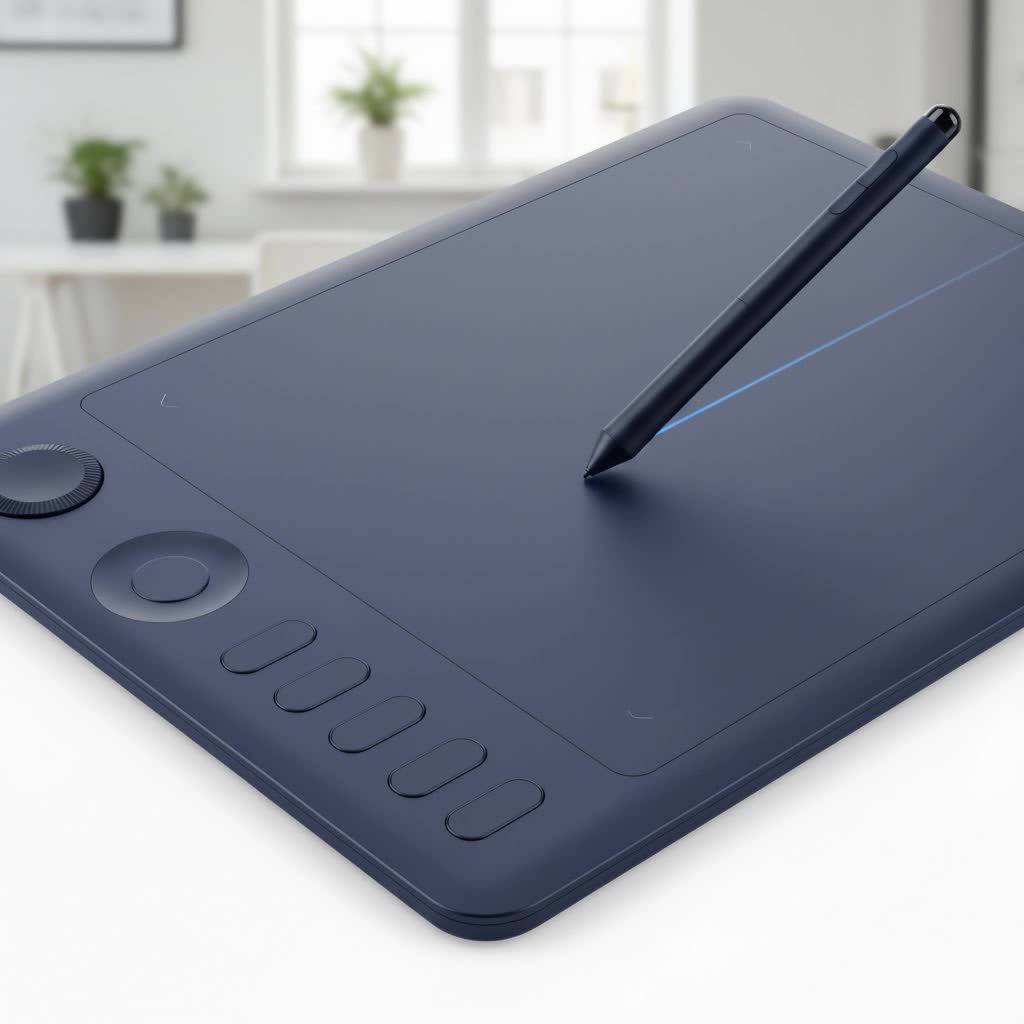
Why Even Bother with a Graphic Tablet on Linux?
For many, the appeal of Linux is its open-source nature, stability, and customization. This philosophy extends to the creative software available. Powerhouse applications like Krita, GIMP, Inkscape, and Blender are not just free; they are professional-grade tools that rival their paid counterparts. Pairing this top-tier software with a graphic tablet on Linux creates a completely open-source, high-performance creative studio. It’s about freedom—freedom from expensive licenses and freedom to build a workflow that is uniquely yours.
The State of Linux Graphic Tablet Support in 2025
The magic behind the excellent tablet support on modern Linux distributions lies in a multi-layered driver system. It’s not as simple as one single piece of software, but a combination of components working together.
The Linux Kernel and libwacom
|
Our Picks for the Best Graphic Tablet in 2026
As an Amazon Associate I earn from qualifying purchases.
|
||
| Num | Product | Action |
|---|---|---|
| 1 | HUION KAMVAS Pro 16 Drawing Tablet with Screen, 15.6 inch Pen Display Anti-Glare Glass 6 Shortcut Keys Adjustable Stand, Graphics Tablet for Drawing, Writing, Design, Work with Windows, Mac and Linux |

|
| 2 | Wacom Intuos Pro Medium Bluetooth Professional Graphic Drawing Tablet with Pro Pen 3, Compatible with Mac, Windows - 2025 Edition |
|
| 3 | HUION Inspiroy H640P Drawing Tablet, 6x4 inch Digital Art with Battery-Free Stylus, 8192 Pen Pressure, 6 Hot Keys, Graphics Tablet for Drawing, Writing, Design, Teaching, Work with Mac, PC & Mobile |
|
| 4 | HUION Kamvas 13 (Gen 3) Drawing Tablet with Screen,13.3\" Full-Laminated Art Tablet with Anti-Sparkle Canvas Glass 2.0, 99% sRGB, PenTech 4.0, 16384 Pen Pressure, Dual Dial for PC, Mac, Android, Black |
|
| 5 | XOPPOX Graphics Drawing Tablet 10 x 6 Inch Large Active Area with 8192 Levels Battery-Free Pen and 12 Hot Keys, Compatible with PC/Mac/Android OS for Painting, Design & Online Teaching Black |
|
| 6 | Drawing Tablet for Beginner Graphics OSU Tablet with Battery-Free Stylus 8192 Pressure Sensitive for Digital Art, Painting & Design, Compatible with Windows, Mac OS and Android |
|
| 7 | HUION Inspiroy H1060P Graphics Drawing Tablet with 8192 Pressure Sensitivity Battery-Free Stylus and 12 Customized Hot Keys, 10 x 6.25 inches Digital Art Tablet for Mac, Windows PC and Android |
|
| 8 | HUION Drawing Tablet HS610 Graphic Tablet with Battery-Free Stylus 8192 Pen Pressure Tilt Function, 10x6.25 Inches Digital Art for Animation & Design, Compatible with Windows/Mac/Android |
|
| 9 | GAOMON M10K Drawing Tablet, 10x6 inch Large Graphics Tablet with Touch Ring, 8192 Levels Battery-Free Stylus, 10 Hot Keys, Art Tablet for Design, Writing, Editing, Work with Mac, Windows, Android |
|
| 10 | Graphics Drawing Tablet, UGEE M708 10 x 6 inch Large Drawing Tablet with 8 Hot Keys, Passive Stylus of 16384 Levels Pressure, UGEE M708 Graphics Tablet for Paint, Design, Art Creation Sketch |
|
At the core, the Linux kernel itself includes drivers for many devices, especially from Wacom. For years, Wacom tablets have been the most reliable choice for Linux users precisely because of this built-in support. The libwacom project provides a database that helps applications understand the specific capabilities of different tablet models, such as the number of buttons, the resolution, and whether it has a built-in screen. For many users, this means their tablet works right out of the box—just plug it in, and you’re ready to draw.
The Rise of OpenTabletDriver
While built-in support is great, the real game-changer for non-Wacom tablets has been community projects. OpenTabletDriver is the most prominent of these. It’s a cross-platform, user-space driver that offers a graphical interface and extensive customization for a massive range of tablets from brands like Huion, XP-Pen, Gaomon, and more. It often provides more features and better control than the default kernel drivers, allowing users to fine-tune every aspect of their device.
“OpenTabletDriver has democratized hardware choice for Linux artists,” says professional illustrator David Chen. “We are no longer limited to a single brand. We can now choose the best hardware for our budget and workflow, confident that a robust, community-supported driver is there to make it work seamlessly.”
What are the Best Graphic Tablet Brands for Linux?
Compatibility is the most critical factor. While many tablets will work, some brands offer a smoother experience than others.
Wacom: The Plug-and-Play Champion
Wacom remains the gold standard for Linux compatibility. Thanks to long-standing kernel and libwacom support, most Wacom devices, from the entry-level One by Wacom to the professional Cintiq Pro line, are recognized automatically by major distributions like Ubuntu, Fedora, and Arch Linux. You can simply plug them in, open your system settings, and start configuring pressure curves and button mapping.
Huion & XP-Pen: Excellent Support via OpenTabletDriver
Brands like Huion and XP-Pen have become incredibly popular for offering high-quality features at competitive prices. In the past, their Linux support was a mixed bag, often relying on spotty official drivers. Today, thanks to OpenTabletDriver, their compatibility is outstanding. Models like the Huion Kamvas series and the XP-Pen Artist line are fully supported, giving users access to every feature the hardware offers. Installing OpenTabletDriver might be an extra step, but it unlocks a huge range of affordable and powerful hardware.
How Do I Set Up My Graphic Tablet on Linux?
Getting started is usually a simple process. Here’s a general guide that applies to most modern Linux systems.
Step 1: Just Plug It In
Seriously, this is the first and often only step. Connect your tablet via USB. If it’s a display tablet, also connect the HDMI or DisplayPort cable. Your system should automatically detect it as a new input device.
Step 2: Check Your System Settings
Navigate to your system’s settings panel. On GNOME (used by Ubuntu and Fedora), you’ll find a dedicated “Wacom Tablet” or “Graphics Tablet” section. Here you can:
- Configure which monitor the tablet maps to.
- Adjust the pressure sensitivity curve.
- Map the buttons on the stylus and the tablet’s ExpressKeys to specific shortcuts or keystrokes.
- Switch between left-handed and right-handed orientation.
Step 3: Install OpenTabletDriver (If Necessary)
If your tablet isn’t detected, or if the system settings offer limited options (common for non-Wacom brands), OpenTabletDriver is your next stop.
- Download: Visit the OpenTabletDriver website and download the appropriate package for your distribution.
- Install: Follow the installation instructions, which are typically very clear.
- Launch: Once installed, run the OpenTabletDriver user interface. It will automatically detect your compatible tablet.
- Configure: Use its powerful GUI to map buttons, set screen areas, adjust pressure settings, and save different profiles for various applications.
Troubleshooting Common Linux Tablet Problems
Sometimes, things don’t go perfectly. Here are a few common issues and how to solve them.
- No Pressure Sensitivity in GIMP/Krita: This is a classic issue. In your creative application, go to the input device settings. Ensure that your tablet’s stylus is enabled and its mode is set to “Screen.” This tells the application to listen for the pressure data coming from the driver.
- Cursor is Mapped to All Monitors: In your system’s tablet settings or within OpenTabletDriver, look for a “Mapping” or “Screen Area” tab. There, you can bind the tablet to a single monitor. This is crucial for a usable drawing experience.
- Buttons Don’t Work: If the system settings don’t allow you to map your ExpressKeys, this is a strong sign you need OpenTabletDriver. It has a much more comprehensive database of tablet button configurations.
Frequently Asked Questions (FAQ)
Do I need to use the command line to install my tablet?
In most cases, no. Modern Linux desktops have graphical settings panels for tablet configuration. You may only need the terminal for installing OpenTabletDriver, but even that is often a simple copy-paste command.
Will my super-cheap, no-name graphic tablet work on Linux?
It’s possible, but not guaranteed. Many of these tablets use similar internal components to larger brands, so they might work with OpenTabletDriver. However, for the best experience, it’s recommended to stick with well-supported brands like Wacom, Huion, or XP-Pen.
Does pressure sensitivity work in browser-based art tools on Linux?
Yes, for the most part. Modern browsers like Firefox and Chrome on Linux can recognize tablet pressure events, making web apps like Photopea and Aggie.io perfectly usable.
Can I use a display tablet with Linux?
Absolutely. A display tablet like a Wacom Cintiq or Huion Kamvas acts as a standard monitor. Linux will detect it as such, and the tablet settings will allow you to map the pen input directly to that specific screen.
Is it difficult to switch from Windows/macOS to Linux for digital art?
The biggest learning curve is the operating system itself, not the tablet usage. The process of configuring and using a graphic tablet on Linux is now very similar to other operating systems. The software is powerful, and the hardware support is excellent.
Your Creative Future on Linux Awaits
The days of wrestling with configuration files to get a graphic tablet on Linux to work are largely over. With powerful built-in kernel support and fantastic community projects like OpenTabletDriver, Linux has become a first-class citizen in the world of digital creation. Whether you are a seasoned professional or a hobbyist just starting, you can confidently build a stable, powerful, and entirely open-source creative workstation. Grab your tablet, plug it in, and start creating.
