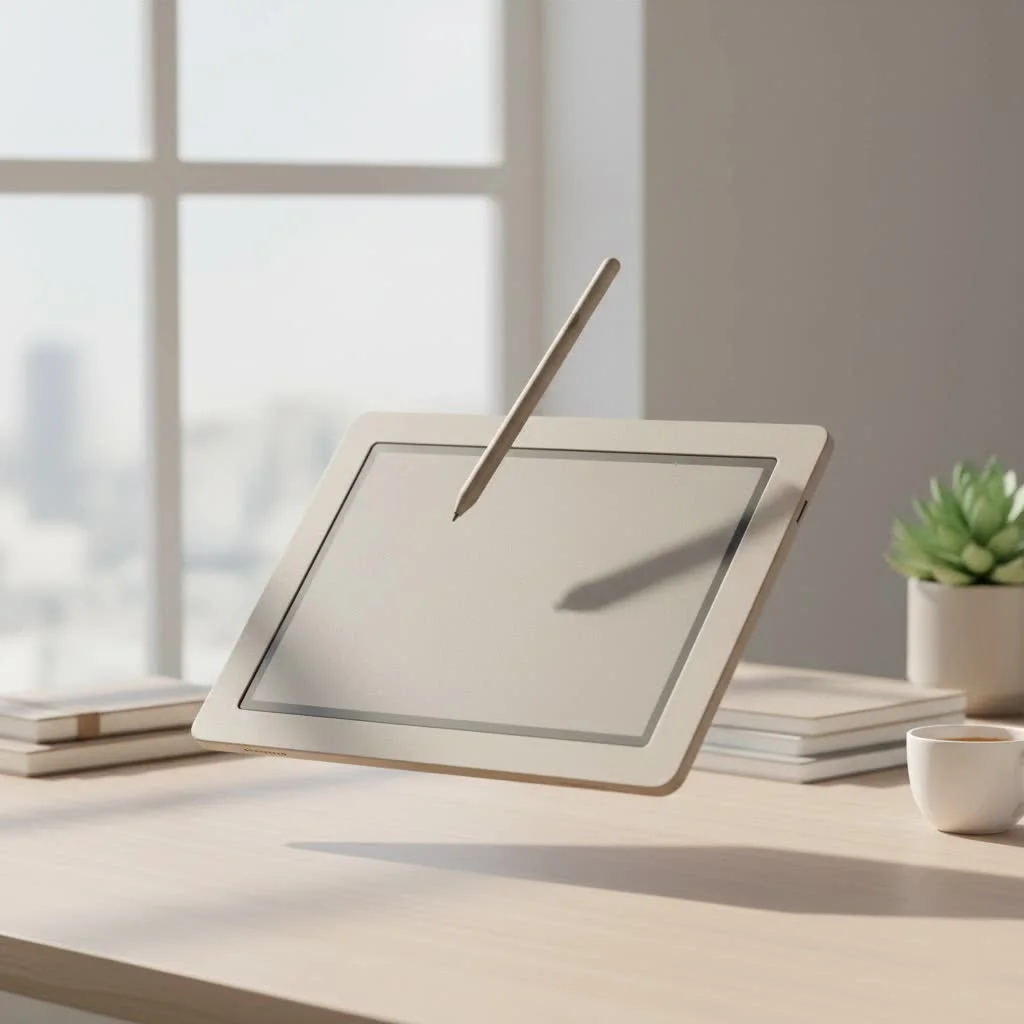
A graphic drawing pen tablet is an input device that allows digital artists to draw on a computer with natural hand movements, similar to using a pen and paper. It consists of a flat, touch-sensitive surface and a pen-like stylus, translating physical strokes into digital artwork. This tool is essential for unlocking fluid, intuitive digital creation, offering superior control and precision compared to a mouse or trackpad, and is a pivotal step for elevating digital art.
What is a Graphic Drawing Pen Tablet?
A graphic drawing pen tablet, also known as a pen tablet or drawing tablet, is an input device that enables users to create digital art on a computer using natural hand movements. It comprises two primary components: a flat, touch-sensitive surface and a pen-like stylus. When the stylus moves across the tablet’s surface, the computer translates these movements into digital brush strokes on the screen.
The underlying technology, often electromagnetic resonance (EMR), allows the tablet to detect the pen’s position, pressure, and tilt without requiring batteries for the stylus. This creates a seamless and intuitive connection between the artist’s hand and their digital canvas.
“The magic of a graphic tablet is its ability to translate human touch into a digital medium with incredible fidelity. It’s the bridge between traditional skill and technological power,” states digital art educator Alex Chen.
Core Features: What Matters Most?
Understanding the technical specifications of a graphic drawing pen tablet can be daunting. Here are the most important features to consider when making a selection.
Pressure Sensitivity
Pressure sensitivity is arguably the most critical feature, as it dictates how the tablet interprets the force applied with the stylus. Higher levels of pressure sensitivity provide greater control over line weight and opacity in digital strokes.
- Entry-Level: Approximately 2,048 levels, suitable for beginners and hobbyists.
- Professional Standard: 8,192 levels and above, offering incredibly nuanced control for subtle variations in strokes, mimicking real pencils or brushes.
For example, when sketching a portrait, high pressure sensitivity allows a light touch to create a faint guideline and a firm press to produce a dark, bold outline, all within a single, fluid motion.
Active Area
The active area is the portion of the tablet’s surface that detects stylus input, serving as your digital canvas. The ideal size depends on your workflow and monitor dimensions.
- Small Tablets (around 6×4 inches): Excellent for portability, photo editing, and users with smaller monitors, requiring less arm movement.
- Medium Tablets (around 8×5 to 10×6 inches): The most popular size, offering a comfortable balance between drawing space and desk footprint, suitable for most monitor sizes.
- Large Tablets (12×8 inches and up): Best for artists who utilize large, sweeping arm movements and work on high-resolution monitors.
A general guideline is to match the tablet’s aspect ratio to your monitor’s to prevent distortion when drawing shapes.
Resolution (LPI)
|
Our Picks for the Best Graphic Tablet in 2026
As an Amazon Associate I earn from qualifying purchases.
|
||
| Num | Product | Action |
|---|---|---|
| 1 | Graphics Drawing Tablet, UGEE M708 10 x 6 inch Large Drawing Tablet with 8 Hot Keys, Passive Stylus of 16384 Levels Pressure, UGEE M708 Graphics Tablet for Paint, Design, Art Creation Sketch |

|
| 2 | HUION Inspiroy H640P Drawing Tablet, 6x4 inch Digital Art with Battery-Free Stylus, 8192 Pen Pressure, 6 Hot Keys, Graphics Tablet for Drawing, Writing, Design, Teaching, Work with Mac, PC & Mobile |
|
| 3 | Wacom Intuos Pro Medium Bluetooth Professional Graphic Drawing Tablet with Pro Pen 3, Compatible with Mac, Windows - 2025 Edition |
|
| 4 | XOPPOX Graphics Drawing Tablet 10 x 6 Inch Large Active Area with 8192 Levels Battery-Free Pen and 12 Hot Keys, Compatible with PC/Mac/Android OS for Painting, Design & Online Teaching Black |
|
| 5 | HUION Drawing Tablet HS610 Graphic Tablet with Battery-Free Stylus 8192 Pen Pressure Tilt Function, 10x6.25 Inches Digital Art for Animation & Design, Compatible with Windows/Mac/Android |
|
| 6 | HUION Inspiroy H1060P Graphics Drawing Tablet with 8192 Pressure Sensitivity Battery-Free Stylus and 12 Customized Hot Keys, 10 x 6.25 inches Digital Art Tablet for Mac, Windows PC and Android |
|
| 7 | HUION KAMVAS Pro 16 Drawing Tablet with Screen, 15.6 inch Pen Display Anti-Glare Glass 6 Shortcut Keys Adjustable Stand, Graphics Tablet for Drawing, Writing, Design, Work with Windows, Mac and Linux |
|
| 8 | GAOMON M10K Drawing Tablet, 10x6 inch Large Graphics Tablet with Touch Ring, 8192 Levels Battery-Free Stylus, 10 Hot Keys, Art Tablet for Design, Writing, Editing, Work with Mac, Windows, Android |
|
| 9 | Drawing Tablet for Beginner Graphics OSU Tablet with Battery-Free Stylus 8192 Pressure Sensitive for Digital Art, Painting & Design, Compatible with Windows, Mac OS and Android |
|
| 10 | HUION Kamvas 13 (Gen 3) Drawing Tablet with Screen,13.3\" Full-Laminated Art Tablet with Anti-Sparkle Canvas Glass 2.0, 99% sRGB, PenTech 4.0, 16384 Pen Pressure, Dual Dial for PC, Mac, Android, Black |
|
LPI, or Lines Per Inch, indicates the number of digital lines that can fit into one inch of the tablet’s screen. A higher LPI signifies the tablet’s ability to recognize finer details and more precise movements, resulting in smoother, more accurate lines. Most contemporary tablets feature an LPI of 2,540 or higher, with professional models often exceeding 5,080 LPI, which is ample for detailed professional work.
Stylus Type
The stylus functions as your digital pen. Most high-quality tablets now incorporate battery-free pens powered by EMR technology. These pens are lightweight and maintenance-free, eliminating concerns about charging during creative sessions. Some older or budget models may still use battery-powered or rechargeable pens, which can be slightly heavier.
Pen Tablets vs. Pen Displays: Which is Right?
Graphic tablets are broadly categorized into two types. Understanding their differences is crucial for selecting the appropriate tool for your needs.
Pen Tablets (Screenless)
This is the traditional graphic drawing pen tablet where you draw on the tablet’s surface while viewing your computer monitor.
- Pros: More affordable, durable, and promote better posture by encouraging users to look straight ahead. Many professionals prefer them after mastering the required hand-eye coordination.
- Cons: Involves a learning curve to draw in one location while observing another, which can initially feel unnatural but becomes second nature with practice.
Pen Displays (With a Screen)
These devices feature a built-in screen, allowing direct drawing on the surface where the image appears, closely mimicking drawing on paper.
- Pros: Highly intuitive with virtually no learning curve. The direct visual feedback is excellent for detailed line work and painting.
- Cons: Significantly more expensive, can be bulky, and some models might exhibit parallax (a slight gap between the pen tip and the on-screen cursor).
Frequently Asked Questions (FAQ)
### Do I need a graphic drawing pen tablet for digital art?
While you can use a mouse, a graphic tablet offers far greater control, precision, and comfort. The pressure sensitivity feature alone is a major upgrade for creating dynamic and natural-looking artwork. For serious digital artists, it’s an essential tool.
### How long does it take to get used to a screenless tablet?
The learning curve varies, but most users feel comfortable within a few days to a week of consistent practice. Start with simple exercises like drawing shapes and lines to build your hand-eye coordination.
### Can I use a graphic tablet as a mouse?
Absolutely. A graphic tablet can do everything a mouse can. Tapping the surface with the pen is equivalent to a left-click, and you can program the side buttons on the stylus to function as a right-click or other commands.
### What’s the difference between Wacom, Huion, and XP-Pen?
Wacom has long been the industry standard, known for its premium build quality and reliability, but it comes at a higher price. Huion and XP-Pen are strong competitors that offer excellent features and performance at much more affordable price points, making them fantastic choices for beginners and professionals on a budget.
### Do I need to replace the pen nibs?
Yes, the plastic nib on your stylus will wear down over time with use. Most tablets come with a set of replacement nibs, and they are inexpensive to purchase. How often you need to replace them depends on how heavily you draw and the texture of your tablet’s surface.
Your Creative Journey Starts Now
Choosing your first graphic drawing pen tablet is a pivotal step in your creative development. It’s an investment in your passion and your potential. Whether you opt for a simple and affordable pen tablet or a feature-rich pen display, this tool will fundamentally change how you interact with your digital canvas. It closes the gap between your imagination and the screen, allowing for a more fluid and expressive workflow. So take the plunge, find the tablet that speaks to you, and start creating the art you’ve always dreamed of.
Frequently Asked Questions
Is a graphic drawing pen tablet necessary for creating digital art?
While digital art can be created with a mouse, a graphic tablet offers significantly greater control, precision, and comfort. Its pressure sensitivity feature is crucial for dynamic and natural-looking artwork, making it an essential tool for serious digital artists.
How long does it typically take to adapt to a screenless drawing tablet?
The learning curve for a screenless tablet varies among users, but most individuals become comfortable within a few days to a week of consistent practice. Starting with simple exercises like drawing basic shapes and lines helps build hand-eye coordination effectively.
Can a graphic tablet be used as a substitute for a computer mouse?
Yes, a graphic tablet can fully function as a mouse, performing all the same tasks. Tapping the tablet surface with the pen acts as a left-click, and the stylus's side buttons can be programmed for right-click or other commands.
What are the key differences between Wacom, Huion, and XP-Pen tablets?
Wacom is recognized as the industry standard for its premium build quality and reliability, often at a higher price point. Huion and XP-Pen are strong competitors that provide excellent features and performance at more affordable prices, making them great options for both beginners and budget-conscious professionals.
Is it necessary to replace the nibs on a drawing pen stylus?
Yes, the plastic nib on a stylus will wear down over time with regular use. Most tablets include a set of replacement nibs, which are also inexpensive to purchase. The frequency of replacement depends on drawing intensity and the texture of the tablet's surface.
Set Up a Graphic Drawing Pen Tablet
Setting up a graphic drawing pen tablet is a straightforward process that involves installing drivers, connecting the device, configuring settings, and launching your art software.
Before connecting your tablet, visit the manufacturer's website (e.g., Wacom, Huion, XP-Pen) and download the latest driver specific to your model. This driver is crucial for enabling communication between your tablet and computer.
Plug the tablet into your computer using the provided USB cable. If you are using a pen display, you will also need to connect an HDMI cable for video output and a power adapter to ensure full functionality.
Open the tablet software you installed to customize various settings. Here, you can map the tablet's active area to your monitor, adjust the pen's pressure sensitivity curve, and program the express keys on the tablet and stylus buttons.
Launch your preferred creative program, such as Adobe Photoshop, Clip Studio Paint, or Krita. The software should automatically detect the tablet, activating pressure sensitivity for your brushes and tools.
Start drawing and take some time to familiarize yourself with the feel of the stylus on the tablet surface. If you are using a screenless tablet, practice your hand-eye coordination to get accustomed to drawing while looking at your monitor.
Get our weekly buyer guide
Practical specs, not advice. Unsubscribe anytime.
I got a basic XP-Pen tablet to try out digital art, and while the concept of translating physical strokes into digital artwork is great, I’m finding the stylus a bit too light for my preference. It feels a little flimsy compared to a real pen. It works, but I might need to invest in a different brand next time for a more substantial feel.
I’ve been using a Wacom Intuos for years, but after reading about the benefits of a larger active area, I decided to upgrade. The difference in precision and control is incredible! It really does feel like drawing on paper, and my workflow has improved so much. Definitely a pivotal step for anyone serious about elevating their digital art.
I was on the fence about getting a pen tablet, thinking my mouse was good enough. But the description of natural hand movements and superior control really convinced me. I picked up a Huion tablet in the mid-range price point, and it’s been a game-changer for my illustrations. Wish I’d made the switch sooner!
As a graphic designer, I can’t imagine working without my graphic drawing pen tablet. The ability to have fluid, intuitive digital creation is absolutely essential for my daily tasks. It’s so much more efficient than trying to draw with a trackpad, and the pressure sensitivity on my current model is fantastic for detailed work.