Finding a graphic drawing tablet that delivers solid performance without breaking the bank can feel like a quest. For years, the market has been dominated by big names with equally big price tags, leaving beginners and hobbyists wondering if there’s a more accessible entry point. This is where the Monoprice 10×6.25 Graphic Drawing Tablet enters the conversation. As an affordable alternative, it promises a large drawing area and professional-grade features, but does it truly deliver for digital artists?
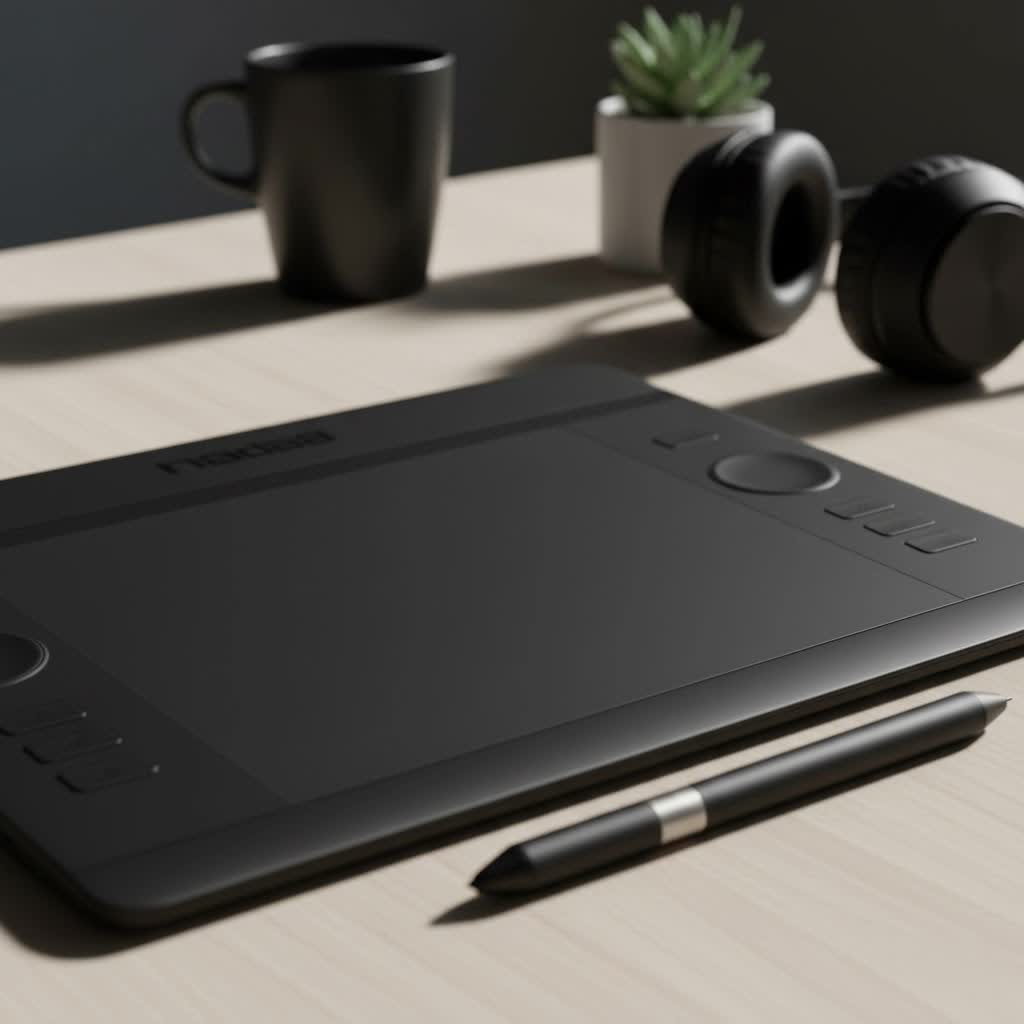
With over 15 years of experience using everything from high-end professional tablets to budget-friendly models, I’ve learned that a tablet’s true value lies in its performance and reliability. In this comprehensive review, we’ll dive deep into what the Monoprice 10×6.25 tablet has to offer, from its initial setup to its real-world drawing capabilities. We’ll explore if this is the hidden gem budget-conscious creators have been looking for.
What’s in the Box? First Impressions
When you first unbox the Monoprice tablet, the contents are straightforward and practical. Inside, you’ll typically find:
- The 10×6.25-inch tablet itself
- A battery-free, pressure-sensitive pen
- A pen holder with several replacement nibs
- A USB cable to connect the tablet to your computer
- A driver installation CD (though downloading the latest driver online is always recommended)
My first impression of the tablet is its surprising lightness. The build is primarily plastic, which is expected at this price point. It doesn’t feel as premium as a Wacom Intuos, but it’s sturdy enough for everyday use. The drawing surface has a slight texture, providing a pleasant, paper-like resistance against the pen nib, which is a nice touch that enhances control. The large active area is the main selling point, offering ample space for broad, sweeping strokes, which is a significant advantage over smaller entry-level tablets.
Key Features and Technical Specifications
To understand a tablet’s capabilities, we need to look at its specs. While numbers don’t tell the whole story, they provide a baseline for what to expect.
| Feature | Specification | What It Means for You |
|---|---|---|
| Active Area | 10 x 6.25 inches | A large canvas for drawing, reducing the need for constant zooming and panning. |
| Pressure Sensitivity | 2048 Levels | Allows for nuanced control over line weight and opacity, essential for detailed art. |
| Resolution | 4000 LPI (Lines Per Inch) | Determines the level of detail the tablet can capture. Higher LPI means more precision. |
| Report Rate | 200 RPS (Reports Per Second) | How quickly the tablet sends data to the computer. This ensures minimal lag. |
| Express Keys | 8 Programmable Keys | Customizable shortcuts for your most-used tools, speeding up your workflow. |
These specifications are impressive for a tablet in this price category. Having 2048 levels of pressure sensitivity, while not the highest on the market today, is more than sufficient for most artistic applications, from digital painting to photo editing.
The Pen: Your Digital Brush
|
Our Picks for the Best Graphic Tablet in 2026
As an Amazon Associate I earn from qualifying purchases.
|
||
| Num | Product | Action |
|---|---|---|
| 1 | HUION Drawing Tablet HS610 Graphic Tablet with Battery-Free Stylus 8192 Pen Pressure Tilt Function, 10x6.25 Inches Digital Art for Animation & Design, Compatible with Windows/Mac/Android |

|
| 2 | HUION KAMVAS Pro 16 Drawing Tablet with Screen, 15.6 inch Pen Display Anti-Glare Glass 6 Shortcut Keys Adjustable Stand, Graphics Tablet for Drawing, Writing, Design, Work with Windows, Mac and Linux |
|
| 3 | HUION Inspiroy H1060P Graphics Drawing Tablet with 8192 Pressure Sensitivity Battery-Free Stylus and 12 Customized Hot Keys, 10 x 6.25 inches Digital Art Tablet for Mac, Windows PC and Android |
|
| 4 | XOPPOX Graphics Drawing Tablet 10 x 6 Inch Large Active Area with 8192 Levels Battery-Free Pen and 12 Hot Keys, Compatible with PC/Mac/Android OS for Painting, Design & Online Teaching Black |
|
| 5 | Graphics Drawing Tablet, UGEE M708 10 x 6 inch Large Drawing Tablet with 8 Hot Keys, Passive Stylus of 16384 Levels Pressure, UGEE M708 Graphics Tablet for Paint, Design, Art Creation Sketch |
|
| 6 | HUION Inspiroy H640P Drawing Tablet, 6x4 inch Digital Art with Battery-Free Stylus, 8192 Pen Pressure, 6 Hot Keys, Graphics Tablet for Drawing, Writing, Design, Teaching, Work with Mac, PC & Mobile |
|
| 7 | Wacom Intuos Pro Medium Bluetooth Professional Graphic Drawing Tablet with Pro Pen 3, Compatible with Mac, Windows - 2025 Edition |
|
| 8 | Drawing Tablet for Beginner Graphics OSU Tablet with Battery-Free Stylus 8192 Pressure Sensitive for Digital Art, Painting & Design, Compatible with Windows, Mac OS and Android |
|
| 9 | GAOMON M10K Drawing Tablet, 10x6 inch Large Graphics Tablet with Touch Ring, 8192 Levels Battery-Free Stylus, 10 Hot Keys, Art Tablet for Design, Writing, Editing, Work with Mac, Windows, Android |
|
| 10 | HUION Kamvas 13 (Gen 3) Drawing Tablet with Screen,13.3\" Full-Laminated Art Tablet with Anti-Sparkle Canvas Glass 2.0, 99% sRGB, PenTech 4.0, 16384 Pen Pressure, Dual Dial for PC, Mac, Android, Black |
|
The included pen is battery-free, which is a huge plus. You never have to worry about charging it or replacing batteries mid-project. It’s lightweight and comfortable to hold for extended periods. While it lacks the premium feel of pens from more expensive brands, it performs its function well. The two programmable buttons on the side can be set to common functions like right-click or switching to the eraser tool.
Installation and Driver Setup: The First Hurdle
This is often where budget tablets can be a bit tricky, and the Monoprice 10×6.25 Graphic Drawing Tablet is no exception. It is crucial to uninstall all other tablet drivers before you begin. Conflict with existing drivers, especially from brands like Wacom, is the most common cause of issues.
My advice is to ignore the included CD and head straight to the Monoprice website to download the latest driver. The installation process is straightforward, but a restart is necessary. Once installed, the driver software allows you to customize:
- Pen Pressure Curve: Adjust how the tablet responds to light and heavy strokes.
- Button Mapping: Assign specific keyboard shortcuts or functions to the pen buttons and the tablet’s express keys.
- Screen Mapping: Define which part of your screen the tablet’s active area corresponds to, which is essential for multi-monitor setups.
Getting these settings right is key to a good drawing experience. Take some time to experiment and find what feels most natural for your workflow.
Real-World Performance: Putting it to the Test
After setting everything up, I tested the tablet with several popular art applications, including Adobe Photoshop, Clip Studio Paint, and Krita. The results were pleasantly surprising.
The tablet is responsive, with minimal noticeable lag. The cursor follows the pen’s movement accurately, and the pressure sensitivity works as advertised. I was able to create smooth, tapered lines and build up color and opacity gradually. The large drawing area felt liberating, making it easy to work on larger compositions without feeling cramped.
The express keys are a fantastic addition for workflow efficiency. I mapped my favorite shortcuts—like undo, redo, zoom in, and zoom out—and found myself working much faster. For beginners, getting into the habit of using these keys can significantly improve your digital art process.
However, it’s not perfect. Occasionally, you might experience a slight jitter on very slow, deliberate diagonal strokes. This is a common quirk in many budget tablets, but it’s generally not a deal-breaker unless you require absolute surgical precision for technical line art. For general illustration and painting, it’s hardly noticeable.
Who is the Monoprice 10×6.25 Tablet For?
This tablet hits a sweet spot for several types of users:
- Beginners: If you’re just starting with digital art, this tablet offers professional-level features and a large drawing surface at a fraction of the cost of premium brands. It’s an excellent way to learn without a significant financial commitment.
- Hobbyists and Students: For those who draw for fun or as part of their studies, the Monoprice tablet provides all the necessary functionality for creating impressive artwork.
- Artists on a Budget: Even seasoned artists who need a backup tablet or a larger portable option will find a lot to like here. It proves you don’t need to spend a fortune to get a capable tool.
However, professional artists who rely on flawless performance and the highest levels of sensitivity for commercial work might prefer to invest in a higher-end model.
Monoprice 10×6.25 vs. Wacom Intuos
The inevitable comparison is with Wacom, the industry standard. A similarly sized Wacom Intuos can cost two to three times as much. So what does that extra money get you?
With Wacom, you’re paying for brand reputation, superior build quality, more refined driver software, and features like pen tilt recognition on some models. The drawing experience on a Wacom often feels slightly more polished and reliable out of the box.
That said, the Monoprice tablet offers a much larger drawing area for the same price as a small Wacom Intuos. For many artists, especially beginners, having more space to draw is a more tangible benefit than the subtle refinements of a more expensive tablet.
Frequently Asked Questions (FAQ)
Is Monoprice a good brand for drawing tablets?
Monoprice is known for offering affordable electronics that provide excellent value. While their driver software can sometimes be less polished than top-tier brands, their tablets are well-regarded in the budget category for their performance and features.
Does the Monoprice 10×6.25 tablet work with Mac and Windows?
Yes, the tablet is compatible with both major operating systems. Always download the latest driver from the official Monoprice website for your specific OS to ensure the best performance.
Can I use this tablet for photo editing in Photoshop?
Absolutely. The pressure sensitivity is great for tasks like masking, dodging, and burning, offering far more control and precision than a standard mouse.
How do you replace the pen nibs?
The pen holder usually contains a small metal ring or tool. You simply use it to gently grip and pull out the old nib from the pen, then slide a new one in.
What should I do if the pen pressure isn’t working?
First, ensure you have the correct driver installed and that any old tablet drivers are uninstalled. Within your art software (like Photoshop), check that pen pressure settings are enabled in the brush panel. Finally, try reinstalling the driver and restarting your computer.
The Final Verdict
The Monoprice 10×6.25 Graphic Drawing Tablet is a remarkable piece of hardware for its price. It makes digital art accessible to a wider audience without demanding a huge investment. The combination of a large active area, reliable pressure sensitivity, and customizable express keys creates a powerful tool for any budding artist or hobbyist.
While it has minor quirks, particularly with driver setup and a less-than-premium build, its performance far outweighs these drawbacks. If you’re willing to spend a little time on setup, you’ll be rewarded with a tablet that can handle serious creative work. For anyone looking to dive into the world of digital art on a budget, this Monoprice tablet is not just a viable option—it’s one of the best you can get.
