The world of digital creativity revolves around a few key tools, and for decades, one name has consistently stood at the pinnacle of professional gear: Wacom. When you’re ready to move beyond hobbyist tools and invest in your craft, the conversation inevitably turns to the Wacom Intuos Pro Digital Graphic Drawing Tablet. As a graphic designer and educator with over 15 years of experience, I’ve seen countless tablets come and go, but the Intuos Pro line has remained a steadfast benchmark for quality, precision, and durability. This isn’t just another accessory; for many of us, it’s the most critical link between our creative vision and the digital canvas.
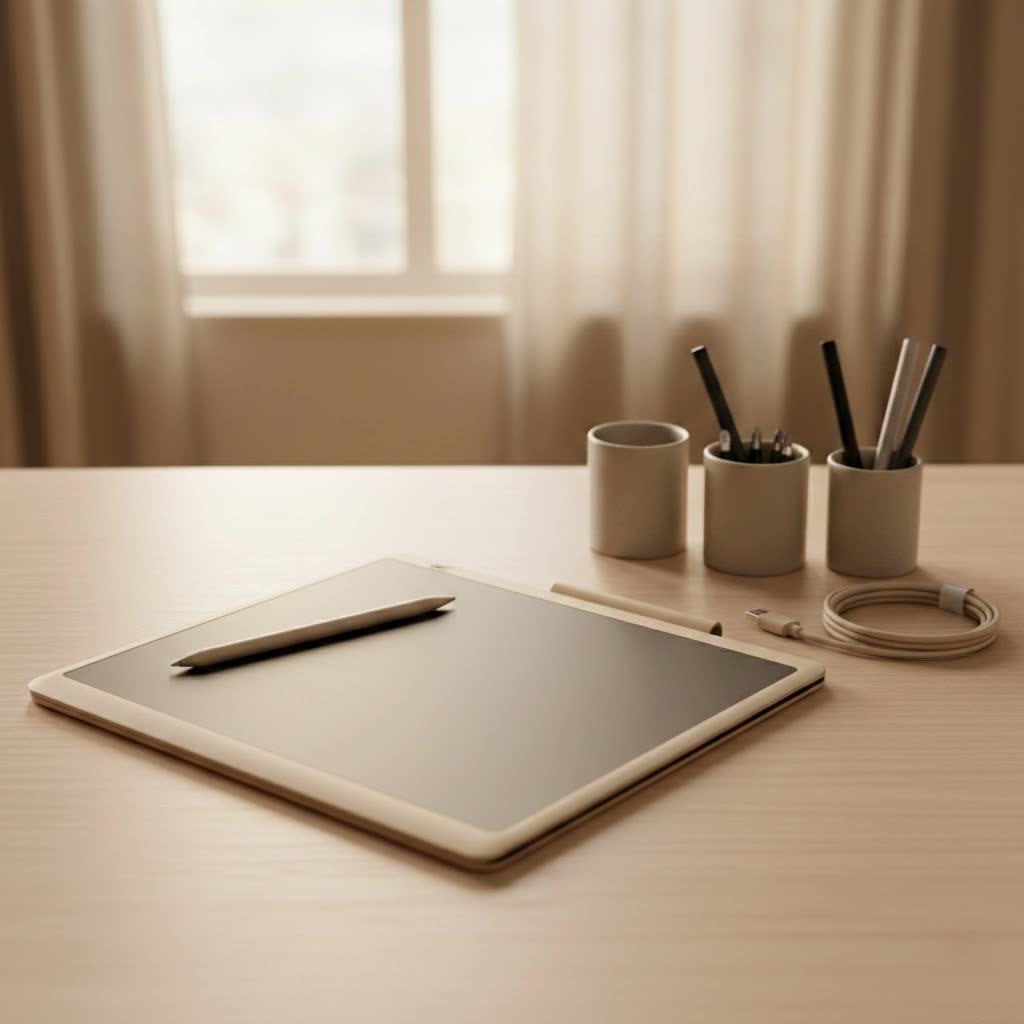
But what makes it the industry standard? Is it still the undisputed champion in an increasingly competitive market? This comprehensive review will break down everything you need to know about the Wacom Intuos Pro, from its core features and real-world performance to helping you decide if it’s the right investment for your creative journey. We’ll explore the nuances of its celebrated Pro Pen 2, the customizable workflow enhancers, and which size might be the perfect fit for your desk and your discipline.
What Exactly is the Wacom Intuos Pro?
The Wacom Intuos Pro is a screen-less pen tablet designed for creative professionals and serious enthusiasts in fields like digital illustration, photography, graphic design, and 3D modeling. Unlike a display tablet (like a Wacom Cintiq or an iPad), you draw on the tablet’s surface while looking at your computer monitor. This hand-eye coordination can take some getting used to, but it’s a classic workflow that offers a more ergonomic, heads-up posture. The “Pro” in its name signifies its premium build quality, advanced pen technology, and a suite of features built for high-demand, professional environments.
Who is This Drawing Tablet For?
While a beginner could certainly start with an Intuos Pro, it is primarily aimed at:
- Professional Artists and Designers: Illustrators, concept artists, and graphic designers who require top-tier precision and reliability for daily work.
- Photo Editors and Retouchers: Photographers who need the fine control of a pressure-sensitive pen for tasks like dodging, burning, masking, and cloning.
- 3D Sculptors and Modelers: Artists working in programs like ZBrush or Blender who rely on pressure sensitivity for sculpting intricate details.
- Serious Hobbyists: Creatives who are committed to their craft and want to invest in a tool that won’t limit their growth.
|
Our Picks for the Best Graphic Tablet in 2026
As an Amazon Associate I earn from qualifying purchases.
|
||
| Num | Product | Action |
|---|---|---|
| 1 | HUION Inspiroy H640P Drawing Tablet, 6x4 inch Digital Art with Battery-Free Stylus, 8192 Pen Pressure, 6 Hot Keys, Graphics Tablet for Drawing, Writing, Design, Teaching, Work with Mac, PC & Mobile |

|
| 2 | HUION Kamvas 13 (Gen 3) Drawing Tablet with Screen,13.3\" Full-Laminated Art Tablet with Anti-Sparkle Canvas Glass 2.0, 99% sRGB, PenTech 4.0, 16384 Pen Pressure, Dual Dial for PC, Mac, Android, Black |
|
| 3 | Drawing Tablet for Beginner Graphics OSU Tablet with Battery-Free Stylus 8192 Pressure Sensitive for Digital Art, Painting & Design, Compatible with Windows, Mac OS and Android |
|
| 4 | Wacom Intuos Pro Medium Bluetooth Professional Graphic Drawing Tablet with Pro Pen 3, Compatible with Mac, Windows - 2025 Edition |
|
| 5 | Graphics Drawing Tablet, UGEE M708 10 x 6 inch Large Drawing Tablet with 8 Hot Keys, Passive Stylus of 16384 Levels Pressure, UGEE M708 Graphics Tablet for Paint, Design, Art Creation Sketch |
|
| 6 | HUION KAMVAS Pro 16 Drawing Tablet with Screen, 15.6 inch Pen Display Anti-Glare Glass 6 Shortcut Keys Adjustable Stand, Graphics Tablet for Drawing, Writing, Design, Work with Windows, Mac and Linux |
|
| 7 | XOPPOX Graphics Drawing Tablet 10 x 6 Inch Large Active Area with 8192 Levels Battery-Free Pen and 12 Hot Keys, Compatible with PC/Mac/Android OS for Painting, Design & Online Teaching Black |
|
| 8 | GAOMON M10K Drawing Tablet, 10x6 inch Large Graphics Tablet with Touch Ring, 8192 Levels Battery-Free Stylus, 10 Hot Keys, Art Tablet for Design, Writing, Editing, Work with Mac, Windows, Android |
|
| 9 | HUION Drawing Tablet HS610 Graphic Tablet with Battery-Free Stylus 8192 Pen Pressure Tilt Function, 10x6.25 Inches Digital Art for Animation & Design, Compatible with Windows/Mac/Android |
|
| 10 | HUION Inspiroy H1060P Graphics Drawing Tablet with 8192 Pressure Sensitivity Battery-Free Stylus and 12 Customized Hot Keys, 10 x 6.25 inches Digital Art Tablet for Mac, Windows PC and Android |
|
A Deep Dive into the Core Features
The magic of the Wacom Intuos Pro lies in the seamless integration of its hardware and software. It’s not one single feature, but the combination of several that creates a superior drawing experience.
The Legendary Pro Pen 2
At the heart of the Intuos Pro experience is the Pro Pen 2. This stylus is, in my opinion, the gold standard against which all other tablet pens are judged.
- 8,192 Levels of Pressure Sensitivity: This provides an incredible range of control, allowing you to create lines that vary from whisper-thin to bold and thick simply by altering how hard you press. It feels fluid, responsive, and incredibly natural.
- Tilt Recognition: The pen can detect the angle at which you’re holding it, which is fantastic for creating calligraphic brush strokes or shading with the side of a digital pencil or airbrush.
- No Batteries, No Charging: Using Wacom’s electromagnetic resonance (EMR) technology, the pen draws power directly from the tablet. You will never have to stop work to charge your pen, a small but critical feature for professional workflows.
- Ergonomics: The pen has a comfortable, balanced feel with a rubberized grip and two customizable side switches, which I typically map to “Undo” and “Right-Click.”
Customizable ExpressKeys and Touch Ring
Productivity is paramount in a professional setting. The physical shortcut buttons, or ExpressKeys, are a massive time-saver. Instead of constantly reaching for your keyboard, you can map your most-used commands—like undo, redo, zoom, brush size, and rotate—directly to the tablet. The Touch Ring adds another layer of control, perfect for smoothly zooming in and out, cycling through layers, or adjusting brush sizes on the fly. After a short adjustment period, these controls become second nature, dramatically speeding up your workflow.
“The ExpressKeys on the Wacom Intuos Pro aren’t a convenience; they’re a necessity for efficiency. I’ve programmed mine for Adobe Photoshop and Illustrator, and they easily save me hours every month by keeping my hands off the keyboard and my focus on the canvas.” – Jonathan Reyes, professional illustrator.
Build Quality and Surface Texture
The Intuos Pro is built to last. It features a sleek, durable design with an anodized aluminum base. But the real star is the drawing surface. It has a distinct, subtle texture that provides a slight tooth, mimicking the satisfying friction of drawing on high-quality paper. This tactile feedback is far more pleasant than drawing on a slick, glossy surface and gives you greater control over your strokes. Wacom also offers replaceable texture sheets (from smooth to rough) so you can customize the feel to your exact preference.
Which Wacom Intuos Pro Size is Right for You?
The Wacom Intuos Pro is available in three sizes: Small, Medium, and Large. Choosing the right one is crucial and depends heavily on your monitor size and working style.
- Small: Best for those with limited desk space, smaller monitors (under 21 inches), or frequent travelers. It’s excellent for photo editing and tasks that rely more on clicks and menus than broad, sweeping strokes.
- Medium: This is the sweet spot and the most popular choice. It offers the perfect balance of a generous active area without a massive footprint. It’s ideal for use with single or dual monitors up to 27 inches and is versatile enough for both illustration and photo editing. If you’re unsure which to get, this is almost always the right answer.
- Large: This size is for artists who work with very large monitors (30 inches or more) or who use sweeping, arm-from-the-shoulder drawing movements. It requires significant desk space but provides a near 1:1 mapping experience on large displays.
Performance in the Real World
Technical specs are one thing, but how does the Wacom Intuos Pro digital graphic drawing tablet perform in day-to-day creative tasks?
In Adobe Photoshop, the experience is flawless. The pressure sensitivity makes masking hair and other intricate details a breeze for photo retouchers. For digital painters, the combination of pressure and tilt control allows for incredibly expressive and natural brushwork.
In Adobe Illustrator, the tablet excels at creating clean, variable-weight vector line art. Drawing with the Blob Brush tool feels intuitive, and adjusting paths is far more precise than with a mouse.
For 3D sculpting in ZBrush, the pressure sensitivity is a game-changer. It allows for organic and subtle control when shaping and detailing models, something that is nearly impossible to achieve with a standard mouse.
Frequently Asked Questions (FAQ)
What is the difference between the Wacom Intuos and the Intuos Pro?
The standard Wacom Intuos is an entry-level tablet geared towards beginners and hobbyists. The Intuos Pro is a professional-grade tool with significantly more pressure levels (8,192 vs. 4,096), tilt support, multi-touch gestures, customizable ExpressKeys, and a more durable build.
Do I need a screen protector for the Wacom Intuos Pro?
It’s not a necessity, but it can be a good idea. The default surface sheet is replaceable. However, a screen protector can preserve the original surface if you are a heavy-handed artist or want to alter the drawing texture.
Can the Wacom Intuos Pro be used wirelessly?
Yes, all current models of the Wacom Intuos Pro have built-in Bluetooth connectivity, allowing you to work wirelessly without any noticeable lag. They also come with a USB-C cable for a wired connection and charging.
How long do the pen nibs last?
Nib longevity depends entirely on your drawing pressure and the surface texture you use. A light-handed artist might use the same nib for over a year, while a heavy-handed artist might wear one down in a few months. The pen comes with several replacement nibs stored conveniently inside the pen stand.
Is the Wacom Intuos Pro worth the price?
If you are a creative professional or a serious artist looking to elevate your work, the answer is a resounding yes. The precision, reliability, and workflow enhancements it offers are a direct investment in the quality and efficiency of your creative output. While the initial cost is higher than entry-level tablets, its durability ensures it will be a core part of your toolkit for many years to come.
The Final Verdict
After years of use and testing countless alternatives, the Wacom Intuos Pro digital graphic drawing tablet remains my top recommendation for any serious digital artist. It is a masterfully engineered tool that bridges the gap between traditional feel and digital power. The Pro Pen 2 is unparalleled in its responsiveness, and the suite of professional features like the ExpressKeys and robust build quality justify its position as the industry benchmark. It is more than just a tablet; it’s a long-term investment in your creative potential that will grow with you as your skills evolve.
