Welcome to the world of digital art, where your screen is your canvas. If you’ve been looking for a way to bridge the gap between traditional drawing and digital creation, the Graphic Display Tablet is the tool you need. This device, often called a pen display, lets you draw directly on a screen, offering an intuitive and immersive experience that a standard mouse or non-screen tablet simply can’t match. It’s a game-changer for illustrators, designers, and photo editors, providing direct, one-to-one feedback for every stroke.
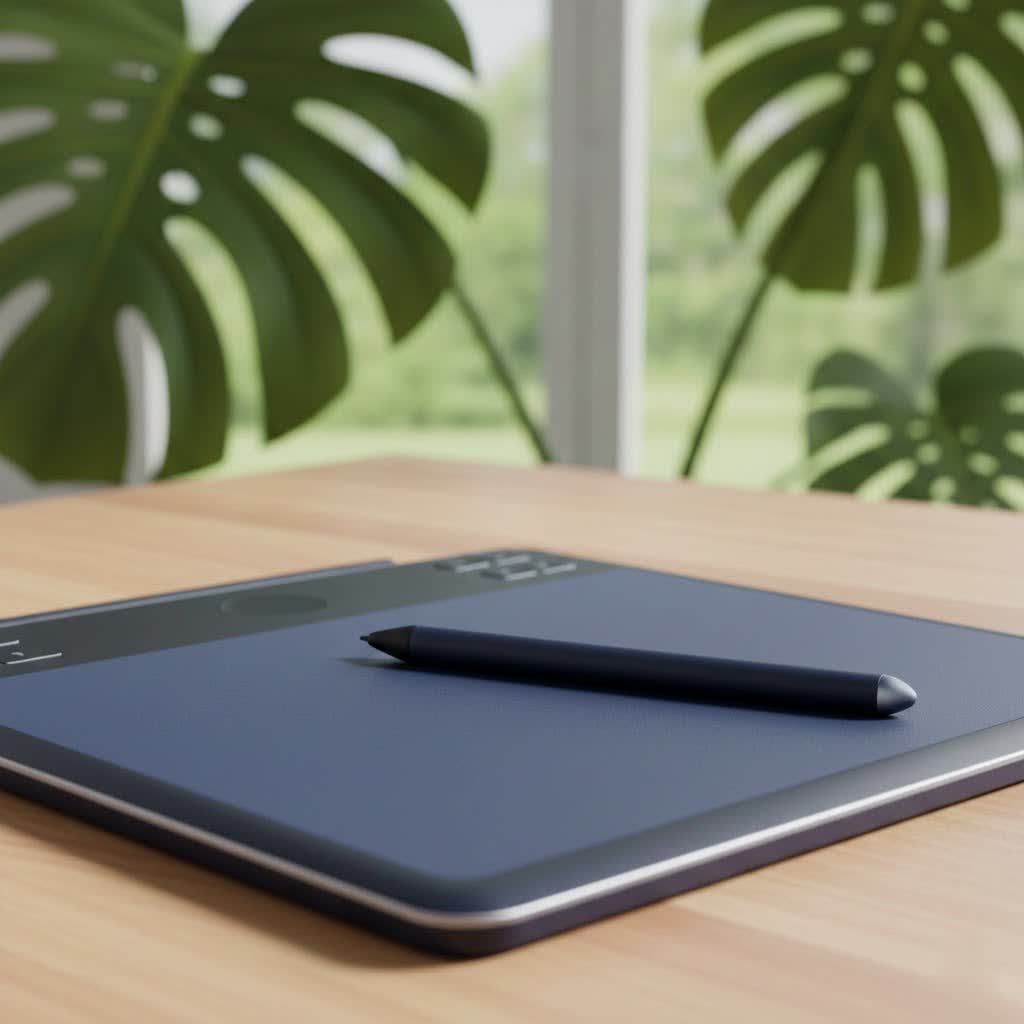
This guide will walk you through everything you need to know, from understanding the core technology to choosing the perfect model for your needs. As someone who has spent over a decade working with these tools, I’ll share the practical insights you won’t find on a spec sheet.
What’s the Difference: Display vs. Non-Display Tablet?
This is the most common question I get, and the distinction is crucial. A standard graphics tablet (or pen tablet) is an opaque plastic slate that you draw on while looking up at your separate computer monitor. There’s a learning curve involved in mastering the hand-eye coordination required.
A graphic display tablet, on the other hand, is a monitor you can draw on.
- Direct Drawing: You see the lines appear directly under your pen tip, just like drawing on paper. This is incredibly intuitive and significantly reduces the learning curve.
- Workflow Efficiency: What you see is what you get. This direct interaction makes tasks like detailed line art, painting, and sculpting feel more natural and efficient.
- Cost and Complexity: This advanced functionality comes at a higher price. These devices are also typically larger and require more desk space and cabling than their non-screen counterparts.
Key Features to Consider When Buying a Graphic Display Tablet
Navigating the technical specifications can be daunting. Let’s break down what truly matters for your artistic workflow.
Screen Size and Resolution
Bigger isn’t always better, but it often helps. Screen size determines your active drawing area.
- 13-16 inches: This is the sweet spot for portability and affordability. It’s large enough for serious work without dominating your desk. Perfect for students, hobbyists, and professionals who need a secondary or travel device.
- 19-24 inches: This is the professional standard. The larger canvas allows for sweeping strokes and less zooming and panning, which can dramatically speed up your workflow.
- 27 inches and above: These are flagship models that offer a truly immersive experience. They are ideal for studio environments where artists work on large, complex pieces for extended periods.
|
Our Picks for the Best Graphic Tablet in 2026
As an Amazon Associate I earn from qualifying purchases.
|
||
| Num | Product | Action |
|---|---|---|
| 1 | HUION Kamvas 13 (Gen 3) Drawing Tablet with Screen,13.3\" Full-Laminated Art Tablet with Anti-Sparkle Canvas Glass 2.0, 99% sRGB, PenTech 4.0, 16384 Pen Pressure, Dual Dial for PC, Mac, Android, Black |

|
| 2 | Wacom Intuos Pro Medium Bluetooth Professional Graphic Drawing Tablet with Pro Pen 3, Compatible with Mac, Windows - 2025 Edition |
|
| 3 | HUION KAMVAS Pro 16 Drawing Tablet with Screen, 15.6 inch Pen Display Anti-Glare Glass 6 Shortcut Keys Adjustable Stand, Graphics Tablet for Drawing, Writing, Design, Work with Windows, Mac and Linux |
|
| 4 | GAOMON M10K Drawing Tablet, 10x6 inch Large Graphics Tablet with Touch Ring, 8192 Levels Battery-Free Stylus, 10 Hot Keys, Art Tablet for Design, Writing, Editing, Work with Mac, Windows, Android |
|
| 5 | HUION Inspiroy H1060P Graphics Drawing Tablet with 8192 Pressure Sensitivity Battery-Free Stylus and 12 Customized Hot Keys, 10 x 6.25 inches Digital Art Tablet for Mac, Windows PC and Android |
|
| 6 | XOPPOX Graphics Drawing Tablet 10 x 6 Inch Large Active Area with 8192 Levels Battery-Free Pen and 12 Hot Keys, Compatible with PC/Mac/Android OS for Painting, Design & Online Teaching Black |
|
| 7 | Graphics Drawing Tablet, UGEE M708 10 x 6 inch Large Drawing Tablet with 8 Hot Keys, Passive Stylus of 16384 Levels Pressure, UGEE M708 Graphics Tablet for Paint, Design, Art Creation Sketch |
|
| 8 | Drawing Tablet for Beginner Graphics OSU Tablet with Battery-Free Stylus 8192 Pressure Sensitive for Digital Art, Painting & Design, Compatible with Windows, Mac OS and Android |
|
| 9 | HUION Drawing Tablet HS610 Graphic Tablet with Battery-Free Stylus 8192 Pen Pressure Tilt Function, 10x6.25 Inches Digital Art for Animation & Design, Compatible with Windows/Mac/Android |
|
| 10 | HUION Inspiroy H640P Drawing Tablet, 6x4 inch Digital Art with Battery-Free Stylus, 8192 Pen Pressure, 6 Hot Keys, Graphics Tablet for Drawing, Writing, Design, Teaching, Work with Mac, PC & Mobile |
|
Resolution is just as important. A higher resolution (like QHD or 4K) on a larger screen ensures your image is sharp and clear, allowing you to see fine details without pixelation. For screens under 16 inches, Full HD (1920×1080) is generally sufficient.
Color Accuracy and Gamut
For any serious artist, color is everything. A display’s color gamut tells you what percentage of a specific color space it can reproduce.
- sRGB: This is the standard for web content. A tablet covering over 90% sRGB is fine for hobbyists and beginners.
- Adobe RGB & DCI-P3: These are wider color spaces essential for professionals in print and video production. Look for displays that cover 90% or more of Adobe RGB if your work is destined for print.
“Your digital canvas should be as trustworthy as your own eyes. A display with poor color accuracy is like painting with a blindfold on. You can’t be confident in your work if you can’t trust the colors you’re seeing on screen.” – David Chen, Veteran Concept Artist
Pressure and Tilt Sensitivity
The pen, or stylus, is your digital brush. Its sensitivity determines how well the tablet translates your physical actions into digital strokes.
- Pressure Sensitivity: Measured in levels (e.g., 4096 or 8192), this feature controls the thickness or opacity of your lines based on how hard you press. More levels offer a smoother, more nuanced transition from thin to thick strokes. Honestly, anything above 4096 levels is excellent, and the difference becomes hard to perceive.
- Tilt Recognition: This allows the software to change the shape of the brush tip as you tilt the pen, mimicking the effect of using the side of a pencil lead for shading. It’s a must-have for digital painters and calligraphers.
Parallax and Lamination
Parallax is the small gap between the pen tip and the cursor on the screen, caused by the thickness of the glass. Excessive parallax can be disorienting and feel disconnected.
To combat this, manufacturers use laminated screens. In a laminated display, the glass surface and the LCD panel underneath are fused together, virtually eliminating the gap. This reduces parallax, minimizes reflections, and makes it feel much more like you’re drawing directly on the image. Always opt for a fully laminated display if your budget allows.
Do You Need a Computer for a Graphic Display Tablet?
This is a critical point of clarification: most graphic display tablets are not standalone devices. They function as a second monitor for your PC or Mac. You must connect them to a computer that runs your creative software (like Photoshop, Clip Studio Paint, or ZBrush). The tablet provides the display and drawing input, but your computer does all the heavy lifting.
There are exceptions, often called “pen computers” (like the Wacom MobileStudio Pro or the Surface Pro), which are all-in-one devices with a built-in computer. However, they are significantly more expensive and represent a different product category.
Setting Up Your First Graphic Display Tablet
Getting started is usually straightforward. Here is a simple checklist:
- Install the Driver: Before plugging anything in, go to the manufacturer’s website (Wacom, Huion, XPPen, etc.) and download the latest driver for your specific model. This is the most important step.
- Connect the Cables: Most display tablets use a 3-in-1 cable or USB-C. This typically involves connecting HDMI for video, USB for data (pen input), and a power adapter.
- Configure Your Display: In your computer’s display settings, set the tablet to “Extend” your desktop. This treats it as a separate monitor. Ensure it’s running at its native resolution.
- Calibrate Your Pen: Open the tablet’s driver software. Use the calibration utility to align the cursor with your pen tip, ensuring accuracy.
- Customize Your Buttons: Program the express keys on the tablet and the buttons on your stylus to your favorite shortcuts, like Undo, Zoom, or Brush Size. This will supercharge your workflow.
Frequently Asked Questions (FAQ)
Q: Is a graphic display tablet worth the extra cost over a non-display tablet?
A: If you are a serious hobbyist or a professional, yes. The intuitive nature of drawing directly on the screen significantly improves speed, accuracy, and overall enjoyment. For absolute beginners on a tight budget, a non-display tablet is still a fantastic starting point.
Q: Can I use a graphic display tablet as a regular monitor?
A: Absolutely. When you’re not drawing, it functions perfectly as a second or third monitor for your computer, which is great for productivity.
Q: Do I need to buy special software to use a graphic display tablet?
A: The tablet itself works with any software that supports pen input. You will need to have your own creative software, such as Adobe Photoshop, Clip Studio Paint, Krita (which is free), or any other program you prefer.
Q: How do I deal with screen glare?
A: Most modern display tablets come with an anti-glare matte screen protector or an etched glass surface. This not only reduces reflections but also provides a pleasant, paper-like texture to draw on.
Q: Wacom, Huion, or XPPen—which brand is best?
A: Wacom has long been the industry standard with premium build quality and reliable drivers, but they come at a premium price. Huion and XPPen have emerged as powerful competitors, offering incredible value with features and performance that often match or even exceed Wacom’s at a much lower cost.
Your Canvas Awaits
Choosing a graphic display tablet is a significant investment in your creative journey. By focusing on the features that matter—a laminated screen, great color accuracy, and a comfortable pen—you can find a tool that will not only enhance your skills but also make the process of creating art more joyful and intuitive. It removes the barrier between your idea and the screen, allowing you to create as naturally as you would with a pencil and paper. Now, go find your perfect digital canvas and bring your imagination to life.
