Welcome to the world of digital art! If you’ve ever felt that using a mouse for creative work is like trying to draw with a bar of soap, you’re not alone. The solution for millions of artists, designers, and photographers is a graphic tablet. This simple yet powerful device is the bridge between traditional art skills and the limitless potential of the digital canvas. It’s an essential tool that can unlock new levels of precision, control, and efficiency in your creative workflow, whether you’re a seasoned professional or just starting your journey.
What Exactly is a Graphic Tablet?
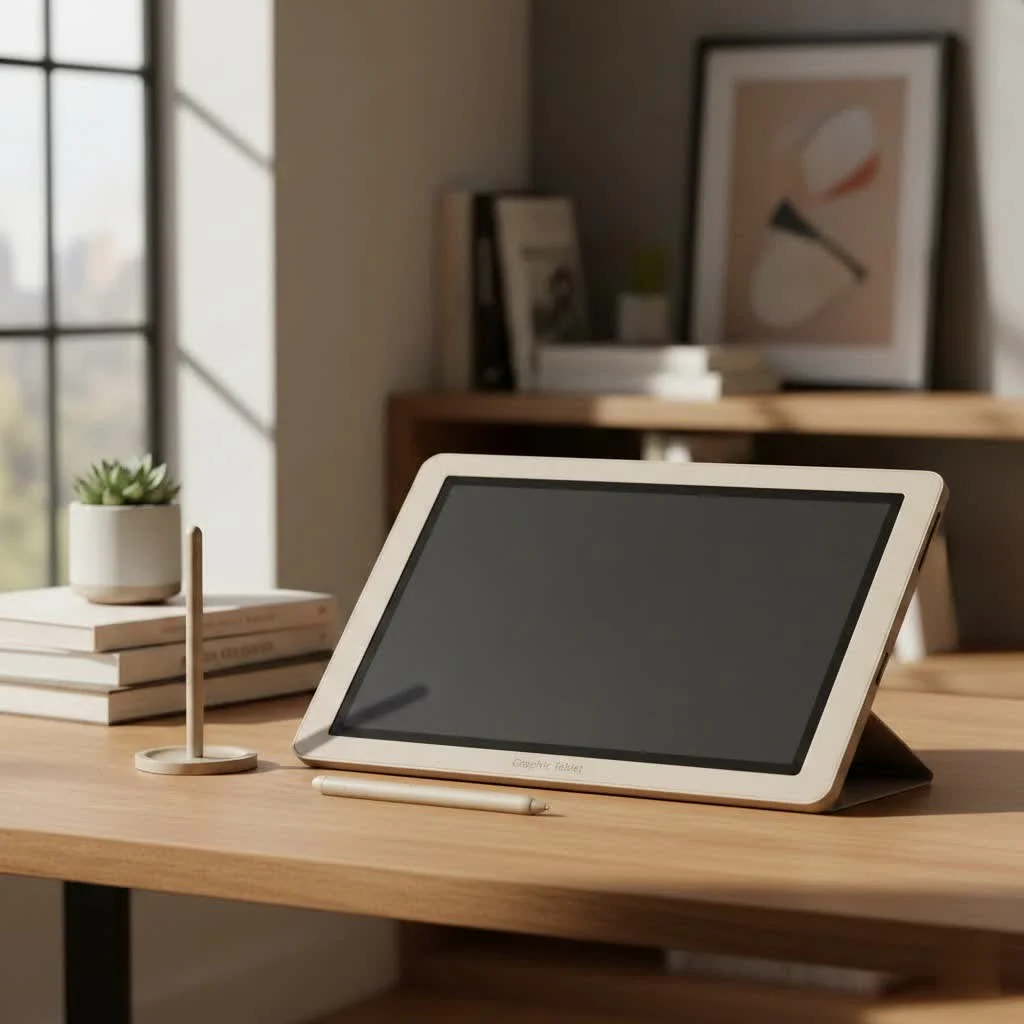
At its core, a graphic tablet is a computer input device that enables you to draw or write by hand, capturing your strokes digitally. It consists of two main components: a flat, touch-sensitive surface (the tablet) and a pen-like stylus. Unlike a mouse which uses relative positioning (you can lift and reposition it without the cursor moving), a graphic tablet uses absolute positioning. This means the tablet’s surface maps directly to your computer screen. The top-left corner of the tablet is the top-left corner of your monitor, the bottom-right is the bottom-right, and so on. This direct mapping creates a much more intuitive and natural drawing experience. For browse all reviews articles on this site.
The magic truly lies in the stylus. Modern styluses are battery-free and communicate with the tablet through electromagnetic resonance. More importantly, they feature pressure sensitivity.
“The moment you experience pressure sensitivity, you’ll never go back to a mouse for creative tasks,” says renowned digital illustrator, Maria Flores. “It’s the difference between a flat, lifeless line and a dynamic, expressive stroke that breathes character. It’s what connects your hand to the software.”
This means the harder you press the stylus onto the tablet’s surface, the thicker, darker, or more opaque your line will be in the software, perfectly mimicking the feel of a real pen or brush.
Why Should You Use a Graphic Tablet?
Switching from a mouse to a graphic tablet can feel like a significant leap, but the benefits are undeniable and can fundamentally change how you interact with your computer for creative projects.
- Unmatched Precision and Control: The stylus offers a level of control that a mouse can never achieve. It allows for fine details, smooth curves, and fluid lines, essential for illustration, photo retouching, and detailed design work.
- Pressure Sensitivity: As mentioned, this is the game-changer. It allows you to create varied line weights and opacities naturally, adding depth and a human touch to your digital work without constantly adjusting brush settings.
- Improved Ergonomics: Using a stylus is far more natural and comfortable for your hand and wrist than gripping a mouse for extended periods. This can significantly reduce the risk of repetitive strain injury (RSI) for those who spend hours creating.
- Increased Workflow Speed: Once you overcome the initial learning curve, using a graphic tablet is much faster for many tasks. From quickly masking in Photoshop to signing documents digitally or sketching out ideas, the fluid motion of a pen is far more efficient.
The Different Types of Graphic Tablets
The term “graphic tablet” often refers to the traditional screenless model, but the technology has evolved. There are three main categories to be aware of.
Standard Pen Tablets
|
Our Picks for the Best Graphic Tablet in 2026
As an Amazon Associate I earn from qualifying purchases.
|
||
| Num | Product | Action |
|---|---|---|
| 1 | HUION Drawing Tablet HS610 Graphic Tablet with Battery-Free Stylus 8192 Pen Pressure Tilt Function, 10x6.25 Inches Digital Art for Animation & Design, Compatible with Windows/Mac/Android |

|
| 2 | XOPPOX Graphics Drawing Tablet 10 x 6 Inch Large Active Area with 8192 Levels Battery-Free Pen and 12 Hot Keys, Compatible with PC/Mac/Android OS for Painting, Design & Online Teaching Black |
|
| 3 | HUION Inspiroy H640P Drawing Tablet, 6x4 inch Digital Art with Battery-Free Stylus, 8192 Pen Pressure, 6 Hot Keys, Graphics Tablet for Drawing, Writing, Design, Teaching, Work with Mac, PC & Mobile |
|
| 4 | HUION Kamvas 13 (Gen 3) Drawing Tablet with Screen,13.3\" Full-Laminated Art Tablet with Anti-Sparkle Canvas Glass 2.0, 99% sRGB, PenTech 4.0, 16384 Pen Pressure, Dual Dial for PC, Mac, Android, Black |
|
| 5 | HUION Inspiroy H1060P Graphics Drawing Tablet with 8192 Pressure Sensitivity Battery-Free Stylus and 12 Customized Hot Keys, 10 x 6.25 inches Digital Art Tablet for Mac, Windows PC and Android |
|
| 6 | Drawing Tablet for Beginner Graphics OSU Tablet with Battery-Free Stylus 8192 Pressure Sensitive for Digital Art, Painting & Design, Compatible with Windows, Mac OS and Android |
|
| 7 | HUION KAMVAS Pro 16 Drawing Tablet with Screen, 15.6 inch Pen Display Anti-Glare Glass 6 Shortcut Keys Adjustable Stand, Graphics Tablet for Drawing, Writing, Design, Work with Windows, Mac and Linux |
|
| 8 | Graphics Drawing Tablet, UGEE M708 10 x 6 inch Large Drawing Tablet with 8 Hot Keys, Passive Stylus of 16384 Levels Pressure, UGEE M708 Graphics Tablet for Paint, Design, Art Creation Sketch |
|
| 9 | GAOMON M10K Drawing Tablet, 10x6 inch Large Graphics Tablet with Touch Ring, 8192 Levels Battery-Free Stylus, 10 Hot Keys, Art Tablet for Design, Writing, Editing, Work with Mac, Windows, Android |
|
| 10 | Wacom Intuos Pro Medium Bluetooth Professional Graphic Drawing Tablet with Pro Pen 3, Compatible with Mac, Windows - 2025 Edition |
|
This is the most common and affordable type. It’s the screenless slate we’ve been describing, where you draw on the tablet while looking at your computer monitor. There’s a slight learning curve to mastering the hand-eye coordination, but most users adapt within a few days. They are perfect for beginners and professionals on a budget.
Pen Displays
These devices combine a graphic tablet with a built-in screen. This means you can draw directly onto the surface where your image appears, completely eliminating the hand-eye coordination challenge. This provides the most natural and direct drawing experience, similar to working on paper or a canvas. They are significantly more expensive but are the tool of choice for many professional illustrators and animators.
Pen Computers
This is the all-in-one solution. A pen computer is a full-fledged computer (like a Microsoft Surface Pro or Wacom MobileStudio Pro) with a high-quality, pressure-sensitive screen. They offer the ultimate portability, allowing you to create anywhere without being tethered to a desktop. They are also the most expensive option, aimed at professionals who need power and mobility.
Getting Started With Your First Graphic Tablet
Ready to make the jump? The process is straightforward, but keeping a few key things in mind will ensure you have a smooth start.
Choosing the Right Tablet for You
- Active Area: This is the actual drawing space on the tablet. A small tablet (around 6×4 inches) is portable and great for beginners, while a larger tablet (10×6 inches or more) provides more room for broad, sweeping strokes, which is often preferred for use with larger monitors.
- Pressure Levels: This refers to how many levels of pressure the stylus can detect. Most entry-level tablets offer 2,048 or 4,096 levels, which is more than enough for most users. Professional models go up to 8,192, offering incredibly subtle control.
- Resolution (LPI): Lines Per Inch determines how much detail the tablet can capture. A higher LPI means smoother lines. Anything above 2,540 LPI is generally considered very good.
Setting It Up for Success
Once you have your tablet, the setup is simple. First, you’ll need to install the driver from the manufacturer’s website. This is a crucial step that allows the tablet to communicate with your computer and enables features like pressure sensitivity and customizable buttons. After installation, you can open the tablet’s control panel to configure settings like:
- Mapping the tablet area to a specific monitor.
- Adjusting the pressure curve to match your drawing style.
- Assigning shortcuts (like Undo or Zoom) to the express keys on the tablet and buttons on the stylus.
Frequently Asked Questions (FAQ)
What’s the difference between a graphic tablet and an iPad?
A graphic tablet is a dedicated input device that must be connected to a computer. An iPad is a standalone tablet computer. While apps like Procreate have made the iPad a powerful tool for artists, a dedicated graphic tablet often offers a more tactile drawing surface, a battery-free stylus, and deeper integration with desktop software for a lower entry price.
Is it hard to get used to a graphic tablet?
There is a learning curve, especially for screenless tablets, as you have to train your hand-eye coordination. However, most people feel comfortable after a few hours of practice and become proficient within a week.
Do I need a graphic tablet to be a digital artist?
While you can create art with a mouse, a graphic tablet is considered a fundamental tool for serious digital art. It unlocks capabilities like pressure sensitivity that are essential for creating professional-quality illustrations and designs.
How much does a graphic tablet cost?
Entry-level screenless tablets from reputable brands like Wacom, Huion, or XP-Pen can start as low as $50. Mid-range models are typically $100-$300. Pen displays start around $250 and can go up to several thousand dollars for professional models.
Can I use a graphic tablet as a mouse replacement?
Absolutely! A graphic tablet can do everything a mouse can. You can tap the surface to click and hover the pen to move the cursor. Many people find it a more ergonomic option for all their daily computer tasks.
Your Creative Journey Awaits
Making the transition to a graphic tablet is one of the most impactful steps you can take to elevate your digital workflow. It’s more than just a piece of hardware; it’s a gateway to expressing your creativity with fluidity and precision that a mouse simply cannot offer. By removing the barrier between your hand and the digital canvas, you unlock a more intuitive, efficient, and enjoyable creative process. So take the leap, start practicing, and see what you can create.
Get our weekly buyer guide
Practical specs, not advice. Unsubscribe anytime.