The Huion 1060 Plus graphic tablet is a versatile and affordable drawing tablet that offers a professional-level experience for digital artists, students, and seasoned professionals. It features a generous 10 x 6.25-inch active drawing area, 8192 levels of pressure sensitivity, and 12 physical Express Keys, making it a strong contender for those seeking high-quality creative tools without a premium price tag.
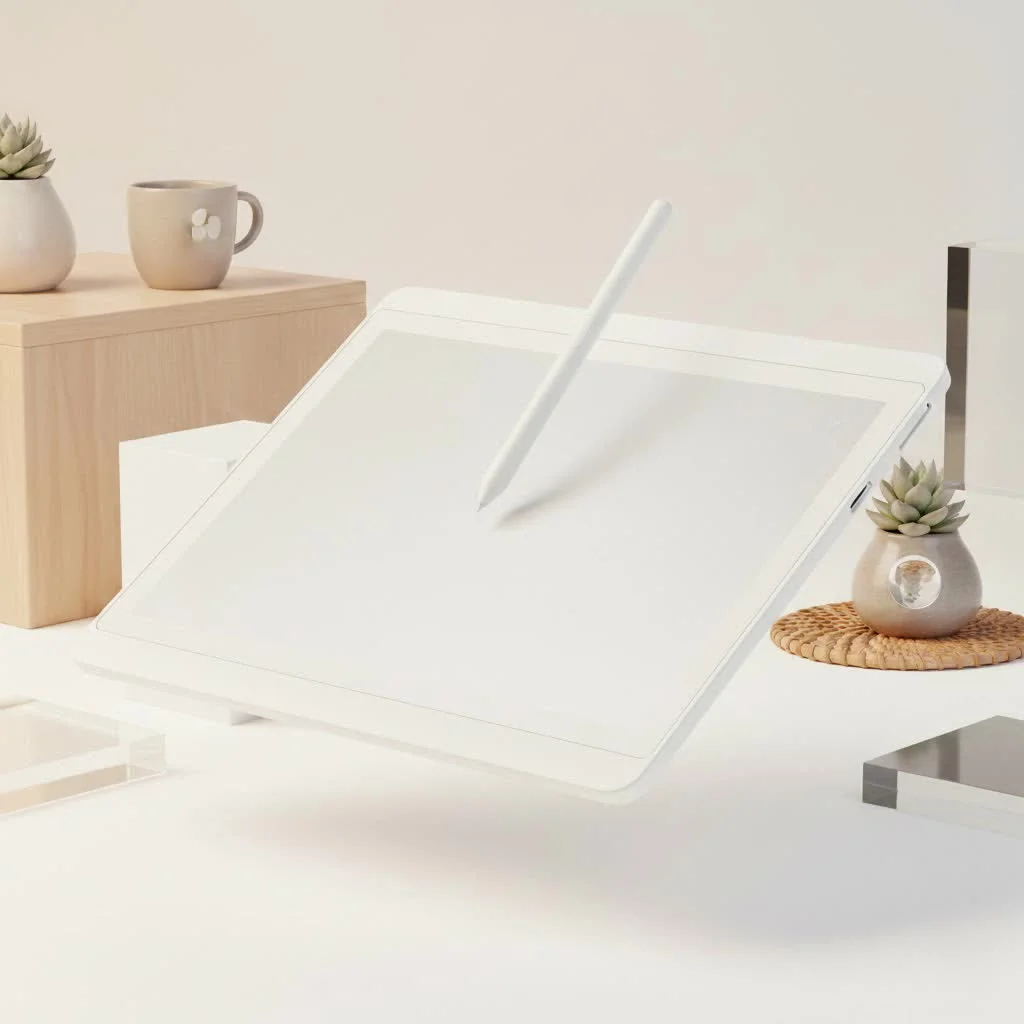
As a graphic designer with over 15 years of experience, I’ve observed the remarkable evolution of drawing tablets. The 1060 Plus consistently appears in discussions among budding artists and professionals seeking a reliable workhorse. This hands-on review from Kagbz.com explores whether this popular tablet lives up to its reputation as a gateway to digital creativity. For expert reviews reviews on this site.
What Sets the 1060 Plus Graphic Tablet Apart?
Core features are crucial when selecting a drawing tablet, as they dictate how physical hand movements translate into digital strokes. The Huion 1060 Plus integrates professional-grade technology into an accessible package.
Expansive Drawing Area and Solid Build
The 1060 Plus features a generous 10 x 6.25-inch active area, providing ample space for broad strokes without feeling restricted, a common issue with smaller, entry-level tablets. Its matte, paper-like surface offers optimal friction for the pen nib, mimicking traditional drawing. The tablet’s sturdy and durable build quality ensures it can withstand daily use.
The Pen: Pressure Sensitivity and Ergonomics
The included rechargeable pen is central to the tablet’s functionality, offering 8192 levels of pressure sensitivity—an industry standard for professional tablets. This allows for precise control over line weight and opacity.
- Light Pressure: Creates thin, faint lines, ideal for initial sketching.
- Heavy Pressure: Produces thick, bold strokes for inking or dramatic effects.
The pen provides smooth, responsive transitions with no noticeable lag. Its lightweight and ergonomic design ensures comfort during extended use. A thoughtful inclusion is the pen holder, which contains 8 replacement nibs, ensuring long-term usability.
“A tablet is only as good as its pen. The pressure curve and responsiveness have to feel like an extension of your hand, not a barrier. The 1060 Plus gets that right.”
— Christopher Evans, Digital Artist
Customization at Your Fingertips: Express Keys
|
Our Picks for the Best Graphic Tablet in 2026
As an Amazon Associate I earn from qualifying purchases.
|
||
| Num | Product | Action |
|---|---|---|
| 1 | XOPPOX Graphics Drawing Tablet 10 x 6 Inch Large Active Area with 8192 Levels Battery-Free Pen and 12 Hot Keys, Compatible with PC/Mac/Android OS for Painting, Design & Online Teaching Black |

|
| 2 | Wacom Intuos Pro Medium Bluetooth Professional Graphic Drawing Tablet with Pro Pen 3, Compatible with Mac, Windows - 2025 Edition |
|
| 3 | HUION Inspiroy H1060P Graphics Drawing Tablet with 8192 Pressure Sensitivity Battery-Free Stylus and 12 Customized Hot Keys, 10 x 6.25 inches Digital Art Tablet for Mac, Windows PC and Android |
|
| 4 | HUION KAMVAS Pro 16 Drawing Tablet with Screen, 15.6 inch Pen Display Anti-Glare Glass 6 Shortcut Keys Adjustable Stand, Graphics Tablet for Drawing, Writing, Design, Work with Windows, Mac and Linux |
|
| 5 | HUION Inspiroy H640P Drawing Tablet, 6x4 inch Digital Art with Battery-Free Stylus, 8192 Pen Pressure, 6 Hot Keys, Graphics Tablet for Drawing, Writing, Design, Teaching, Work with Mac, PC & Mobile |
|
| 6 | HUION Drawing Tablet HS610 Graphic Tablet with Battery-Free Stylus 8192 Pen Pressure Tilt Function, 10x6.25 Inches Digital Art for Animation & Design, Compatible with Windows/Mac/Android |
|
| 7 | Drawing Tablet for Beginner Graphics OSU Tablet with Battery-Free Stylus 8192 Pressure Sensitive for Digital Art, Painting & Design, Compatible with Windows, Mac OS and Android |
|
| 8 | Graphics Drawing Tablet, UGEE M708 10 x 6 inch Large Drawing Tablet with 8 Hot Keys, Passive Stylus of 16384 Levels Pressure, UGEE M708 Graphics Tablet for Paint, Design, Art Creation Sketch |
|
| 9 | GAOMON M10K Drawing Tablet, 10x6 inch Large Graphics Tablet with Touch Ring, 8192 Levels Battery-Free Stylus, 10 Hot Keys, Art Tablet for Design, Writing, Editing, Work with Mac, Windows, Android |
|
| 10 | HUION Kamvas 13 (Gen 3) Drawing Tablet with Screen,13.3\" Full-Laminated Art Tablet with Anti-Sparkle Canvas Glass 2.0, 99% sRGB, PenTech 4.0, 16384 Pen Pressure, Dual Dial for PC, Mac, Android, Black |
|
Efficiency is vital in creative workflows. The 1060 Plus is equipped with 12 physical Express Keys on the left side and 16 Soft Keys along the top of the drawing surface. All keys are programmable, allowing users to map frequently used shortcuts like undo, zoom, brush size, and layer changes directly to the tablet. This significantly reduces keyboard reliance, keeping focus on the canvas. Setup is straightforward via the driver software, and this feature can genuinely accelerate the work process once muscle memory is developed.
Who is the Huion 1060 Plus For?
The tablet’s versatility is a major strength, balancing professional features with user-friendly design, making it suitable for a diverse range of creators.
The Aspiring Digital Artist
For those beginning their digital art journey, the 1060 Plus is an excellent choice. It is affordable, easy to set up, and provides all essential functionalities for learning and growth without hardware limitations. The large drawing area is particularly beneficial for beginners developing stroke control.
Students and Educators
This tablet serves as a budget-friendly workhorse for students in design, animation, or architecture. It is also highly effective for online education and remote teaching, enabling natural writing and drawing for annotating documents, solving equations on digital whiteboards, or presenting ideas visually.
The Seasoned Professional
Many professionals still prefer the disconnected feel of a traditional graphic tablet for tasks such as photo editing, retouching, and vector illustration, even if they also use screen tablets. The 1060 Plus functions as a reliable daily driver or a lightweight, affordable backup for a more expensive primary device.
Getting Started: Setup and Software Compatibility
Setting up the 1060 Plus graphic tablet is a simple process. Users must download the latest driver from the official Huion website for their operating system (Windows or macOS). It is crucial to uninstall any existing tablet drivers to prevent conflicts. After driver installation, plug in the tablet to configure settings.
The driver software enables users to:
- Adjust the pen pressure sensitivity curve.
- Program the Express Keys and Soft Keys.
- Map the active area to one or more monitors.
- Switch to left-handed mode if required.
The tablet is compatible with major creative software, including Adobe Photoshop, Illustrator, Clip Studio Paint, Krita, ZBrush, and Blender. Performance was seamless and consistent across various applications during testing.
Potential Downsides to Consider
No device is without minor drawbacks. The pen is rechargeable via a cable, which may require pausing work if charging is forgotten, though its battery life is extensive. The 16 Soft Keys, while useful, are not tactile like the physical Express Keys, potentially making them less intuitive to use without visual confirmation.
The Final Verdict
After extensive use, the 1060 Plus graphic tablet demonstrates the accessibility of high-quality creative tools. It delivers a professional-level drawing experience at a fraction of the cost of major competitors. Its combination of a large drawing area, high pressure sensitivity, and extensive customization options makes it a powerful and versatile tool. Whether for aspiring digital artists or seasoned professionals needing a reliable and affordable tablet, the 1060 Plus is a fantastic investment that empowers creativity without significant financial outlay.
Setting Up Your Huion 1060 Plus Graphic Tablet
Learn how to quickly set up your Huion 1060 Plus graphic tablet for use with Windows or macOS, including driver installation and basic configuration.
Visit the official Huion website and download the most recent driver compatible with your operating system (Windows or macOS). Ensure you select the correct driver for the 1060 Plus model.
Before installing the new driver, uninstall any other tablet drivers currently on your computer. This prevents potential software conflicts that could affect tablet performance.
Install the downloaded driver by following the on-screen instructions. Once the driver installation is complete, plug in your Huion 1060 Plus graphic tablet to your computer using the provided USB cable.
Open the Huion driver software to customize your tablet. Here, you can adjust pen pressure sensitivity, program the Express Keys and Soft Keys, map the active drawing area to your monitor(s), and switch to left-handed mode if necessary.
Get our weekly buyer guide
Practical specs, not advice. Unsubscribe anytime.
As a seasoned professional, I was skeptical about a non-premium tablet, but the Huion 1060 Plus really surprised me. It’s become my reliable workhorse for quick sketches and even some client projects. It definitely lives up to its reputation as a gateway to digital creativity.
I’ve been using the Huion 1060 Plus for a few months now, and it’s been a game-changer for my digital art. The 8192 levels of pressure sensitivity are incredible, allowing for such nuanced strokes. It really does feel like a professional tool without breaking the bank, which was a huge selling point for me as a student.
This tablet is a solid choice for anyone getting into graphic design. The 10 x 6.25-inch active drawing area is perfect for my workflow, giving me plenty of space to work on detailed illustrations. My only minor gripe is that the drivers were a little finicky to install initially, but once set up, it’s been smooth sailing.
I picked up the Huion 1060 Plus after hearing good things about its affordability. While the tablet itself is decent for the price, I found the 12 physical Express Keys to be a bit stiff and not as responsive as I’d hoped. It’s still usable, but I often find myself reaching for my keyboard shortcuts instead.