Finding the perfect digital canvas can feel overwhelming, but choosing the best graphic pen tablet is a game-changer for your creative workflow. Whether you’re a seasoned professional retouching high-end photos or a budding artist sketching your first character, the right tablet translates your physical movements into digital strokes with precision and ease. After more than fifteen years in the design industry, I’ve seen these tools evolve from niche gadgets to essential hardware for creatives everywhere. This guide is built on that experience, designed to cut through the noise and help you find the ideal partner for your artistic journey.
We’ll break down the top contenders, explain the must-have features, and answer your most pressing questions to ensure your investment fuels your creativity for years to come.
What is a Graphic Pen Tablet and Why Do You Need One?
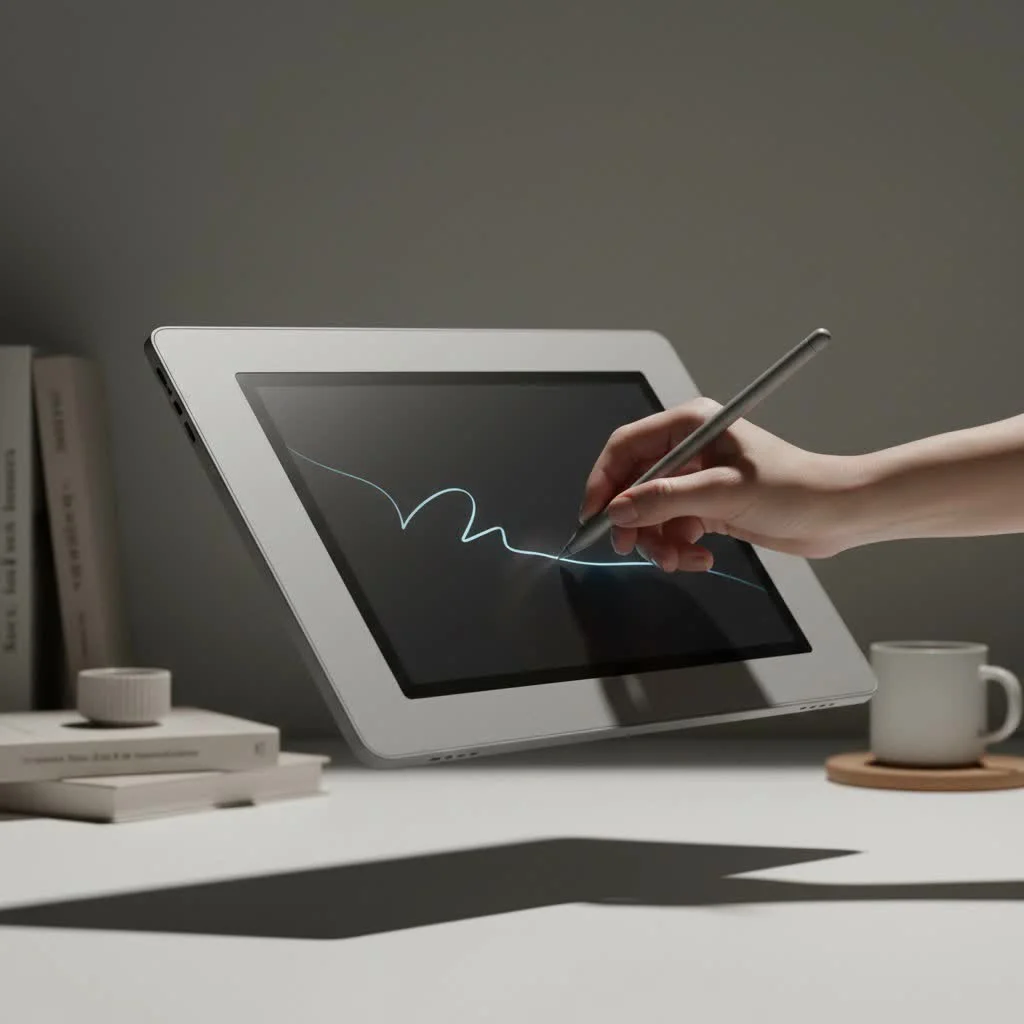
A graphic pen tablet, often called a drawing tablet, is an input device that allows you to draw or write on a computer screen in a natural, intuitive way. It consists of a flat, touch-sensitive surface and a stylus, or pen. As you move the pen across the tablet, the cursor on your screen follows, and when you press down, it creates a line. This setup mimics the feeling of drawing on paper far better than a standard mouse, offering unparalleled control over line weight, opacity, and color.
For anyone involved in digital art, photo editing, 3D sculpting, or even detailed note-taking, a graphic tablet is essential. It bridges the gap between traditional art skills and the digital medium.
Key Benefits for Creatives:
- Ergonomics: Using a pen is more comfortable and natural than a mouse for extended periods, reducing the risk of repetitive strain injury (RSI).
- Precision: The direct control offered by a stylus allows for intricate detail work that is nearly impossible with a mouse.
- Pressure Sensitivity: This is the magic ingredient. The tablet detects how hard you press with the pen, translating it into thicker, thinner, darker, or lighter strokes, just like a real pencil or brush.
- Efficiency: Many tablets come with customizable shortcut keys (ExpressKeys) that you can program to perform your most-used commands, speeding up your workflow significantly.
How to Choose the Best Graphic Pen Tablet: A Buyer’s Guide
Navigating the technical specifications can be confusing. Let’s focus on the features that truly matter for your creative output.
1. Pressure Sensitivity
Pressure sensitivity is measured in levels. A higher level means the tablet can register more subtle variations in pressure, giving you finer control over your line work.
- Entry-Level: 2,048 levels are sufficient for beginners and hobbyists.
- Professional Standard: 8,192 levels are the current industry standard, found in most mid-range to high-end tablets. This provides an incredibly smooth and responsive drawing experience.
2. Active Area and Tablet Size
|
Our Picks for the Best Graphic Tablet in 2026
As an Amazon Associate I earn from qualifying purchases.
|
||
| Num | Product | Action |
|---|---|---|
| 1 | HUION Inspiroy H1060P Graphics Drawing Tablet with 8192 Pressure Sensitivity Battery-Free Stylus and 12 Customized Hot Keys, 10 x 6.25 inches Digital Art Tablet for Mac, Windows PC and Android |

|
| 2 | HUION Inspiroy H640P Drawing Tablet, 6x4 inch Digital Art with Battery-Free Stylus, 8192 Pen Pressure, 6 Hot Keys, Graphics Tablet for Drawing, Writing, Design, Teaching, Work with Mac, PC & Mobile |
|
| 3 | Wacom Intuos Pro Medium Bluetooth Professional Graphic Drawing Tablet with Pro Pen 3, Compatible with Mac, Windows - 2025 Edition |
|
| 4 | HUION Kamvas 13 (Gen 3) Drawing Tablet with Screen,13.3\" Full-Laminated Art Tablet with Anti-Sparkle Canvas Glass 2.0, 99% sRGB, PenTech 4.0, 16384 Pen Pressure, Dual Dial for PC, Mac, Android, Black |
|
| 5 | HUION KAMVAS Pro 16 Drawing Tablet with Screen, 15.6 inch Pen Display Anti-Glare Glass 6 Shortcut Keys Adjustable Stand, Graphics Tablet for Drawing, Writing, Design, Work with Windows, Mac and Linux |
|
| 6 | GAOMON M10K Drawing Tablet, 10x6 inch Large Graphics Tablet with Touch Ring, 8192 Levels Battery-Free Stylus, 10 Hot Keys, Art Tablet for Design, Writing, Editing, Work with Mac, Windows, Android |
|
| 7 | HUION Drawing Tablet HS610 Graphic Tablet with Battery-Free Stylus 8192 Pen Pressure Tilt Function, 10x6.25 Inches Digital Art for Animation & Design, Compatible with Windows/Mac/Android |
|
| 8 | Drawing Tablet for Beginner Graphics OSU Tablet with Battery-Free Stylus 8192 Pressure Sensitive for Digital Art, Painting & Design, Compatible with Windows, Mac OS and Android |
|
| 9 | Graphics Drawing Tablet, UGEE M708 10 x 6 inch Large Drawing Tablet with 8 Hot Keys, Passive Stylus of 16384 Levels Pressure, UGEE M708 Graphics Tablet for Paint, Design, Art Creation Sketch |
|
| 10 | XOPPOX Graphics Drawing Tablet 10 x 6 Inch Large Active Area with 8192 Levels Battery-Free Pen and 12 Hot Keys, Compatible with PC/Mac/Android OS for Painting, Design & Online Teaching Black |
|
The active area is the part of the tablet’s surface that actually detects the pen. The right size depends on your workspace and monitor size.
- Small (6×4 inches): Great for portability and users with smaller monitors. They are budget-friendly and perfect for beginners.
- Medium (8×5 to 10×6 inches): The most popular size. It offers a good balance between drawing space and desk footprint, working well with monitors up to 24 inches.
- Large (12×8 inches and up): Ideal for professionals working on large monitors (27 inches or more) who need to make broad, sweeping strokes without zooming in and out constantly.
Expert Tip: As a general rule, try to match the aspect ratio of your tablet’s active area to your monitor’s aspect ratio (e.g., 16:9) to avoid distortion. Most modern tablets allow you to map the active area to your screen to fix this.
3. Resolution (LPI)
Resolution, measured in Lines Per Inch (LPI), refers to how many digital lines can fit into one inch of the tablet’s screen. A higher LPI means the tablet can recognize finer details, resulting in smoother lines and more accurate cursor placement. Look for tablets with at least 2,540 LPI, though most quality tablets now offer 5,080 LPI.
4. Stylus Type
The pen is your primary tool, so its design is crucial.
- Battery-Free (EMR): Most modern styluses use Electromagnetic Resonance (EMR) technology, meaning they are powered wirelessly by the tablet itself. They are lightweight and never need charging. This is the preferred choice.
- Battery-Powered/Rechargeable: Some older or budget models use a battery or need to be recharged. They tend to be heavier and can be inconvenient if the battery dies mid-session.
Also, consider features like tilt support, which allows the software to change the brush shape as you tilt the pen, and the number of buttons on the stylus for shortcuts.
Top Graphic Pen Tablet Recommendations for 2025
Here are my top picks, categorized by user needs and budget.
| Model | Best For | Key Features | Approximate Price |
|---|---|---|---|
| Wacom Intuos S | Beginners & Hobbyists | 4,096 pressure levels, battery-free pen, compact size, bundled software | $80 |
| Huion Inspiroy 2 M | Ambitious Beginners | 8,192 pressure levels, programmable keys & scroller, multiple colors | $70 |
| XPPen Deco MW | Wireless Freedom | 8,192 pressure levels, X3 smart chip stylus, Bluetooth v5.0 | $70 |
| Wacom Intuos Pro M | Professionals | 8,192 pressure levels, pro pen 2 with tilt, multi-touch surface, premium build | $380 |
For the Absolute Beginner: Wacom Intuos S
Wacom has long been the industry leader, and the Intuos S is a perfect entry point. It’s reliable, easy to set up, and comes with free creative software like Corel Painter Essentials. While its 4,096 pressure levels are half the professional standard, it’s more than enough for anyone starting. Its build quality is excellent, ensuring it will last for years.
For the Budget-Conscious Artist: Huion Inspiroy 2 M
Huion has become a major competitor by offering professional-level features at a fraction of the cost. The Inspiroy 2 M provides a full 8,192 levels of pressure sensitivity, a generous active area, and a fantastic set of customizable shortcut keys and a scroller wheel. The build quality is solid, and the drawing experience is incredibly smooth, rivaling tablets that cost three times as much.
For Wireless Creativity: XPPen Deco MW
If you hate cable clutter, the XPPen Deco MW is a fantastic choice. It offers robust Bluetooth 5.0 connectivity and features the advanced X3 smart chip stylus, which has a lower initial activation force for drawing extremely light lines. It’s a sleek, modern tablet that delivers a responsive and reliable wireless experience without breaking the bank.
For the Uncompromising Professional: Wacom Intuos Pro M
The Wacom Intuos Pro line is the undisputed king for a reason. As a professional designer, this is my daily driver. The build quality is superb, the surface texture provides a satisfying paper-like drag, and the Pro Pen 2 is arguably the most accurate and responsive stylus on the market. With features like tilt recognition, multi-touch gestures (for zooming and rotating), and seamless software integration, it’s an investment that pays for itself in productivity and creative control.
Frequently Asked Questions (FAQ)
What is the difference between a pen tablet and a pen display?
A pen tablet is a solid slate that you draw on while looking at your computer monitor. A pen display has a built-in screen, so you can see what you’re drawing directly under your pen, much like drawing on paper. Pen displays are more expensive but offer a more direct drawing experience.
Do I need a screen protector for my graphic tablet?
It’s a good idea. The surface of a tablet can wear down over time, and the pen nibs can scratch it. A screen protector not only protects the surface but can also provide a different texture, with some offering a more paper-like feel.
How often do I need to replace the pen nibs?
This depends entirely on your usage and how hard you press. Heavy users might replace a nib every month or two, while light users could go a year or more. Most tablets come with several replacement nibs, and they are inexpensive to purchase.
Can I use a graphic tablet as a mouse?
Yes, absolutely! You can navigate your entire operating system with a graphic tablet. You can hover the pen over the surface to move the cursor and tap the surface to click. Many people find it more ergonomic for all daily tasks.
Is Wacom still the best brand?
Wacom has historically been the top choice, known for its build quality and reliability. However, brands like Huion and XPPen have made incredible strides in recent years, offering professional-grade features and excellent performance at much more competitive prices. The “best” brand now truly depends on your budget and specific needs.
Final Thoughts: Your Perfect Tablet Awaits
Choosing the best graphic pen tablet is a personal decision that hinges on your goals, workspace, and budget. For beginners, the Wacom Intuos or Huion Inspiroy 2 offer fantastic value and a solid foundation to build your skills. For professionals who rely on their tools for their livelihood, the Wacom Intuos Pro remains the industry standard for its precision and robust feature set.
No matter which you choose, a graphic tablet will fundamentally change the way you interact with your creative software. It unlocks a level of control and artistic expression that a mouse simply cannot match. Take the leap, and get ready to elevate your digital art.
Get our weekly buyer guide
Practical specs, not advice. Unsubscribe anytime.