Are you tired of being tethered to your desktop to bring your digital art to life? The perfect standalone graphic tablet can completely untether your creativity, offering the power of a full studio in a portable package. Imagine sketching in a park, finalizing a design in a coffee shop, or storyboarding on a train, all without a single connecting cable in sight. This is the freedom that a standalone drawing tablet provides, and as an artist with over 15 years in the digital trenches, I can tell you it’s a game-changer.
Welcome to Kagbz.com, your trusted resource for mastering the world of digital art tools. Today, we’re diving deep into the universe of standalone graphic tablets. We’ll explore what they are, who they’re for, and what you need to look for to find the perfect creative partner for your artistic journey.
What is a Standalone Graphic Tablet?
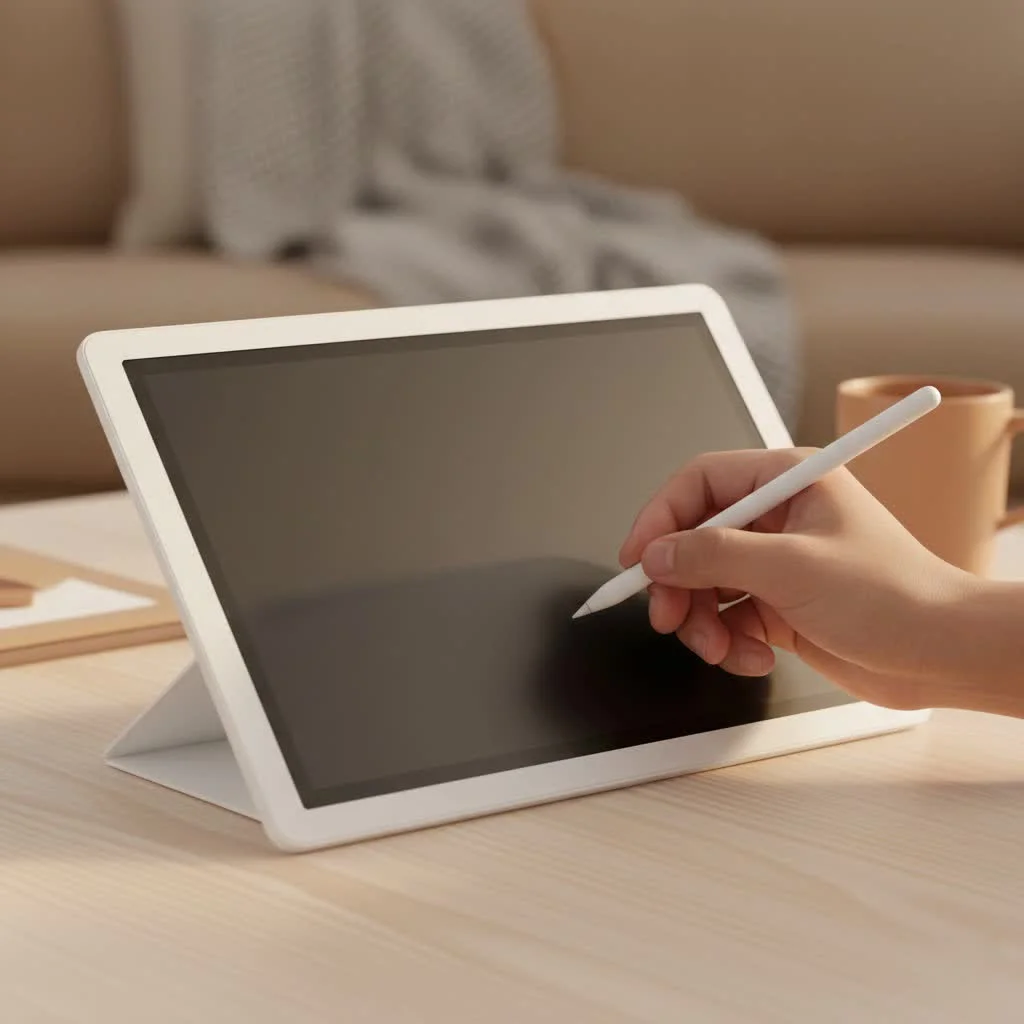
A standalone graphic tablet is an all-in-one creative device. Unlike traditional pen tablets or pen displays that require a connection to a Mac or PC to function, a standalone tablet has its own built-in computer. It features its own processor, RAM, storage, and operating system, allowing you to install drawing software directly onto it and work anywhere.
Think of it as a powerful combination of a high-end tablet (like an iPad or a Samsung Galaxy Tab) and a professional-grade drawing display. It has a screen you draw directly on, a pressure-sensitive stylus, and all the processing power needed to run demanding creative applications like Adobe Photoshop, Clip Studio Paint, or Procreate.
Key Advantages of Going Standalone
- Unmatched Portability: The most significant benefit is freedom. With no need for a host computer, you can create high-quality artwork wherever inspiration strikes.
- Streamlined Workflow: Everything is in one place. You don’t have to worry about driver compatibility issues, cable management, or having two separate devices to power up and manage.
- Intuitive Experience: Drawing directly on the screen feels natural and intuitive, closely mimicking the traditional pen-on-paper experience. This direct interaction can significantly speed up your workflow.
- Versatility: Beyond art, these devices function as fully-featured tablets. You can use them for browsing the web, answering emails, watching videos, or managing your social media, making them a fantastic all-around tool.
Standalone Graphic Tablet vs. Other Drawing Tablets
It’s easy to get confused with all the terminology out there. Let’s clear it up.
| Tablet Type | How It Works | Best For |
|---|---|---|
| Pen Tablet | A screenless plastic slate. You draw on the tablet and look up at your computer monitor to see the results. | Budget-conscious beginners, graphic designers who don’t need to draw directly on a screen. |
| Pen Display | A monitor that you can draw on. It must be connected to a computer to function. | Professional artists and hobbyists who want a direct drawing experience but work from a fixed station. |
| Standalone Tablet | An all-in-one device with a built-in computer, screen, and operating system. No computer needed. | Artists who prioritize portability, professionals working on the go, and anyone wanting a streamlined, cable-free setup. |
As veteran digital artist Isabella Chen puts it, “Switching to a standalone tablet was a pivotal moment for my career. The ability to take my entire studio with me on location shoots and client meetings without sacrificing power has been invaluable. It’s not just a tool; it’s an extension of my creative freedom.”
What Features Should You Look for in a Standalone Tablet?
Choosing the right standalone graphic tablet is a big decision. Here are the critical components you need to consider to ensure you get a device that matches your artistic needs.
1. The Display: Your Digital Canvas
|
Our Picks for the Best Graphic Tablet in 2026
As an Amazon Associate I earn from qualifying purchases.
|
||
| Num | Product | Action |
|---|---|---|
| 1 | Wacom Intuos Pro Medium Bluetooth Professional Graphic Drawing Tablet with Pro Pen 3, Compatible with Mac, Windows - 2025 Edition |

|
| 2 | HUION Kamvas 13 (Gen 3) Drawing Tablet with Screen,13.3\" Full-Laminated Art Tablet with Anti-Sparkle Canvas Glass 2.0, 99% sRGB, PenTech 4.0, 16384 Pen Pressure, Dual Dial for PC, Mac, Android, Black |
|
| 3 | HUION Inspiroy H640P Drawing Tablet, 6x4 inch Digital Art with Battery-Free Stylus, 8192 Pen Pressure, 6 Hot Keys, Graphics Tablet for Drawing, Writing, Design, Teaching, Work with Mac, PC & Mobile |
|
| 4 | Drawing Tablet for Beginner Graphics OSU Tablet with Battery-Free Stylus 8192 Pressure Sensitive for Digital Art, Painting & Design, Compatible with Windows, Mac OS and Android |
|
| 5 | HUION Inspiroy H1060P Graphics Drawing Tablet with 8192 Pressure Sensitivity Battery-Free Stylus and 12 Customized Hot Keys, 10 x 6.25 inches Digital Art Tablet for Mac, Windows PC and Android |
|
| 6 | XOPPOX Graphics Drawing Tablet 10 x 6 Inch Large Active Area with 8192 Levels Battery-Free Pen and 12 Hot Keys, Compatible with PC/Mac/Android OS for Painting, Design & Online Teaching Black |
|
| 7 | Graphics Drawing Tablet, UGEE M708 10 x 6 inch Large Drawing Tablet with 8 Hot Keys, Passive Stylus of 16384 Levels Pressure, UGEE M708 Graphics Tablet for Paint, Design, Art Creation Sketch |
|
| 8 | HUION KAMVAS Pro 16 Drawing Tablet with Screen, 15.6 inch Pen Display Anti-Glare Glass 6 Shortcut Keys Adjustable Stand, Graphics Tablet for Drawing, Writing, Design, Work with Windows, Mac and Linux |
|
| 9 | GAOMON M10K Drawing Tablet, 10x6 inch Large Graphics Tablet with Touch Ring, 8192 Levels Battery-Free Stylus, 10 Hot Keys, Art Tablet for Design, Writing, Editing, Work with Mac, Windows, Android |
|
| 10 | HUION Drawing Tablet HS610 Graphic Tablet with Battery-Free Stylus 8192 Pen Pressure Tilt Function, 10x6.25 Inches Digital Art for Animation & Design, Compatible with Windows/Mac/Android |
|
The screen is where the magic happens. A poor display can lead to eye strain and inaccurate colors.
- Resolution: Look for Full HD (1920×1080) at a minimum. For larger screens (13 inches and up), QHD or 4K resolution will provide a much sharper and more detailed image.
- Color Accuracy: This is crucial for professional work. Look for a tablet that covers a high percentage of the sRGB color gamut (90% or more is good). For print work, a high Adobe RGB coverage is essential.
- Lamination: A fully laminated screen reduces parallax—the gap between the stylus tip and the cursor. This makes drawing feel more accurate and natural, as if the ink is flowing directly from your pen.
- Screen Size: This is a balance between portability and drawing area. Smaller tablets (10-12 inches) are highly portable, while larger ones (13-16 inches) offer a more immersive drawing experience but are heavier.
2. The Stylus: Your Digital Brush
The stylus is your primary tool. Its performance can make or break your drawing experience.
- Pressure Sensitivity: This determines how the tablet registers the force you apply, allowing for variations in line weight and opacity. Most modern styluses offer 8,192 levels of pressure sensitivity, which is the industry standard for professional work.
- Tilt Support: This feature allows the software to recognize the angle of your pen, which is perfect for creating shading effects that mimic traditional pencils or airbrushes.
- Battery-Free Operation: Look for styluses that use Electro-Magnetic Resonance (EMR) technology. They don’t require batteries or charging, so they’re always ready when you are.
3. The Engine: OS and Performance
The internal hardware dictates how well the tablet handles complex tasks.
- Operating System (OS): This will determine the software you can run. The main players are iPadOS (for Apple iPads), Android (for Samsung, Huion, etc.), and Windows (for Wacom MobileStudio Pro, Microsoft Surface). iPadOS is known for Procreate, while Windows offers the full desktop versions of Adobe Creative Cloud.
- Processor (CPU) and RAM: For smooth performance, especially with large files and many layers, look for a powerful processor and at least 8GB of RAM. 16GB or more is ideal for heavy professional use.
- Storage: Drawing files can be huge. 128GB is a decent starting point, but 256GB or 512GB is recommended for artists who work with high-resolution canvases or video. Check if the device has an SD card slot for expandable storage.
Who Is a Standalone Graphic Tablet For?
While a standalone tablet sounds like the ultimate tool, it’s not for everyone. Let’s see if it’s the right fit for you.
- The Traveling Professional: For illustrators, concept artists, and designers who are frequently on the move or meet with clients, the ability to work from anywhere without compromise is a massive advantage.
- The Minimalist Artist: If you love a clean, clutter-free workspace, a standalone device eliminates the need for a separate computer, monitor, and cables.
- The Advanced Hobbyist: For serious enthusiasts who want the best possible drawing experience and have the budget, a standalone tablet offers a premium, all-in-one solution.
- Students: Art and design students will find the portability perfect for taking notes, sketching in class, and working on projects from anywhere on campus.
However, if you are a beginner on a tight budget or an artist who only ever works at a single desk, a more traditional pen display or pen tablet might be a more cost-effective choice.
Frequently Asked Questions (FAQ)
What is the best software for a standalone graphic tablet?
This depends on your tablet’s operating system. For iPadOS, Procreate is a fan favorite, alongside Clip Studio Paint and Adobe Fresco. For Windows tablets, you can use the full desktop versions of Adobe Photoshop, Illustrator, and Clip Studio Paint. For Android, apps like Krita, Infinite Painter, and Clip Studio Paint are excellent choices.
Can a standalone graphic tablet replace my laptop?
For many artists, yes. Devices running a full Windows OS, like the Wacom MobileStudio Pro or Microsoft Surface Pro, can absolutely replace a laptop for both creative and general productivity tasks. iPadOS and Android are very capable but may have limitations for users who rely on specific desktop software.
How is a standalone tablet different from an iPad Pro?
The iPad Pro is a type of standalone graphic tablet. It has become a dominant force in the market due to its powerful hardware, excellent Apple Pencil, and access to top-tier apps like Procreate. The main difference lies in the ecosystem. Other brands like Wacom or Huion may offer features more tailored to traditional desktop art workflows, such as more shortcut keys or a Windows OS.
Are standalone tablets worth the higher price?
If your workflow demands portability and an all-in-one solution, they are absolutely worth the investment. You are essentially buying both a powerful computer and a professional drawing display in one package. However, if portability isn’t a priority, you can get a larger, high-quality pen display for a fraction of the cost.
What about battery life?
Battery life varies significantly between models and depends on your usage (screen brightness, software intensity). Most will offer between 4 to 8 hours of continuous drawing time. Always check reviews for real-world battery performance before buying.
The Final Stroke: Is It Time to Go Standalone?
Choosing a standalone graphic tablet is about investing in your creative freedom. It’s about breaking down the barriers between your ideas and the canvas, allowing you to create whenever and wherever you feel inspired. By focusing on the core features—a brilliant display, a responsive stylus, and robust performance—you can find a device that will not only streamline your workflow but also empower you to explore new artistic frontiers.
So, take a look at your workflow, consider your needs for portability, and decide if you’re ready to cut the cord. The world is waiting to be your studio.
Get our weekly buyer guide
Practical specs, not advice. Unsubscribe anytime.

As someone with over a decade of digital art experience, I can attest that these standalone tablets are truly revolutionary. The ability to have a full studio in a portable package has completely transformed how I approach client projects. No more being tethered to my desk; I can work from anywhere, which has boosted my productivity and creativity immensely. Best investment I’ve made in years.
I was really excited about the idea of a standalone tablet for storyboarding on the train, but I found the learning curve a bit steeper than expected. The interface took some getting used to, and I had a few issues with pen calibration initially. It’s a solid device once you get the hang of it, but it wasn’t as plug-and-play as I’d hoped for a beginner.
I picked up one of the mid-range standalone tablets mentioned in a similar guide, and it’s been fantastic for my illustration work. Being able to finalize designs in a coffee shop without lugging around a laptop is incredibly convenient. My only minor complaint is that the battery life isn’t quite as long as I’d hoped, but it’s still good enough for most of my sessions.
I’ve been using a standalone tablet for about six months now, and it’s exactly as described – total creative freedom! I used to feel so limited by my desktop setup, but now I can literally sketch anywhere. The portability is a huge game-changer for my workflow, especially when I’m brainstorming ideas outside the studio. Highly recommend for any artist on the go.