Choosing the right graphic tablet involves understanding two main types: screenless pen tablets, which are affordable and durable for beginners, and pen displays, which offer a natural direct-drawing experience on a built-in screen but are more expensive. Key features to consider include pressure sensitivity (4,096 levels is a good starting point), resolution (LPI of 2,540 or higher is sufficient), and active area size, which should match your workflow and monitor. These devices translate hand movements into digital strokes, offering superior control compared to a mouse for digital art, design, and photo editing.
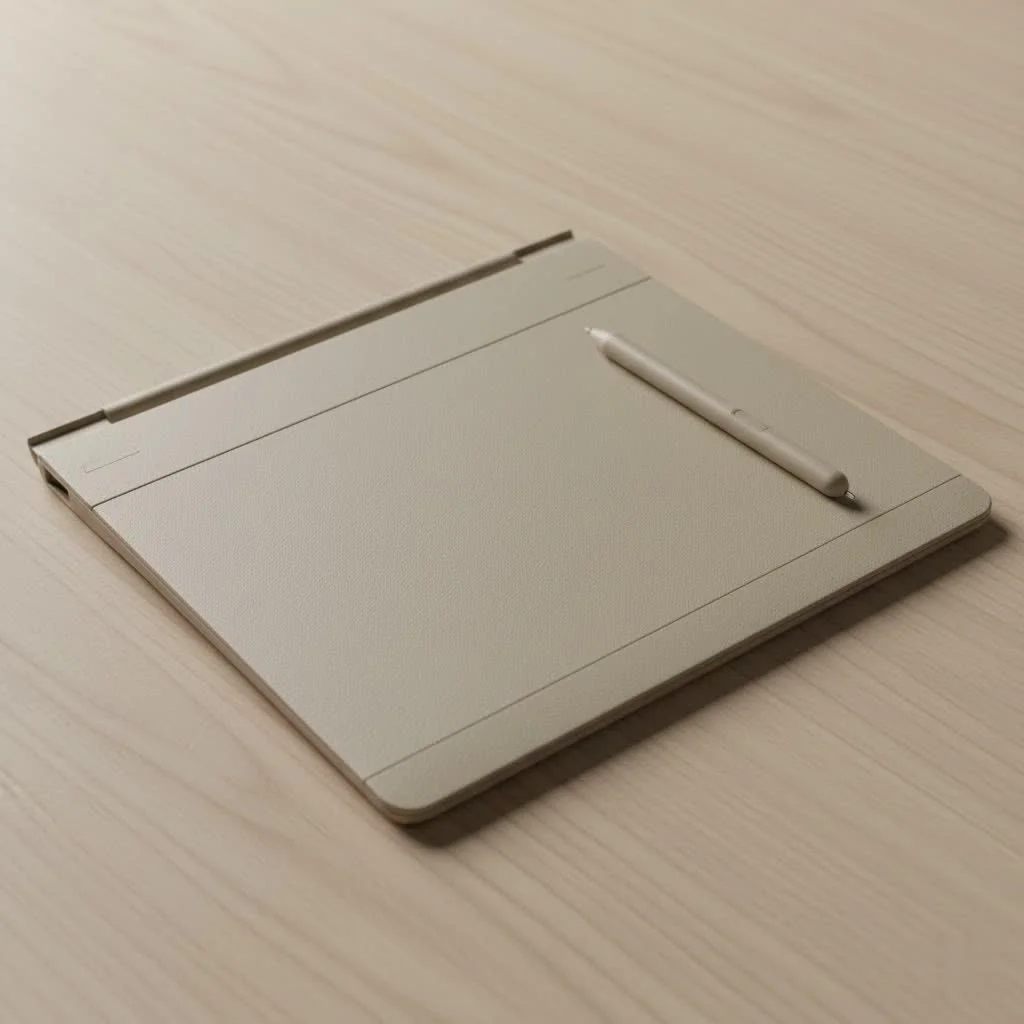
A graphic tablet acts as a digital canvas, allowing users to draw, paint, or write with a pen-like stylus. This direct input method provides a level of control and nuance that a standard mouse cannot achieve, making it an indispensable tool for creatives.
What Exactly is a Graphic Tablet?
At its core, a graphic tablet is an input device featuring a flat, touch-sensitive surface and a stylus. You draw on this surface, and your strokes appear in software like Adobe Photoshop or Corel Painter, mimicking the natural feel of drawing on paper.
How Does It Work?
The technology behind graphic tablets is electromagnetic resonance. The tablet generates a low-power magnetic field that energizes a circuit within the stylus. As the pen moves, the tablet tracks its position, pressure, and tilt, sending this data to your computer in real-time. This design often eliminates the need for batteries in the stylus, making it lightweight and comfortable for extended use.
Key Components: The Tablet and The Stylus
- The Tablet (Active Area): This is your drawing surface. Its size dictates the physical space available for work. While a larger tablet allows for more arm movement, a smaller one is more portable and suitable for wrist-based movements.
- The Stylus (Pen): This is crucial for the drawing experience. Modern styluses detect thousands of pressure levels; for example, pressing harder creates a thicker line, similar to a real pencil.
Types of Graphic Tablets: Which One is Right for You?
Graphic tablets primarily fall into two categories, and understanding their differences is vital for making an informed decision.
Traditional Pen Tablets (Screenless)
This classic graphic tablet design is often the starting point for beginners. It features a solid, opaque surface for drawing while you view your artwork on a separate computer monitor.
- Pros: These tablets are highly affordable, durable, and come in various sizes. They are excellent for learning fundamental digital art skills without a significant financial outlay.
- Cons: There is a learning curve for hand-eye coordination, as you draw on one surface and look at another. Most artists adapt within a few days of consistent practice.
Pen Displays (With a Built-in Screen)
|
Our Picks for the Best Graphic Tablet in 2026
As an Amazon Associate I earn from qualifying purchases.
|
||
| Num | Product | Action |
|---|---|---|
| 1 | XOPPOX Graphics Drawing Tablet 10 x 6 Inch Large Active Area with 8192 Levels Battery-Free Pen and 12 Hot Keys, Compatible with PC/Mac/Android OS for Painting, Design & Online Teaching Black |

|
| 2 | HUION Inspiroy H640P Drawing Tablet, 6x4 inch Digital Art with Battery-Free Stylus, 8192 Pen Pressure, 6 Hot Keys, Graphics Tablet for Drawing, Writing, Design, Teaching, Work with Mac, PC & Mobile |
|
| 3 | HUION Kamvas 13 (Gen 3) Drawing Tablet with Screen,13.3\" Full-Laminated Art Tablet with Anti-Sparkle Canvas Glass 2.0, 99% sRGB, PenTech 4.0, 16384 Pen Pressure, Dual Dial for PC, Mac, Android, Black |
|
| 4 | HUION Drawing Tablet HS610 Graphic Tablet with Battery-Free Stylus 8192 Pen Pressure Tilt Function, 10x6.25 Inches Digital Art for Animation & Design, Compatible with Windows/Mac/Android |
|
| 5 | HUION Inspiroy H1060P Graphics Drawing Tablet with 8192 Pressure Sensitivity Battery-Free Stylus and 12 Customized Hot Keys, 10 x 6.25 inches Digital Art Tablet for Mac, Windows PC and Android |
|
| 6 | GAOMON M10K Drawing Tablet, 10x6 inch Large Graphics Tablet with Touch Ring, 8192 Levels Battery-Free Stylus, 10 Hot Keys, Art Tablet for Design, Writing, Editing, Work with Mac, Windows, Android |
|
| 7 | Graphics Drawing Tablet, UGEE M708 10 x 6 inch Large Drawing Tablet with 8 Hot Keys, Passive Stylus of 16384 Levels Pressure, UGEE M708 Graphics Tablet for Paint, Design, Art Creation Sketch |
|
| 8 | HUION KAMVAS Pro 16 Drawing Tablet with Screen, 15.6 inch Pen Display Anti-Glare Glass 6 Shortcut Keys Adjustable Stand, Graphics Tablet for Drawing, Writing, Design, Work with Windows, Mac and Linux |
|
| 9 | Wacom Intuos Pro Medium Bluetooth Professional Graphic Drawing Tablet with Pro Pen 3, Compatible with Mac, Windows - 2025 Edition |
|
| 10 | Drawing Tablet for Beginner Graphics OSU Tablet with Battery-Free Stylus 8192 Pressure Sensitive for Digital Art, Painting & Design, Compatible with Windows, Mac OS and Android |
|
A pen display integrates a high-resolution monitor directly with the drawing surface, allowing you to draw directly on the screen where your artwork is displayed. This creates a more intuitive and direct workflow, akin to traditional art methods.
- Pros: The direct drawing experience is incredibly natural and easy to learn. The immediate visual feedback is ideal for detailed work and digital painting.
- Cons: Pen displays are significantly more expensive than screenless tablets. They also tend to be bulkier, requiring more desk space and additional cables. As professional illustrator David Chen notes, “Switching to a pen display was a major upgrade for my efficiency. The immediate feedback of seeing the line appear directly under my pen tip closed the gap between my creative vision and the digital execution.”
Key Features to Consider Before Buying a Graphic Tablet
Understanding technical specifications is crucial for selecting a tablet that enhances your user experience.
1. Pressure Sensitivity
Measured in “levels,” pressure sensitivity indicates how well the tablet registers varying degrees of force. While professional models offer 8,192 levels or more, 4,096 levels provide excellent control for beginners, allowing for diverse line weights and opacities.
2. Resolution (LPI)
Lines Per Inch (LPI) quantifies the detail and precision a tablet can recognize. A higher LPI means more detailed stroke recognition. Most modern tablets offer an LPI of 2,540 or higher, which is ample for most users, including professionals.
3. Active Area (Size)
The active area is the usable drawing surface. The ideal size depends on your workflow and monitor setup.
- Small (approx. 6×4 inches): Best for beginners, photo editing, and users with limited desk space, especially with a single laptop screen.
- Medium (approx. 9×6 inches): This is the most popular size, offering a balance of portability and drawing space, suitable for monitors up to 24 inches.
- Large (approx. 12×8 inches or more): Preferred by artists who use broad arm movements and work with large, high-resolution monitors.
4. Stylus Features
- Buttons: Most styluses include one or two customizable buttons for shortcuts like right-click, undo, or switching tools.
- Tilt Support: This feature allows the tablet to detect the stylus’s angle, enabling broader, painterly strokes in compatible software, similar to using a real brush.
- Eraser: Some styluses have an eraser on the back, allowing for intuitive erasing by simply flipping the pen.
Getting Started: Your First Steps with a Graphic Tablet
Setting up your new graphic tablet is a straightforward process.
- Driver Installation: Always download the latest driver directly from the manufacturer’s website (e.g., Wacom, Huion, XP-Pen) for your specific model. This ensures full compatibility and unlocks all features.
- Software Setup: Access the tablet’s control panel to customize settings such as pressure curves and button functions on both the stylus and tablet. Allocate time to map your frequently used shortcuts.
- Practice: Open your preferred art software and begin drawing. Focus on simple shapes, lines of varying thickness, and gradients to build muscle memory and comfort with hand-eye coordination.
Frequently Asked Questions (FAQ)
What is the best graphic tablet for a beginner?
For beginners, screenless pen tablets like the Wacom Intuos or Huion Inspiroy series offer an excellent balance of performance, features, and affordability. A medium size, typically around 9×6 inches, is generally recommended as a starting point for most users.
Can I use a graphic tablet as a mouse?
Yes, a graphic tablet can function as a highly precise mouse replacement. You can hover the stylus above the surface to move the cursor and tap to click, which is particularly useful for tasks requiring fine control, such as detailed photo retouching.
Do I need a powerful computer to use a graphic tablet?
The tablet itself requires minimal computer resources. However, the performance of your design and art software (e.g., Adobe Photoshop, ZBrush) can be very demanding, making your computer’s RAM and graphics card the primary factors influencing overall performance.
Wacom, Huion, or XP-Pen: Which brand is better?
Wacom has historically been the industry standard, recognized for its superior build quality and driver stability. However, brands like Huion and XP-Pen have become strong competitors, providing professional-grade features and excellent performance at more accessible price points, offering great value.
How long does it take to get used to a graphic tablet?
The adjustment period varies among users. For a screenless tablet, most individuals become comfortable within a few hours to a week of consistent practice. For a pen display, the learning curve is minimal, as the direct drawing experience feels very natural from the outset.
Your Creative Journey Starts Here
Choosing your first or next graphic tablet is a significant step in your creative development. It represents an investment in your ability to express yourself digitally with freedom and precision. By focusing on essential features—pressure sensitivity, size, and the tablet type that aligns with your workflow and budget—you can confidently select a tool that will serve you for years. Don’t hesitate to start with a smaller model; the most important aspect is to begin creating. Now, improve your imagination into reality.
Frequently Asked Questions
What is the best graphic tablet for a beginner?
For beginners, screenless pen tablets like the Wacom Intuos or Huion Inspiroy series offer an excellent balance of performance, features, and affordability. A medium size, typically around 9x6 inches, is generally recommended as a starting point for most users.
Can I use a graphic tablet as a mouse?
Yes, a graphic tablet can function as a highly precise mouse replacement. You can hover the stylus above the surface to move the cursor and tap to click, which is particularly useful for tasks requiring fine control, such as detailed photo retouching.
Do I need a powerful computer to use a graphic tablet?
The tablet itself requires minimal computer resources. However, the performance of your design and art software (e.g., Adobe Photoshop, ZBrush) can be very demanding, making your computer's RAM and graphics card the primary factors influencing overall performance.
Which graphic tablet brand is better: Wacom, Huion, or XP-Pen?
Wacom has historically been the industry standard, recognized for its superior build quality and driver stability. However, brands like Huion and XP-Pen have become strong competitors, providing professional-grade features and excellent performance at more accessible price points, offering great value.
How long does it take to get used to a graphic tablet?
The adjustment period varies among users. For a screenless tablet, most individuals become comfortable within a few hours to a week of consistent practice. For a pen display, the learning curve is minimal, as the direct drawing experience feels very natural from the outset.
Getting Started with a Graphic Tablet
Follow these steps to set up and begin using your new graphic tablet effectively for digital art and design.
Always download the most recent driver directly from the manufacturer's website (e.g., Wacom, Huion, XP-Pen) for your specific tablet model. This crucial step ensures full compatibility and unlocks all of the tablet's features, avoiding issues with outdated software.
Access the tablet's control panel to customize various settings, including pressure curves and the functions of buttons on both your stylus and the tablet itself. Take the time to map your frequently used shortcuts to enhance your workflow efficiency.
Open your preferred art software and simply start drawing. Focus on practicing simple shapes, lines of varying thickness, and gradients rather than creating a masterpiece. The goal is to build muscle memory and become comfortable with the hand-eye coordination required for digital drawing.
Get our weekly buyer guide
Practical specs, not advice. Unsubscribe anytime.
I’ve been using a screenless pen tablet for years, and it’s been a game-changer for my digital illustrations. The affordability was a huge plus when I was starting out, and it’s surprisingly durable. It took a little getting used to not looking at my hand, but now it feels totally natural. Definitely recommend for anyone just getting into digital art.
I finally upgraded to a pen display after years of using a mouse for photo editing, and wow, what a difference! The direct-drawing experience is so much more intuitive. I was a bit worried about the price tag, but for the natural feel and improved workflow, it’s totally worth the investment. My only minor gripe is the cable management can be a bit messy.
The advice about LPI was super helpful! I made sure to get a tablet with 2,540 LPI or higher, and the resolution is fantastic. Everything looks crisp and smooth, which is essential for my comic book art. It really does offer superior control compared to a mouse, especially for intricate line work.
I picked up a tablet with 4,096 levels of pressure sensitivity, thinking it would be enough for my design work. While it’s good for basic tasks, I’m finding myself wishing I’d gone for something with higher sensitivity for more nuanced brush strokes. It’s a solid entry-level device, but if you’re serious about detailed work, you might want to aim higher.