Finding the best graphic tablet can feel like navigating a minefield of technical specs and brand names. Whether you’re a seasoned digital artist or just starting, the right tablet is a game-changer, transforming your creative ideas into digital reality with precision and flow. As someone who has spent over 15 years with a stylus in hand, both in professional design and teaching, I’ve seen how the perfect device can unlock an artist’s potential. This guide cuts through the noise to help you choose the tablet that truly fits your needs.
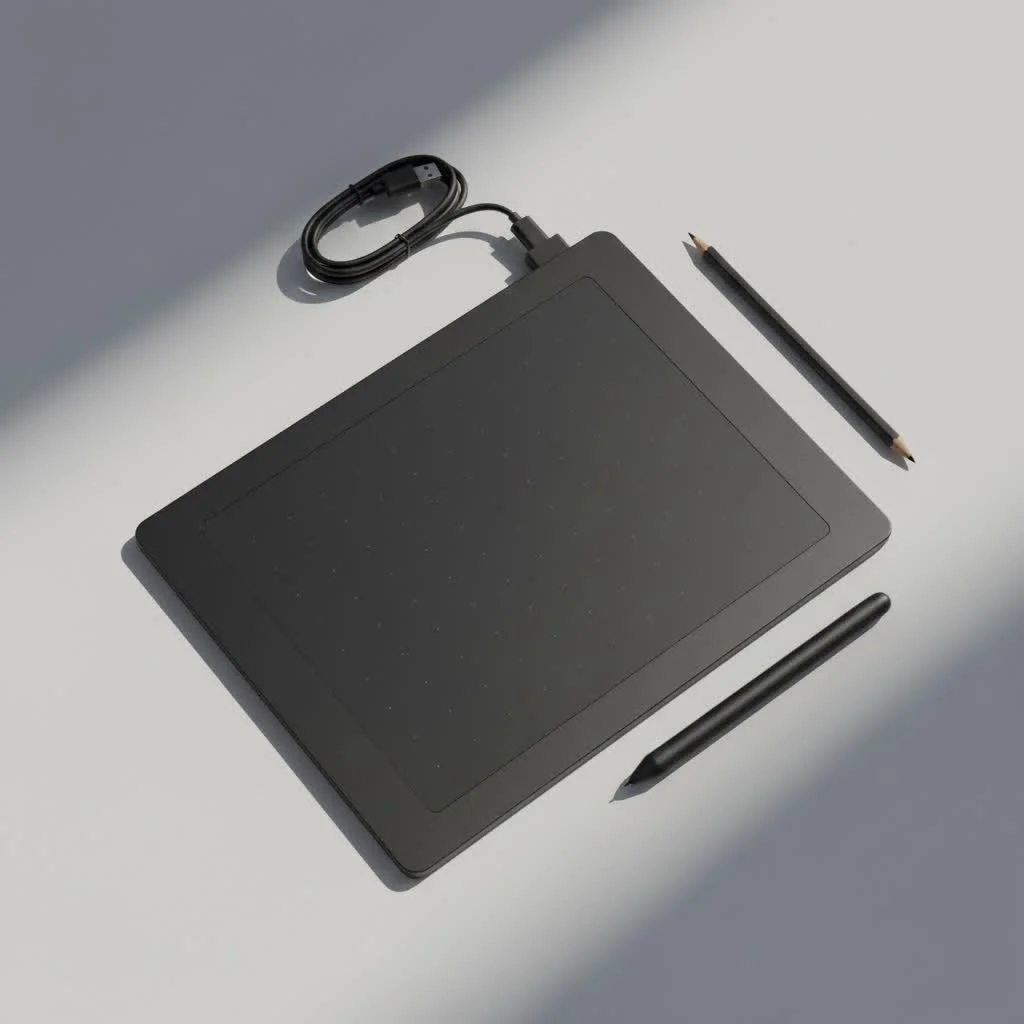
We’ll explore what features actually matter, compare the top models on the market, and help you find a partner for your creative journey. Forget confusing jargon; let’s talk about what will make your workflow smoother and your art better.
How to Choose the Best Graphic Tablet
Before diving into specific models, it’s crucial to understand the key features that differentiate a good tablet from a great one. The “best” choice is deeply personal and depends on your budget, workflow, and artistic goals.
Screen vs. No Screen: What’s the Difference?
This is often the first major decision you’ll make.
- Pen Tablets (No Screen): These are the classic graphic tablets. You draw on the tablet’s surface while looking at your computer monitor. They are more affordable, durable, and excellent for developing hand-eye coordination. They are a fantastic starting point for beginners and a reliable tool for many professionals.
- Pen Displays (With Screen): These devices have a built-in screen, allowing you to draw directly on your image. This creates a more natural and intuitive drawing experience, similar to traditional art. However, they come at a higher price and often require more desk space and calibration for color accuracy.
Key Features That Actually Matter
Don’t get lost in the numbers. Here’s what you should really focus on:
- Pressure Sensitivity: Measured in levels, this determines how the tablet registers the force of your stroke. Most modern tablets offer 8,192 levels, which is the industry standard. This allows you to create varying line weights, from faint sketches to bold strokes, simply by adjusting how hard you press the stylus.
- Resolution (LPI): Lines Per Inch (LPI) refers to the detail the tablet can capture. A higher LPI means more precise and sharper lines. Look for tablets with at least 2540 LPI, though most professional models offer 5080 LPI.
- Active Area: This is the actual drawing space on the tablet. A larger active area provides more room to make broad, sweeping strokes, which is often more comfortable for artists used to large canvases. For beginners or those with limited desk space, a small or medium tablet is perfectly sufficient.
- Stylus Quality: The pen is your primary tool. Look for a battery-free stylus that uses EMR (Electro-Magnetic Resonance) technology, so you never have to worry about charging it. Ergonomics, weight, and the feel of the nib on the surface are also critical for comfort during long sessions.
According to digital art instructor, Isabella Rossi, “Your tablet should feel like an extension of your hand. Pay close attention to the feel of the stylus and the texture of the drawing surface. The technical specifications are important, but comfort and responsiveness are what will keep you in the creative zone.”
The Top Graphic Tablets on the Market
After extensive testing and review, here are my top recommendations, broken down by category to help you find your perfect match.
1. Wacom Intuos Pro: The Best Overall Graphic Tablet
|
Our Picks for the Best Graphic Tablet in 2026
As an Amazon Associate I earn from qualifying purchases.
|
||
| Num | Product | Action |
|---|---|---|
| 1 | HUION Inspiroy H640P Drawing Tablet, 6x4 inch Digital Art with Battery-Free Stylus, 8192 Pen Pressure, 6 Hot Keys, Graphics Tablet for Drawing, Writing, Design, Teaching, Work with Mac, PC & Mobile |

|
| 2 | HUION Kamvas 13 (Gen 3) Drawing Tablet with Screen,13.3\" Full-Laminated Art Tablet with Anti-Sparkle Canvas Glass 2.0, 99% sRGB, PenTech 4.0, 16384 Pen Pressure, Dual Dial for PC, Mac, Android, Black |
|
| 3 | XOPPOX Graphics Drawing Tablet 10 x 6 Inch Large Active Area with 8192 Levels Battery-Free Pen and 12 Hot Keys, Compatible with PC/Mac/Android OS for Painting, Design & Online Teaching Black |
|
| 4 | Wacom Intuos Pro Medium Bluetooth Professional Graphic Drawing Tablet with Pro Pen 3, Compatible with Mac, Windows - 2025 Edition |
|
| 5 | HUION Drawing Tablet HS610 Graphic Tablet with Battery-Free Stylus 8192 Pen Pressure Tilt Function, 10x6.25 Inches Digital Art for Animation & Design, Compatible with Windows/Mac/Android |
|
| 6 | Graphics Drawing Tablet, UGEE M708 10 x 6 inch Large Drawing Tablet with 8 Hot Keys, Passive Stylus of 16384 Levels Pressure, UGEE M708 Graphics Tablet for Paint, Design, Art Creation Sketch |
|
| 7 | GAOMON M10K Drawing Tablet, 10x6 inch Large Graphics Tablet with Touch Ring, 8192 Levels Battery-Free Stylus, 10 Hot Keys, Art Tablet for Design, Writing, Editing, Work with Mac, Windows, Android |
|
| 8 | HUION Inspiroy H1060P Graphics Drawing Tablet with 8192 Pressure Sensitivity Battery-Free Stylus and 12 Customized Hot Keys, 10 x 6.25 inches Digital Art Tablet for Mac, Windows PC and Android |
|
| 9 | HUION KAMVAS Pro 16 Drawing Tablet with Screen, 15.6 inch Pen Display Anti-Glare Glass 6 Shortcut Keys Adjustable Stand, Graphics Tablet for Drawing, Writing, Design, Work with Windows, Mac and Linux |
|
| 10 | Drawing Tablet for Beginner Graphics OSU Tablet with Battery-Free Stylus 8192 Pressure Sensitive for Digital Art, Painting & Design, Compatible with Windows, Mac OS and Android |
|
The Wacom Intuos Pro has long been the industry standard for a reason. It’s a workhorse that delivers professional-grade performance without a screen.
- Who it’s for: Professional artists, designers, and serious hobbyists who need reliability and precision.
- Why it’s great: The Pro Pen 2 is arguably the best stylus on the market, offering a natural feel with virtually no lag. The tablet surface has a pleasant, paper-like texture, and the customizable ExpressKeys and Touch Ring streamline your workflow significantly. It’s built to last and works flawlessly with all major creative software.
| Feature | Wacom Intuos Pro (Medium) |
|---|---|
| Active Area | 8.7 x 5.8 in |
| Pressure Levels | 8,192 |
| Resolution | 5080 LPI |
| Connectivity | USB-C, Bluetooth |
| Stylus | Pro Pen 2 (Battery-Free) |
2. Huion Kamvas Pro 16 (2.5K): Best Pen Display for Value
Huion has become a major competitor to Wacom by offering feature-packed pen displays at a fraction of the cost. The Kamvas Pro 16 (2.5K) is the sweet spot for artists wanting to upgrade to a screen tablet.
- Who it’s for: Intermediate artists and professionals looking for a high-quality screen experience without the premium Wacom price tag.
- Why it’s great: The 2.5K QHD resolution on a 16-inch screen is stunningly sharp, and the fully laminated, anti-glare glass reduces parallax to a minimum, making it feel like you’re drawing directly on the canvas. The color accuracy is excellent, and the battery-free stylus is comfortable and responsive.
3. XP-Pen Deco 01 V2: The Best Graphic Tablet for Beginners
Starting in digital art doesn’t have to be expensive. The XP-Pen Deco 01 V2 offers incredible features for its budget-friendly price, making it the perfect entry point.
- Who it’s for: Beginners, students, and hobbyists.
- Why it’s great: With a generous 10 x 6.25-inch active area, 8,192 levels of pressure sensitivity, and tilt support, the Deco 01 V2 provides a feature set that rivals more expensive tablets. It’s simple to set up, and the eight customizable shortcut keys offer plenty of room for your most-used commands. It delivers exceptional value and a fantastic drawing experience for anyone new to the medium.
4. Wacom Cintiq 22: The Professional’s Choice Pen Display
For those who demand the best and have the budget for it, the Wacom Cintiq 22 is a dream machine.
- Who it’s for: Professional illustrators, animators, and studio artists.
- Why it’s great: The large 21.5-inch HD screen provides an immersive canvas. While it’s not 4K, the display is bright, color-accurate, and comfortable to work on for hours. Paired with the peerless Pro Pen 2, the drawing experience is second to none. Its reliability and seamless software integration make it a staple in creative industries worldwide. It comes with an adjustable stand, which is a major ergonomic plus.
Frequently Asked Questions (FAQ)
What is the best graphic tablet for photo editing?
For photo editing, a pen tablet like the Wacom Intuos Pro is often preferred. The absolute precision of a stylus is ideal for tasks like masking, retouching, and dodging and burning. A screen isn’t always necessary and can sometimes complicate color management if not properly calibrated.
Do I need to install drivers for my graphic tablet?
Yes, installing the correct driver from the manufacturer’s website is essential. The driver is the software that allows the tablet to communicate with your computer, enabling features like pressure sensitivity and customizable buttons. Always download the latest version for your specific model and operating system.
Can I use a graphic tablet as a mouse?
Absolutely. A graphic tablet can function as a complete mouse replacement. The stylus controls the cursor, and you can tap the surface to click. Many artists, myself included, use their tablet for all navigation as it can be more ergonomic than a traditional mouse.
How do I fix lag between my pen and the cursor?
Pen lag can be caused by several factors. First, ensure your tablet drivers and graphics card drivers are up to date. Second, check the performance settings in your creative software; you may need to allocate more RAM or adjust brush settings. Finally, a high-end CPU and sufficient RAM in your computer are crucial for a smooth experience, especially when working with large files.
Wacom vs. Huion vs. XP-Pen: Which brand is better?
This depends on your priorities. Wacom is the industry veteran with a reputation for impeccable build quality, driver stability, and the best stylus technology, but at a premium price. Huion and XP-Pen are fantastic alternatives that offer comparable features, and sometimes even better specs (like higher resolution screens), for a significantly lower price. Their technology has improved immensely, making them a viable choice for both amateurs and professionals.
Final Thoughts on Your Creative Tool
Choosing the best graphic tablet is an investment in your creativity. The right device will fade into the background, allowing your ideas to flow directly from your mind to the screen. For most serious artists, the Wacom Intuos Pro remains the top recommendation for its unmatched reliability and drawing feel. If you’re set on a screen, the Huion Kamvas Pro 16 (2.5K) offers incredible value. And if you’re just starting, the XP-Pen Deco 01 V2 proves you don’t need to spend a fortune to get a quality tool.
Consider your budget, your workspace, and your long-term artistic goals. Whichever you choose, take the time to customize it to your workflow. Set up your shortcut keys, adjust your pressure curve, and make it your own. Now, go create something amazing.
Get our weekly buyer guide
Practical specs, not advice. Unsubscribe anytime.

This guide was super helpful in narrowing down my choices. I’m a beginner, so I really appreciated the breakdown of what features actually matter without all the confusing jargon. I ended up going with the XP-Pen Artist 12 Pro, and it’s been perfect for learning digital painting. The express keys are a lifesaver for quick shortcuts.
I picked up the iPad Pro with the Apple Pencil 2, hoping it would replace my desktop setup for quick sketches on the go. While the portability is great and Procreate is amazing, I found that the screen glare can be a real issue when working near a window. It’s a minor complaint, but it does interrupt my flow sometimes. Still a solid device for certain tasks, just not a full replacement for me.
I’ve been using Wacom tablets for years, but I was curious about some of the newer brands mentioned. I decided to try the Huion Kamvas Pro 16 based on the detailed comparison, and I’m genuinely impressed. The color accuracy is fantastic, and the pen pressure sensitivity feels just as good as my old Intuos Pro. It’s definitely a game-changer for my illustration work.
As a professional graphic designer, I’m always looking for ways to make my workflow smoother. The section on pen pressure and tilt recognition really resonated with me. I upgraded to the Cintiq Pro 24, and the difference in precision and control is night and day. It’s a significant investment, but absolutely worth it for the quality and efficiency it brings to my client projects.