Welcome to Kagbz, where we demystify the tools of digital art. With over 15 years in the trenches of professional graphic design, I’ve seen countless tools come and go. Today, we’re taking a deep dive into a product that has generated a lot of buzz in the beginner and budget-conscious artist communities: the Monoprice 10 X 6.25 Inch Graphic Drawing Tablet. Is it a hidden gem that punches well above its weight class, or are the compromises too significant to ignore? Let’s find out.
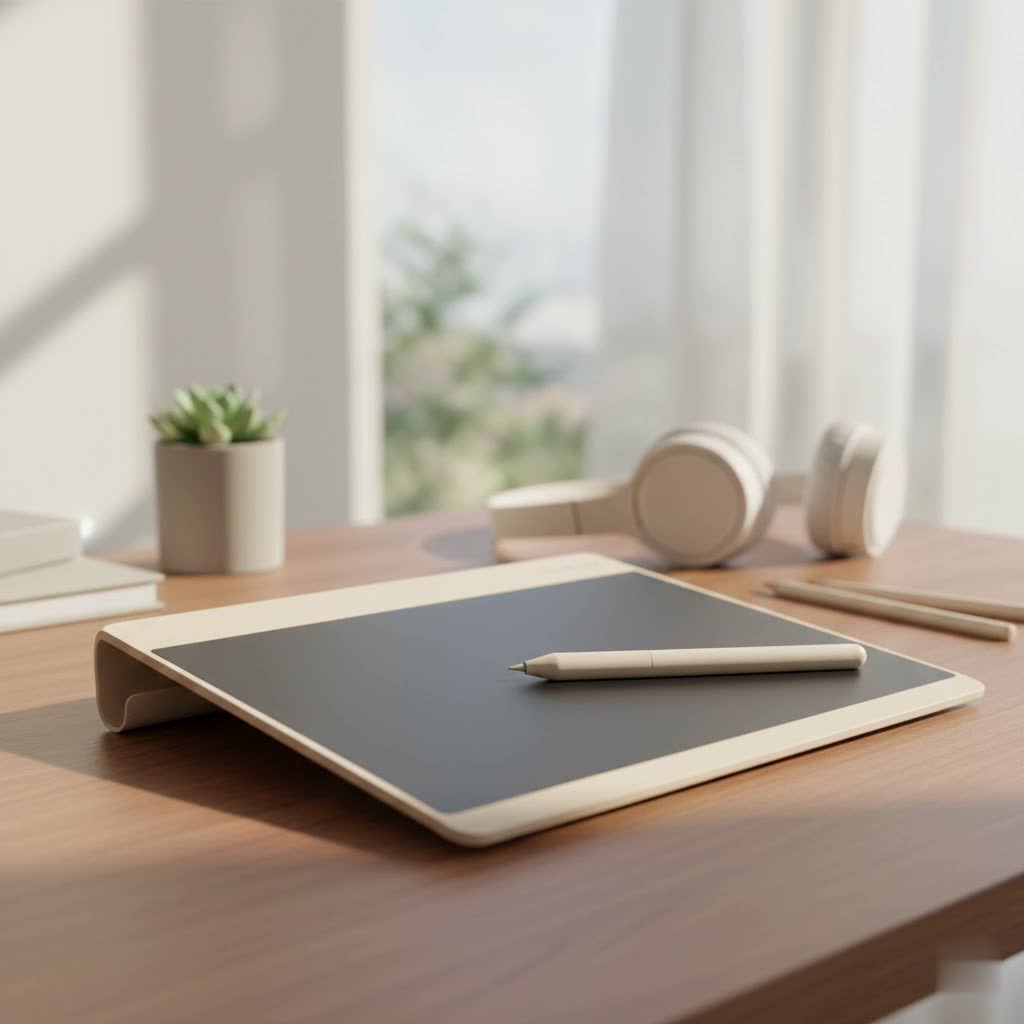
For many aspiring artists, the high cost of entry into digital art can be a major barrier. Brands like Wacom have long dominated the market with premium, and often pricey, equipment. This Monoprice tablet enters the scene as a compelling, low-cost alternative, promising a large drawing area and robust features without the hefty price tag.
What Exactly Is the Monoprice 10 x 6.25 Inch Tablet?
This is a non-display graphics tablet, meaning you draw on its surface while looking at your computer monitor. The “10 x 6.25 inch” measurement refers to the active drawing area, which is a generous size for its price point. It’s designed to give you a more natural and precise input method for digital drawing, painting, and photo editing than a standard mouse. The tablet connects to your computer via a USB cable and comes with a battery-powered stylus.
Core Features and Technical Specifications
When evaluating a graphics tablet, the specs tell a large part of the story. While they don’t always translate perfectly to real-world performance, they provide a solid baseline for what to expect.
| Feature | Specification | What It Means for You |
|---|---|---|
| Active Area | 10″ x 6.25″ | A large canvas for broad strokes and detailed work, reducing the need for constant zooming. |
| Pressure Sensitivity | 2048 Levels | Allows for nuanced control over line weight and opacity, making your strokes look more natural. |
| Resolution | 4000 LPI | “Lines Per Inch” determines how accurately the tablet can register the pen’s position. 4000 is quite good for this price. |
| Report Rate | 200 RPS | “Reports Per Second” measures how quickly the tablet sends data to the computer, affecting how smooth lines appear. |
| Express Keys | 8 Hotkeys | Customizable shortcut keys on the side of the tablet to speed up your workflow (e.g., undo, zoom, switch tools). |
| Stylus | Battery-Powered | The pen requires a single AAA battery. It is not rechargeable and does not have an eraser on the back. |
Setting Up Your Monoprice Tablet: A Step-by-Step Guide
Getting started with a new piece of hardware can sometimes be tricky. Based on my experience and widespread user feedback, here’s the best way to approach the installation for the Monoprice tablet to avoid common headaches.
Driver Installation is Key
|
Our Picks for the Best Graphic Tablet in 2026
As an Amazon Associate I earn from qualifying purchases.
|
||
| Num | Product | Action |
|---|---|---|
| 1 | GAOMON M10K Drawing Tablet, 10x6 inch Large Graphics Tablet with Touch Ring, 8192 Levels Battery-Free Stylus, 10 Hot Keys, Art Tablet for Design, Writing, Editing, Work with Mac, Windows, Android |

|
| 2 | HUION Inspiroy H1060P Graphics Drawing Tablet with 8192 Pressure Sensitivity Battery-Free Stylus and 12 Customized Hot Keys, 10 x 6.25 inches Digital Art Tablet for Mac, Windows PC and Android |
|
| 3 | Graphics Drawing Tablet, UGEE M708 10 x 6 inch Large Drawing Tablet with 8 Hot Keys, Passive Stylus of 16384 Levels Pressure, UGEE M708 Graphics Tablet for Paint, Design, Art Creation Sketch |
|
| 4 | Wacom Intuos Pro Medium Bluetooth Professional Graphic Drawing Tablet with Pro Pen 3, Compatible with Mac, Windows - 2025 Edition |
|
| 5 | HUION Drawing Tablet HS610 Graphic Tablet with Battery-Free Stylus 8192 Pen Pressure Tilt Function, 10x6.25 Inches Digital Art for Animation & Design, Compatible with Windows/Mac/Android |
|
| 6 | Drawing Tablet for Beginner Graphics OSU Tablet with Battery-Free Stylus 8192 Pressure Sensitive for Digital Art, Painting & Design, Compatible with Windows, Mac OS and Android |
|
| 7 | HUION Kamvas 13 (Gen 3) Drawing Tablet with Screen,13.3\" Full-Laminated Art Tablet with Anti-Sparkle Canvas Glass 2.0, 99% sRGB, PenTech 4.0, 16384 Pen Pressure, Dual Dial for PC, Mac, Android, Black |
|
| 8 | HUION KAMVAS Pro 16 Drawing Tablet with Screen, 15.6 inch Pen Display Anti-Glare Glass 6 Shortcut Keys Adjustable Stand, Graphics Tablet for Drawing, Writing, Design, Work with Windows, Mac and Linux |
|
| 9 | HUION Inspiroy H640P Drawing Tablet, 6x4 inch Digital Art with Battery-Free Stylus, 8192 Pen Pressure, 6 Hot Keys, Graphics Tablet for Drawing, Writing, Design, Teaching, Work with Mac, PC & Mobile |
|
| 10 | XOPPOX Graphics Drawing Tablet 10 x 6 Inch Large Active Area with 8192 Levels Battery-Free Pen and 12 Hot Keys, Compatible with PC/Mac/Android OS for Painting, Design & Online Teaching Black |
|
The included CD is largely obsolete. The most crucial step is to download the latest drivers directly from the Monoprice website.
- Do Not Plug in the Tablet Yet: This is a golden rule for many peripherals. Wait until the software tells you to connect the device.
- Uninstall Old Drivers: If you have any other tablet drivers on your system (like from Wacom or Huion), uninstall them completely first to prevent conflicts.
- Download and Install: Navigate to the Monoprice product page, find your tablet model, and download the correct driver for your operating system (Windows or macOS). Run the installer and follow the on-screen prompts.
- Connect and Reboot: Once the installation is complete, plug the tablet into a USB port. It’s always a good idea to restart your computer at this point to ensure everything is initialized correctly.
Configuration and Customization
After the drivers are installed, a tablet utility will be available. This is where you can fine-tune the device to your liking. You can adjust the pen pressure curve, assign functions to the two buttons on the stylus, and program the 8 Express Keys on the side of the tablet. Take the time to map your most-used shortcuts here; it will dramatically improve your efficiency.
As a longtime instructor, I always tell my students that personalizing your tools is the first step toward making them an extension of your hand. Take 30 minutes to set up your hotkeys; your future self will thank you for the hours saved. – Alex Chen, Digital Artist and Instructor
Performance and Real-World User Experience
On paper, the specs are impressive for the price. But how does it feel to use the Monoprice 10 x 6.25 inch graphic drawing tablet?
The drawing experience is surprisingly good. The large surface is comfortable, and the 200 RPS report rate ensures that lines feel responsive with minimal lag. The 2048 levels of pressure sensitivity are more than adequate for most tasks, from delicate line art to expressive digital painting. I tested it with Adobe Photoshop, Krita, and Clip Studio Paint, and it performed admirably across all of them after proper setup.
However, there are some quirks. The battery-powered pen makes it slightly heavier and thicker than its battery-free counterparts. It’s a minor point but can affect comfort during long drawing sessions. Some users have also reported slight inconsistencies in pressure sensitivity near the very edges of the active area, though this is not uncommon in budget tablets.
Who is This Tablet For?
This tablet hits a sweet spot for several types of users:
- Absolute Beginners: If you’re just starting and don’t want to invest hundreds of dollars, this is an excellent entry point.
- Hobbyists and Students: For those who draw for fun or are learning digital art, this tablet provides all the necessary features without breaking the bank.
- Designers on a Budget: If you’re a professional who needs a backup tablet or a large drawing surface for less intensive tasks, this is a very practical choice.
It’s probably not the best fit for seasoned professionals who rely on the premium feel, flawless driver support, and advanced features like pen tilt, which are hallmarks of higher-end models.
Frequently Asked Questions (FAQ)
Q: Does the Monoprice tablet work with macOS?
A: Yes, it is compatible with both Windows and macOS. However, always ensure you download the very latest drivers from the Monoprice website, as macOS updates can sometimes cause compatibility issues with older drivers.
Q: Can I use this tablet as a mouse replacement?
A: Yes, you can use the pen to navigate your desktop, click icons, and perform standard mouse functions. The tablet settings allow you to map the screen area to the tablet surface for intuitive control.
Q: How often do I need to change the pen’s battery?
A: This depends on usage, but a single AAA battery can last for several months of regular use. The pen has an auto-sleep function to conserve power when not in use.
Q: Does the pen have an eraser on the end?
A: No, this is one of the features commonly found on more expensive tablets that is absent here. You will need to use a hotkey or your software’s interface to switch to the eraser tool.
Q: What comes in the box?
A: Typically, the box includes the tablet, the battery-powered stylus, a pen holder, several replacement nibs, and a USB cable.
The Final Verdict
The Monoprice 10 x 6.25 inch graphic drawing tablet is a testament to how accessible digital art has become. It delivers a solid and enjoyable drawing experience with a feature set that was considered premium just a few years ago. While it makes some compromises—most notably the battery-powered pen and the occasionally finicky driver setup—its value proposition is undeniable.
For anyone looking to dip their toes into the world of digital art without a significant financial commitment, this tablet is one of the best options on the market. It proves you don’t need the most expensive gear to start creating beautiful work.
