Stepping into the world of digital art can feel like learning a whole new language. You have the passion and the ideas, but the tools can seem intimidating. That’s where the Wacom Intuos Graphic Tablet comes in, and after 15 years in design, I can tell you it’s one of the most reliable entry points for any aspiring creative. It bridges the gap between your imagination and the screen, making the digital feel natural and intuitive. Think of it less as a complex piece of tech and more as an extension of your hand.
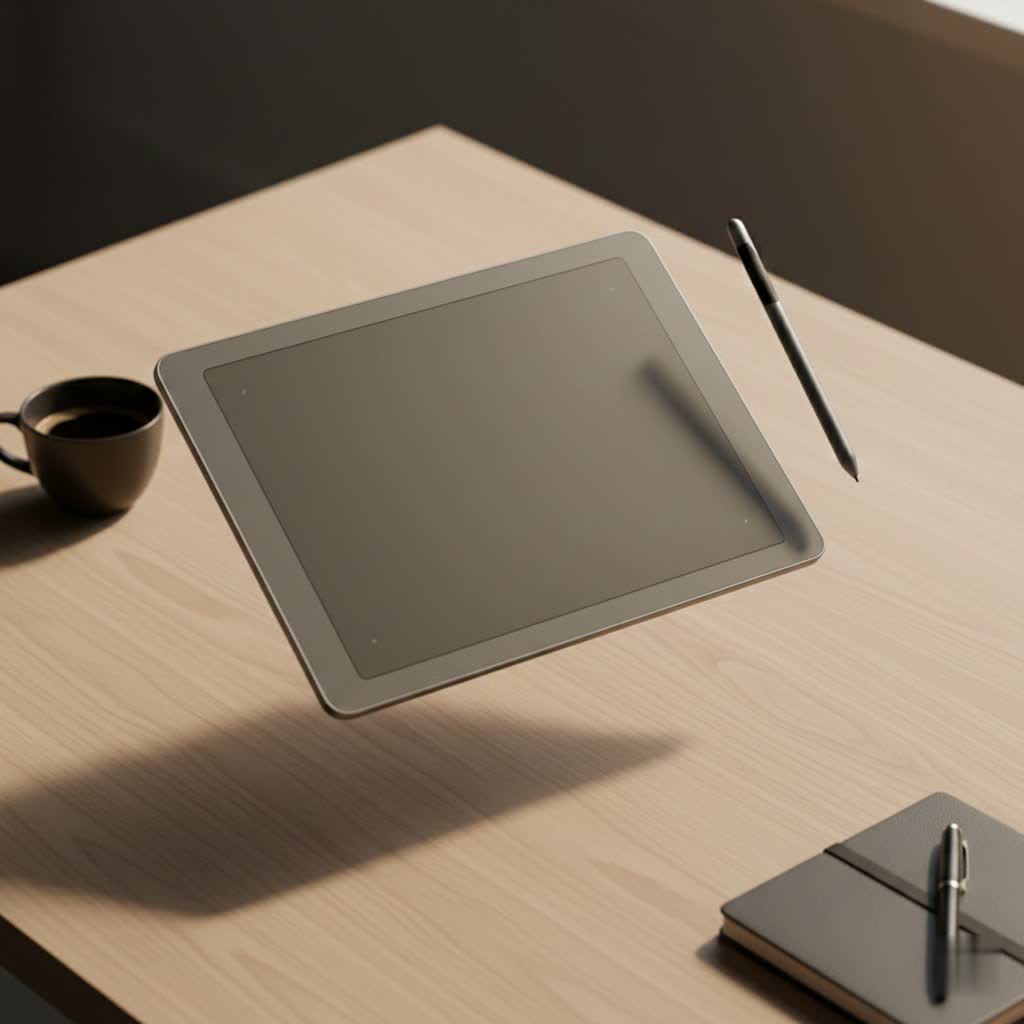
Whether you’re a budding illustrator, a photographer looking to perfect your edits, or a student wanting to take digital notes, the Intuos is designed to make your creative journey smoother. It’s the tool I wish I had when I was starting out, and today, it remains a staple in my teaching toolkit for its simplicity and power.
What Exactly is a Wacom Intuos Graphic Tablet?
At its core, a Wacom Intuos graphic tablet is a digital drawing surface that you control with a pen, or stylus. It replaces your mouse for creative tasks, offering a level of precision and control that a standard mouse simply can’t match. When you move the pen over the tablet’s surface, the cursor moves on your screen. When you press the pen down, it draws, paints, or clicks.
The magic lies in its core features:
- Pressure Sensitivity: The pen recognizes how hard you press. Press lightly for a thin, faint line; press harder for a thick, bold one. With 4,096 levels of pressure, it mimics the feel of using a real pen or brush, giving your work incredible nuance and depth.
- Battery-Free Pen: Thanks to Wacom’s EMR (Electro-Magnetic Resonance) technology, the pen requires no batteries and no charging. It’s always ready when you are, feeling light and balanced in your hand.
- Customizable ExpressKeys: Most Intuos models feature four buttons on the tablet itself. You can program these to be your favorite shortcuts, like Undo, Zoom, or Switch Tool. This simple feature is a massive workflow accelerator.
- Compact and Portable: The tablet is slim and lightweight, making it easy to slip into a backpack and use wherever inspiration strikes.
Who is the Wacom Intuos For?
While professionals often opt for more advanced models, the Wacom Intuos has a broad appeal because it excels at making digital creation accessible. I’ve seen it empower a wide range of users:
- Digital Artists and Illustrators: For those new to drawing digitally, the Intuos provides a natural-feeling surface that helps build hand-eye coordination without a steep learning curve.
- Photographers and Photo Editors: Retouching photos, making precise selections, and dodging and burning are infinitely easier and faster with a pressure-sensitive pen than with a mouse.
- Students and Educators: It’s an incredible tool for online learning. Teachers can annotate documents and draw diagrams in real-time, while students can take handwritten digital notes and solve problems more intuitively.
- Hobbyists and Crafters: From designing digital scrapbook layouts to creating custom graphics for a Cricut machine, the Intuos offers the precision needed for all sorts of creative projects.
Choosing Your First Wacom Intuos: Small vs. Medium
The Wacom Intuos primarily comes in two sizes: Small and Medium. Deciding between them often comes down to your workspace, monitor size, and how you draw.
| Feature | Wacom Intuos Small | Wacom Intuos Medium |
|---|---|---|
| Active Area | ~ 6.0 x 3.7 inches | ~ 8.5 x 5.3 inches |
| Best For | Limited desk space, laptop users | Larger monitors, illustrators |
| Portability | Extremely portable | Still portable, but less compact |
| Drawing Style | Good for drawing from the wrist | Better for drawing from the elbow/arm |
| Price | More affordable | Slightly higher cost |
My recommendation: If you’re using a laptop or have a monitor smaller than 24 inches, the Small size is perfectly adequate and a great space-saver. However, if you have a larger monitor or you’re an artist who likes to make broad, sweeping strokes, investing in the Medium is well worth it for the extra drawing real estate.
To Bluetooth or Not to Bluetooth?
Another choice you’ll face is whether to get a model with built-in Bluetooth. The standard models connect to your computer via a simple USB cable.
The case for USB-only: It’s plug-and-play, you never have to worry about charging the tablet, and there’s zero lag. It’s the most reliable and cost-effective option.
The case for Bluetooth: The primary benefit is a clutter-free desk. A wireless setup offers more freedom of movement and is fantastic for portability. The internal battery lasts for hours, but you’ll need to remember to charge it.
As a rule of thumb, if you value a clean, wireless setup and don’t mind managing another battery, go for Bluetooth. If you prioritize simplicity and a slightly lower price, the corded version is a workhorse that will never let you down.
Getting Started: Your First Five Minutes with the Wacom Intuos
Wacom has made the setup process incredibly straightforward. You can go from unboxing to creating in just a few minutes.
- Unbox and Connect: Take the tablet, pen, and USB cable out of the box. Connect the cable to the tablet and to an available USB port on your computer.
- Install the Driver: Your computer may recognize it as a basic input device, but to unlock its full potential, you need the official driver. Open a web browser and go to the Wacom setup page, which will guide you to download and install the latest driver for your operating system (Windows, macOS, or ChromeOS).
- Register and Get Software: During the setup process, you’ll be prompted to create a Wacom ID and register your tablet. This is a crucial step, as it gives you access to a fantastic bundle of free creative software, which often includes titles like Corel Painter Essentials or Clip Studio Paint Pro.
- Customize Your Settings: Once the driver is installed, open the Wacom Desktop Center. This is your command hub for customizing everything. You can adjust the pen pressure, assign shortcuts to the ExpressKeys, and map the tablet area to your screen.
- Start Creating: Open your newly downloaded software or your favorite creative application and begin drawing. It’s that simple.
“The beauty of the Wacom Intuos is that it removes the technical barrier. It lets new artists focus on their art, not on the tool. The natural feel of the pen on the tablet is the closest thing you can get to paper, and that’s a game-changer for anyone starting their digital journey.” – David Chen, Professional Illustrator & Educator
Frequently Asked Questions (FAQ)
What software comes with the Wacom Intuos?
|
Our Picks for the Best Graphic Tablet in 2026
As an Amazon Associate I earn from qualifying purchases.
|
||
| Num | Product | Action |
|---|---|---|
| 1 | HUION Inspiroy H1060P Graphics Drawing Tablet with 8192 Pressure Sensitivity Battery-Free Stylus and 12 Customized Hot Keys, 10 x 6.25 inches Digital Art Tablet for Mac, Windows PC and Android |

|
| 2 | Wacom Intuos Pro Medium Bluetooth Professional Graphic Drawing Tablet with Pro Pen 3, Compatible with Mac, Windows - 2025 Edition |
|
| 3 | HUION Inspiroy H640P Drawing Tablet, 6x4 inch Digital Art with Battery-Free Stylus, 8192 Pen Pressure, 6 Hot Keys, Graphics Tablet for Drawing, Writing, Design, Teaching, Work with Mac, PC & Mobile |
|
| 4 | HUION Drawing Tablet HS610 Graphic Tablet with Battery-Free Stylus 8192 Pen Pressure Tilt Function, 10x6.25 Inches Digital Art for Animation & Design, Compatible with Windows/Mac/Android |
|
| 5 | HUION Kamvas 13 (Gen 3) Drawing Tablet with Screen,13.3\" Full-Laminated Art Tablet with Anti-Sparkle Canvas Glass 2.0, 99% sRGB, PenTech 4.0, 16384 Pen Pressure, Dual Dial for PC, Mac, Android, Black |
|
| 6 | XOPPOX Graphics Drawing Tablet 10 x 6 Inch Large Active Area with 8192 Levels Battery-Free Pen and 12 Hot Keys, Compatible with PC/Mac/Android OS for Painting, Design & Online Teaching Black |
|
| 7 | GAOMON M10K Drawing Tablet, 10x6 inch Large Graphics Tablet with Touch Ring, 8192 Levels Battery-Free Stylus, 10 Hot Keys, Art Tablet for Design, Writing, Editing, Work with Mac, Windows, Android |
|
| 8 | HUION KAMVAS Pro 16 Drawing Tablet with Screen, 15.6 inch Pen Display Anti-Glare Glass 6 Shortcut Keys Adjustable Stand, Graphics Tablet for Drawing, Writing, Design, Work with Windows, Mac and Linux |
|
| 9 | Drawing Tablet for Beginner Graphics OSU Tablet with Battery-Free Stylus 8192 Pressure Sensitive for Digital Art, Painting & Design, Compatible with Windows, Mac OS and Android |
|
| 10 | Graphics Drawing Tablet, UGEE M708 10 x 6 inch Large Drawing Tablet with 8 Hot Keys, Passive Stylus of 16384 Levels Pressure, UGEE M708 Graphics Tablet for Paint, Design, Art Creation Sketch |
|
Depending on the model and current promotions, the Wacom Intuos typically comes with a choice of downloadable creative software. Common bundles include titles for digital drawing (like Clip Studio Paint Pro), photo editing (like Corel AfterShot Pro), and painting (like Corel Painter Essentials). You must register your device to claim them.
Can the Wacom Intuos be used as a mouse?
Yes, absolutely. The pen and tablet can fully replace your mouse for all navigation tasks. Tapping the pen on the tablet is equivalent to a left-click, and you can program one of the buttons on the pen barrel to act as a right-click.
How long does the Wacom pen last?
The pen itself is battery-free and should last for many years. However, the pen nib (the plastic tip) will wear down over time with use, just like the lead in a pencil. The Wacom Intuos cleverly stores three spare nibs inside the pen itself. Replacements are readily available and inexpensive.
Is the Wacom Intuos worth it for beginners?
Without a doubt. It is arguably the best wacom intuos graphic tablet for beginners due to its perfect balance of price, performance, and user-friendly features. It provides professional-grade technology in an accessible package, allowing you to grow your skills without needing an immediate upgrade.
Can I use the Wacom Intuos with my Chromebook or Android device?
Yes, many Wacom Intuos models are compatible with Chromebooks and some Android devices, making them even more versatile for students and creatives on the go. Always check the official Wacom compatibility list for your specific tablet and device.
Your Creative Journey Starts Here
The Wacom Intuos graphic tablet is more than just a peripheral; it’s a key that unlocks a new realm of creativity. It simplifies the complexities of digital art, making it an approachable and enjoyable experience from day one. By offering a natural feel, powerful features, and an intuitive setup, it empowers you to bring your ideas to life with confidence.
So, take the leap. Start that webcomic, retouch those family photos, or simply discover the joy of digital sketching. The Wacom Intuos is the perfect partner to begin that journey, and I can’t wait to see what you create with it.
