Stepping into the world of digital art can feel like learning a new language, and the most crucial tool in your vocabulary is the Graphic Design Tablet. For over 15 years, I’ve seen these devices transform from niche gadgets into essential hardware for creatives of all levels. Whether you’re a seasoned professional polishing a commercial project or a beginner sketching your first character, the right tablet is your bridge from imagination to screen. It offers a level of precision and control that a standard mouse simply can’t match, making your creative process more intuitive, efficient, and enjoyable.
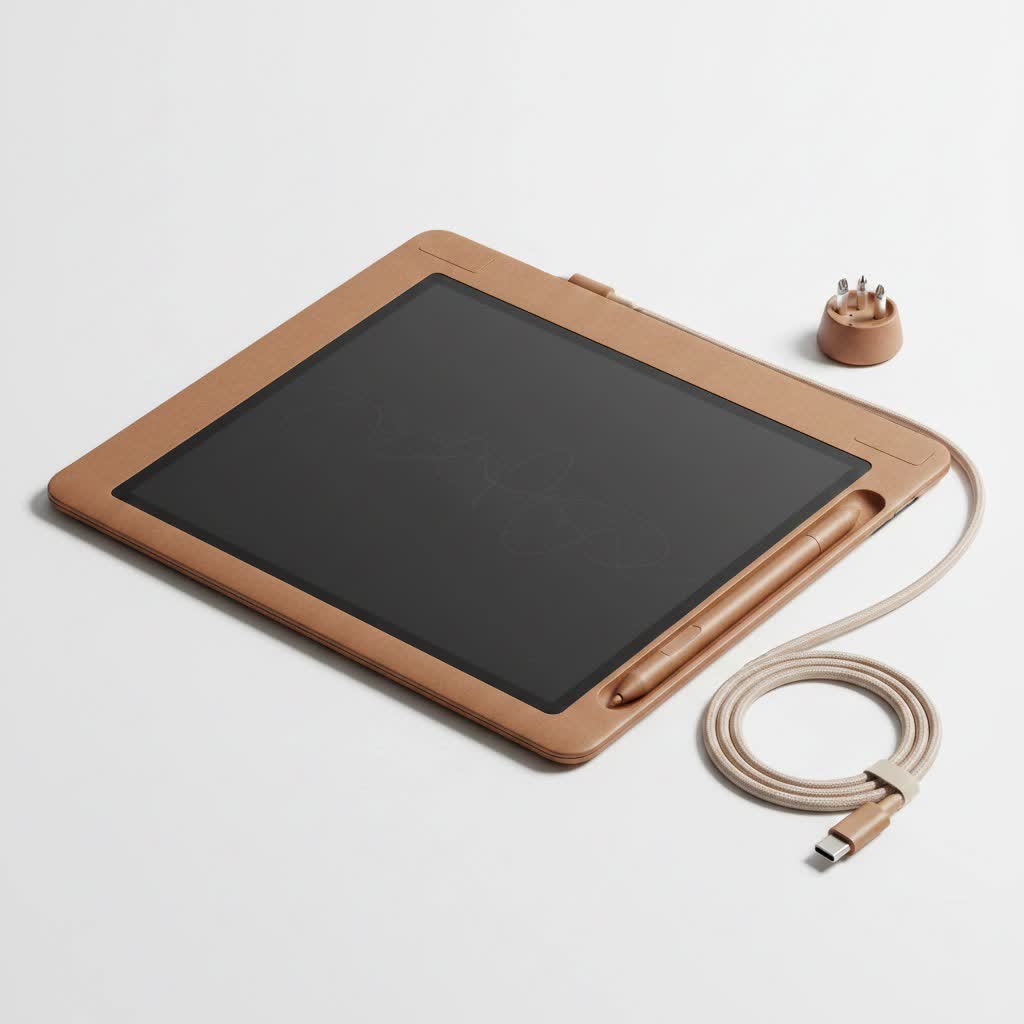
This guide is built on years of hands-on experience, designed to demystify the technology and help you find the perfect digital canvas for your artistic journey. We’ll break down the types of tablets, the features that truly matter, and how to choose the one that fits your workflow and budget.
What Exactly is a Graphic Design Tablet?
A graphic design tablet, also known as a drawing tablet, is an input device that allows you to draw or write on a computer with a stylus, mimicking the natural feel of a pen on paper. It translates the pressure, angle, and movement of your stylus into digital brushstrokes on the screen, giving you fluid and precise control over your artwork in software like Adobe Photoshop, Illustrator, or Corel Painter.
As digital artist and industry veteran, Maria Flores, puts it, “Switching to a tablet is a game-changer. It’s not just about drawing; it’s about connecting directly with your digital work in a way that feels organic and deeply personal.”
The Main Types of Graphic Design Tablets
The tablet market has evolved significantly, offering three main categories to suit different needs and budgets. Understanding the difference is the first step in making an informed choice.
1. Pen Tablets (Non-Screen)
Pen tablets are the classic and most affordable option. They consist of a solid, opaque surface that you draw on with a stylus. The drawing appears on your computer monitor, not on the tablet itself. This requires some hand-eye coordination to get used to, as you’re looking at one screen while drawing on another surface.
- Best for: Beginners, budget-conscious artists, and those who need a portable and durable solution.
- Pros: Highly affordable, durable, and available in various sizes.
- Cons: Has a learning curve due to the disconnected drawing experience.
|
Our Picks for the Best Graphic Tablet in 2026
As an Amazon Associate I earn from qualifying purchases.
|
||
| Num | Product | Action |
|---|---|---|
| 1 | HUION Inspiroy H1060P Graphics Drawing Tablet with 8192 Pressure Sensitivity Battery-Free Stylus and 12 Customized Hot Keys, 10 x 6.25 inches Digital Art Tablet for Mac, Windows PC and Android |

|
| 2 | GAOMON M10K Drawing Tablet, 10x6 inch Large Graphics Tablet with Touch Ring, 8192 Levels Battery-Free Stylus, 10 Hot Keys, Art Tablet for Design, Writing, Editing, Work with Mac, Windows, Android |
|
| 3 | HUION Drawing Tablet HS610 Graphic Tablet with Battery-Free Stylus 8192 Pen Pressure Tilt Function, 10x6.25 Inches Digital Art for Animation & Design, Compatible with Windows/Mac/Android |
|
| 4 | Graphics Drawing Tablet, UGEE M708 10 x 6 inch Large Drawing Tablet with 8 Hot Keys, Passive Stylus of 16384 Levels Pressure, UGEE M708 Graphics Tablet for Paint, Design, Art Creation Sketch |
|
| 5 | XOPPOX Graphics Drawing Tablet 10 x 6 Inch Large Active Area with 8192 Levels Battery-Free Pen and 12 Hot Keys, Compatible with PC/Mac/Android OS for Painting, Design & Online Teaching Black |
|
| 6 | HUION Kamvas 13 (Gen 3) Drawing Tablet with Screen,13.3\" Full-Laminated Art Tablet with Anti-Sparkle Canvas Glass 2.0, 99% sRGB, PenTech 4.0, 16384 Pen Pressure, Dual Dial for PC, Mac, Android, Black |
|
| 7 | HUION KAMVAS Pro 16 Drawing Tablet with Screen, 15.6 inch Pen Display Anti-Glare Glass 6 Shortcut Keys Adjustable Stand, Graphics Tablet for Drawing, Writing, Design, Work with Windows, Mac and Linux |
|
| 8 | Wacom Intuos Pro Medium Bluetooth Professional Graphic Drawing Tablet with Pro Pen 3, Compatible with Mac, Windows - 2025 Edition |
|
| 9 | HUION Inspiroy H640P Drawing Tablet, 6x4 inch Digital Art with Battery-Free Stylus, 8192 Pen Pressure, 6 Hot Keys, Graphics Tablet for Drawing, Writing, Design, Teaching, Work with Mac, PC & Mobile |
|
| 10 | Drawing Tablet for Beginner Graphics OSU Tablet with Battery-Free Stylus 8192 Pressure Sensitive for Digital Art, Painting & Design, Compatible with Windows, Mac OS and Android |
|
2. Pen Displays (With Screen)
Pen displays are a significant step up. These devices have a built-in screen, allowing you to draw directly onto your image. This creates a much more intuitive and natural drawing experience, very similar to traditional art. You see the lines appear directly under the tip of your stylus, eliminating the hand-eye coordination challenge of pen tablets.
- Best for: Intermediate to professional artists, illustrators, and designers who want a seamless workflow.
- Pros: Intuitive and natural drawing experience, improves accuracy and speed.
- Cons: Significantly more expensive, less portable, and often requires connection to a computer.
3. Tablet Computers
These are all-in-one solutions like the iPad Pro or Microsoft Surface Pro. They are powerful, standalone computers that support a pressure-sensitive stylus. You can draw, paint, and design directly on the screen without needing to connect to another computer. Their versatility allows you to run full desktop applications or powerful mobile apps, making them a complete mobile studio.
- Best for: Artists who need maximum portability and versatility, and those who want a single device for both creative work and general computing.
- Pros: Fully portable and self-contained, high-quality screens, versatile for many tasks.
- Cons: The most expensive option, and stylus/app ecosystems can be limiting compared to dedicated desktop software.
Key Features to Consider When Buying a Tablet
Navigating spec sheets can be confusing. Let’s focus on the features that have the biggest impact on your drawing experience.
Pressure Sensitivity
This is perhaps the most critical feature. It determines how the tablet responds to the pressure you apply with the stylus. Higher pressure sensitivity allows you to vary line weight, opacity, and color just like you would with a real pen or brush. Most tablets today offer at least 2,048 levels, but professional-grade models feature 8,192 levels for incredibly nuanced control.
Resolution (LPI)
Resolution, measured in Lines Per Inch (LPI), refers to how many digital lines can fit into one inch of the tablet’s active area. A higher LPI means the tablet can recognize more detail, resulting in smoother, more precise lines. For most users, anything above 2,540 LPI is excellent.
Active Area
The active area is the part of the tablet’s surface that you can actually draw on. The size you need depends on your monitor size and working style.
- Small (6×4 inches): Great for portability and users with smaller screens. Can feel restrictive for large, sweeping arm movements.
- Medium (8×5 to 10×6 inches): The sweet spot for most users. It offers a good balance of drawing space and desk footprint, suitable for most monitor sizes.
- Large (12×8 inches and up): Ideal for professionals working with large monitors who need to make broad, gestural strokes.
Stylus Features
The stylus is your digital paintbrush, so its design matters. Look for a stylus that is battery-free, using EMR (Electro-Magnetic Resonance) technology so you never have to worry about charging it. Also, consider the number of customizable buttons on the side and the presence of a digital “eraser” on the back.
How to Choose the Right Graphic Design Tablet for You
Your ideal tablet depends on your skill level, the type of work you do, and your budget.
For the Absolute Beginner
If you are just starting, a non-screen pen tablet is the perfect entry point. It’s a low-risk investment that lets you master the fundamentals of digital art. A small or medium-sized tablet from a reputable brand like Wacom, Huion, or XP-Pen will serve you well.
- Recommendation: Wacom Intuos S or Huion Inspiroy H640P.
For the Advancing Hobbyist or Student
If you’re serious about your art and ready to upgrade, a pen display is a fantastic choice. The direct drawing experience can significantly speed up your workflow and make creating more enjoyable. Look for a mid-range display around 13 to 16 inches.
- Recommendation: XP-Pen Artist 15.6 Pro or Wacom One.
For the Professional Designer
For professionals, investing in a high-quality pen display or a powerful tablet computer is essential. Look for large, color-accurate screens, minimal parallax (the gap between the glass and the display), and robust build quality.
- Recommendation: Wacom Cintiq Pro series, Huion Kamvas Pro series, or an iPad Pro with Apple Pencil.
Frequently Asked Questions (FAQ)
What is the best brand for a graphic design tablet?
Wacom has long been the industry standard and is known for its premium quality and reliability. However, brands like Huion and XP-Pen have become major competitors, offering high-quality tablets with similar features at much more competitive prices.
Do I need a screen on my drawing tablet?
You don’t need a screen, but it makes the drawing process much more intuitive. Beginners can easily start with a non-screen tablet to learn the basics, while professionals often prefer a screen for efficiency and a more natural feel.
Can I use a graphic design tablet with any software?
Yes, modern tablets are compatible with almost all creative software on Windows and macOS, including Adobe Photoshop, Illustrator, Clip Studio Paint, Krita, and Blender. Always check the manufacturer’s website for specific driver and software compatibility.
How big of a tablet do I need?
A medium-sized tablet (around 10×6 inches for non-screen models) is generally recommended for most users. It provides a good balance of comfort and precision without taking up too much desk space. If you work on a very large monitor (24 inches or more), a larger tablet may be more comfortable.
Is an iPad a good graphic design tablet?
An iPad (particularly the Pro models with an Apple Pencil) is an excellent and powerful tool for graphic design. Its main advantages are its incredible portability and fantastic apps like Procreate. The main drawback is that it runs on a mobile OS, which may not support the full-featured desktop software some professionals rely on.
Your Creative Journey Starts Here
Choosing the right graphic design tablet is a foundational step in your digital art journey. It’s an investment in your creativity and efficiency. Don’t get lost in the numbers on a spec sheet. Instead, focus on what you need for your specific workflow and skill level. Whether you start with a simple pen tablet or a professional pen display, the most important thing is to start creating.
Take your time, do your research, and select the tool that feels right for you. Your new digital canvas awaits, ready to bring your ideas to life with a precision and freedom you never thought possible.
