Stepping into the world of digital art can feel like learning a new language, and the most crucial tool for fluency is your digital pen and tablet. For decades, one name has consistently stood at the forefront of this technology: Wacom. If you’re serious about digital creation, a Wacom graphic tablet is likely on your radar. But with various models and features, choosing the right one can be a daunting task. As a professional with over 15 years of experience using these tools daily, I’m here to demystify the process and guide you to the perfect Wacom for your creative journey.
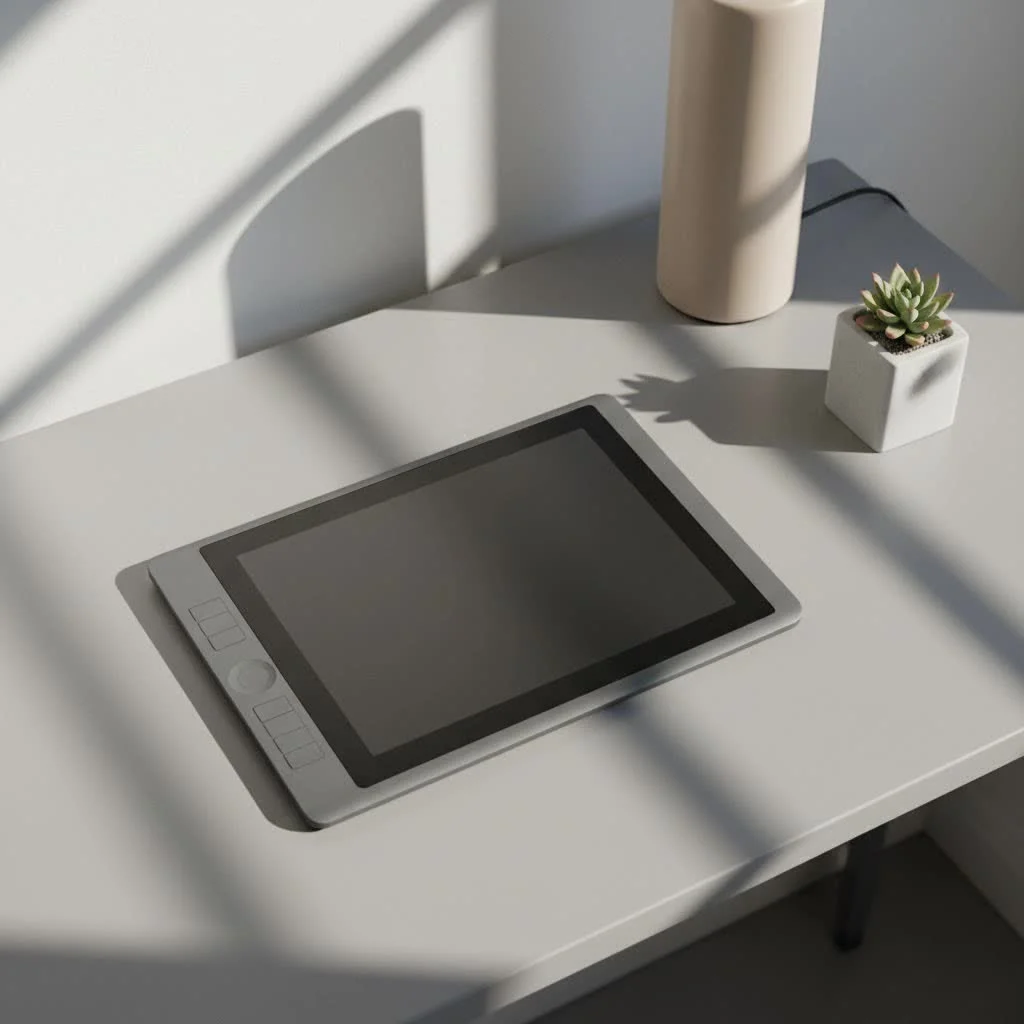
This guide will break down everything you need to know, from the core product lines to the specific features that will impact your workflow, ensuring you invest in a tool that grows with you. For shop curated reviews on this site.
What Exactly is a Wacom Graphic Tablet?
A Wacom graphic tablet is a digital drawing device that allows you to create artwork on a computer with the natural feel of a pen on paper. It consists of a flat, touch-sensitive surface and a stylus, or pen. As you draw on the tablet’s surface, your strokes are translated into digital lines on your computer screen. This technology offers a level of precision and control that is simply impossible to achieve with a standard mouse, making it an essential tool for illustrators, photographers, designers, and 3D artists.
Understanding the Main Wacom Product Lines
Wacom organizes its tablets into a few distinct categories, each designed for a different type of user and workflow. Understanding these is the first step in narrowing down your options.
Wacom Intuos: The Perfect Starting Point
The Wacom Intuos line is designed for beginners, hobbyists, and those on a tighter budget. These are traditional graphic tablets, meaning you draw on the tablet while looking at your computer monitor.
- Who it’s for: Aspiring artists, students, and graphic design enthusiasts.
- Key Features: It’s known for its simplicity, reliability, and affordability. The battery-free pen offers excellent pressure sensitivity, allowing you to vary line weight and opacity just like you would with a real pen or brush.
- Models: The primary models are the Wacom Intuos Small and Medium, often available with or without Bluetooth connectivity.
Wacom Intuos Pro: The Professional’s Choice
For professionals and serious creatives, the Intuos Pro is the industry standard. It offers enhanced features, greater precision, and a more robust build quality designed to handle the rigors of daily professional use.
- Who it’s for: Professional illustrators, photo editors, and graphic designers.
- Key Features: The Intuos Pro boasts the advanced Pro Pen 2 with 8,192 levels of pressure sensitivity and tilt recognition, offering virtually lag-free tracking. It also includes customizable ExpressKeys and a Touch Ring, which allow you to program shortcuts for your favorite software, significantly speeding up your workflow.
Wacom Cintiq: Drawing Directly on Screen
|
Our Picks for the Best Graphic Tablet in 2026
As an Amazon Associate I earn from qualifying purchases.
|
||
| Num | Product | Action |
|---|---|---|
| 1 | Wacom Intuos Pro Medium Bluetooth Professional Graphic Drawing Tablet with Pro Pen 3, Compatible with Mac, Windows - 2025 Edition |

|
| 2 | XOPPOX Graphics Drawing Tablet 10 x 6 Inch Large Active Area with 8192 Levels Battery-Free Pen and 12 Hot Keys, Compatible with PC/Mac/Android OS for Painting, Design & Online Teaching Black |
|
| 3 | HUION Inspiroy H640P Drawing Tablet, 6x4 inch Digital Art with Battery-Free Stylus, 8192 Pen Pressure, 6 Hot Keys, Graphics Tablet for Drawing, Writing, Design, Teaching, Work with Mac, PC & Mobile |
|
| 4 | GAOMON M10K Drawing Tablet, 10x6 inch Large Graphics Tablet with Touch Ring, 8192 Levels Battery-Free Stylus, 10 Hot Keys, Art Tablet for Design, Writing, Editing, Work with Mac, Windows, Android |
|
| 5 | Graphics Drawing Tablet, UGEE M708 10 x 6 inch Large Drawing Tablet with 8 Hot Keys, Passive Stylus of 16384 Levels Pressure, UGEE M708 Graphics Tablet for Paint, Design, Art Creation Sketch |
|
| 6 | Drawing Tablet for Beginner Graphics OSU Tablet with Battery-Free Stylus 8192 Pressure Sensitive for Digital Art, Painting & Design, Compatible with Windows, Mac OS and Android |
|
| 7 | HUION Drawing Tablet HS610 Graphic Tablet with Battery-Free Stylus 8192 Pen Pressure Tilt Function, 10x6.25 Inches Digital Art for Animation & Design, Compatible with Windows/Mac/Android |
|
| 8 | HUION Inspiroy H1060P Graphics Drawing Tablet with 8192 Pressure Sensitivity Battery-Free Stylus and 12 Customized Hot Keys, 10 x 6.25 inches Digital Art Tablet for Mac, Windows PC and Android |
|
| 9 | HUION Kamvas 13 (Gen 3) Drawing Tablet with Screen,13.3\" Full-Laminated Art Tablet with Anti-Sparkle Canvas Glass 2.0, 99% sRGB, PenTech 4.0, 16384 Pen Pressure, Dual Dial for PC, Mac, Android, Black |
|
| 10 | HUION KAMVAS Pro 16 Drawing Tablet with Screen, 15.6 inch Pen Display Anti-Glare Glass 6 Shortcut Keys Adjustable Stand, Graphics Tablet for Drawing, Writing, Design, Work with Windows, Mac and Linux |
|
The Wacom Cintiq line represents a major leap in functionality: these are pen displays, which means they combine a high-resolution monitor with a graphic tablet. You draw directly onto the screen, creating a highly intuitive and immersive experience that closely mimics traditional art.
- Who it’s for: Digital painters, character designers, and anyone who wants a seamless hand-eye coordination experience.
- Key Features: The main selling point is the screen itself, which features vibrant colors and an anti-glare, textured surface that provides a satisfying, paper-like friction. Like the Intuos Pro, Cintiqs come with the Pro Pen 2.
- Models: They range from the portable Cintiq 16 to the expansive Cintiq Pro 27, catering to different desk sizes and budgets.
Wacom One: The Creative All-Rounder
The Wacom One is a versatile and more affordable entry into the world of pen displays. It bridges the gap between the beginner-friendly Intuos and the professional-grade Cintiq, making it an excellent choice for a wide range of users.
- Who it’s for: Students, advanced hobbyists, and even professionals looking for a portable second display.
- Key Features: It offers a 13.3-inch full HD display and a pen that feels great to use. A unique feature is its compatibility with a range of third-party styluses, giving users more options. It’s the perfect device for everything from drawing and editing photos to annotating documents.
Key Features to Consider When Choosing a Tablet
Beyond the product line, several technical specifications will determine how the tablet performs. Here’s what you need to pay attention to.
Active Area and Size
The active area is the part of the tablet’s surface that you can actually draw on. A larger active area gives you more room to make broad, sweeping strokes, which is ideal for illustrators. A smaller tablet is more portable and can be a better fit for photo editing or graphic design where precision is key.
Expert Tip: As a rule of thumb, try to match the aspect ratio of your tablet to your monitor. This prevents distortion, where a circle you draw on the tablet appears as an oval on the screen.
Pressure Sensitivity
This refers to how the tablet registers the amount of force you apply with the pen. It’s measured in levels—the higher the number, the more control you have over line thickness and opacity. Modern tablets, like the Intuos Pro and Cintiq, offer 8,192 levels, which provides an incredibly nuanced and responsive drawing experience.
Resolution (LPI)
Resolution, measured in Lines Per Inch (LPI), determines how much detail the tablet can capture from your pen strokes. A higher LPI means the tablet can recognize more subtle movements, resulting in smoother, more accurate lines. All modern Wacom tablets have excellent resolution, but professional models typically offer the highest LPI for maximum precision.
Frequently Asked Questions (FAQ)
What is the best Wacom graphic tablet for a beginner?
For absolute beginners, the Wacom Intuos Small or Medium is the perfect starting point. It’s affordable, easy to set up, and provides all the core functionality you need to learn the fundamentals of digital art without being overwhelming.
Is a Wacom tablet with a screen (Cintiq) better?
“Better” is subjective and depends on your workflow. A Cintiq offers a more natural and intuitive drawing experience because you’re looking directly at where you’re drawing. However, many professionals still prefer the screen-less Intuos Pro for its ergonomics, affordability, and the fact that their hand never covers their artwork.
How long does a Wacom tablet last?
Wacom tablets are known for their exceptional durability. It’s not uncommon for artists to use the same Intuos Pro for 5-10 years. They are built to withstand heavy daily use, making them a long-term investment in your creative career.
Do I need to replace the pen nibs?
Yes, the pen nibs are designed to wear down over time, much like a pencil lead. This is normal. How often you need to replace them depends on how heavily you press and the texture of your tablet’s surface. Most tablets come with several replacement nibs stored inside the pen or a separate holder.
Can I use a Wacom tablet as a mouse replacement?
Absolutely. Once you get used to it, using a Wacom pen for navigation can be much more ergonomic and faster than a traditional mouse, especially for tasks that require precision. You can tap the surface to click and hover the pen above the surface to move the cursor.
Final Thoughts: Your Creative Partner
Choosing the right Wacom graphic tablet is about finding a partner for your creative endeavors. It’s less about having the most expensive model and more about finding the tool that fits your personal workflow, goals, and budget. Whether you’re a student sketching out your first digital character on a Wacom Intuos or a seasoned professional adding the final touches to a masterpiece on a Cintiq Pro, you are investing in a legacy of quality and innovation.
Start by assessing your needs, consider where you want to be in a few years, and choose the tablet that will not only meet your current demands but also inspire you to push your creative boundaries further. Now, go create something amazing.
Get our weekly buyer guide
Practical specs, not advice. Unsubscribe anytime.

This guide was exactly what I needed! I’ve been using a very old Wacom Bamboo for ages and knew it was time for an upgrade. The comparison of the core product lines, especially the MobileStudio Pro, helped me understand the jump in technology and why certain features are worth the extra cost for a truly portable solution. My productivity has already improved.
I appreciate the detailed look at the different Wacom models. I ended up getting an Intuos, and while it’s generally good, I do wish the active area was a bit larger for my dual-monitor setup. It feels a little cramped sometimes, even with the mapping adjustments. Still, it’s a solid tablet for general graphic design tasks.
As someone just starting out in digital art, the explanation of what a Wacom graphic tablet actually is was super helpful. I picked up an entry-level One by Wacom based on the recommendations, and it’s been a game-changer for my sketching. The pen pressure sensitivity is surprisingly good for the price point.
I’ve been using Wacom tablets for years, and this guide really helped me narrow down my next upgrade. I was torn between the Intuos Pro and a Cintiq, but the breakdown of features for professional workflows made it clear the Cintiq is the way to go for my illustration work. It’s a big investment, but knowing it will grow with me makes it worth it.