The Huion H610 Pro graphic drawing tablet is a highly capable and affordable alternative to Wacom tablets, offering professional-grade features like a 10 x 6.25-inch active drawing area and 8192 levels of pen pressure sensitivity. It provides excellent value for digital artists, students, and professionals seeking a reliable tool without a premium price tag. This tablet delivers a smooth drawing experience with minimal lag, making it suitable for detailed illustration, photo editing, and digital painting.
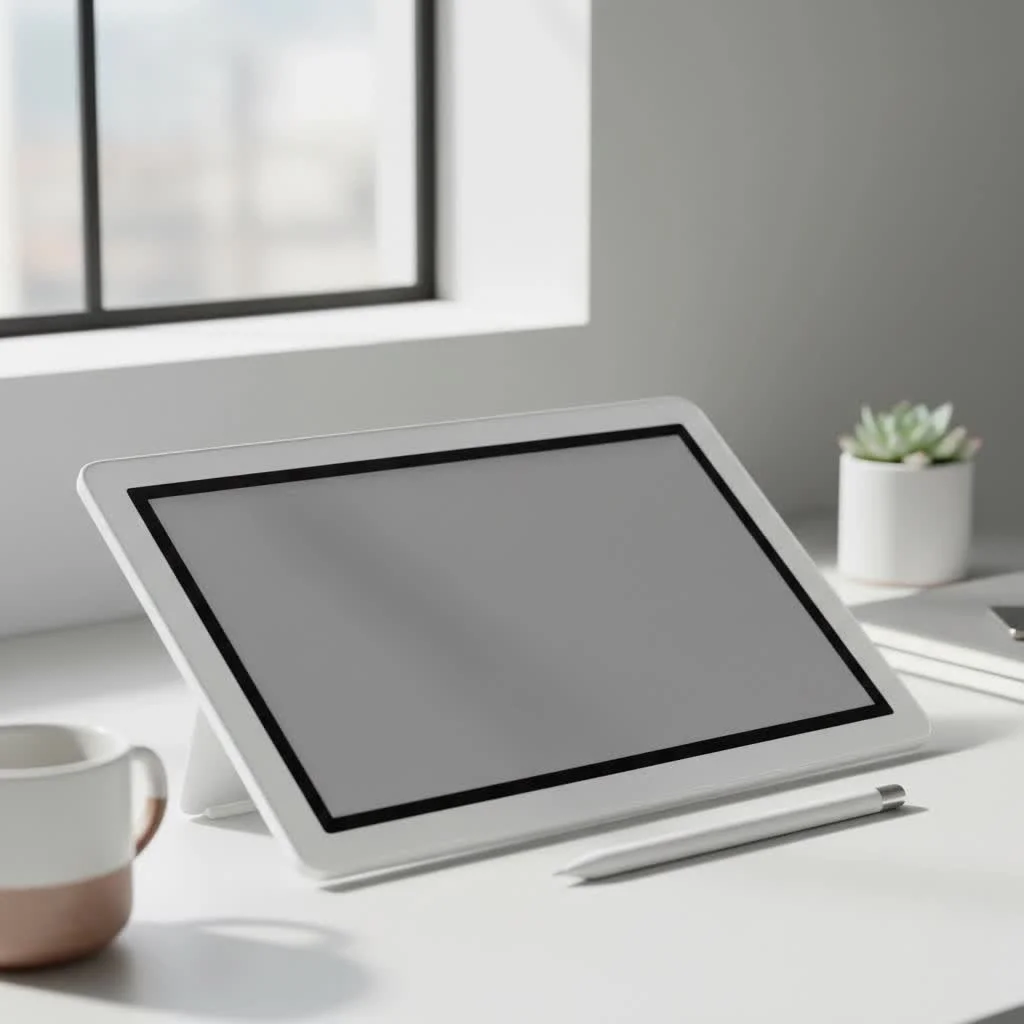
The H610 Pro demonstrates that high-quality creative tools are accessible without a significant financial investment. Whether you are a student embarking on your design journey or a seasoned professional needing a dependable backup, this tablet warrants consideration. For best reviews roundups on this site.
First Impressions: What’s in the Box?
Unboxing the Huion H610 Pro is straightforward and practical, focusing on essential components. The package includes:
- The Huion H610 Pro tablet
- A rechargeable stylus (pen)
- A pen holder with 4 replacement nibs
- A USB cable for tablet connection
- A charging cable for the pen
- A driver installation CD and a quick-start guide
The tablet features a durable matte black finish that provides a paper-like drawing texture. It is lightweight for portability yet stable on a desk.
A Deep Dive into the Huion H610 Pro’s Features
A great graphic drawing tablet combines ample drawing space, responsiveness, and customizable controls. Here’s how the H610 Pro performs.
Generous Active Drawing Area
The tablet offers a 10 x 6.25-inch active area, which is substantial for its price point. This larger surface facilitates natural, sweeping arm movements, reducing fatigue during long sessions and enhancing precision for detailed illustration and photo editing.
8192 Levels of Pen Pressure Sensitivity
The H610 Pro features 8192 levels of pressure sensitivity, which allows the tablet to accurately interpret the force applied with the pen. A light touch produces a thin, faint line, while harder pressure creates a thick, bold stroke, mimicking traditional art tools. This high level of sensitivity is comparable to more expensive professional tablets, enabling nuanced and expressive strokes essential for various digital art styles.
Customizable Express Keys for a Faster Workflow
To enhance efficiency, the H610 Pro includes 8 customizable hard express keys and 16 soft keys. These buttons can be programmed for frequently used shortcuts, such as:
- Undo/Redo: For instant error correction.
- Zoom In/Out: To quickly navigate the canvas.
- Change Brush Size: To adjust tools on the fly.
- Switch Tools: To toggle between brush, eraser, and selection tools.
Customizing these keys significantly speeds up the creative process, minimizing the need to reach for the keyboard. For example, mapping the top four keys to Brush, Eraser, Undo, and Zoom covers approximately 80% of common actions in Adobe Photoshop.
Real-World Performance: Drawing, Painting, and More
|
Our Picks for the Best Graphic Tablet in 2026
As an Amazon Associate I earn from qualifying purchases.
|
||
| Num | Product | Action |
|---|---|---|
| 1 | HUION Drawing Tablet HS610 Graphic Tablet with Battery-Free Stylus 8192 Pen Pressure Tilt Function, 10x6.25 Inches Digital Art for Animation & Design, Compatible with Windows/Mac/Android |

|
| 2 | Drawing Tablet for Beginner Graphics OSU Tablet with Battery-Free Stylus 8192 Pressure Sensitive for Digital Art, Painting & Design, Compatible with Windows, Mac OS and Android |
|
| 3 | HUION Inspiroy H640P Drawing Tablet, 6x4 inch Digital Art with Battery-Free Stylus, 8192 Pen Pressure, 6 Hot Keys, Graphics Tablet for Drawing, Writing, Design, Teaching, Work with Mac, PC & Mobile |
|
| 4 | GAOMON M10K Drawing Tablet, 10x6 inch Large Graphics Tablet with Touch Ring, 8192 Levels Battery-Free Stylus, 10 Hot Keys, Art Tablet for Design, Writing, Editing, Work with Mac, Windows, Android |
|
| 5 | XOPPOX Graphics Drawing Tablet 10 x 6 Inch Large Active Area with 8192 Levels Battery-Free Pen and 12 Hot Keys, Compatible with PC/Mac/Android OS for Painting, Design & Online Teaching Black |
|
| 6 | Wacom Intuos Pro Medium Bluetooth Professional Graphic Drawing Tablet with Pro Pen 3, Compatible with Mac, Windows - 2025 Edition |
|
| 7 | Graphics Drawing Tablet, UGEE M708 10 x 6 inch Large Drawing Tablet with 8 Hot Keys, Passive Stylus of 16384 Levels Pressure, UGEE M708 Graphics Tablet for Paint, Design, Art Creation Sketch |
|
| 8 | HUION KAMVAS Pro 16 Drawing Tablet with Screen, 15.6 inch Pen Display Anti-Glare Glass 6 Shortcut Keys Adjustable Stand, Graphics Tablet for Drawing, Writing, Design, Work with Windows, Mac and Linux |
|
| 9 | HUION Inspiroy H1060P Graphics Drawing Tablet with 8192 Pressure Sensitivity Battery-Free Stylus and 12 Customized Hot Keys, 10 x 6.25 inches Digital Art Tablet for Mac, Windows PC and Android |
|
| 10 | HUION Kamvas 13 (Gen 3) Drawing Tablet with Screen,13.3\" Full-Laminated Art Tablet with Anti-Sparkle Canvas Glass 2.0, 99% sRGB, PenTech 4.0, 16384 Pen Pressure, Dual Dial for PC, Mac, Android, Black |
|
The Huion H610 Pro graphic drawing tablet offers an impressively smooth drawing experience with minimal lag between pen stroke and on-screen line. Its matte surface provides a satisfying friction, avoiding the slick feel of some other tablets.
The rechargeable pen is lightweight and comfortable for extended use. Although it requires charging, a full charge lasts for weeks of regular use. The pen’s two programmable buttons are typically used for right-click functions or switching between pen and eraser modes.
Setting Up Your Tablet: A Simple Guide
Getting started with the H610 Pro is straightforward.
- Download Latest Drivers: Avoid the included CD; download the most current driver for your operating system (Windows or macOS) directly from the official Huion website.
- Install the Driver: Uninstall any existing tablet drivers (e.g., Wacom) to prevent conflicts before running the downloaded installer.
- Connect the Tablet: After driver installation, connect the tablet to your computer using the USB cable.
- Customize Settings: Open the Huion driver software to adjust pen pressure, program express keys, and map the drawing area to your monitor(s).
Who Should Buy the Huion H610 Pro?
The H610 Pro is an excellent choice for several user types:
- Beginners and Students: It provides professional features at an entry-level price, making it an ideal learning tool without a major financial commitment.
- Hobbyists and Enthusiasts: This tablet offers all necessary functionality for personal projects, including illustrations and photo retouching.
- Professionals on a Budget: Freelancers or professional artists seeking a reliable secondary or backup tablet will find the H610 Pro to be a capable workhorse.
However, professionals requiring features like pen tilt sensitivity or a completely wireless experience may need to consider a higher-end model.
Frequently Asked Questions (FAQ)
Q: Is the Huion H610 Pro compatible with Mac and Windows?A: Yes, the tablet is fully compatible with both Windows and macOS. Users should download the correct driver from Huion’s official website for their specific operating system version.
Q: Can I use the Huion H610 Pro with Adobe Photoshop and other creative software?A: Absolutely. The H610 Pro integrates seamlessly with the entire Adobe Creative Suite (including Photoshop and Illustrator) and other popular art programs such as Clip Studio Paint, Krita, Corel Painter, and ZBrush.
Q: Does the pen for the H610 Pro require a battery?A: The pen is rechargeable via a USB cable and does not use disposable batteries. A single charge provides hundreds of hours of use, meaning it only requires occasional recharging.
Q: What is the difference between the Huion H610 Pro and the Huion H610 Pro V2?A: The V2 is an updated version that features a battery-free pen with tilt support, a functionality absent in the original H610 Pro. If tilt functionality is crucial for your art style, the V2 offers a worthwhile upgrade.
The Final Verdict
The Huion H610 Pro graphic drawing tablet exemplifies advancements in digital art technology, offering features and performance that were once significantly more expensive. Its large drawing area, high pressure sensitivity, and extensive customization provide exceptional value. While it may lack premium features like tilt support or a battery-free pen, it excels as a responsive and reliable tool for digital art creation. For most artists, from beginners to working professionals, the H610 Pro is a highly capable and transformative device.
Frequently Asked Questions
Is the Huion H610 Pro compatible with Mac and Windows operating systems?
Yes, the Huion H610 Pro is fully compatible with both Windows and macOS. Users must download the correct driver from Huionu2019s official website for their specific operating system version to ensure proper functionality.
Can the Huion H610 Pro be used with popular creative software like Adobe Photoshop?
Absolutely. The H610 Pro integrates seamlessly with the entire Adobe Creative Suite, including Photoshop and Illustrator. It also works well with other popular art programs such as Clip Studio Paint, Krita, Corel Painter, and ZBrush, offering broad software compatibility.
Does the pen for the Huion H610 Pro require a battery or is it battery-free?
The pen for the Huion H610 Pro is rechargeable via a USB cable and does not use disposable batteries. A single charge provides hundreds of hours of use, meaning it only requires occasional recharging, typically lasting for weeks of regular use.
What are the key differences between the Huion H610 Pro and the H610 Pro V2?
The primary difference is that the Huion H610 Pro V2 is an updated version featuring a battery-free pen with tilt support, a functionality absent in the original H610 Pro. If tilt functionality, which allows for angled brush strokes, is important for your art style, the V2 offers a worthwhile upgrade.
What is the active drawing area size of the Huion H610 Pro tablet?
The Huion H610 Pro tablet features a generous active drawing area of 10 x 6.25 inches. This substantial space allows for more natural, sweeping arm movements, which helps reduce fatigue during long drawing sessions and enhances precision for detailed work.
Set Up Your Huion H610 Pro Tablet
This guide provides simple steps to quickly set up your Huion H610 Pro graphic drawing tablet for immediate use with your computer.
Do not use the included CD for drivers, as they are often outdated. Instead, visit the official Huion website to download the most current driver specifically for your operating system, whether Windows or macOS.
Before plugging in the tablet, ensure you uninstall any other existing tablet drivers, such as Wacom's, to prevent software conflicts. Once cleared, run the installer you downloaded from the Huion website.
After the driver installation is complete, connect the Huion H610 Pro tablet to your computer using the provided USB cable. The system should recognize the tablet once connected.
Open the Huion driver software that was installed. Within this application, you can adjust various settings, including pen pressure sensitivity, program your express keys for shortcuts, and map the drawing area to your monitor or multiple monitors.
Get our weekly buyer guide
Practical specs, not advice. Unsubscribe anytime.
This tablet is a game-changer for digital artists who don’t want to break the bank. The smooth drawing experience is exactly what I needed for my detailed illustrations. It’s great to see high-quality creative tools becoming more accessible. I’m really happy with this purchase.
I’ve been using the Huion H610 Pro for a few weeks now, and it’s truly impressive. The 8192 levels of pen pressure sensitivity make a huge difference in my digital paintings, allowing for incredibly fine detail. It really does feel like a professional-grade tool without the Wacom price tag. Definitely recommend it for anyone serious about digital art on a budget.
As a student, finding an affordable tablet that still performs well was key. The H610 Pro has been fantastic for my illustration projects. The 10 x 6.25-inch active drawing area gives me plenty of space to work, and I haven’t experienced any noticeable lag. It’s a solid choice if you’re looking for good value.
The Huion H610 Pro is decent for the price, especially for photo editing. I do find the pen sometimes feels a little less responsive than I’d like, particularly when doing very quick strokes. It’s not a dealbreaker, but it’s something I’ve noticed. Still, it’s a good backup tablet for my main one.