A graphic drawing tablet is an input device that allows artists and designers to create digital art with a pen-like stylus, offering a more natural and precise experience than a standard mouse. These tablets translate hand movements and pressure directly onto a computer screen, mimicking traditional art tools. For over fifteen years, these tools have been essential for bridging traditional art skills with digital creation, making them indispensable for illustrators, photographers, 3D modelers, and graphic designers worldwide.
What Exactly is a Graphic Drawing Tablet?
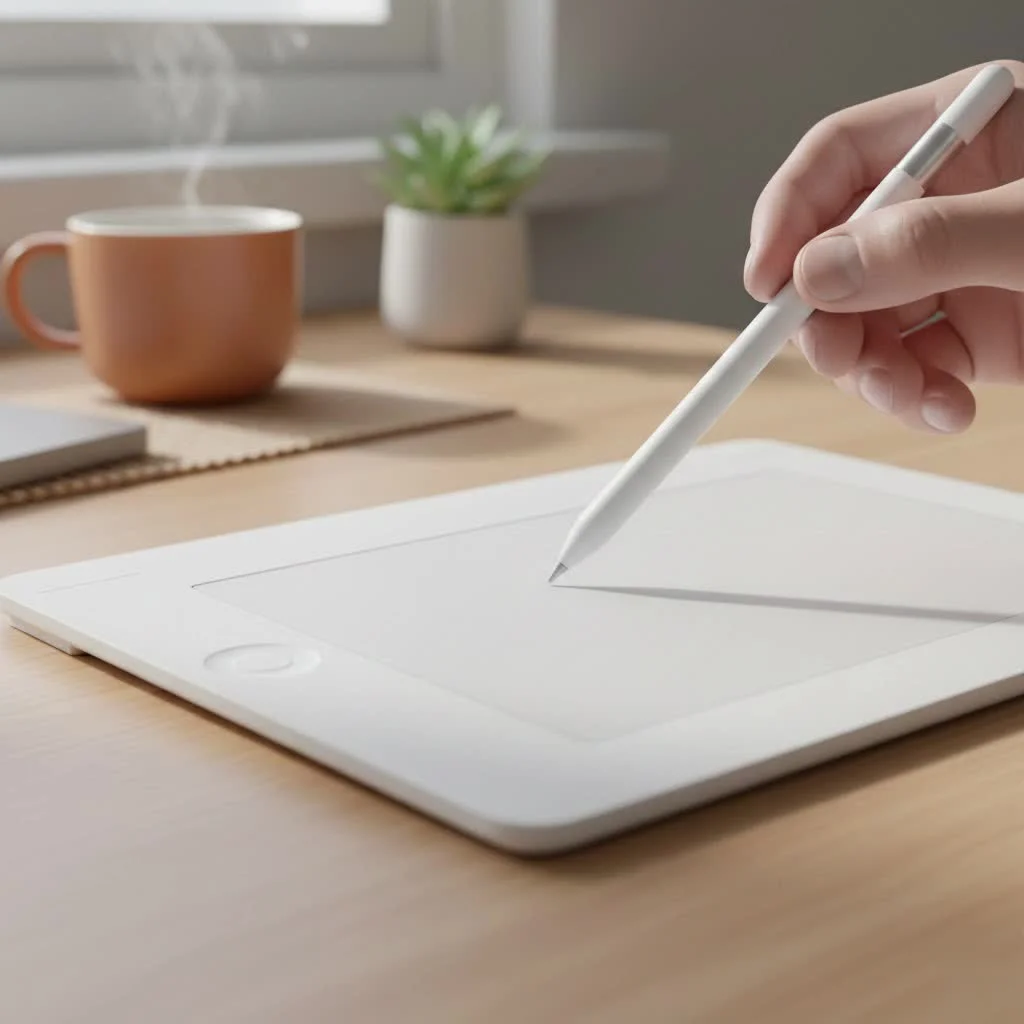
A graphic drawing tablet, often called a pen tablet or drawing pad, is an input device for your computer. Think of it as a digital sheet of paper. It consists of a flat, touch-sensitive surface that you draw on with a special pen, or stylus. Your strokes are then translated directly onto your computer screen within the art software you’re using. It offers a far more natural and precise way to draw, paint, and design digitally compared to a standard mouse.
The magic lies in its ability to mimic the feel of traditional tools. The pressure you apply with the stylus can change the thickness or opacity of your lines, just like with a real pencil or brush. This intuitive control is what makes it an indispensable tool for illustrators, photographers, 3D modelers, and graphic designers worldwide.
The Different Types of Drawing Tablets
When you start shopping for a graphic drawing tablet, you’ll quickly notice there are a few distinct categories. Understanding the difference is the first step in finding the right fit for your workflow and budget.
1. Pen Tablets (Screenless)
This is the most common and affordable type. It’s a simple pad that connects to your computer. You draw on the tablet’s surface while looking at your monitor to see the results. It can take a little time to develop the hand-eye coordination for this, but it’s a small learning curve.
- Best For: Beginners, artists on a budget, and those who need a portable and durable option.
- Pros: Affordable, durable, wide variety of sizes.
- Cons: Requires adjusting to the disconnect between hand and screen.
2. Pen Displays (With Screen)
Pen displays are a significant step up. These devices have a built-in screen, so you can draw directly on the surface where your image appears. This creates a highly intuitive and immersive experience that is very close to drawing on paper.
- Best For: Professional artists, designers, and serious hobbyists who want a seamless workflow.
- Pros: Intuitive drawing experience, improved accuracy.
- Cons: Significantly more expensive, less portable, can have parallax (a slight gap between the pen tip and the cursor).
3. Tablet Computers
|
Our Picks for the Best Graphic Tablet in 2026
As an Amazon Associate I earn from qualifying purchases.
|
||
| Num | Product | Action |
|---|---|---|
| 1 | HUION KAMVAS Pro 16 Drawing Tablet with Screen, 15.6 inch Pen Display Anti-Glare Glass 6 Shortcut Keys Adjustable Stand, Graphics Tablet for Drawing, Writing, Design, Work with Windows, Mac and Linux |

|
| 2 | Wacom Intuos Pro Medium Bluetooth Professional Graphic Drawing Tablet with Pro Pen 3, Compatible with Mac, Windows - 2025 Edition |
|
| 3 | HUION Inspiroy H640P Drawing Tablet, 6x4 inch Digital Art with Battery-Free Stylus, 8192 Pen Pressure, 6 Hot Keys, Graphics Tablet for Drawing, Writing, Design, Teaching, Work with Mac, PC & Mobile |
|
| 4 | Graphics Drawing Tablet, UGEE M708 10 x 6 inch Large Drawing Tablet with 8 Hot Keys, Passive Stylus of 16384 Levels Pressure, UGEE M708 Graphics Tablet for Paint, Design, Art Creation Sketch |
|
| 5 | HUION Drawing Tablet HS610 Graphic Tablet with Battery-Free Stylus 8192 Pen Pressure Tilt Function, 10x6.25 Inches Digital Art for Animation & Design, Compatible with Windows/Mac/Android |
|
| 6 | XOPPOX Graphics Drawing Tablet 10 x 6 Inch Large Active Area with 8192 Levels Battery-Free Pen and 12 Hot Keys, Compatible with PC/Mac/Android OS for Painting, Design & Online Teaching Black |
|
| 7 | HUION Kamvas 13 (Gen 3) Drawing Tablet with Screen,13.3\" Full-Laminated Art Tablet with Anti-Sparkle Canvas Glass 2.0, 99% sRGB, PenTech 4.0, 16384 Pen Pressure, Dual Dial for PC, Mac, Android, Black |
|
| 8 | Drawing Tablet for Beginner Graphics OSU Tablet with Battery-Free Stylus 8192 Pressure Sensitive for Digital Art, Painting & Design, Compatible with Windows, Mac OS and Android |
|
| 9 | HUION Inspiroy H1060P Graphics Drawing Tablet with 8192 Pressure Sensitivity Battery-Free Stylus and 12 Customized Hot Keys, 10 x 6.25 inches Digital Art Tablet for Mac, Windows PC and Android |
|
| 10 | GAOMON M10K Drawing Tablet, 10x6 inch Large Graphics Tablet with Touch Ring, 8192 Levels Battery-Free Stylus, 10 Hot Keys, Art Tablet for Design, Writing, Editing, Work with Mac, Windows, Android |
|
These are all-in-one solutions like the iPad Pro or Microsoft Surface Pro. They are powerful computers with high-quality, touch-sensitive screens that support advanced styluses. They offer the ultimate in portability, as you don’t need to connect them to a separate computer.
- Best For: Artists who need maximum portability and an all-in-one device for all their computing needs.
- Pros: Extremely portable, versatile for tasks beyond drawing.
- Cons: The most expensive option, may require subscriptions for pro-level software.
Key Features to Consider Before You Buy
Navigating the technical specifications of a graphic drawing tablet can be daunting. Let’s break down the features that truly impact your drawing experience.
Pressure Sensitivity
This is perhaps the most critical feature. It determines how the tablet responds to the pressure you apply with the stylus. A tablet with high pressure sensitivity allows you to create varied line weights by simply pressing harder or lighter, just like a real pencil. Most modern tablets offer at least 2,048 levels of pressure, but professional-grade models feature 8,192 levels for incredibly nuanced control.
As a designer, I’ve found that anything above 4,096 levels provides a wonderfully smooth and responsive feel. According to our lead creative at Kagbz, Alex Chen, “The jump from a mouse to a tablet with 8,192 pressure levels isn’t just an upgrade; it’s a complete transformation of your creative process.”
Resolution (LPI)
Resolution, measured in Lines Per Inch (LPI), refers to how many digital lines can fit into one inch of the tablet’s active area. A higher LPI means the tablet can recognize more detail and precision in your strokes, resulting in smoother lines and curves. Look for a tablet with at least 2,540 LPI, though 5,080 LPI is the standard for most professional models.
Size (Active Area)
The size of the tablet you need depends on your workspace and drawing style. A larger active area allows for broader, more sweeping strokes from your shoulder, which can be more ergonomic. A smaller tablet is more portable and may be sufficient if you tend to draw with your wrist.
- Small (4×6 inches): Great for beginners, photo editing, and small desks.
- Medium (8×10 inches): The most popular size, offering a great balance of comfort and desk space.
- Large (12 inches+): Ideal for professionals who work with large monitors and require maximum drawing space.
Stylus Type
The stylus is your digital brush. Most tablets come with a battery-free stylus that uses Electromagnetic Resonance (EMR) technology, drawing power from the tablet itself. This means they are lightweight and never need charging—a huge convenience. Some older or cheaper models may use battery-powered styluses, which are heavier and require occasional charging.
Getting Started: Your First Steps
Once you have your new graphic drawing tablet, the setup is usually straightforward.
- Install the Drivers: This is the most important step. The driver is the software that allows the tablet to communicate with your computer. Always download the latest version from the manufacturer’s website.
- Connect the Tablet: Plug the tablet into your computer via USB or connect it wirelessly if it has that capability.
- Configure Your Settings: Open the driver software to customize your settings. Here, you can adjust the pressure curve, map the tablet’s active area to your screen, and assign shortcuts to any express keys on the tablet or stylus.
- Practice: Open your favorite art software (like Photoshop, Krita, or Clip Studio Paint) and just start doodling. Practice making lines of different weights and get a feel for the hand-eye coordination. It won’t take long to feel natural.
Frequently Asked Questions (FAQ)
Q: Can I use a graphic drawing tablet as a mouse?A: Absolutely. All drawing tablets can function as a highly precise mouse replacement. You can navigate your entire computer, click, and drag just by hovering the pen over the surface and tapping down.
Q: Do I need a screen protector for my tablet?A: For screenless tablets, it’s not necessary as the surfaces are designed to be durable. For pen displays, a matte screen protector can be a great addition. It not only protects the screen from scratches but can also reduce glare and add a paper-like texture to the drawing surface.
Q: What is the best software to use with a drawing tablet?A: There are many fantastic options. For beginners, free programs like Krita or GIMP are excellent. The industry standards for professionals are Adobe Photoshop for general art and photo editing, and Clip Studio Paint, which is specifically optimized for illustration and comics.
Q: What is “tilt support” on a stylus?A: Tilt support is a feature on more advanced tablets that allows the device to recognize the angle at which you are holding the stylus. This enables you to create broad, shaded strokes by tilting the pen, similar to using the side of a pencil lead.
Q: How long does a graphic drawing tablet last?A: A well-cared-for tablet can last for many years. Since most screenless models have no moving parts and use durable materials, they are incredibly long-lasting. I still have a tablet from ten years ago that works perfectly. Pen displays are more complex but are also built to be professional workhorses.
Your Digital Canvas Awaits
Choosing your first or next graphic drawing tablet is a pivotal step in your artistic journey. It’s an investment in your creativity, a tool that removes barriers and allows your ideas to flow directly from your mind to the screen. By focusing on the core features like pressure sensitivity, size, and tablet type, you can find a device that perfectly matches your needs and budget.
Don’t be intimidated by the technology. The goal is simple: to create a more natural, efficient, and enjoyable way to make art. Now, it’s time to pick up that stylus and start creating.
Getting Started with Your New Graphic Drawing Tablet
Setting up your new graphic drawing tablet is a straightforward process that involves installing drivers, connecting the device, configuring settings, and practicing to get comfortable with digital drawing.
The most crucial first step is to install the correct drivers. These software components enable your tablet to communicate effectively with your computer. Always download the latest version directly from the manufacturer's official website to ensure optimal performance and compatibility.
After driver installation, connect your tablet to your computer. Most tablets connect via a USB cable, but some models offer wireless connectivity options. Ensure a secure connection for uninterrupted use.
Open the driver software to customize your tablet settings. Here, you can adjust the pressure curve to match your drawing style, map the tablet's active area to your screen, and assign shortcuts to any express keys on the tablet or stylus for a personalized workflow.
Launch your preferred art software, such as Photoshop, Krita, or Clip Studio Paint, and begin doodling. Practice making lines of varying weights and experiment with different brush tools. This hands-on practice will quickly help you develop hand-eye coordination and make the digital drawing experience feel natural.
Get our weekly buyer guide
Practical specs, not advice. Unsubscribe anytime.

My Wacom Intuos has been a solid workhorse for my photography retouching. The pressure sensitivity makes dodging and burning so much more intuitive. I did find the initial setup a bit fiddly with the drivers, but once it was going, it’s been smooth sailing. Definitely an essential tool for anyone serious about digital art.
I picked up a budget pen tablet to try out 3D modeling, and while it’s better than a mouse, the active area feels a bit small for my monitor. I constantly have to lift and reposition the stylus. It’s good for getting started, but I can see myself upgrading to something with a larger surface soon for more fluid movements.
I’ve been using a graphic drawing tablet for years, and it’s truly a game-changer for my illustration work. The precision you get with the stylus, especially for detailed line art, is just unmatched by a mouse. It really does feel like drawing on paper, but with all the benefits of digital tools. Highly recommend for any serious artist.
As a graphic designer, my drawing pad is indispensable. The way it translates hand movements directly to the screen makes creating logos and intricate designs so much faster and more natural. It’s amazing how these tools have evolved over the past fifteen years to become so seamless. Couldn’t do my job without it!