The Gaomon graphic tablet is an excellent choice for artists seeking professional-grade digital drawing tools at an affordable price point. Founded in 2011 and entering the global market in 2016, Gaomon offers high-quality, feature-rich drawing tablets that provide significant value compared to more expensive brands. Their products, including pen tablets and pen displays, feature battery-free pens with 8,192 levels of pressure sensitivity, making them suitable for both beginners and seasoned professionals.
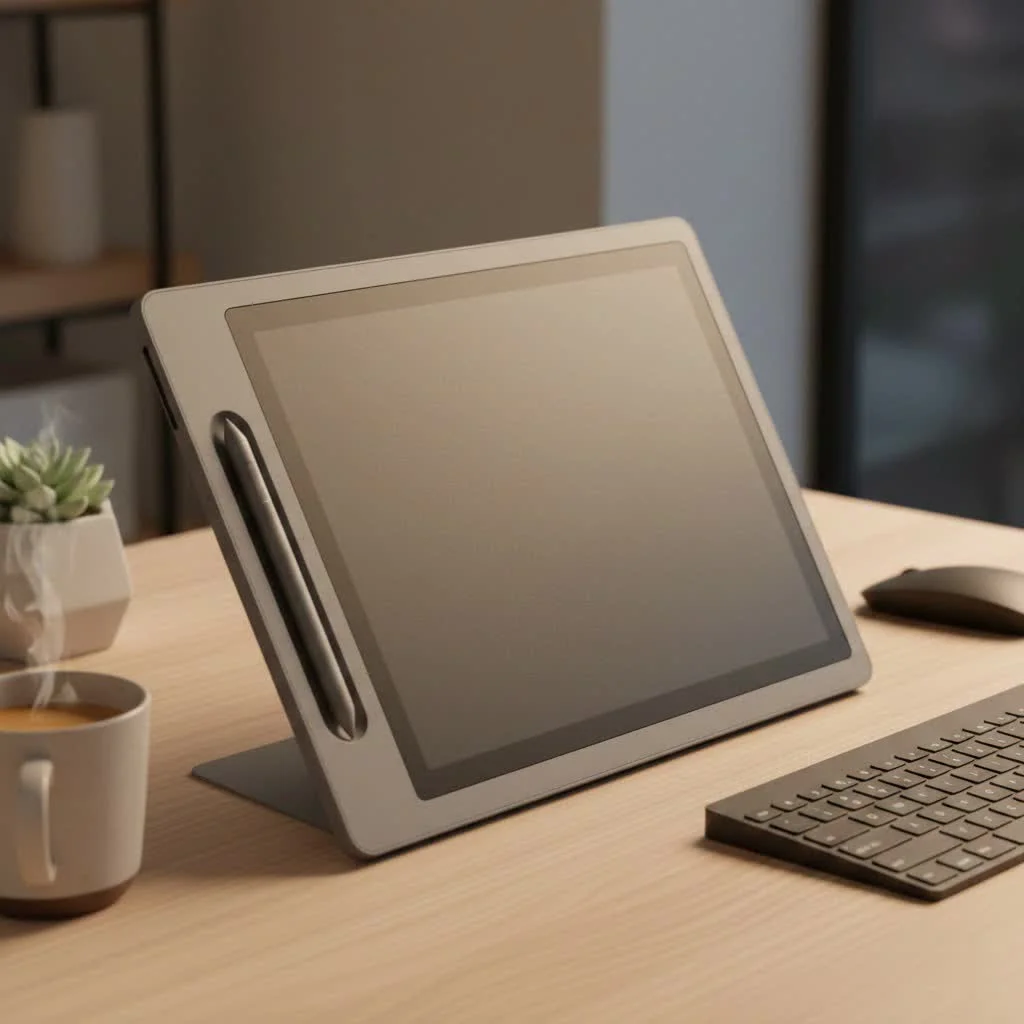
Gaomon has quickly carved out a reputation as a serious contender in the graphic tablet market, offering features that go head-to-head with industry giants. This guide will break down everything you need to know about Gaomon tablets, from their core strengths to how they stack up against the competition, helping you decide if this is the right brand to bring your creative vision to life.
What Makes Gaomon a Go-To Choice for Artists?
Gaomon, a technology company founded in 2011, has been making waves since it entered the global market in 2016. Their philosophy is simple: provide high-quality, feature-rich drawing tablets at a price point that doesn’t intimidate artists. This focus on value has made them a favorite among those who want powerful tools without the premium expense.
Incredible Value for Money
The most compelling reason to consider a Gaomon graphic tablet is its affordability. They offer products that are significantly cheaper than their big-name counterparts without making major sacrifices on core features. This means beginners can get a fantastic starter tablet, and professionals can get a capable workhorse or a portable secondary device, all while staying on budget.
Pro-Level Pen Performance
At the heart of any great drawing tablet is its stylus. Gaomon tablets come with battery-free pens that use electromagnetic resonance, so you never have to worry about charging them. Most models boast an impressive 8,192 levels of pressure sensitivity. This high level of sensitivity allows for incredibly nuanced control over your line weight, enabling you to create everything from faint, delicate sketches to bold, powerful strokes with natural ease. Many of their pens also support tilt recognition, which lets you vary your brush strokes by changing the angle of the pen, mimicking the feel of traditional drawing tools.
A Model for Every Artist
Gaomon offers a wide range of products to suit different needs and workflows:
- Pen Tablets: These are the classic flat tablets without a screen, like the popular M10K Pro. You draw on the surface and see the results on your computer monitor. They are incredibly durable, portable, and the most affordable entry point.
- Pen Displays: Models like the PD1560 or PD2200 feature a built-in screen that you draw on directly. This creates a more intuitive and natural drawing experience, much like working on paper. While more expensive than pen tablets, Gaomon’s pen displays are still remarkably affordable compared to the competition.
“For years, artists assumed you had to spend a fortune to get a reliable pen display. Gaomon challenged that assumption. They’ve proven that you can deliver a responsive, high-quality drawing experience that’s accessible to a much wider audience.” – David Chen, Digital Art Instructor
How Does Gaomon Compare to Wacom?
|
Our Picks for the Best Graphic Tablet in 2026
As an Amazon Associate I earn from qualifying purchases.
|
||
| Num | Product | Action |
|---|---|---|
| 1 | Graphics Drawing Tablet, UGEE M708 10 x 6 inch Large Drawing Tablet with 8 Hot Keys, Passive Stylus of 16384 Levels Pressure, UGEE M708 Graphics Tablet for Paint, Design, Art Creation Sketch |

|
| 2 | HUION Kamvas 13 (Gen 3) Drawing Tablet with Screen,13.3\" Full-Laminated Art Tablet with Anti-Sparkle Canvas Glass 2.0, 99% sRGB, PenTech 4.0, 16384 Pen Pressure, Dual Dial for PC, Mac, Android, Black |
|
| 3 | XOPPOX Graphics Drawing Tablet 10 x 6 Inch Large Active Area with 8192 Levels Battery-Free Pen and 12 Hot Keys, Compatible with PC/Mac/Android OS for Painting, Design & Online Teaching Black |
|
| 4 | HUION Inspiroy H1060P Graphics Drawing Tablet with 8192 Pressure Sensitivity Battery-Free Stylus and 12 Customized Hot Keys, 10 x 6.25 inches Digital Art Tablet for Mac, Windows PC and Android |
|
| 5 | Wacom Intuos Pro Medium Bluetooth Professional Graphic Drawing Tablet with Pro Pen 3, Compatible with Mac, Windows - 2025 Edition |
|
| 6 | HUION Drawing Tablet HS610 Graphic Tablet with Battery-Free Stylus 8192 Pen Pressure Tilt Function, 10x6.25 Inches Digital Art for Animation & Design, Compatible with Windows/Mac/Android |
|
| 7 | GAOMON M10K Drawing Tablet, 10x6 inch Large Graphics Tablet with Touch Ring, 8192 Levels Battery-Free Stylus, 10 Hot Keys, Art Tablet for Design, Writing, Editing, Work with Mac, Windows, Android |
|
| 8 | HUION KAMVAS Pro 16 Drawing Tablet with Screen, 15.6 inch Pen Display Anti-Glare Glass 6 Shortcut Keys Adjustable Stand, Graphics Tablet for Drawing, Writing, Design, Work with Windows, Mac and Linux |
|
| 9 | Drawing Tablet for Beginner Graphics OSU Tablet with Battery-Free Stylus 8192 Pressure Sensitive for Digital Art, Painting & Design, Compatible with Windows, Mac OS and Android |
|
| 10 | HUION Inspiroy H640P Drawing Tablet, 6x4 inch Digital Art with Battery-Free Stylus, 8192 Pen Pressure, 6 Hot Keys, Graphics Tablet for Drawing, Writing, Design, Teaching, Work with Mac, PC & Mobile |
|
The elephant in the room for any graphics tablet brand is Wacom, the long-standing industry leader. While Wacom is renowned for its premium build quality and modern technology, Gaomon holds its own by focusing on key areas that matter most to users.
| Feature | Gaomon (e.g., M10K Pro) | Wacom (e.g., Intuos M) | The Verdict |
|---|---|---|---|
| Price | Significantly more affordable | Premium price point | Gaomon is the clear winner for budget-conscious artists. |
| Pressure Sensitivity | Typically 8,192 levels | Often 4,096 levels on comparable models | Gaomon often offers double the pressure levels, though 4,096 is ample for most professional work. |
| Shortcut Keys | Generous number (often 10+) plus a touch ring | Fewer keys (typically 4-8) | Gaomon provides more customizable keys out of the box, enhancing workflow efficiency. |
| Included Accessories | Often includes a pen case, extra nibs, and an artist glove | Typically just the tablet and pen | Gaomon delivers more value in the box. |
| Drawing Surface | A smooth, slightly glossy feel | A grittier, more paper-like texture | This is down to personal preference. Some artists prefer Wacom’s texture, but it can wear down nibs faster. |
| Build Quality | Surprisingly robust and well-made for the price | The industry standard for premium, durable materials | Wacom has a long-term reputation for rock-solid reliability, but Gaomon’s build quality is excellent for its price. |
Wacom remains the premium “Apple” of the drawing tablet world. However, Gaomon provides a compelling alternative that delivers 90% of the performance for a fraction of the cost, making it an incredibly smart choice for a huge number of creators.
Setting Up Your Gaomon Graphic Tablet
Getting started with your Gaomon tablet is straightforward. While the exact steps might vary slightly by model, the general process is universal.
- Do Not Connect the Tablet First: It’s a common mistake, but keep the tablet unplugged from your computer for now.
- Uninstall Other Drivers: If you have any other tablet drivers on your computer (like old Wacom drivers), uninstall them completely to prevent conflicts. Restart your computer afterward.
- Download the Official Driver: Go to the official Gaomon website. Do not use a driver from a CD if one was included, as the online version will be the most up-to-date. Find the correct driver for your specific model and operating system (Windows or macOS).
- Install the Driver: Run the installer and follow the on-screen instructions. It’s best to run it as an administrator on Windows. Restart your computer one more time after the installation is complete.
- Connect Your Tablet: Now, plug your Gaomon graphic tablet into your computer. The power light on the tablet should turn on.
- Configure Your Settings: Open the Gaomon driver software. Here, you can customize your pen pressure, map the working area of the tablet to your screen, and assign shortcuts to the express keys on the tablet and the buttons on your pen.
Test the tablet in your favorite art software to ensure the pressure sensitivity is working correctly. If you encounter any issues, re-checking that all other drivers were removed and that you have the correct Gaomon driver is the best first step.
Frequently Asked Questions (FAQ)
Are Gaomon tablets good for beginners?Absolutely. Their combination of low price, high performance, and user-friendly design makes them one of the best choices for anyone just starting with digital art. Models like the Gaomon S620 are particularly recommended for new artists.
Do I need a Gaomon tablet with a screen?You don’t need one, but many artists prefer it. A pen display (with a screen) offers a more direct and intuitive drawing process. A pen tablet (without a screen) is more affordable and portable and is perfectly capable of producing professional work; it just has a slight learning curve as you train your hand-eye coordination between the tablet and your monitor.
What software is compatible with Gaomon tablets?Gaomon tablets are compatible with nearly all major creative software on both Windows and macOS. This includes Adobe Photoshop, Illustrator, Clip Studio Paint, Krita, ZBrush, Blender, and many more.
Is the Gaomon pen really battery-free?Yes. Like Wacom’s pens, Gaomon styluses use EMR (Electro-Magnetic Resonance) technology. The tablet itself powers the pen, so you never have to charge it or replace batteries, allowing you to create without interruption.
Can I use a Gaomon tablet for things other than drawing?Definitely. A Gaomon graphic tablet is an excellent tool for photo editing, 3D sculpting, graphic design, online teaching, and even as an ergonomic mouse replacement for navigating your computer and taking handwritten notes.
Your Creative Journey Starts Here
Choosing the right Gaomon graphic tablet is about finding the perfect balance between your budget and your creative ambitions. Gaomon has successfully lowered the barrier to entry for digital art, proving that you don’t need to invest in the most expensive gear to create stunning, professional-level work. They offer a reliable, responsive, and enjoyable drawing experience that empowers artists to focus on what truly matters: their creativity. Whether you’re making your first-ever digital brushstroke or are a seasoned professional looking for a smart alternative, Gaomon is a brand that deserves your attention.
Frequently Asked Questions
Are Gaomon tablets a good choice for beginner digital artists?
Yes, Gaomon tablets are an excellent choice for beginners due to their low price, high performance, and user-friendly design. Models such as the Gaomon S620 are specifically recommended for new artists entering the world of digital art.
Is a Gaomon tablet with a built-in screen necessary for digital art?
A Gaomon tablet with a built-in screen (pen display) is not strictly necessary, but many artists prefer it for a more direct and intuitive drawing experience. Pen tablets without screens are more affordable and portable, offering professional results with a slight learning curve for hand-eye coordination.
What creative software programs are compatible with Gaomon tablets?
Gaomon tablets are compatible with nearly all major creative software on both Windows and macOS. This extensive compatibility includes popular programs like Adobe Photoshop, Illustrator, Clip Studio Paint, Krita, ZBrush, and Blender, among many others.
How does the Gaomon pen work without needing a battery?
Gaomon styluses utilize EMR (Electro-Magnetic Resonance) technology, similar to Wacom pens, which means they are battery-free. The tablet itself powers the pen, eliminating the need for charging or battery replacement and allowing for uninterrupted creative work.
Can Gaomon graphic tablets be used for tasks beyond drawing?
Yes, Gaomon graphic tablets are versatile tools suitable for many tasks beyond drawing. They are excellent for photo editing, 3D sculpting, graphic design, online teaching, and can even serve as an ergonomic mouse replacement for computer navigation and handwritten notes.
Setting Up Your Gaomon Graphic Tablet
Follow these steps to correctly install and configure your Gaomon graphic tablet for optimal performance.
Do not connect your Gaomon tablet to your computer right away. This prevents potential driver conflicts during the installation process.
Remove any existing tablet drivers (e.g., old Wacom drivers) from your computer. Restart your computer after uninstallation to ensure all remnants are cleared.
Visit the official Gaomon website to download the most current driver for your specific tablet model and operating system (Windows or macOS). Avoid using outdated drivers from CDs.
Run the downloaded installer, preferably as an administrator on Windows, and follow the on-screen prompts. Restart your computer once more after the installation is complete.
Plug your Gaomon graphic tablet into your computer; the power light should illuminate. Open the Gaomon driver software to customize pen pressure, map the working area, and assign shortcuts to express keys and pen buttons.
Get our weekly buyer guide
Practical specs, not advice. Unsubscribe anytime.

I’ve been using a Gaomon pen display for a few months now, and it’s truly impressive for the price. The 8,192 levels of pressure sensitivity make a huge difference in my line work, feeling super natural. It’s definitely a serious contender against the more expensive brands I’ve tried in the past.
As a seasoned professional, I’m always on the lookout for high-quality tools that don’t break the bank. Gaomon really delivers on its promise of professional-grade features at an affordable price point. It’s fantastic to see a brand founded in 2011 making such a strong impact globally with such reliable products.
I needed a new pen tablet and decided to give Gaomon a try after hearing about their reputation. The features are rich, and it definitely provides significant value. I’m really happy with how it stacks up against the competition, especially considering the cost.
I was looking for an affordable option to get into digital art, and the Gaomon graphic tablet was recommended. It’s been great for a beginner like me, and the battery-free pen is a lifesaver. My only minor gripe is that the drivers were a little finicky to install initially, but once set up, it works perfectly.
I picked up a Gaomon tablet after reading about its value compared to other brands. While the drawing experience is solid and the pressure sensitivity is good, I found the build quality a little less robust than I expected. It’s still a good tool for the price, but I’m a bit worried about its long-term durability.