The best graphic tablet for beginners in 2025 is typically a screenless model, such as the Wacom Intuos S/M, XP-Pen Deco 01 V2, or Huion Inspiroy H610 Pro V2. These tablets offer essential features like pressure sensitivity (often 8,192 levels), a comfortable active area (around 10×6 inches), and reliable USB connectivity, all at an affordable price point, making them ideal for learning digital art fundamentals without significant investment.
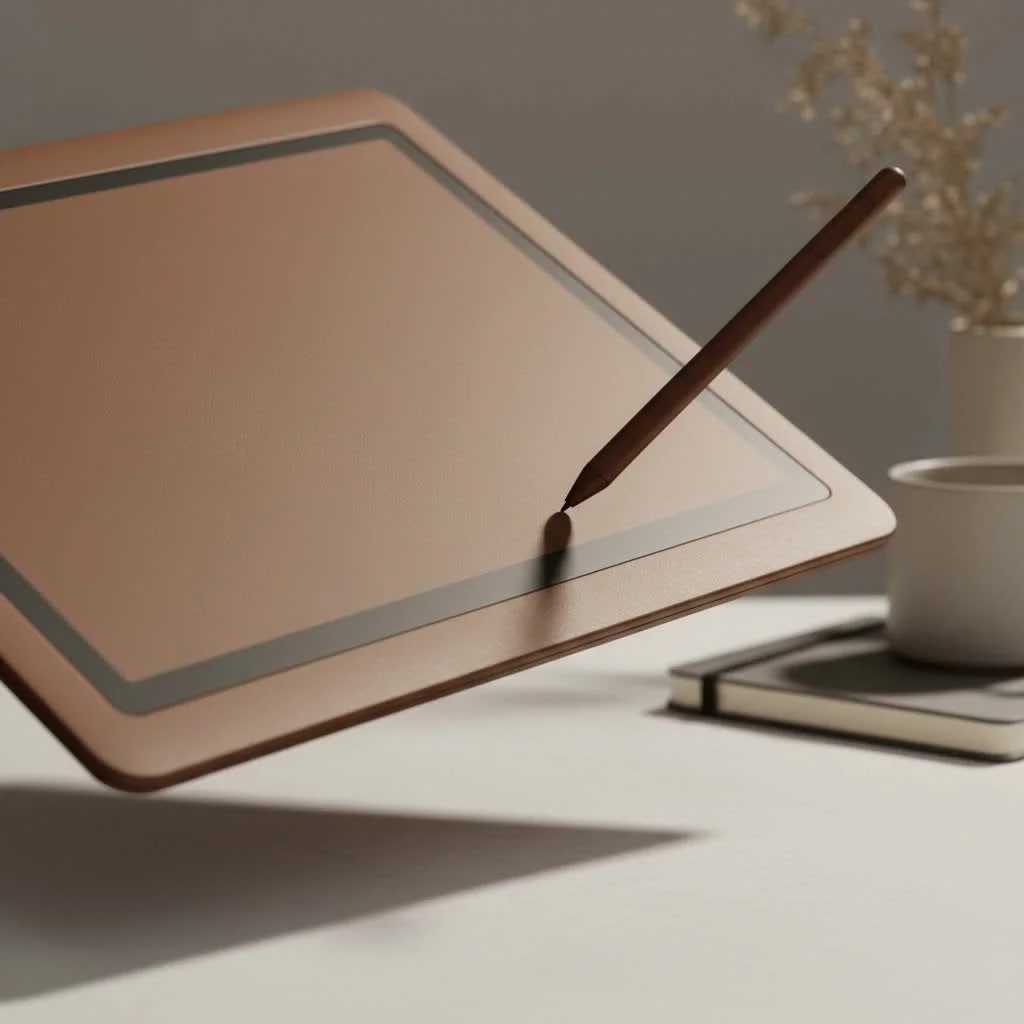
A graphic tablet, also known as a drawing tablet, replaces your mouse with a pressure-sensitive pen and a dedicated surface, giving you the natural control needed for drawing, painting, and photo editing. It’s an essential tool for any aspiring digital artist, illustrator, or graphic designer.
What Should a Beginner Look For in a Graphic Tablet?
Before jumping into specific models, it’s important to understand the key features that matter most when you’re just starting. Focusing on these core aspects will ensure you get a device that’s easy to learn with and powerful enough to grow with you.
Screen vs. Screenless Tablets
This is the biggest decision you’ll make.
- Screenless Tablets (Pen Tablets): These are the most common and affordable type. You draw on the tablet’s surface while looking at your computer monitor. There’s a slight learning curve to coordinate your hand and eye movements, but it becomes second nature quickly. They are durable, portable, and offer incredible value, making them a fantastic choice for the best graphic tablet for beginners.
- Tablets with a Screen (Pen Displays): These devices have a built-in screen that you draw directly on. This creates a more intuitive and natural drawing experience, similar to drawing on paper. However, they are significantly more expensive, bulkier, and require more cables for connection.
For most beginners, I strongly recommend starting with a screenless tablet. They provide all the core functionality you need to learn the fundamentals of digital art at a fraction of the cost.
Key Features Explained
Don’t get lost in technical jargon. Here are the four features that truly matter for a beginner.
- Active Area: This is the actual space on the tablet where you can draw. For a desktop setup, a medium-sized tablet (around 8×5 or 10×6 inches) is ideal. It provides enough room for comfortable arm movements without being overwhelmingly large. For laptop users or those with limited space, a small size (around 6×4 inches) is a perfectly portable option.
- Pressure Sensitivity: This feature controls how the tablet registers the force you apply with the pen. Higher pressure levels allow for more nuance in line weight—press lightly for a thin line, and press harder for a thick one. Most modern beginner tablets offer 8,192 levels of pressure sensitivity, which is more than enough for both beginners and professionals.
- Resolution (LPI): Measured in Lines Per Inch (LPI), this determines how much detail the tablet can capture. A higher LPI means the tablet can recognize more precise pen movements. Look for a tablet with at least 2540 LPI, though most reputable brands now offer 5080 LPI even in their entry-level models.
- Connectivity: Most tablets connect via a simple USB cable. Some models also offer wireless Bluetooth connectivity, which can be convenient for reducing cable clutter but often comes at a higher price. For a beginner, a reliable wired connection is perfectly fine.
Our Top Picks for the Best Graphic Tablet for Beginners in 2025
After extensive testing and review, here are the graphic tablets that offer the best combination of performance, features, and value for anyone starting their digital art journey.
1. Wacom Intuos S/M: The Industry Standard
|
Our Picks for the Best Graphic Tablet in 2026
As an Amazon Associate I earn from qualifying purchases.
|
||
| Num | Product | Action |
|---|---|---|
| 1 | HUION KAMVAS Pro 16 Drawing Tablet with Screen, 15.6 inch Pen Display Anti-Glare Glass 6 Shortcut Keys Adjustable Stand, Graphics Tablet for Drawing, Writing, Design, Work with Windows, Mac and Linux |

|
| 2 | HUION Kamvas 13 (Gen 3) Drawing Tablet with Screen,13.3\" Full-Laminated Art Tablet with Anti-Sparkle Canvas Glass 2.0, 99% sRGB, PenTech 4.0, 16384 Pen Pressure, Dual Dial for PC, Mac, Android, Black |
|
| 3 | XOPPOX Graphics Drawing Tablet 10 x 6 Inch Large Active Area with 8192 Levels Battery-Free Pen and 12 Hot Keys, Compatible with PC/Mac/Android OS for Painting, Design & Online Teaching Black |
|
| 4 | HUION Inspiroy H1060P Graphics Drawing Tablet with 8192 Pressure Sensitivity Battery-Free Stylus and 12 Customized Hot Keys, 10 x 6.25 inches Digital Art Tablet for Mac, Windows PC and Android |
|
| 5 | HUION Inspiroy H640P Drawing Tablet, 6x4 inch Digital Art with Battery-Free Stylus, 8192 Pen Pressure, 6 Hot Keys, Graphics Tablet for Drawing, Writing, Design, Teaching, Work with Mac, PC & Mobile |
|
| 6 | Graphics Drawing Tablet, UGEE M708 10 x 6 inch Large Drawing Tablet with 8 Hot Keys, Passive Stylus of 16384 Levels Pressure, UGEE M708 Graphics Tablet for Paint, Design, Art Creation Sketch |
|
| 7 | Drawing Tablet for Beginner Graphics OSU Tablet with Battery-Free Stylus 8192 Pressure Sensitive for Digital Art, Painting & Design, Compatible with Windows, Mac OS and Android |
|
| 8 | HUION Drawing Tablet HS610 Graphic Tablet with Battery-Free Stylus 8192 Pen Pressure Tilt Function, 10x6.25 Inches Digital Art for Animation & Design, Compatible with Windows/Mac/Android |
|
| 9 | GAOMON M10K Drawing Tablet, 10x6 inch Large Graphics Tablet with Touch Ring, 8192 Levels Battery-Free Stylus, 10 Hot Keys, Art Tablet for Design, Writing, Editing, Work with Mac, Windows, Android |
|
| 10 | Wacom Intuos Pro Medium Bluetooth Professional Graphic Drawing Tablet with Pro Pen 3, Compatible with Mac, Windows - 2025 Edition |
|
Wacom has long been the leader in the graphic tablet industry, and the Intuos line is their flagship entry-level offering. It’s known for its reliability, excellent build quality, and a pen that feels fantastic to use.
- Why it’s great for beginners: The Wacom Intuos is incredibly user-friendly. The setup is straightforward, the driver software is stable, and it comes bundled with free creative software to get you started. The pen is battery-free, using EMR technology that makes it lightweight and perfectly balanced.
- Key Features: 4,096 levels of pressure sensitivity, available in small and medium sizes, optional Bluetooth connectivity, and four customizable ExpressKeys.
- Best for: Beginners who want a premium, reliable product from the most established brand in the industry.
2. XP-Pen Deco 01 V2: The Value Champion
XP-Pen has made a name for itself by offering high-performance tablets at incredibly competitive prices. The Deco 01 V2 is a fan favorite and arguably one of the best value propositions on the market.
- Why it’s great for beginners: It offers a massive 10×6.25-inch active area, giving you plenty of space to work. With 8,192 levels of pressure sensitivity and tilt support (a feature often found in more expensive tablets), it doesn’t skimp on professional-grade features.
- Key Features: 8,192 levels of pressure sensitivity, tilt recognition, a large active area, eight customizable shortcut keys, and a sleek, slim design.
- Best for: Beginners on a budget who want the most drawing area and features for their money.
3. Huion Inspiroy H610 Pro V2: The All-Round Contender
Huion is another brand that delivers exceptional quality at an affordable price point. The H610 Pro V2 is a classic, updated with modern features that make it a powerful tool for new artists.
- Why it’s great for beginners: It strikes a perfect balance between size, features, and cost. It boasts a large drawing surface, numerous shortcut keys for an efficient workflow, and a battery-free pen with excellent responsiveness.
- Key Features: 8,192 levels of pressure sensitivity, battery-free pen with tilt function, 10×6.25-inch work area, 8 press keys, and 16 soft keys.
- Best for: Artists who want a large drawing surface and maximum customizability without a high price tag.
As digital art instructor Alex Tran often says, “The best beginner tablet is one that feels invisible. It should be a direct extension of your hand, allowing your creative ideas to flow onto the screen without friction. Focus on comfort and reliability, not just specs.”
Setting Up Your New Graphic Tablet
Once you’ve chosen your tablet, setting it up correctly is key to a great experience.
- Install the Drivers: Before you plug in the tablet, go to the manufacturer’s website (Wacom, XP-Pen, or Huion) and download the latest driver for your specific model. This is the most important step!
- Connect the Tablet: Plug the USB cable into your tablet and computer.
- Customize Your Settings: Open the tablet’s control panel. Here you can adjust the pressure sensitivity, map the active area to your monitor, and program the shortcut buttons (ExpressKeys) on your tablet and pen to your favorite commands, like Undo, Zoom, or Brush Size.
- Practice: Open your art software of choice (like Krita, Photoshop, or Clip Studio Paint) and just doodle. Practice making lines of varying thickness by changing your pen pressure. Get a feel for the hand-eye coordination. It might feel strange for an hour or two, but it will click faster than you think.
Frequently Asked Questions (FAQ)
What size graphic tablet is best for a beginner?
A medium-sized tablet with an active area around 10×6 inches is generally the sweet spot for beginners. It provides enough space for comfortable drawing from your elbow and shoulder, promoting better posture and smoother lines. A small tablet is also a great option for portability and limited desk space.
Do I need a tablet with a screen to start digital art?
No, you do not need a tablet with a screen to start digital art. Millions of professional artists learned and still work on screenless tablets, which are more affordable and excellent for mastering the fundamentals. You can always upgrade to a pen display later in your career if desired.
How much should I spend on a beginner graphic tablet?
You can get a fantastic, high-quality beginner graphic tablet for anywhere between $50 and $100. Brands like XP-Pen and Huion offer incredible value in this price range, while a Wacom Intuos might be slightly more. There is no need to spend more than this when you are starting out.
What software works with these tablets?
All major graphic tablets work with virtually all creative software on both Windows and macOS. This includes popular programs like Adobe Photoshop, Illustrator, Clip Studio Paint, Krita (which is free), Corel Painter, ZBrush, and Blender, ensuring broad compatibility for artists.
Is a Wacom tablet worth the extra money for a beginner?
Wacom tablets are known for their superb build quality and industry-leading pen technology. While they often cost more than competitors for similar specifications, many artists find the investment worthwhile for their reliability and premium feel. However, brands like Huion and XP-Pen have significantly closed the quality gap, offering a nearly identical drawing experience for a lower price.
Your Creative Journey Starts Now
Choosing the best graphic tablet for beginners is about finding the right balance of functionality and affordability. A screenless tablet from a reputable brand like Wacom, XP-Pen, or Huion will give you a powerful and reliable tool to learn, grow, and create amazing digital art. Don’t get bogged down by analysis paralysis. Pick the one that fits your budget and workspace, and focus on the most important thing: drawing. Your skills, not just your tools, will define your artistic path.
Frequently Asked Questions
What size graphic tablet is best for a beginner?
A medium-sized tablet with an active area around 10x6 inches is generally the sweet spot for beginners. It provides enough space for comfortable drawing from your elbow and shoulder, promoting better posture and smoother lines. A small tablet is also a great option for portability and limited desk space.
Do I need a tablet with a screen to start digital art?
No, you do not need a tablet with a screen to start digital art. Millions of professional artists learned and still work on screenless tablets, which are more affordable and excellent for mastering the fundamentals. You can always upgrade to a pen display later in your career if desired.
How much should I spend on a beginner graphic tablet?
You can get a fantastic, high-quality beginner graphic tablet for anywhere between $50 and $100. Brands like XP-Pen and Huion offer incredible value in this price range, while a Wacom Intuos might be slightly more. There is no need to spend more than this when you are starting out.
What software works with these tablets?
All major graphic tablets work with virtually all creative software on both Windows and macOS. This includes popular programs like Adobe Photoshop, Illustrator, Clip Studio Paint, Krita (which is free), Corel Painter, ZBrush, and Blender, ensuring broad compatibility for artists.
Is a Wacom tablet worth the extra money for a beginner?
Wacom tablets are known for their superb build quality and industry-leading pen technology. While they often cost more than competitors for similar specifications, many artists find the investment worthwhile for their reliability and premium feel. However, brands like Huion and XP-Pen have significantly closed the quality gap, offering a nearly identical drawing experience for a lower price.
Setting Up Your New Graphic Tablet
Follow these steps to correctly set up your new graphic tablet for an optimal digital art experience.
Before plugging in your tablet, visit the manufacturer's website (Wacom, XP-Pen, or Huion) and download the latest driver for your specific model. This crucial step ensures proper functionality and compatibility with your operating system.
Once the drivers are installed, connect the USB cable from your tablet to your computer. Ensure a secure connection to avoid interruptions during use.
Open the tablet's control panel to personalize your settings. Here, you can adjust pressure sensitivity, map the active area to your monitor, and program shortcut buttons (ExpressKeys) on your tablet and pen for commands like Undo or Zoom.
Launch your preferred art software, such as Krita or Photoshop, and begin doodling. Practice varying line thickness by adjusting pen pressure to develop hand-eye coordination. It may feel unfamiliar initially, but proficiency will come quickly with practice.
Get our weekly buyer guide
Practical specs, not advice. Unsubscribe anytime.
I totally agree that a screenless model is the way to go for beginners! I picked up the XP-Pen Deco 01 V2 a few months ago, and it’s been fantastic. The active area is super comfortable, and the pressure sensitivity really makes a difference. It’s so much more intuitive than trying to draw with a mouse, and I’m already seeing a huge improvement in my digital sketches.
I got the Huion Inspiroy H610 Pro V2 based on recommendations for its 8,192 levels of pressure sensitivity, and while that’s great, I found the pen a little too light for my preference. It feels a bit flimsy compared to what I was expecting. It works fine for learning, but I might upgrade to something with a more substantial pen feel down the line.
As an aspiring illustrator, I can’t recommend a beginner graphic tablet enough. The guide is spot on about not needing a huge investment right away. I grabbed a basic model, and it’s completely transformed my workflow for photo editing and sketching. It’s truly an essential tool for anyone serious about digital art.
I’ve been using the Wacom Intuos S for a while now, and it’s a solid choice for getting started. The USB connectivity is reliable, and it’s definitely helped me get a feel for digital art. My only minor gripe is that I sometimes wish I’d gone for the M size for a bit more drawing space, but for the price, it’s hard to beat.