Ever eyed a pricey Wacom tablet and wished you could get that functionality without the hefty price tag? You might be holding the solution in your hands already. Many artists and designers are discovering a powerful secret: with the right setup, you can use your android tablet as a graphic tablet for your PC or Mac. As a digital artist with over 15 years in the field, I’ve seen technology evolve, and this is one of the most practical and budget-friendly shifts in recent years.
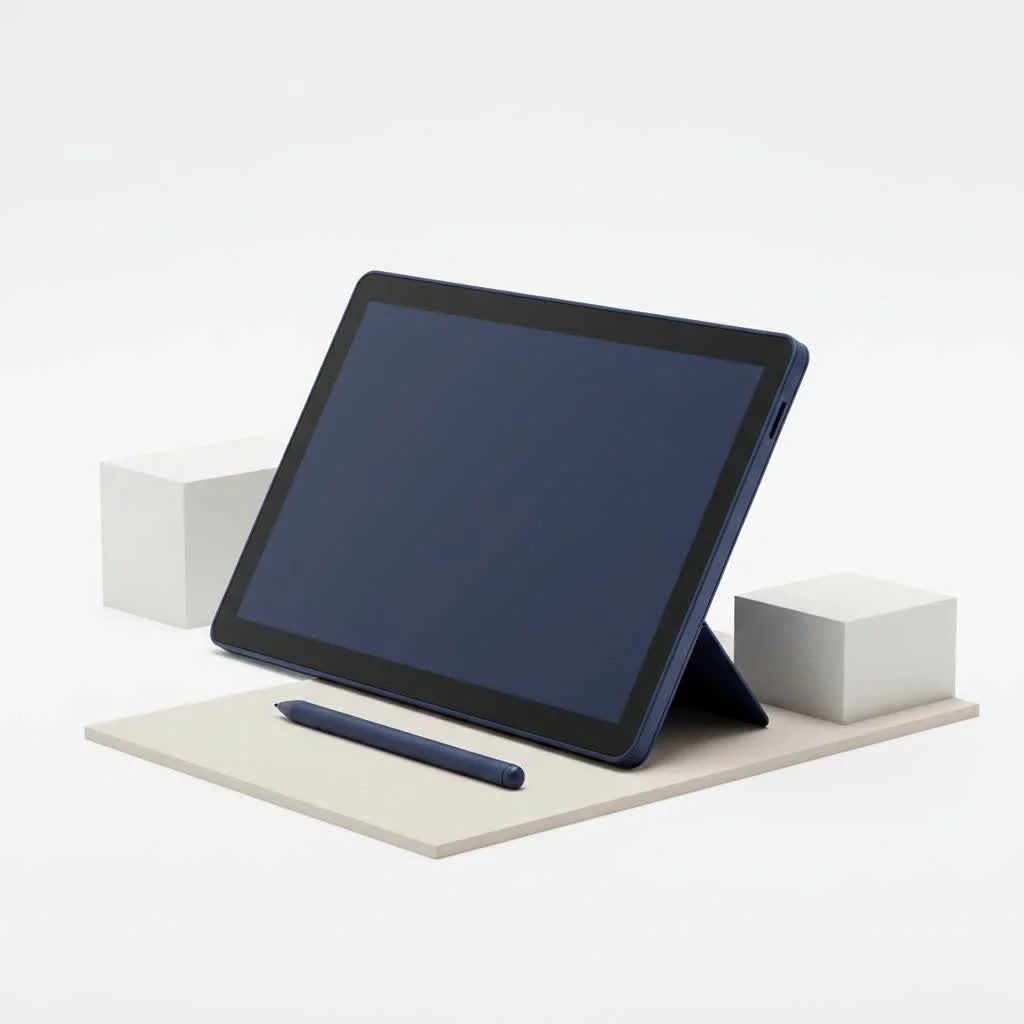
This isn’t just a makeshift fix. Modern Android tablets, especially those with high-resolution screens and active styluses like the Samsung S-Pen, can offer a surprisingly professional drawing experience. It’s a fantastic way to dive into digital art, streamline your workflow, or have a portable setup without investing in single-purpose hardware. Let’s walk through how you can unlock this hidden potential.
Why Use an Android Tablet for Digital Art?
Before we dive into the “how,” let’s cover the “why.” Using an existing device is about more than just saving money.
- Cost-Effective: This is the most obvious benefit. You leverage a device you already own, saving hundreds of dollars on a dedicated drawing tablet.
- High-Quality Display: Many modern Android tablets boast vibrant, high-resolution screens that are often superior to the non-screen drawing tablets in the same price range. You get to draw directly on the screen, which is a more intuitive experience.
- Portability: Your Android tablet is already part of your daily carry. With this setup, you can have a powerful drawing station anywhere you can bring your laptop.
- Minimalism: Reduce clutter by having one device serve multiple purposes—from entertainment and productivity to professional-grade digital art.
What You’ll Need to Get Started
Transforming your tablet is simple, but you need a few key components to ensure a smooth experience.
- An Android Tablet: Any modern Android tablet will work, but for the best results, one that supports an active stylus with pressure sensitivity (like a Samsung Galaxy Tab with an S-Pen) is highly recommended.
- A Good Stylus: If your tablet didn’t come with one, investing in a quality active stylus is crucial for features like pressure control, which is essential for varied line weights in drawing.
- A PC or Mac: Your main computer where your creative software (like Photoshop, Krita, or Blender) is installed.
- Connector Cable: A high-quality USB-C or Micro-USB cable. While some apps work over Wi-Fi, a wired connection is king for minimizing lag.
- The Right Software: This is the magic ingredient. You’ll need an application that can mirror or extend your computer’s screen to your tablet and translate your stylus input.
The Best Apps for the Job
Several apps can bridge the gap between your tablet and computer. After testing numerous options, two stand out for their performance and reliability.
SuperDisplay – The Low-Latency Champion
|
Our Picks for the Best Graphic Tablet in 2026
As an Amazon Associate I earn from qualifying purchases.
|
||
| Num | Product | Action |
|---|---|---|
| 1 | GAOMON M10K Drawing Tablet, 10x6 inch Large Graphics Tablet with Touch Ring, 8192 Levels Battery-Free Stylus, 10 Hot Keys, Art Tablet for Design, Writing, Editing, Work with Mac, Windows, Android |

|
| 2 | Wacom Intuos Pro Medium Bluetooth Professional Graphic Drawing Tablet with Pro Pen 3, Compatible with Mac, Windows - 2025 Edition |
|
| 3 | Drawing Tablet for Beginner Graphics OSU Tablet with Battery-Free Stylus 8192 Pressure Sensitive for Digital Art, Painting & Design, Compatible with Windows, Mac OS and Android |
|
| 4 | HUION Inspiroy H640P Drawing Tablet, 6x4 inch Digital Art with Battery-Free Stylus, 8192 Pen Pressure, 6 Hot Keys, Graphics Tablet for Drawing, Writing, Design, Teaching, Work with Mac, PC & Mobile |
|
| 5 | HUION Drawing Tablet HS610 Graphic Tablet with Battery-Free Stylus 8192 Pen Pressure Tilt Function, 10x6.25 Inches Digital Art for Animation & Design, Compatible with Windows/Mac/Android |
|
| 6 | HUION KAMVAS Pro 16 Drawing Tablet with Screen, 15.6 inch Pen Display Anti-Glare Glass 6 Shortcut Keys Adjustable Stand, Graphics Tablet for Drawing, Writing, Design, Work with Windows, Mac and Linux |
|
| 7 | XOPPOX Graphics Drawing Tablet 10 x 6 Inch Large Active Area with 8192 Levels Battery-Free Pen and 12 Hot Keys, Compatible with PC/Mac/Android OS for Painting, Design & Online Teaching Black |
|
| 8 | HUION Inspiroy H1060P Graphics Drawing Tablet with 8192 Pressure Sensitivity Battery-Free Stylus and 12 Customized Hot Keys, 10 x 6.25 inches Digital Art Tablet for Mac, Windows PC and Android |
|
| 9 | Graphics Drawing Tablet, UGEE M708 10 x 6 inch Large Drawing Tablet with 8 Hot Keys, Passive Stylus of 16384 Levels Pressure, UGEE M708 Graphics Tablet for Paint, Design, Art Creation Sketch |
|
| 10 | HUION Kamvas 13 (Gen 3) Drawing Tablet with Screen,13.3\" Full-Laminated Art Tablet with Anti-Sparkle Canvas Glass 2.0, 99% sRGB, PenTech 4.0, 16384 Pen Pressure, Dual Dial for PC, Mac, Android, Black |
|
For serious artists, SuperDisplay is often the top recommendation, and for good reason. It offers an incredibly responsive, low-latency connection, especially over USB. It fully supports pressure sensitivity, turning your Android tablet into a true graphics display that feels almost as good as a dedicated device. It’s a paid app, but the small one-time cost is well worth it for a professional-feeling experience.
SpaceDesk – The Free and Versatile Option
If you’re looking for a no-cost solution, SpaceDesk is an excellent choice. It allows you to use your tablet as a second monitor for your PC, either by mirroring or extending your desktop. The setup is straightforward, and while the latency over Wi-Fi can sometimes be noticeable, the performance over a USB connection is impressively stable. It’s a fantastic entry point for anyone wanting to try this setup without commitment.
Step-by-Step Guide to Connecting Your Tablet
Ready to get started? Here’s a simple, universal process to get you drawing in minutes.
- Choose and Install the App: Download your chosen app (like SuperDisplay or SpaceDesk) from the Google Play Store onto your Android tablet.
- Install the PC/Mac Driver: Visit the app developer’s website on your computer and download the corresponding driver. This software is essential for your PC to recognize the tablet as a display input.
- Connect Your Devices: For the best performance, connect your tablet to your computer using a USB cable. Open the driver on your PC and the app on your tablet. They should detect each other automatically.
- Configure Your Settings: In your computer’s display settings, choose whether you want to mirror your main display or extend it. Extending is often better, as you can have your art program on the tablet and reference images or tools on your main monitor.
- Launch Your Art Software: Open Photoshop, Krita, or your preferred program. In the software’s settings, ensure that pressure sensitivity (sometimes called “Tablet PC” or “Windows Ink”) is enabled. Now, you can start drawing!
Pro Tip: As a seasoned digital artist, David Chen, advises, “Always opt for a wired USB connection over Wi-Fi. The difference in latency is night and day. A millisecond of lag can disrupt your creative flow, so a stable, wired connection is non-negotiable for serious work.”
Managing Expectations: Can It Truly Replace a Wacom?
Using an android tablet as a graphic tablet is a brilliant solution, but it’s important to have realistic expectations. For many hobbyists and even some professionals, it is more than enough. The display quality is often excellent, and the convenience is unmatched.
However, dedicated drawing tablets from brands like Wacom or Huion still have the edge in certain areas. Their drivers are purpose-built for art, offering more customization for stylus buttons and near-zero latency. The parallax (the gap between the stylus tip and the on-screen cursor) is also typically lower on high-end dedicated tablets. For a professional illustrator whose work depends on the most subtle nuances of pen control, a dedicated device may still be the preferred tool.
Frequently Asked Questions (FAQ)
Is it completely free to use my Android tablet as a graphic tablet?
Yes, it can be. Using an app like SpaceDesk is free. However, for the lowest latency and best performance, paid apps like SuperDisplay offer a significant upgrade for a small one-time fee.
Will my Samsung S-Pen’s pressure sensitivity work?
Absolutely. Apps like SuperDisplay are designed to work with active styluses like the S-Pen, translating pressure and tilt data directly to your desktop art programs.
How can I fix lag or latency issues?
The most effective way to reduce lag is to connect your tablet to your computer via a high-quality USB cable instead of relying on Wi-Fi. Closing unnecessary background apps on both devices can also help.
Can I use this setup with Photoshop, Krita, or Blender?
Yes. This method works with any desktop application. Your computer simply sees the tablet as another monitor and pen input device, making it compatible with all major creative software.
Does this work for Mac computers as well?
While many of the most popular apps are Windows-focused, solutions are available for Mac users too. Always check the app’s compatibility on its website before purchasing.
Your New Creative Tool Awaits
Turning your android tablet as a graphic tablet is an accessible, powerful way to upgrade your creative toolkit. It lowers the barrier to entry for digital art and provides a portable, high-quality drawing experience for artists at any level. By choosing the right app and prioritizing a stable wired connection, you can unlock a new world of creative possibilities with the technology you already own. Give it a try—your next masterpiece might just be a few taps away.
Get our weekly buyer guide
Practical specs, not advice. Unsubscribe anytime.
