Have you ever wondered how digital artists create stunning, intricate illustrations that look like they were painted by hand? Or how architects seamlessly sketch out complex designs directly onto a computer? The magic behind this is often a powerful tool known as a digitizer graphic tablet. This device is the bridge between traditional artistry and the digital world, translating the natural movement of your hand into pixel-perfect creations on a screen. Whether you’re a budding artist, a professional designer, or someone looking for a more intuitive way to interact with your computer, understanding this technology is the first step toward unlocking a new level of creativity and productivity.
What Exactly is a Digitizer Graphic Tablet?
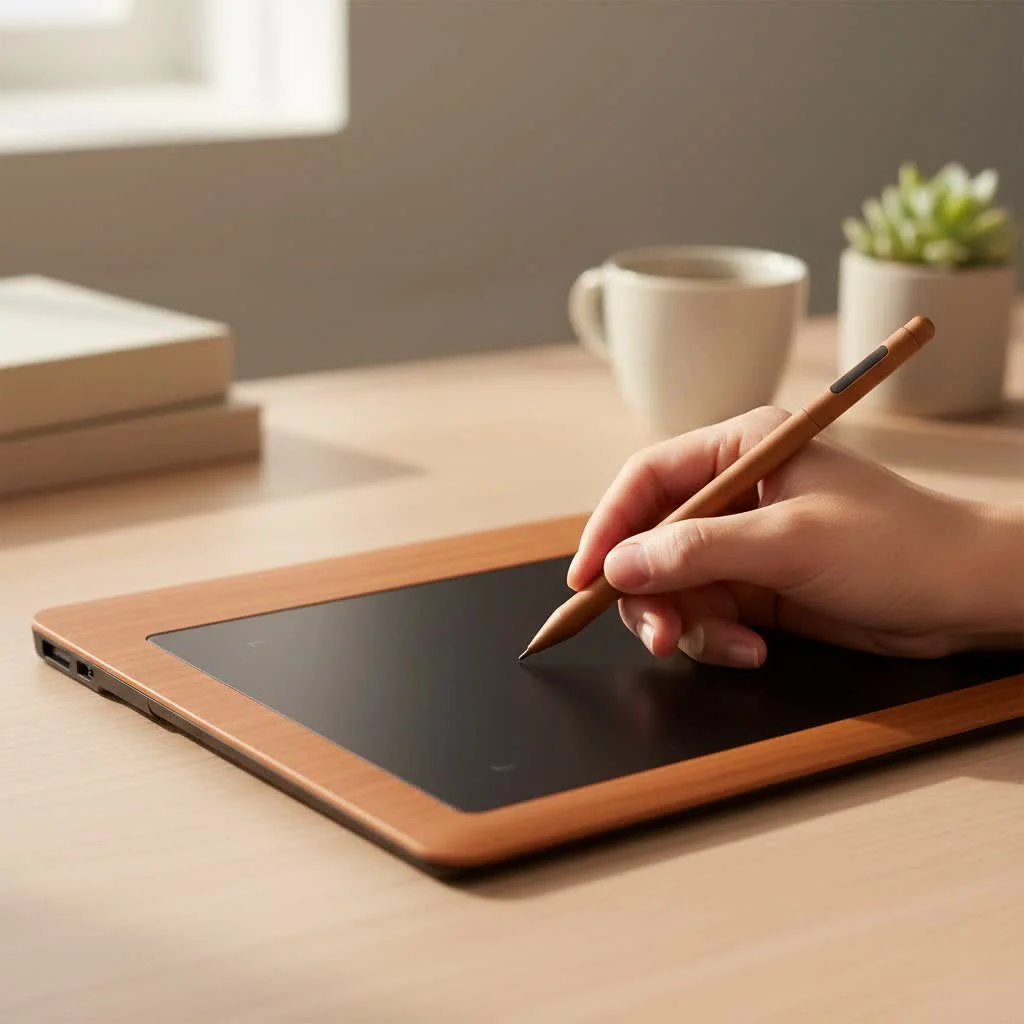
A digitizer graphic tablet, often called a pen tablet or drawing tablet, is a computer input device that allows you to draw or write on its surface with a special pen, or stylus. The tablet itself is a flat, touch-sensitive pad that acts as the “digitizer.” It detects the position and movement of the stylus and translates this analog information into digital data that your computer can understand. Think of it as a digital piece of paper that mirrors your hand’s every stroke directly onto your software of choice, be it Photoshop, Illustrator, or a simple note-taking app.
The system consists of two main components:
- The Tablet: A solid-state surface containing a grid of wires that create an electromagnetic field. This is the active area where you draw.
- The Stylus: A pen-like tool that interacts with the tablet’s surface. Modern styluses are often battery-free, powered by the tablet’s own electromagnetic field, a technology known as Electromagnetic Resonance (EMR).
How Does the Magic Happen?
The process might seem like magic, but it’s rooted in sophisticated technology. When you bring the stylus near the tablet’s surface, the electromagnetic field from the tablet energizes a circuit inside the pen. As you move the pen, it sends a signal back to the grid. The tablet’s sensor grid precisely calculates the pen’s position, pressure, and even its tilt angle, thousands of times per second.
This data is then sent to your computer, which interprets it to create lines of varying thickness and opacity. This is what makes a digitizer graphic tablet so powerful for creative work; it mimics the nuance of using real-world tools like pencils, brushes, and pens. Key features that enable this are:
- Pressure Sensitivity: The tablet can detect how hard you are pressing with the stylus. Pressing harder might create a thicker, darker line, while a lighter touch produces a faint, thin one. Levels can range from around 2,048 to over 8,192, with higher numbers offering more subtlety.
- Tilt Recognition: Many advanced tablets can detect the angle at which you’re holding the stylus. This allows artists to create shading effects, just like tilting a real pencil on paper.
- Resolution (LPI): Measured in Lines Per Inch, this determines how many digital lines can fit into one inch of the tablet’s screen. A higher LPI means the tablet can recognize more detail, resulting in smoother, more precise lines.
Who Uses a Digitizer Graphic Tablet?
While the first group that comes to mind is digital artists, the applications for a digitizer graphic tablet are incredibly diverse. Its ability to capture natural, human input makes it an invaluable tool for numerous professions.
Digital Artists and Illustrators
|
Our Picks for the Best Graphic Tablet in 2026
As an Amazon Associate I earn from qualifying purchases.
|
||
| Num | Product | Action |
|---|---|---|
| 1 | Wacom Intuos Pro Medium Bluetooth Professional Graphic Drawing Tablet with Pro Pen 3, Compatible with Mac, Windows - 2025 Edition |

|
| 2 | HUION Kamvas 13 (Gen 3) Drawing Tablet with Screen,13.3\" Full-Laminated Art Tablet with Anti-Sparkle Canvas Glass 2.0, 99% sRGB, PenTech 4.0, 16384 Pen Pressure, Dual Dial for PC, Mac, Android, Black |
|
| 3 | HUION Inspiroy H640P Drawing Tablet, 6x4 inch Digital Art with Battery-Free Stylus, 8192 Pen Pressure, 6 Hot Keys, Graphics Tablet for Drawing, Writing, Design, Teaching, Work with Mac, PC & Mobile |
|
| 4 | Graphics Drawing Tablet, UGEE M708 10 x 6 inch Large Drawing Tablet with 8 Hot Keys, Passive Stylus of 16384 Levels Pressure, UGEE M708 Graphics Tablet for Paint, Design, Art Creation Sketch |
|
| 5 | Drawing Tablet for Beginner Graphics OSU Tablet with Battery-Free Stylus 8192 Pressure Sensitive for Digital Art, Painting & Design, Compatible with Windows, Mac OS and Android |
|
| 6 | XOPPOX Graphics Drawing Tablet 10 x 6 Inch Large Active Area with 8192 Levels Battery-Free Pen and 12 Hot Keys, Compatible with PC/Mac/Android OS for Painting, Design & Online Teaching Black |
|
| 7 | HUION Drawing Tablet HS610 Graphic Tablet with Battery-Free Stylus 8192 Pen Pressure Tilt Function, 10x6.25 Inches Digital Art for Animation & Design, Compatible with Windows/Mac/Android |
|
| 8 | HUION Inspiroy H1060P Graphics Drawing Tablet with 8192 Pressure Sensitivity Battery-Free Stylus and 12 Customized Hot Keys, 10 x 6.25 inches Digital Art Tablet for Mac, Windows PC and Android |
|
| 9 | HUION KAMVAS Pro 16 Drawing Tablet with Screen, 15.6 inch Pen Display Anti-Glare Glass 6 Shortcut Keys Adjustable Stand, Graphics Tablet for Drawing, Writing, Design, Work with Windows, Mac and Linux |
|
| 10 | GAOMON M10K Drawing Tablet, 10x6 inch Large Graphics Tablet with Touch Ring, 8192 Levels Battery-Free Stylus, 10 Hot Keys, Art Tablet for Design, Writing, Editing, Work with Mac, Windows, Android |
|
This is the most obvious user group. From concept artists designing characters for video games to illustrators creating children’s books, a graphic tablet offers unparalleled control for drawing and painting digitally.
Graphic Designers
Designers use tablets for everything from creating logos and branding materials to crafting complex vector illustrations. The precision of a stylus is far superior to a mouse for detailed pathing and freeform design work.
Photographers
For photo editing and retouching, a digitizer graphic tablet is a game-changer. It allows for highly precise adjustments, such as dodging and burning, masking, and removing blemishes, with a level of control a mouse simply cannot match.
As professional photographer Mark Davies notes, “Switching to a tablet for my retouching workflow in Photoshop cut my editing time by nearly 30%. The pressure sensitivity allows for a subtlety in masking and exposure adjustments that is impossible to achieve with a mouse.”
Students and Educators
In the age of e-learning, these tablets have become essential. Teachers can use them to write on digital whiteboards during online classes, and students can take handwritten notes directly on their devices, making studying more interactive and organized.
Business Professionals
From signing digital documents legally to annotating presentations and brainstorming on virtual whiteboards during team meetings, a digitizer tablet enhances efficiency in a corporate environment.
How to Choose the Right Digitizer Graphic Tablet
Selecting your first tablet can feel overwhelming with all the options available. Focusing on a few key features will help you find the perfect device for your needs.
1. Active Area Size
The active area is the part of the tablet where you can actually draw.
- Small: (Around 6×4 inches) Great for beginners, portability, and users with limited desk space. They are also more budget-friendly.
- Medium: (Around 8×5 to 10×6 inches) The most popular size. It offers a good balance between comfort, desk space, and a large enough area to draw without feeling cramped.
- Large: (12 inches or more) Preferred by professionals who need to make large, sweeping arm movements, often those working with very large monitors.
2. Pressure Sensitivity Levels
As mentioned, this determines how the tablet registers the force of your strokes. For beginners, 2,048 or 4,096 levels are more than sufficient. Professionals may prefer the greater nuance offered by 8,192 levels, but the difference can be subtle for many users.
3. Resolution (LPI)
Most modern tablets have a high resolution (typically 2,540 to 5,080 LPI). For almost any use case, a tablet with 2,540 LPI or higher will deliver smooth and accurate lines. You don’t need to over-prioritize this spec unless you are doing extremely high-detail professional work.
4. Stylus Type
The vast majority of reputable tablets today come with a battery-free EMR stylus. This is the ideal choice, as you never have to worry about charging it or replacing batteries. It’s lighter and more comfortable to use for long sessions.
5. Connectivity
- Wired (USB): The standard connection. It’s reliable, powers the device, and has zero latency.
- Wireless (Bluetooth): Offers a cleaner, cable-free setup. However, it requires charging the tablet and can introduce a minuscule amount of lag, though this is negligible in modern devices.
Frequently Asked Questions (FAQ)
What’s the difference between a graphic tablet and a tablet with a screen?
A standard digitizer graphic tablet has an opaque surface, and you look at your computer monitor to see what you’re drawing. A tablet with a screen (often called a pen display) has a built-in display, so you can draw directly on the screen, which is closer to the traditional drawing experience.
Can I use a digitizer graphic tablet as a mouse?
Absolutely. The stylus can be used to navigate your computer’s operating system, click on icons, and perform all the functions of a standard mouse. Many people find it more ergonomic for daily use.
What software is compatible with a digitizer graphic tablet?
Virtually all creative software is designed to work with graphic tablets. This includes the Adobe Creative Suite (Photoshop, Illustrator), Corel Painter, Krita, GIMP, ZBrush, Blender, and many more. They are also compatible with standard office and education software.
How difficult is it to learn to use one?
There is a slight learning curve, mainly related to hand-eye coordination since you are drawing on the tablet while looking at your monitor. However, most users get comfortable with it after a few hours of practice. It quickly becomes second nature.
Do I need to install drivers?
Yes, to enable features like pressure sensitivity and to customize the tablet’s buttons, you will need to install the manufacturer’s driver. This is a simple process that usually takes just a few minutes.
Your Digital Canvas Awaits
A digitizer graphic tablet is more than just an accessory; it’s a transformative tool that can profoundly enhance how you create, work, and learn. It breaks down the barrier between your physical actions and the digital environment, offering a level of intuitive control that a mouse could never replicate. By understanding how this technology works and identifying the features that matter most to you, you are well on your way to choosing a device that will not only improve your workflow but also open up new creative possibilities. It’s time to pick up the stylus and start creating.
Get our weekly buyer guide
Practical specs, not advice. Unsubscribe anytime.
