Finding the best buy graphic tablet can feel like navigating a maze of technical specs and brand jargon. With over 15 years of designing and teaching with these amazing tools, I’ve seen countless artists and students get bogged down in the details. The truth is, the “best” tablet isn’t about having the most features; it’s about finding the right tool that fits your workflow, skill level, and budget. Whether you’re a budding artist sketching your first character or a seasoned pro refining a complex illustration, the right tablet can unlock your creative potential. This guide is designed to cut through the noise, offering clear, practical advice to help you make a confident choice.
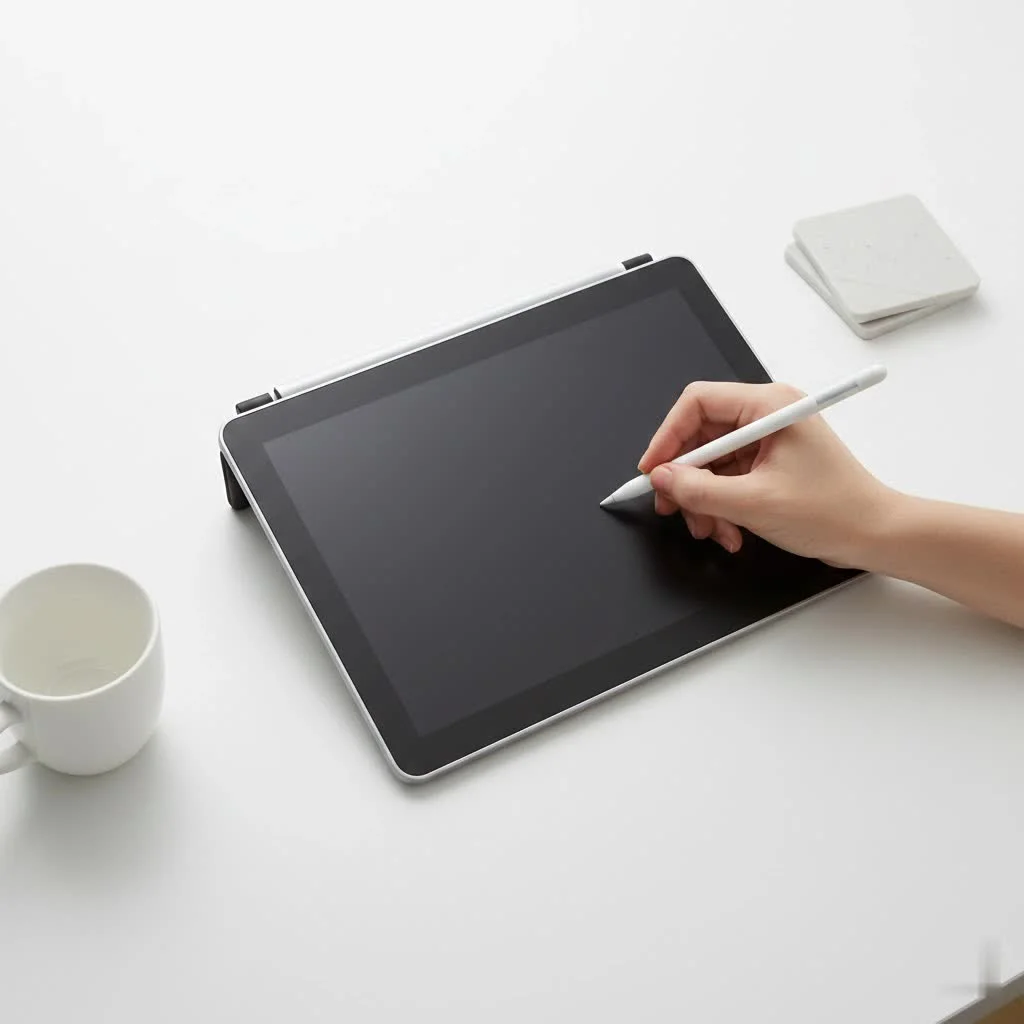
We’ll break down everything from the core features you actually need to our top picks for every type of creator in 2025. Think of this as your personal consultation, leveraging years of hands-on experience to get the perfect digital canvas in your hands.
What Should You Look for in a Graphic Tablet?
Before you start comparing models, it’s crucial to understand the key features that will impact your drawing experience. Getting this right means you’ll invest in a tool that grows with you, not one you’ll quickly outgrow or find frustrating.
Display vs. Non-Display Tablets
This is the first major decision you’ll make.
- Non-Display Tablets (Pen Tablets): These are the classic, more affordable options. You draw on the tablet’s surface while looking up at your computer monitor. It takes some getting used to the hand-eye coordination, but many professionals still prefer them for their simplicity and ergonomic benefits (less neck strain).
- Display Tablets (Pen Displays): These tablets have a built-in screen, allowing you to draw directly on the image. This creates a more natural and intuitive experience, similar to drawing on paper. They are generally more expensive and bulkier but are the standard for many professional illustrators and designers.
Pressure Sensitivity
Pressure sensitivity determines how the tablet interprets the force you apply with the pen. It’s measured in levels. A higher level means you have more control over line weight and opacity, allowing for a more nuanced and expressive drawing experience.
- Entry-Level: 2,048 levels is decent for beginners.
- Professional Standard: 8,192 levels is the current industry standard and offers superb control for fine art and detailed work.
Size and Active Area
The “active area” is the part of the tablet’s surface that detects your pen input. A larger active area gives you more room to make broad, sweeping strokes, which can be more comfortable for your arm and wrist. However, a larger tablet also takes up more desk space and is less portable. A good rule of thumb is to match the tablet’s aspect ratio to your monitor’s to avoid distortion.
Resolution (LPI)
|
Our Picks for the Best Graphic Tablet in 2026
As an Amazon Associate I earn from qualifying purchases.
|
||
| Num | Product | Action |
|---|---|---|
| 1 | HUION KAMVAS Pro 16 Drawing Tablet with Screen, 15.6 inch Pen Display Anti-Glare Glass 6 Shortcut Keys Adjustable Stand, Graphics Tablet for Drawing, Writing, Design, Work with Windows, Mac and Linux |

|
| 2 | HUION Inspiroy H1060P Graphics Drawing Tablet with 8192 Pressure Sensitivity Battery-Free Stylus and 12 Customized Hot Keys, 10 x 6.25 inches Digital Art Tablet for Mac, Windows PC and Android |
|
| 3 | HUION Inspiroy H640P Drawing Tablet, 6x4 inch Digital Art with Battery-Free Stylus, 8192 Pen Pressure, 6 Hot Keys, Graphics Tablet for Drawing, Writing, Design, Teaching, Work with Mac, PC & Mobile |
|
| 4 | Drawing Tablet for Beginner Graphics OSU Tablet with Battery-Free Stylus 8192 Pressure Sensitive for Digital Art, Painting & Design, Compatible with Windows, Mac OS and Android |
|
| 5 | Wacom Intuos Pro Medium Bluetooth Professional Graphic Drawing Tablet with Pro Pen 3, Compatible with Mac, Windows - 2025 Edition |
|
| 6 | GAOMON M10K Drawing Tablet, 10x6 inch Large Graphics Tablet with Touch Ring, 8192 Levels Battery-Free Stylus, 10 Hot Keys, Art Tablet for Design, Writing, Editing, Work with Mac, Windows, Android |
|
| 7 | XOPPOX Graphics Drawing Tablet 10 x 6 Inch Large Active Area with 8192 Levels Battery-Free Pen and 12 Hot Keys, Compatible with PC/Mac/Android OS for Painting, Design & Online Teaching Black |
|
| 8 | HUION Drawing Tablet HS610 Graphic Tablet with Battery-Free Stylus 8192 Pen Pressure Tilt Function, 10x6.25 Inches Digital Art for Animation & Design, Compatible with Windows/Mac/Android |
|
| 9 | HUION Kamvas 13 (Gen 3) Drawing Tablet with Screen,13.3\" Full-Laminated Art Tablet with Anti-Sparkle Canvas Glass 2.0, 99% sRGB, PenTech 4.0, 16384 Pen Pressure, Dual Dial for PC, Mac, Android, Black |
|
| 10 | Graphics Drawing Tablet, UGEE M708 10 x 6 inch Large Drawing Tablet with 8 Hot Keys, Passive Stylus of 16384 Levels Pressure, UGEE M708 Graphics Tablet for Paint, Design, Art Creation Sketch |
|
Resolution, measured in Lines Per Inch (LPI), refers to how many digital lines can fit into one inch of the tablet’s screen or active area. A higher LPI means the tablet can recognize more detail, resulting in smoother, more precise lines. For most artists, anything above 2,540 LPI is sufficient, but professional-grade tablets often boast 5,080 LPI for maximum accuracy.
As digital artist David Ellison notes, “Don’t just chase the highest specs. I’ve seen students with entry-level tablets create breathtaking work because they mastered the fundamentals. Your skill is the primary tool; the tablet is the conduit. Find one that feels comfortable and responsive, and you’re halfway there.”
The Best Buy Graphic Tablet Models in 2025
After extensive testing and review, here are our top recommendations, broken down by category to help you find the perfect fit.
1. Best for Beginners: Wacom Intuos S
The Wacom Intuos S has long been the gold standard for anyone starting their digital art journey. It strikes the perfect balance between affordability, reliability, and performance.
- Pressure Levels: 4,096
- Active Area: 6.0 x 3.7 in
- Type: Non-Display
What makes it a great choice is its simplicity and rock-solid driver support. It’s a plug-and-play experience that just works. The included software bundle (like Corel Painter Essentials) provides immediate value, letting you start creating right out of the box. While the small active area might feel restrictive for some, it’s perfect for smaller desks and for artists who draw from the wrist.
2. Best Budget Option: Huion Inspiroy H640P
Huion has become a major competitor by offering incredible value, and the H640P is a prime example. For a fraction of the price of its rivals, you get a tablet with professional-grade specifications.
- Pressure Levels: 8,192
- Active Area: 6.3 x 3.9 in
- Type: Non-Display
The battery-free pen is lightweight and comfortable, and the 8,192 pressure levels provide the kind of nuanced control you’d expect from a much more expensive device. It’s compact, portable, and an excellent choice for students or hobbyists who want maximum performance without breaking the bank.
3. Best for Professionals (Non-Display): Wacom Intuos Pro M
When you’re ready to invest in a tool for professional work, the Wacom Intuos Pro line is the undisputed industry leader. The Medium size is the sweet spot for most users, offering a generous active area without being overwhelmingly large.
- Pressure Levels: 8,192
- Active Area: 8.7 x 5.8 in
- Type: Non-Display
Its build quality is exceptional, featuring a slim aluminum base. The Pro Pen 2 is renowned for its near-zero lag and tilt recognition. The customizable ExpressKeys and Touch Ring are workflow game-changers, allowing you to map your most-used shortcuts directly to the tablet. This is the workhorse tablet you’ll find in design studios around the world.
4. Best Overall Pen Display: Huion Kamvas Pro 16 (2.5K)
For years, Wacom Cintiqs were the only choice for a professional pen display. Huion has shattered that monopoly with its Kamvas Pro line, offering a premium drawing experience at a much more accessible price point.
- Pressure Levels: 8,192
- Resolution: 2560 x 1440 (QHD)
- Type: Display
The 2.5K resolution on a 16-inch screen is incredibly sharp, and the fully laminated, anti-glare glass significantly reduces parallax, making it feel like you’re drawing directly on the surface. The color accuracy is excellent, covering 145% of the sRGB gamut. For illustrators, painters, and designers who want the directness of a pen display, this is the best buy graphic tablet for its price-to-performance ratio.
5. Best Premium Pen Display: Wacom Cintiq Pro 27
If money is no object and you demand the absolute best, the Wacom Cintiq Pro 27 is the pinnacle of graphic tablet technology.
- Pressure Levels: 8,192
- Resolution: 3840 x 2160 (4K)
- Type: Display
This is more than a tablet; it’s a complete creative station. The massive 27-inch 4K screen offers stunning color accuracy (99% Adobe RGB) and a 120Hz refresh rate for incredibly smooth pen strokes. The new Pro Pen 3 is fully customizable, allowing you to adjust its weight, grip, and center of balance. It’s an astronomical investment, but for high-end professional studios, the productivity and quality gains can justify the cost.
Comparison at a Glance
| Model | Category | Pressure Levels | Type | Best For |
|---|---|---|---|---|
| Wacom Intuos S | Beginner | 4,096 | Non-Display | New artists, hobbyists |
| Huion Inspiroy H640P | Budget | 8,192 | Non-Display | Students, budget-conscious creators |
| Wacom Intuos Pro M | Pro (Non-Display) | 8,192 | Non-Display | Serious amateurs, professionals |
| Huion Kamvas Pro 16 | Pro (Display) | 8,192 | Display | Professional illustrators, designers |
| Wacom Cintiq Pro 27 | Premium Display | 8,192 | Display | High-end studios, elite professionals |
Frequently Asked Questions (FAQ)
What is the best graphic tablet for a beginner?
The Wacom Intuos S is widely recommended for beginners. It’s affordable, reliable, and easy to set up. Its driver stability and included software provide a smooth entry into the world of digital art without overwhelming a new user.
Is Wacom still the best brand?
Wacom has long been the industry standard and continues to produce top-tier, professional-grade products with excellent build quality and driver support. However, brands like Huion and XPPen have emerged as powerful competitors, offering tablets with similar or even superior specs at a much lower price point, making them a better value for many users.
Do I need a screen on my graphic tablet?
You do not necessarily need a screen. Many professionals use non-display tablets to this day. While a display tablet offers a more direct drawing experience, non-display tablets are more affordable, more ergonomic for your posture, and help you focus on the main monitor without your hand obscuring the view.
How many pressure levels do I really need?
For most artists, 8,192 levels of pressure sensitivity, which is the current industry standard, is more than enough to provide a full range of expression. Even entry-level tablets with 4,096 levels are highly capable for learning and creating professional work. The difference between 4,096 and 8,192 is subtle and typically only noticeable to experienced artists.
Can I use a graphic tablet for photo editing?
Absolutely. A graphic tablet is an exceptional tool for photo editing. The pressure-sensitive pen allows for precise and intuitive control when performing tasks like dodging, burning, masking, and retouching, offering a level of finesse that is impossible to achieve with a mouse.
Final Thoughts
Choosing the best buy graphic tablet is a personal decision that depends on your unique needs. Don’t get lost in the numbers on a spec sheet. Instead, focus on your goals. Are you just starting out? The Wacom Intuos S or Huion H640P are fantastic, low-risk entry points. Are you a professional looking to upgrade your workflow? The Wacom Intuos Pro M or Huion Kamvas Pro 16 offer incredible power and precision.
The most important step is to simply start creating. Every tablet on this list is a capable tool waiting for an artist to bring it to life. Pick the one that excites you most, and start your digital art adventure today.
Get our weekly buyer guide
Practical specs, not advice. Unsubscribe anytime.

As a student just getting into digital art, the budget-friendly options were super helpful. I ended up going with the Huion Inspiroy H640P, and for the price, it’s fantastic. It’s responsive enough for my sketching and basic coloring, and the compact size is great for my small desk. Definitely a solid recommendation for beginners.
This guide really helped me understand the difference between screen tablets and non-screen tablets. I finally decided on a Kamvas Pro 16, and it’s been a game-changer for my comic art. Drawing directly on the screen feels so natural, and the color accuracy is excellent. Worth every penny for serious artists.
I was looking for something for photo editing and picked up the XP-Pen Deco 01 V2 based on the recommendations for its large active area. While the tablet itself is decent for the price, I’ve had a few issues with driver compatibility on my Mac. It took a bit of fiddling to get it working smoothly, which was a bit frustrating.
I’ve been using a Wacom Intuos for years, but after reading about the Xencelabs Pen Tablet Medium in the guide, I decided to take the plunge. The pen sensitivity is incredible, and the customizable Quick Keys have really sped up my workflow. It’s definitely a step up for professional illustration work, and I’m so glad I upgraded.