The XP-Pen Deco 01 V2 graphic tablet is an excellent choice for artists seeking a balance between affordability and professional features, offering a large 10 x 6.25-inch active drawing area, 8,192 levels of pressure sensitivity, and a battery-free stylus with 60-degree tilt support. This versatile device is suitable for both beginners and seasoned artists, providing a responsive and comfortable drawing experience for various creative tasks.
First Impressions: Design and Build Quality
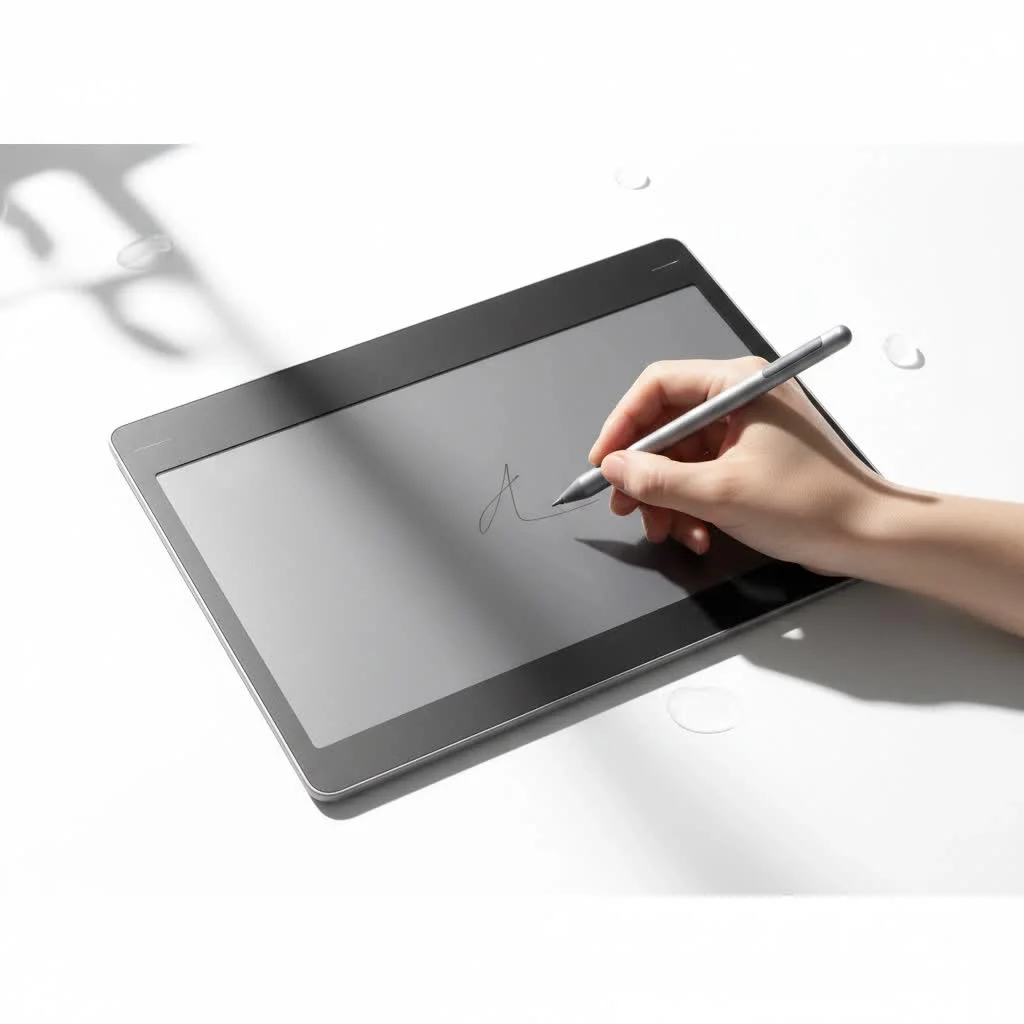
Right out of the box, the Deco 01 V2 makes a strong impression. It feels solid yet is incredibly slim, measuring only 8mm in thickness. This sleek profile makes it highly portable and easy to slip into a backpack alongside your laptop. The tablet boasts a generous 10 x 6.25-inch active drawing area, giving you ample space to work on large-scale projects without feeling cramped. This size is a fantastic balance, providing enough canvas for free-flowing strokes while still being compact enough to fit comfortably on most desks. For complete reviews library on this site.
The drawing surface itself has a matte finish that provides a subtle but satisfying friction, mimicking the feel of drawing on paper. This texture prevents the stylus from slipping, offering better control over your lines. On the side, you’ll find eight customizable shortcut keys. These keys have a firm, tactile click, so you can use them without looking, helping you to maintain focus on your creation. Small corner indicators on the active area light up, a thoughtful touch that lets you know the tablet is connected and ready to go.
The Drawing Experience: A Natural and Responsive Feel
The heart of any graphic tablet is its stylus, and the P05 passive stylus that comes with the Deco 01 V2 is exceptional for its class. Being battery-free is a massive advantage; you never have to worry about charging it or having it die mid-session.
What about pressure and tilt?
The stylus delivers on two crucial professional features: pressure sensitivity and tilt recognition.
- 8,192 Levels of Pressure Sensitivity: This high level of sensitivity allows you to create varying line weights with incredible nuance. Press lightly for thin, delicate lines, and apply more pressure for thick, bold strokes. This responsiveness makes digital drawing feel incredibly intuitive and organic.
- 60-Degree Tilt Support: The ability to tilt the pen to shade is a major upgrade. Just as you would with a real pencil, you can angle the stylus to create broad, soft shading effects. This feature works seamlessly in compatible software like Photoshop or Krita, adding a new layer of depth and realism to your artwork.
The pen itself is lightweight and ergonomically designed with a comfortable rubber grip, reducing hand fatigue during long drawing sessions. It also features a programmable two-button shortcut on the side, typically used for switching between pen and eraser modes.
Boosting Your Workflow: Customizable Express Keys
|
Our Picks for the Best Graphic Tablet in 2026
As an Amazon Associate I earn from qualifying purchases.
|
||
| Num | Product | Action |
|---|---|---|
| 1 | HUION Inspiroy H640P Drawing Tablet, 6x4 inch Digital Art with Battery-Free Stylus, 8192 Pen Pressure, 6 Hot Keys, Graphics Tablet for Drawing, Writing, Design, Teaching, Work with Mac, PC & Mobile |

|
| 2 | HUION Inspiroy H1060P Graphics Drawing Tablet with 8192 Pressure Sensitivity Battery-Free Stylus and 12 Customized Hot Keys, 10 x 6.25 inches Digital Art Tablet for Mac, Windows PC and Android |
|
| 3 | Drawing Tablet for Beginner Graphics OSU Tablet with Battery-Free Stylus 8192 Pressure Sensitive for Digital Art, Painting & Design, Compatible with Windows, Mac OS and Android |
|
| 4 | XOPPOX Graphics Drawing Tablet 10 x 6 Inch Large Active Area with 8192 Levels Battery-Free Pen and 12 Hot Keys, Compatible with PC/Mac/Android OS for Painting, Design & Online Teaching Black |
|
| 5 | Wacom Intuos Pro Medium Bluetooth Professional Graphic Drawing Tablet with Pro Pen 3, Compatible with Mac, Windows - 2025 Edition |
|
| 6 | GAOMON M10K Drawing Tablet, 10x6 inch Large Graphics Tablet with Touch Ring, 8192 Levels Battery-Free Stylus, 10 Hot Keys, Art Tablet for Design, Writing, Editing, Work with Mac, Windows, Android |
|
| 7 | HUION Kamvas 13 (Gen 3) Drawing Tablet with Screen,13.3\" Full-Laminated Art Tablet with Anti-Sparkle Canvas Glass 2.0, 99% sRGB, PenTech 4.0, 16384 Pen Pressure, Dual Dial for PC, Mac, Android, Black |
|
| 8 | HUION KAMVAS Pro 16 Drawing Tablet with Screen, 15.6 inch Pen Display Anti-Glare Glass 6 Shortcut Keys Adjustable Stand, Graphics Tablet for Drawing, Writing, Design, Work with Windows, Mac and Linux |
|
| 9 | Graphics Drawing Tablet, UGEE M708 10 x 6 inch Large Drawing Tablet with 8 Hot Keys, Passive Stylus of 16384 Levels Pressure, UGEE M708 Graphics Tablet for Paint, Design, Art Creation Sketch |
|
| 10 | HUION Drawing Tablet HS610 Graphic Tablet with Battery-Free Stylus 8192 Pen Pressure Tilt Function, 10x6.25 Inches Digital Art for Animation & Design, Compatible with Windows/Mac/Android |
|
Efficiency is key in any creative process, and the eight round express keys on the Deco 01 V2 are designed to streamline your workflow significantly. Using XP-Pen’s driver software, you can easily program these buttons to perform your most-used commands and shortcuts. You could set them to zoom in and out, change brush sizes, undo actions, or switch between tools. By customizing these keys to fit your unique process, you can keep your non-dominant hand on the tablet and your eyes on your work, creating a much faster and more fluid workflow. This level of customization is a feature often found on more expensive models, making its inclusion here a remarkable value.
As longtime digital illustrator David Kensington notes, “A customizable workflow is non-negotiable. The ability to map your most frequent actions to physical keys, like on the Deco 01 V2, cuts down production time immensely. It’s the kind of feature that lets the technology disappear, so it’s just you and your art.”
Getting Started: Setup and Software Compatibility
While the Deco 01 V2 isn’t strictly “plug and play,” the setup process is very straightforward. You’ll need to visit the XP-Pen website to download and install the latest driver for your operating system. The installer guides you through the process, and once it’s complete, you can open the tablet settings to customize the pressure curve, map the work area, and program the shortcut keys.
The tablet offers broad compatibility, working seamlessly with:
- Windows 7, 8, 10, and 11
- Mac OS X 10.10 and above
- Android 6.0 and above (using the included OTG adapters)
- ChromeOS 88 and above
This means you can use it with all major creative software, including Adobe Photoshop, Illustrator, Clip Studio Paint, Krita, GIMP, Blender, and more. The inclusion of OTG (On-The-Go) adapters for Android devices is a fantastic bonus, allowing you to sketch on your phone or tablet when you’re away from your main computer.
Who is the Deco 01 V2 Graphic Tablet Best For?
The XP-Pen Deco 01 V2 is an incredibly versatile tool that caters to a wide range of users. It is an almost perfect choice for beginners who want a high-quality tablet to start their digital art journey without a hefty investment. Its user-friendly design and professional-level features provide plenty of room to grow.
However, its utility extends far beyond aspiring artists. It’s an excellent tool for students and educators involved in remote learning, making it easy to write equations, annotate documents, and create engaging presentations. Graphic designers and photographers will find it useful for photo editing, vector work, and detailed design tasks. While some high-end professionals might miss features like a control wheel or a built-in screen, many will find the Deco 01 V2 to be a more-than-capable primary tablet or a reliable, portable backup.
Frequently Asked Questions (FAQ)
What software comes with the XP-Pen Deco 01 V2?The Deco 01 V2 often comes bundled with free creative software like ArtRage Lite. You need to register your product on the XP-Pen website to redeem the software license.
Can I use the Deco 01 V2 with my Android phone?Yes, the tablet comes with both USB-C and Micro USB OTG adapters, allowing you to connect it to compatible Android phones and tablets for on-the-go drawing in apps like Autodesk Sketchbook or Clip Studio Paint.
How often do the stylus nibs need to be replaced?This depends on your drawing habits and how much pressure you apply. The tablet comes with eight replacement nibs, which should last the average user for a very long time. You’ll know it’s time to change a nib when it becomes sharp or worn down.
Is there a left-handed mode?Yes, the driver software allows you to rotate the tablet’s orientation by 180 degrees, making it perfectly comfortable for left-handed users. The express keys will be on the right side in this configuration.
How does the Deco 01 V2 compare to a Wacom Intuos?The Deco 01 V2 offers a larger drawing area and similar pressure sensitivity to the comparable Wacom Intuos model but at a more affordable price point. While Wacom is a legendary brand, XP-Pen provides highly competitive features and excellent value for money, making the Deco 01 V2 a very strong alternative.
The Final Verdict: Exceptional Value for Aspiring Creators
The XP-Pen Deco 01 V2 graphic tablet is a standout device that proves you don’t need to spend a fortune for a high-quality drawing experience. It masterfully combines a large, comfortable drawing area with a precise, battery-free stylus and workflow-enhancing shortcut keys. Its build quality, ease of use, and broad compatibility make it an incredibly reliable tool for a wide range of creative and professional tasks.
Whether you are just beginning your journey into digital art or are a seasoned professional looking for a portable and affordable workhorse, the Deco 01 V2 is a fantastic investment. It delivers on its promises and provides a platform where your creativity can truly flourish.
Frequently Asked Questions
What software is included with the XP-Pen Deco 01 V2 graphic tablet?
The Deco 01 V2 often comes bundled with free creative software such as ArtRage Lite. Users need to register their product on the XP-Pen website to redeem the software license and access these complimentary programs.
Can the XP-Pen Deco 01 V2 be used with Android smartphones and tablets?
Yes, the Deco 01 V2 is compatible with Android devices. It includes both USB-C and Micro USB OTG adapters, allowing seamless connection to compatible Android phones and tablets for drawing in apps like Autodesk Sketchbook or Clip Studio Paint.
How frequently do the stylus nibs on the Deco 01 V2 need to be replaced?
The frequency of stylus nib replacement depends on individual drawing habits and pressure application. The tablet comes with eight replacement nibs, which typically last the average user for a very long time. Nibs should be changed when they become sharp or noticeably worn down.
Does the XP-Pen Deco 01 V2 graphic tablet support left-handed users?
Yes, the Deco 01 V2 driver software includes a left-handed mode. This feature allows users to rotate the tablet's orientation by 180 degrees, ensuring comfortable use for left-handed individuals with the express keys positioned on the right side.
How does the XP-Pen Deco 01 V2 compare to a Wacom Intuos tablet?
The Deco 01 V2 offers a larger drawing area and similar pressure sensitivity (8,192 levels) compared to a comparable Wacom Intuos model, but at a more affordable price point. While Wacom is a well-established brand, XP-Pen provides competitive features and excellent value, making the Deco 01 V2 a strong alternative.
Get our weekly buyer guide
Practical specs, not advice. Unsubscribe anytime.
The XP-Pen Deco 01 V2 is decent for the cost, especially with the large drawing area. I appreciate the build quality, it feels pretty sturdy. However, I found the express keys a bit stiff to press initially, which slowed down my workflow a little. They’ve loosened up somewhat with use, but it was a noticeable hurdle at first. Good for casual use, but maybe not for heavy professional work right out of the box.
I was looking for a portable tablet that wouldn’t compromise on features, and the XP-Pen Deco 01 V2 delivered. Its slim 8mm thickness is amazing; it slips right into my laptop bag without adding any bulk. The 60-degree tilt support has also been super helpful for my calligraphy-style illustrations. It’s a versatile device that handles everything I throw at it.
I’ve been using the XP-Pen Deco 01 V2 for a few weeks now, and it’s truly impressive for the price. The 10 x 6.25-inch active drawing area is perfect for my digital paintings, giving me so much room to work without constantly zooming in and out. The battery-free stylus is a game-changer too; I never have to worry about it dying in the middle of a project. Highly recommend for anyone looking for a solid tablet without breaking the bank.
As a beginner in digital art, the Deco 01 V2 has been a fantastic entry point. The 8,192 levels of pressure sensitivity really make a difference in how my lines come out, allowing for a lot of nuance. My only minor gripe is that the surface can feel a little too smooth sometimes, making it a bit slippery with certain strokes. Still, for the features it offers, it’s an excellent value.