Choosing the right tablet and stylus for graphic design involves understanding three main types: pen tablets (non-screen), pen displays (with screen), and all-in-one tablet computers. Key features to consider include pressure sensitivity (ideally 8,192 levels for professionals), resolution (at least 2,540 LPI), active area size, and stylus features like tilt support and customizable buttons. For beginners, a non-screen pen tablet like a Wacom Intuos is recommended, while professionals often benefit from high-end pen displays such as the Wacom Cintiq Pro series or portable options like the iPad Pro.
What is a Graphic Design Tablet?
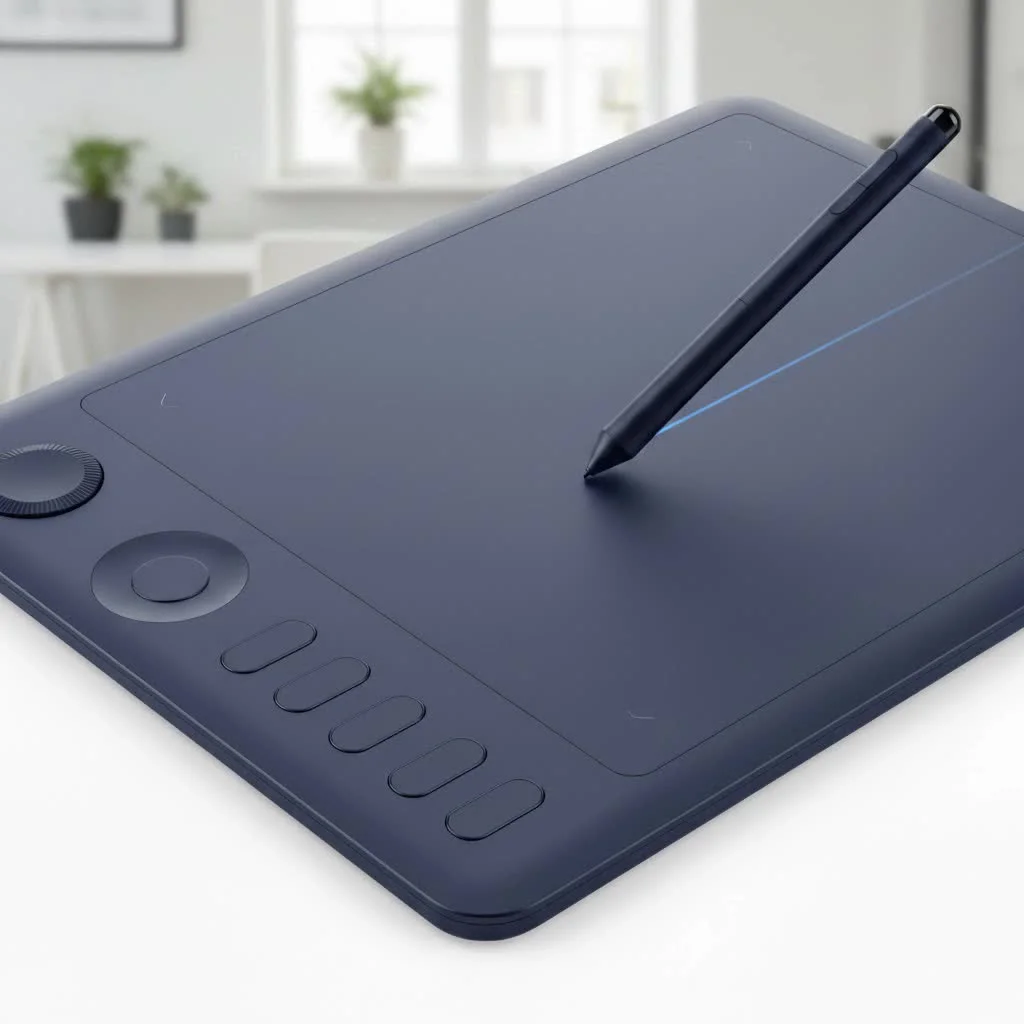
A graphic design tablet is a specialized computer input device that allows you to draw or write on its surface with a stylus, with your strokes appearing on your computer screen or the tablet’s integrated display. It’s designed to mimic the natural feeling of drawing on paper, offering pressure sensitivity and precision that a standard mouse simply can’t match. For any serious digital artist, a quality tablet and stylus for graphic design isn’t just a tool; it’s an extension of your hand. For best reviews roundups on this site.
There are three main types of tablets to consider, each with its own pros and cons.
1. Pen Tablets (Non-Screen)
These are the classic, most affordable entry point. You draw on the tablet’s blank surface while looking up at your computer monitor.
- Best for: Beginners, budget-conscious artists, and those who prefer a disconnected drawing experience.
- Pros: Highly affordable, durable, and great for developing hand-eye coordination.
- Cons: The learning curve can be steep due to the disconnect between your hand and the screen.
2. Pen Displays (With Screen)
These tablets have a built-in screen, allowing you to see what you’re drawing directly under your stylus.
- Best for: Intermediate to professional artists who want a direct and intuitive drawing experience.
- Pros: A natural drawing feel, similar to working on paper. Increased efficiency and accuracy.
- Cons: Significantly more expensive than pen tablets and often bulkier, requiring a dedicated workspace.
3. All-in-One Tablet Computers
These are powerful, standalone computers like the Apple iPad Pro or Microsoft Surface Pro that have been optimized for creative work with a compatible stylus.
- Best for: Artists who need portability and the flexibility of a full computer in one device.
- Pros: Excellent portability, versatile for tasks beyond drawing, and often feature high-quality displays.
- Cons: The most expensive option, and you may need to purchase the stylus separately. Glass screens can feel slippery compared to the textured surfaces of dedicated drawing tablets.
Key Features to Consider in a Tablet and Stylus
When you’re ready to invest in a tablet and stylus for graphic design, a few key technical specifications will determine its performance. Don’t get lost in the jargon; here’s what truly matters.
Pressure Sensitivity
|
Our Picks for the Best Graphic Tablet in 2026
As an Amazon Associate I earn from qualifying purchases.
|
||
| Num | Product | Action |
|---|---|---|
| 1 | HUION Kamvas 13 (Gen 3) Drawing Tablet with Screen,13.3\" Full-Laminated Art Tablet with Anti-Sparkle Canvas Glass 2.0, 99% sRGB, PenTech 4.0, 16384 Pen Pressure, Dual Dial for PC, Mac, Android, Black |

|
| 2 | HUION KAMVAS Pro 16 Drawing Tablet with Screen, 15.6 inch Pen Display Anti-Glare Glass 6 Shortcut Keys Adjustable Stand, Graphics Tablet for Drawing, Writing, Design, Work with Windows, Mac and Linux |
|
| 3 | GAOMON M10K Drawing Tablet, 10x6 inch Large Graphics Tablet with Touch Ring, 8192 Levels Battery-Free Stylus, 10 Hot Keys, Art Tablet for Design, Writing, Editing, Work with Mac, Windows, Android |
|
| 4 | Graphics Drawing Tablet, UGEE M708 10 x 6 inch Large Drawing Tablet with 8 Hot Keys, Passive Stylus of 16384 Levels Pressure, UGEE M708 Graphics Tablet for Paint, Design, Art Creation Sketch |
|
| 5 | HUION Drawing Tablet HS610 Graphic Tablet with Battery-Free Stylus 8192 Pen Pressure Tilt Function, 10x6.25 Inches Digital Art for Animation & Design, Compatible with Windows/Mac/Android |
|
| 6 | Wacom Intuos Pro Medium Bluetooth Professional Graphic Drawing Tablet with Pro Pen 3, Compatible with Mac, Windows - 2025 Edition |
|
| 7 | HUION Inspiroy H1060P Graphics Drawing Tablet with 8192 Pressure Sensitivity Battery-Free Stylus and 12 Customized Hot Keys, 10 x 6.25 inches Digital Art Tablet for Mac, Windows PC and Android |
|
| 8 | XOPPOX Graphics Drawing Tablet 10 x 6 Inch Large Active Area with 8192 Levels Battery-Free Pen and 12 Hot Keys, Compatible with PC/Mac/Android OS for Painting, Design & Online Teaching Black |
|
| 9 | Drawing Tablet for Beginner Graphics OSU Tablet with Battery-Free Stylus 8192 Pressure Sensitive for Digital Art, Painting & Design, Compatible with Windows, Mac OS and Android |
|
| 10 | HUION Inspiroy H640P Drawing Tablet, 6x4 inch Digital Art with Battery-Free Stylus, 8192 Pen Pressure, 6 Hot Keys, Graphics Tablet for Drawing, Writing, Design, Teaching, Work with Mac, PC & Mobile |
|
Pressure sensitivity, measured in levels, dictates how the tablet interprets the force you apply with the stylus. More levels mean you have finer control over line weight and opacity—press lightly for a thin line, harder for a thick one.
- Entry-Level: Around 2,048 levels is sufficient for beginners.
- Professional Standard: Most modern tablets offer 8,192 levels, providing incredibly nuanced control.
Resolution (LPI)
Lines Per Inch (LPI) is the resolution of the tablet’s drawing surface. A higher LPI means the tablet can recognize more detail and produce smoother, more precise lines, which is crucial for high-resolution artwork. Look for tablets with at least 2,540 LPI, though professional models often exceed 5,080 LPI.
Active Area
The active area is the part of the tablet’s surface that you can actually draw on. A larger active area gives you more room to make broad, sweeping strokes, but it also takes up more desk space. Your ideal size depends on your workflow and monitor size. A good rule of thumb is to match the tablet’s aspect ratio to your monitor’s to avoid distortion.
The Stylus: It’s All in the Pen
The stylus is just as important as the tablet itself. Look for one that is ergonomic and feels comfortable in your hand. Most modern styluses are battery-free, using EMR (Electro-Magnetic Resonance) technology, so you never have to worry about charging them. Other features to check for include:
- Tilt Support: This allows the tablet to recognize the angle of your stylus, enabling you to create calligraphic or shaded effects, much like a real pencil or brush.
- Customizable Buttons: Side buttons on the stylus can be programmed as shortcuts for common functions like right-clicking, erasing, or switching tools.
As digital art instructor David Chen always says, “The best stylus is the one you forget you’re holding. It should feel so natural that nothing stands between your creative thought and the digital canvas.”
Which Type of Tablet is Right for You?
Choosing the right tablet depends heavily on your budget, experience level, and creative needs.
For the Absolute Beginner
If you’re just starting and aren’t sure if digital art is for you, a non-screen pen tablet is the perfect choice. Models from Wacom’s Intuos line or competitors like Huion and XP-Pen offer fantastic value without breaking the bank. They provide all the core functionality you need to learn the fundamentals.
For the Serious Hobbyist or Student
If you’re committed to digital art and want a more intuitive workflow, a pen display is a worthwhile upgrade. You’ll find that drawing directly on the screen dramatically speeds up your process. The Wacom One or XP-Pen Artist series are excellent mid-range options that deliver a professional experience at a more accessible price point.
For the Professional Designer
For professionals, investing in a high-end pen display or a powerful tablet computer is essential. The large, color-accurate screens of the Wacom Cintiq Pro series are an industry standard for a reason. Alternatively, the portability and power of an iPad Pro with an Apple Pencil or a Microsoft Surface Pro make them top contenders for artists who work on the go.
Frequently Asked Questions (FAQ)
Can I use an iPad for professional graphic design?Absolutely. The iPad Pro, combined with the Apple Pencil 2 and apps like Procreate or Adobe Fresco, has become a powerhouse tool for many professional illustrators and designers. Its display quality and responsive stylus make it a top-tier choice.
Do I need a screen protector for my drawing tablet?For pen displays and tablet computers, a matte screen protector is highly recommended. It not only protects the glass from scratches but also adds a paper-like texture, which many artists find more comfortable and controlled to draw on.
What is the main difference between Wacom and other brands like Huion or XP-Pen?Wacom has long been the industry leader, known for its premium build quality, driver stability, and modern technology, which often comes at a higher price. Brands like Huion and XP-Pen have emerged as strong competitors, offering similar features and performance at a much more affordable price point, making them excellent alternatives.
How long does a graphic tablet last?A well-cared-for graphic tablet can last for many years. Pen tablets, having no screen, are particularly durable and can easily last over a decade. The lifespan of a pen display is more akin to that of a computer monitor, typically lasting anywhere from 5 to 10 years or more depending on usage.
Is a larger tablet always better?Not necessarily. While a large tablet provides more drawing space, it can also lead to more arm fatigue. A smaller tablet is more portable and may be more ergonomic for some artists who prefer drawing from the wrist. It often comes down to personal preference and the type of work you do.
Your Next Step in Digital Creation
Choosing the right tablet and stylus for graphic design is a personal journey, but it’s one of the most exciting investments you can make in your creative future. By understanding the key features like pressure sensitivity and resolution, and by honestly assessing your own needs and budget, you can find a tool that will not only meet your demands but inspire you to create your best work yet. So, take your time, do your research, and get ready to bring your imagination to life.
Frequently Asked Questions
Can an iPad be used for professional graphic design work?
Yes, the iPad Pro, especially with the Apple Pencil 2 and apps like Procreate or Adobe Fresco, is a powerful tool for many professional illustrators and designers. Its high-quality display and responsive stylus make it a top-tier choice for creative work.
Is a screen protector necessary for a drawing tablet?
For pen displays and tablet computers, a matte screen protector is highly recommended. It protects the glass from scratches and adds a paper-like texture, which many artists find more comfortable and controlled for drawing.
What are the key differences between Wacom and other brands like Huion or XP-Pen?
Wacom is an industry leader known for premium build quality, driver stability, and advanced technology, often at a higher price point. Brands like Huion and XP-Pen offer similar features and performance at more affordable prices, making them excellent alternatives for many artists.
How long can a graphic tablet typically last with regular use?
A well-maintained graphic tablet can last for many years. Pen tablets, without screens, are particularly durable and can easily last over a decade. Pen displays typically have a lifespan similar to computer monitors, ranging from 5 to 10 years or more.
Is a larger active drawing area always better for a graphic tablet?
Not necessarily. While a large tablet provides more drawing space, it can also lead to increased arm fatigue. A smaller tablet is more portable and may be more ergonomic for artists who prefer drawing from the wrist, making it a matter of personal preference and workflow.
Get our weekly buyer guide
Practical specs, not advice. Unsubscribe anytime.

I recently upgraded to a pen display, and the difference is night and day. Having the screen to draw directly on makes such a huge impact on workflow. I was hesitant about the investment, but for professional work, it’s totally worth it. The 8,192 levels of pressure sensitivity really shine through.
I picked up an all-in-one tablet computer, hoping for the best of both worlds. While it’s great for portability, I’ve found the active area size a bit restrictive for larger projects. It’s fine for quick sketches, but for intricate graphic design, I sometimes wish I had more room to move my hand. Still, it’s a decent option if you need something truly mobile.
The breakdown of pen tablets vs. pen displays was super helpful. I was torn between a Wacom Cintiq Pro and an iPad Pro, and understanding the nuances of each really clarified my decision. The focus on stylus features like tilt support was also a key factor for me. Very happy with my choice!
I’ve been using a Wacom Intuos for years, and it’s exactly as described for beginners. The non-screen pen tablet was perfect for me to learn on without breaking the bank. The pressure sensitivity is surprisingly good, even for detailed work. Definitely a solid recommendation for anyone starting out in digital art.